

Hosted MCP server
Overview
The ElevenLabs hosted MCP server is a remote Model Context Protocol (MCP) server that exposes agent management tools to AI assistants. Once connected, an assistant such as Claude can create, configure, and manage the agents in your workspace through natural language, with nothing to install or run locally.
The server is available at:
Authentication uses OAuth. When you connect, you sign in with your ElevenLabs account and grant the assistant scoped access to your workspace. No API keys are copied into the client.
Looking to give your ElevenLabs agent access to external MCP servers instead? See the MCP integration guide.
Connect from Claude Desktop
The hosted MCP server is published in the Claude Desktop directory.
Data residency regions
The connector in the Claude directory and the default server URL connect to the global environment. If your workspace is in an isolated data residency environment, add a custom connector that points at your region’s URL instead:
Isolated environments are separate workspaces with separate accounts. When the OAuth flow starts, sign in with your account for that environment, not your elevenlabs.io account.
Add a custom connector in Claude
Open the connector menu
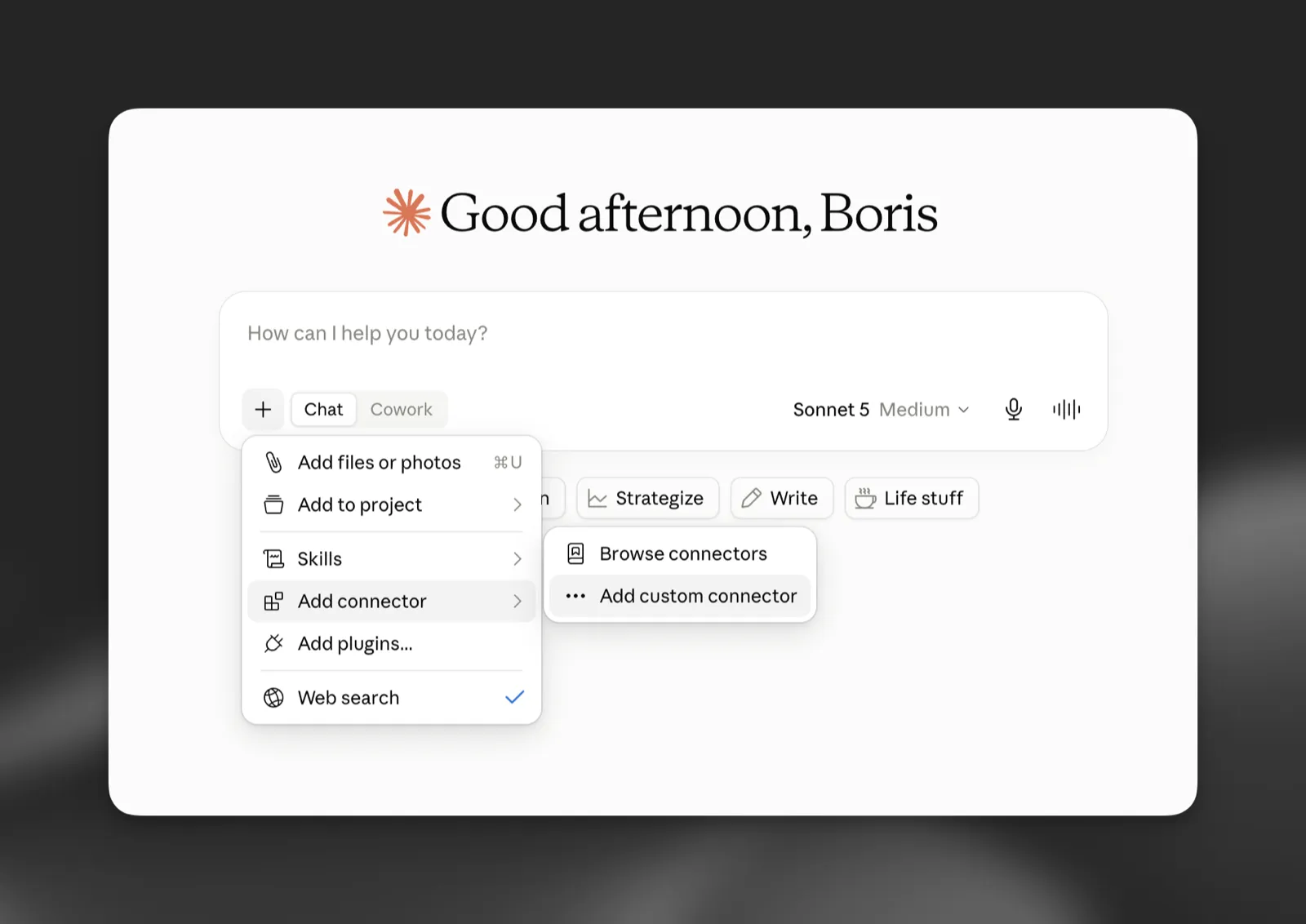
In a new chat, select the + button, then Add connector > Add custom connector. You can also add connectors from Settings > Connectors.
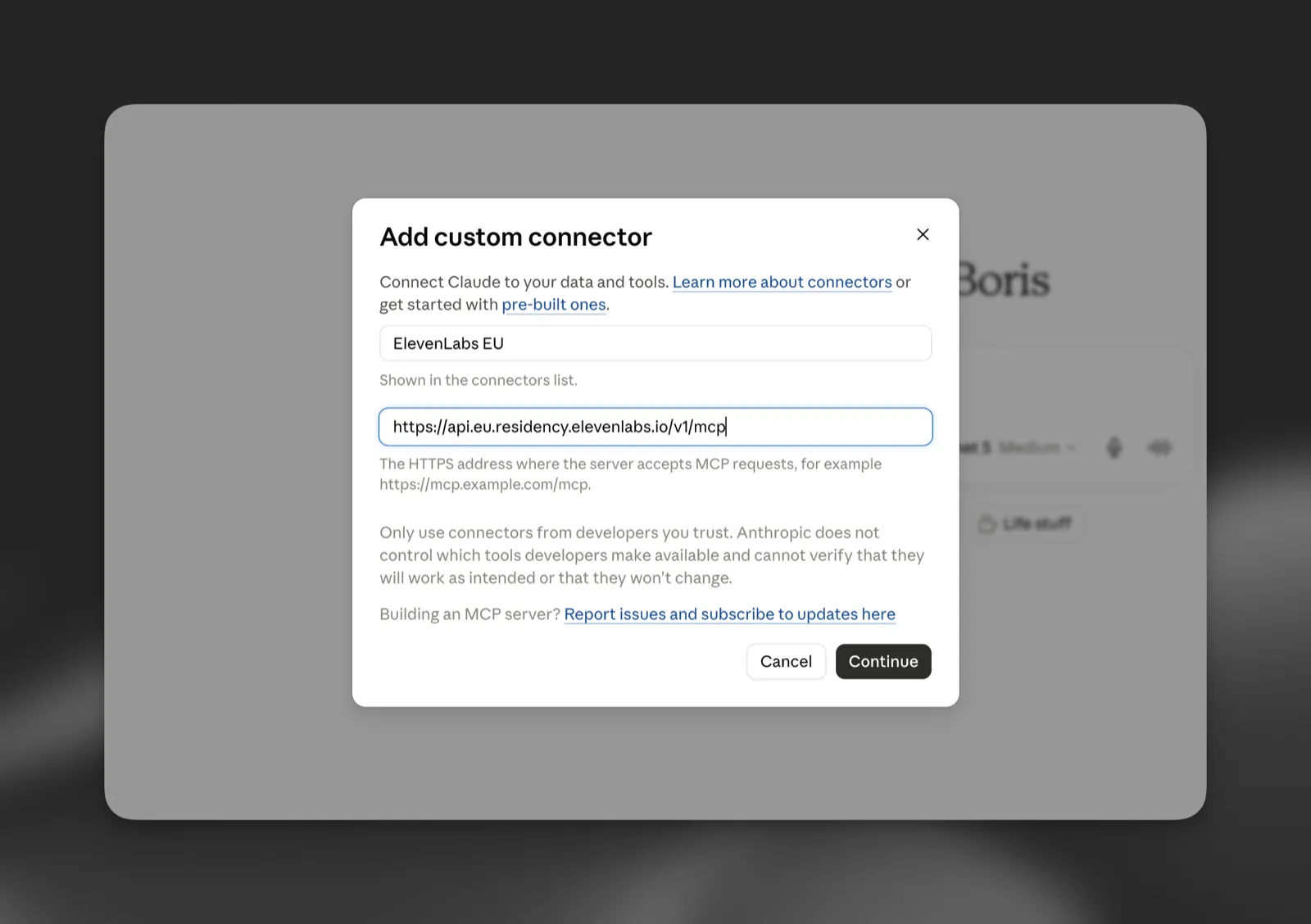
Enter a name and your region's URL
Name the connector so the region is clear, for example “ElevenLabs EU”, and enter your region’s MCP server URL. Select Continue.
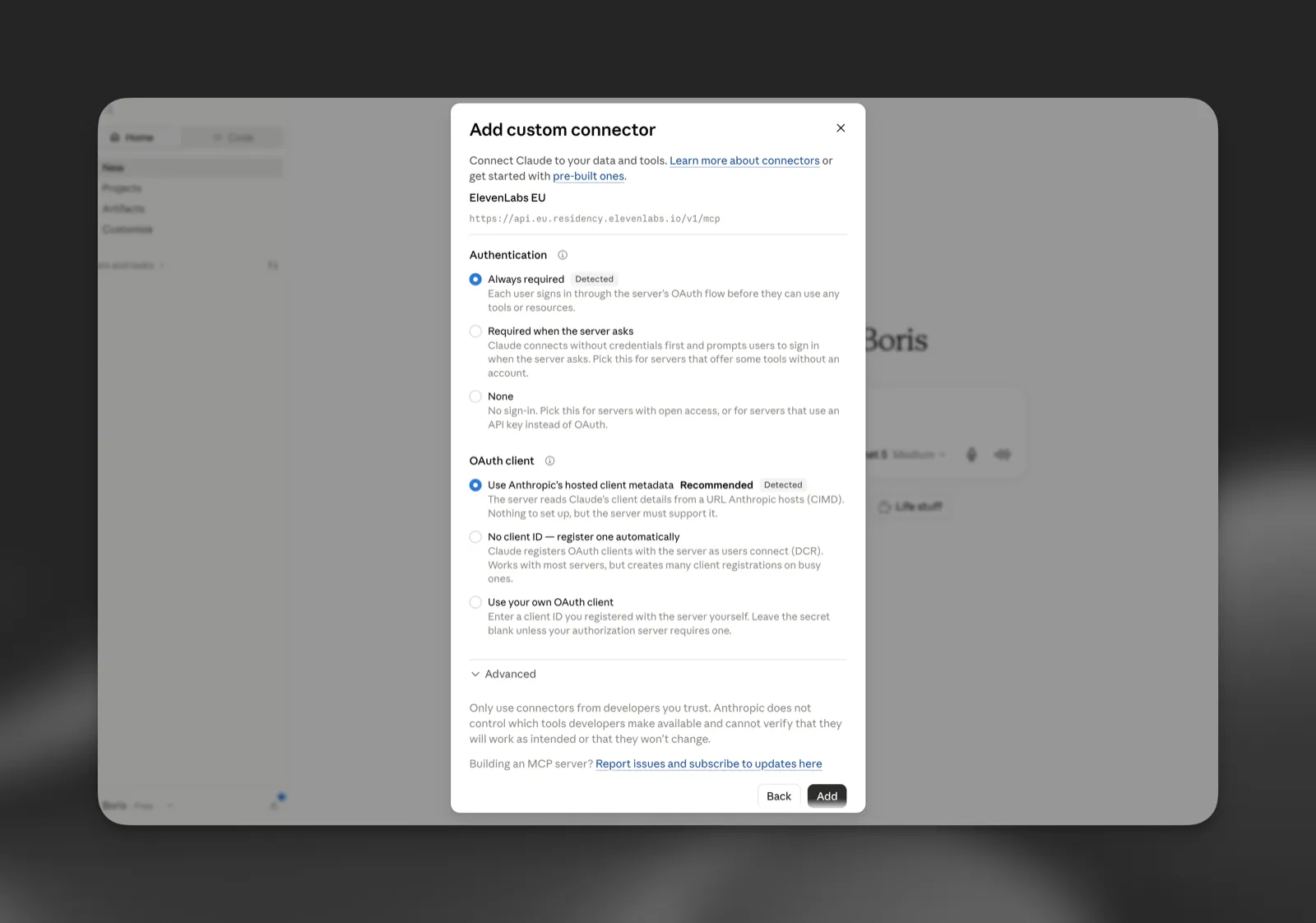
Other MCP clients work the same way: point the client at your region’s server URL and complete the OAuth flow. No client registration is needed for clients that support hosted client metadata (CIMD).
What you can do
Once connected, your assistant can:
- Create new agents by describing what you want
- Update any agent setting, including the system prompt, voice, language, and first message
- List your agents and inspect or compare their configurations
- Review an agent’s recent conversations, read full transcripts, and search across them
- Explore the topics your agents’ conversations cover
- Manage procedures, tools, MCP servers, and knowledge base documents
- Create, run, and review tests
- Work with branches, drafts, traffic deployments, and merge proposals
- Read and update triage tickets
- Duplicate and delete agents
- Estimate an agent’s expected LLM usage and cost before making changes
- Retrieve an agent’s widget configuration and shareable link
- Generate speech audio from text, returned as a short-lived download link
Updating an agent through the MCP server publishes the change directly, on the branch the
assistant targets or on main by default. It isn’t staged in a draft the way changes from the
in-app ElevenAgents Architect are.
Example prompts
Once connected, try prompts like:
- “Create a support agent for my documentation site. It should be friendly, concise, and escalate billing questions.”
- “What would my checkout agent cost per conversation with Gemini 2.5 Flash instead of GPT-4o?”
- “Duplicate my production agent, then change the voice and set the first message to Spanish.”
- “List my agents and tell me which ones still use the default first message.”
- “Generate a sample of my agent’s voice saying our new greeting.”
Permissions
Two layers control what a connected assistant can do: the permissions you grant to ElevenLabs when you connect, and the tool controls in your MCP client.
ElevenLabs permissions
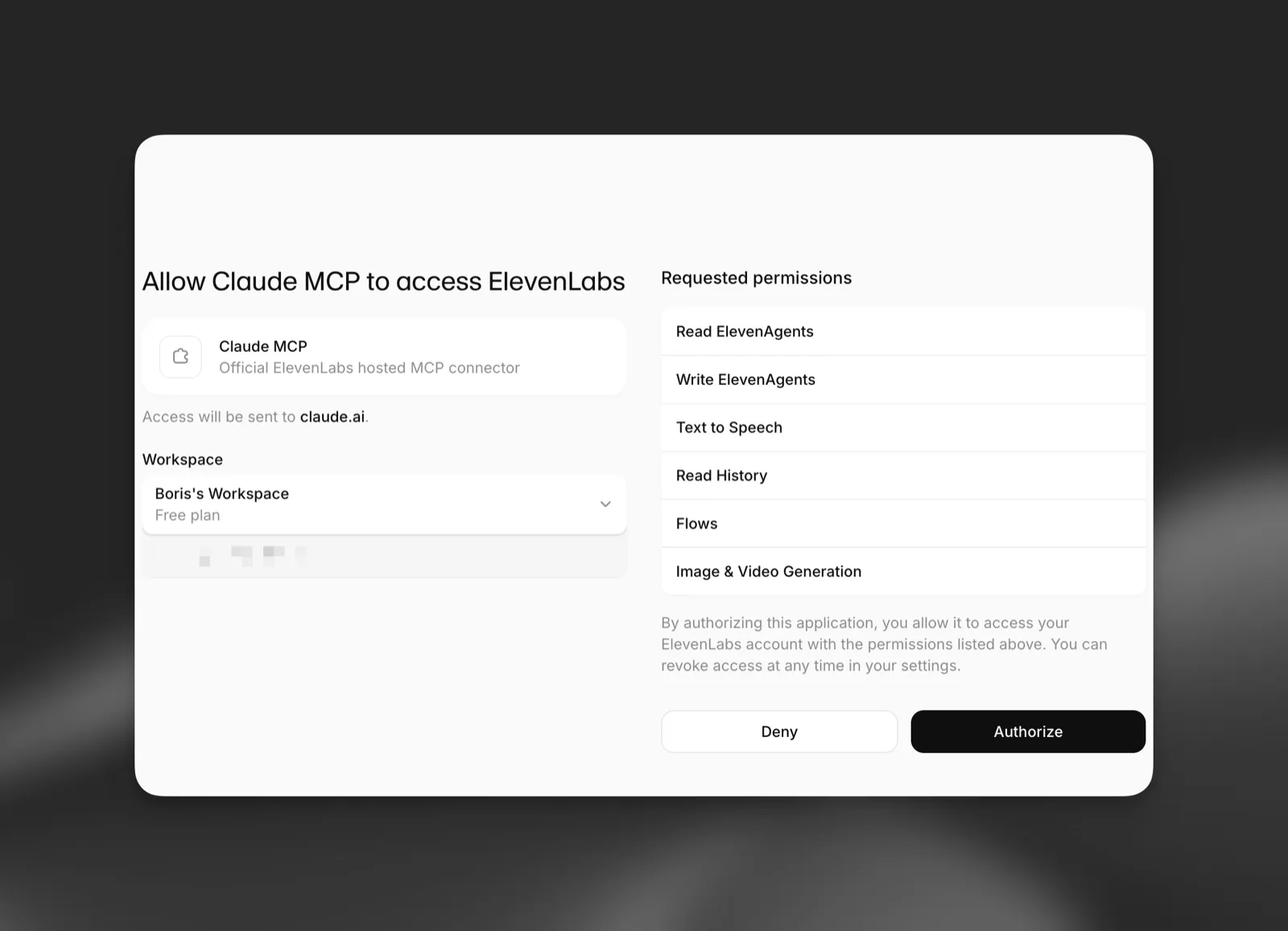
When you connect, the OAuth consent screen lists the permissions the assistant is requesting, such as reading and writing agents. The assistant can only perform actions covered by the permissions you approve, and access is limited to the workspace you sign in with. You can revoke the connection at any time from your MCP client or from your ElevenLabs account settings.
Tool controls in your MCP client
MCP clients such as Claude let you choose which of the connector’s tools the assistant can use and which require your approval before each call. In Claude, open the ElevenLabs connector’s settings to enable or disable individual tools and to set whether a tool runs automatically or asks for confirmation first.
These controls work at two levels. Workspace administrators can configure the connector and its tools for everyone in their organization, and individual users can apply stricter settings for themselves. A tool disabled by an administrator cannot be re-enabled by an individual user.
Security
- Access is scoped by OAuth permissions covering ElevenAgents read and write operations and Text to Speech.
- Deleting an agent is destructive. Review tool calls in your MCP client before approving them, and restrict write access to workspace members who need it.