

Manage documents
Manage your knowledge base from the knowledge base dashboard, the CLI, or the API. For what a knowledge base is and how agents use it, see Knowledge base.
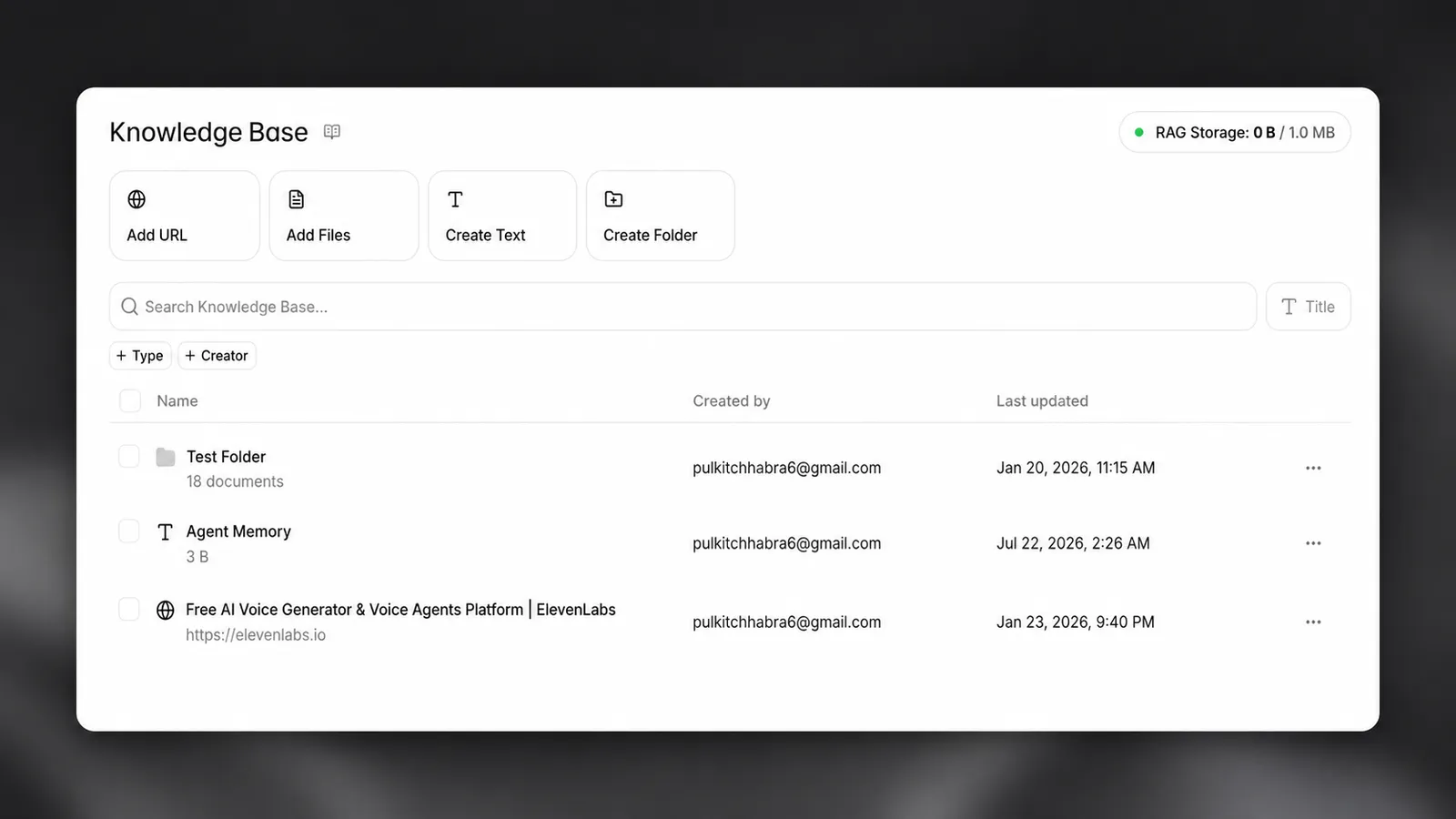
Add documents
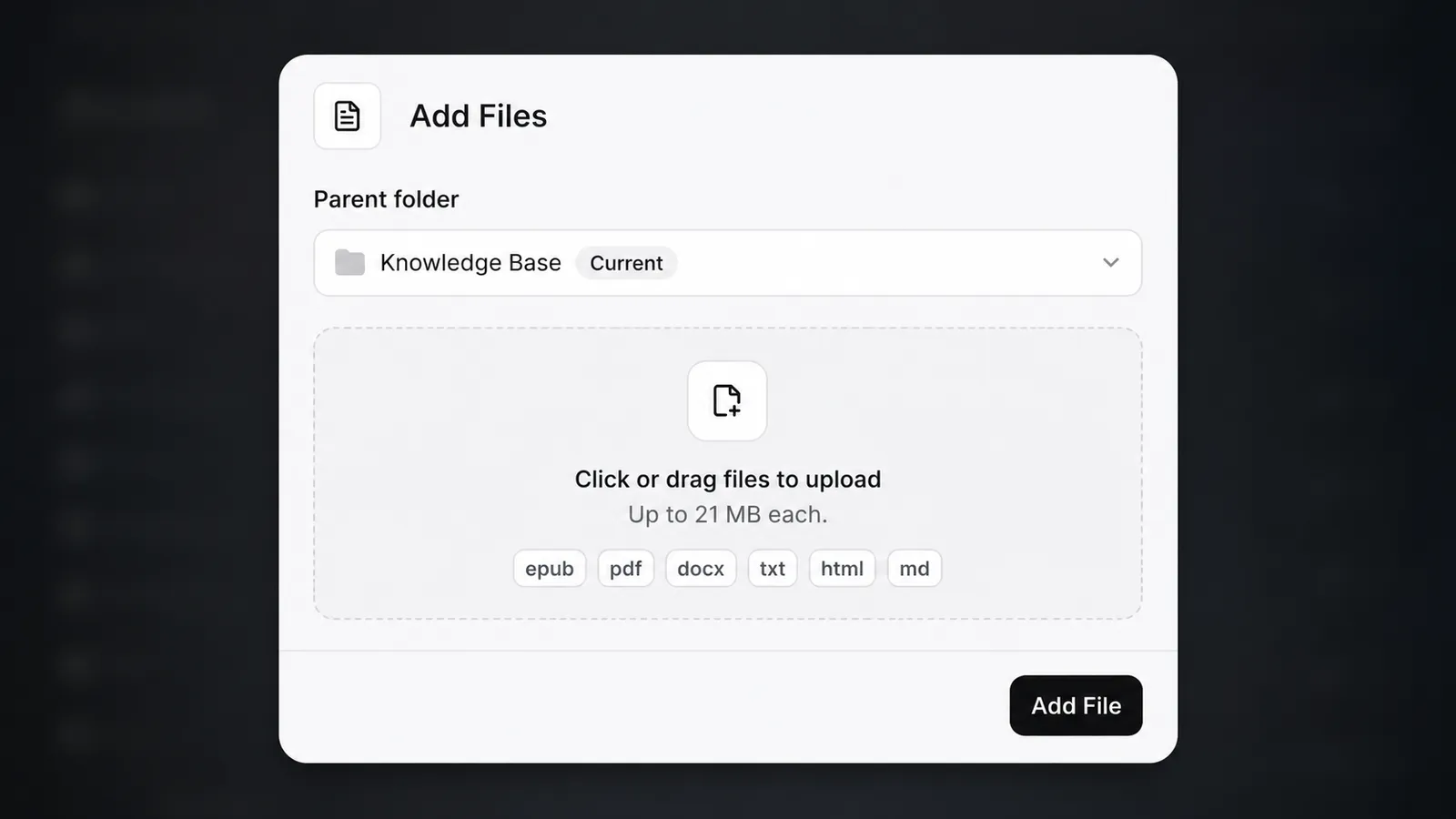
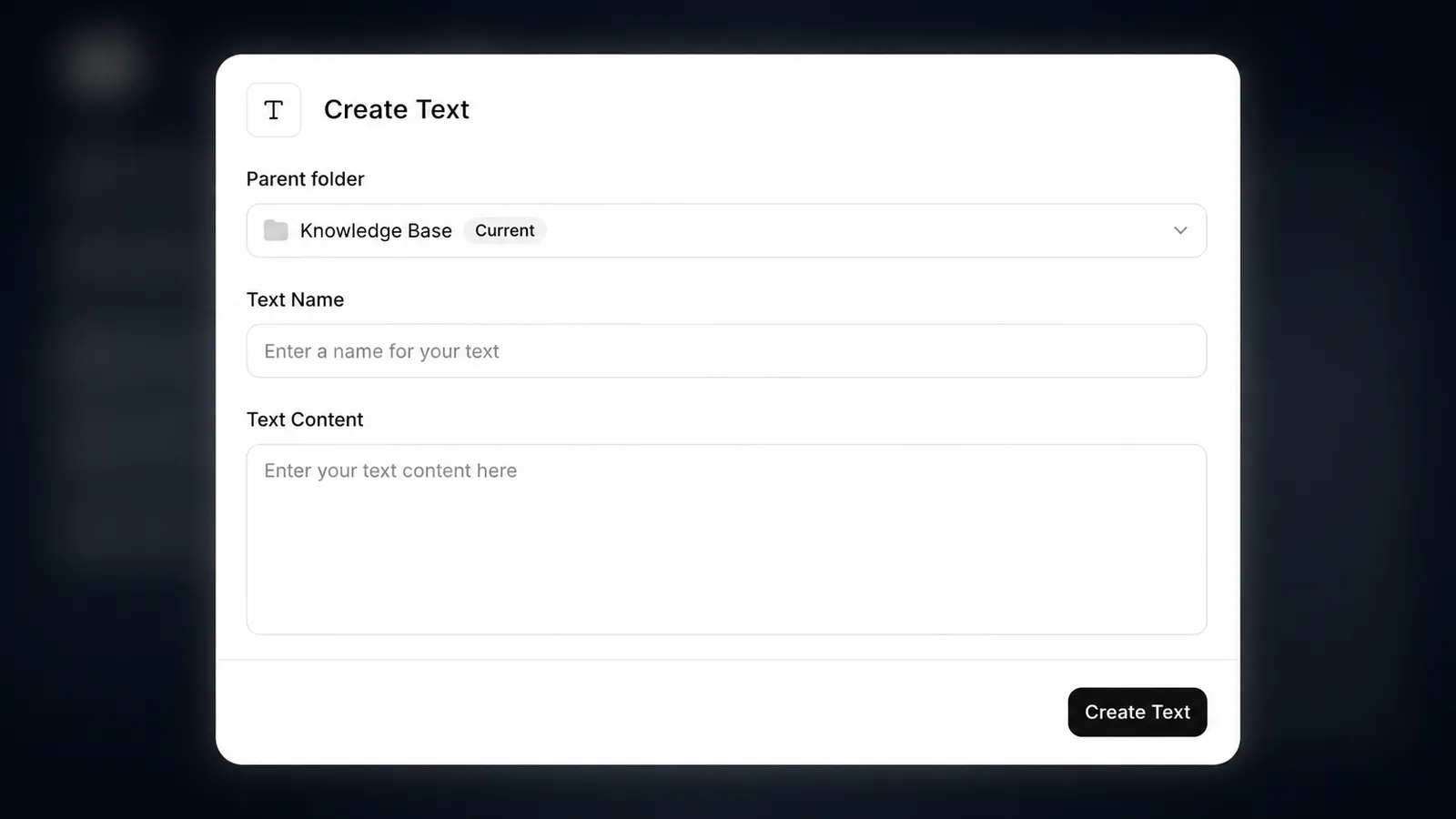
Documents can be created from files, webpages, or plain text. Once created, attach them to an agent to make their contents available in conversations.
Dashboard
CLI
API
From the knowledge base dashboard, or directly from an agent’s configuration, click Add document and choose a source.
URL
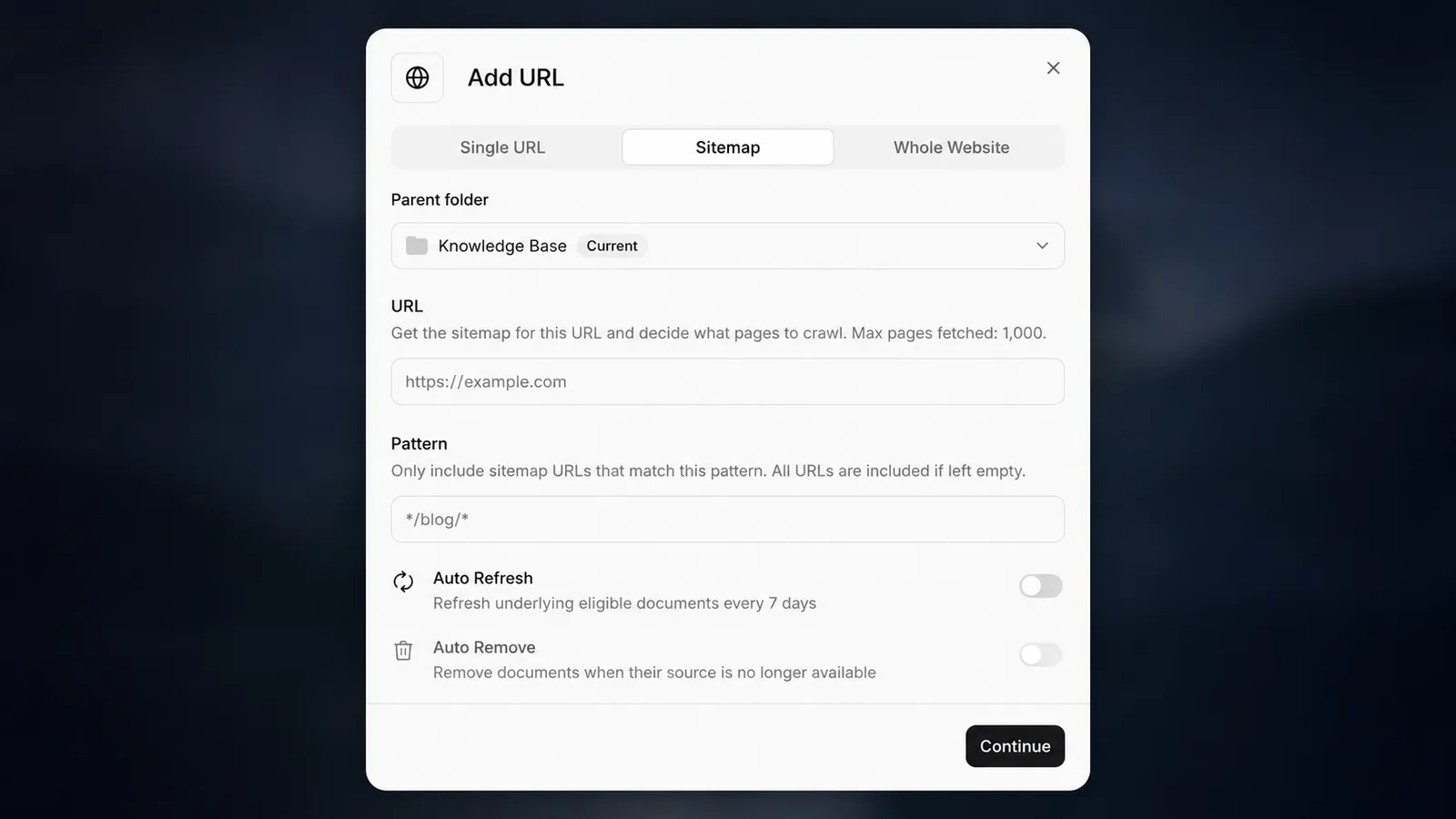
Import a webpage by pasting its URL. To ingest an entire site, use the crawl option — either crawl the whole website by following links from the starting URL, or import pages from the site’s sitemap. If a page fails to import, confirm that your site allows the crawler user agent.
Crawler user agent
URL imports and crawl jobs fetch pages with the user agent ElevenlabsBot/1.0.
If your site sits behind a CDN, WAF, or bot-protection rule, allow this user agent so the crawler can read your pages. When a request is blocked, the document is created but no content can be extracted from it.
The crawler also respects robots.txt. Pages disallowed for ElevenlabsBot or for all user agents are skipped, so check your rules if a page you expect to be indexed is missing. To allow the crawler explicitly:
Add existing documents to an agent
Documents can be reused across agents, so shared knowledge only needs to be maintained once.
- Navigate to the agent’s configuration.
- Find the knowledge base section and click Add document.
- Select an existing document from your knowledge base, or upload a new one.
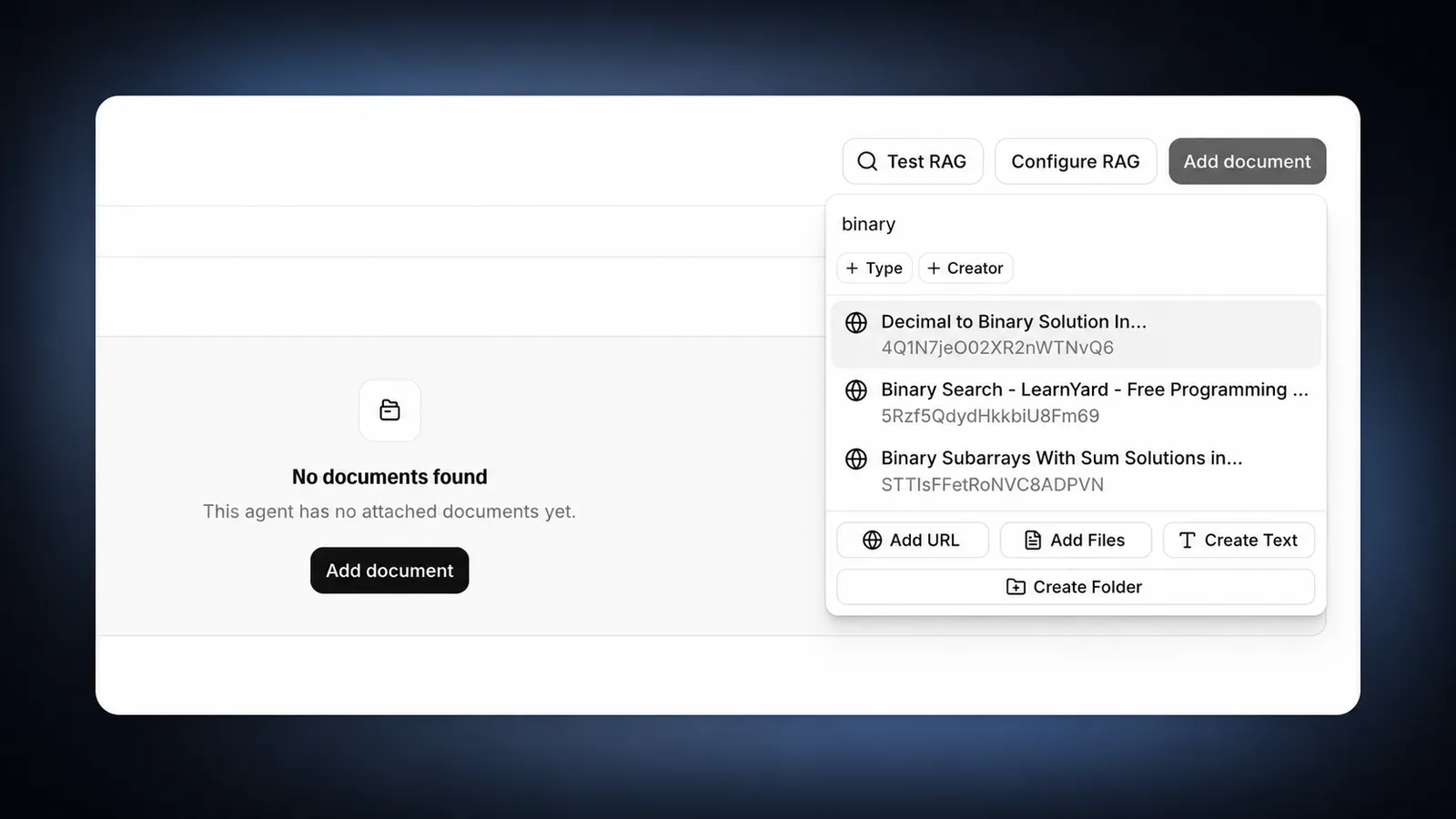
Reusing documents across agents keeps knowledge consistent and avoids duplicating uploads.
Edit documents
You can edit a document’s content directly instead of deleting and re-uploading it. Editing a document automatically regenerates its content-search chunks and RAG embeddings, so search and agent retrieval stay in sync.
- Text and file documents: Edit the content inline and save.
- File documents: Alternatively, replace the underlying file with a new version.
- URL documents: Edit the content when auto-sync is off. When auto-sync is on, the sync cycle manages the document and manual edits are blocked.
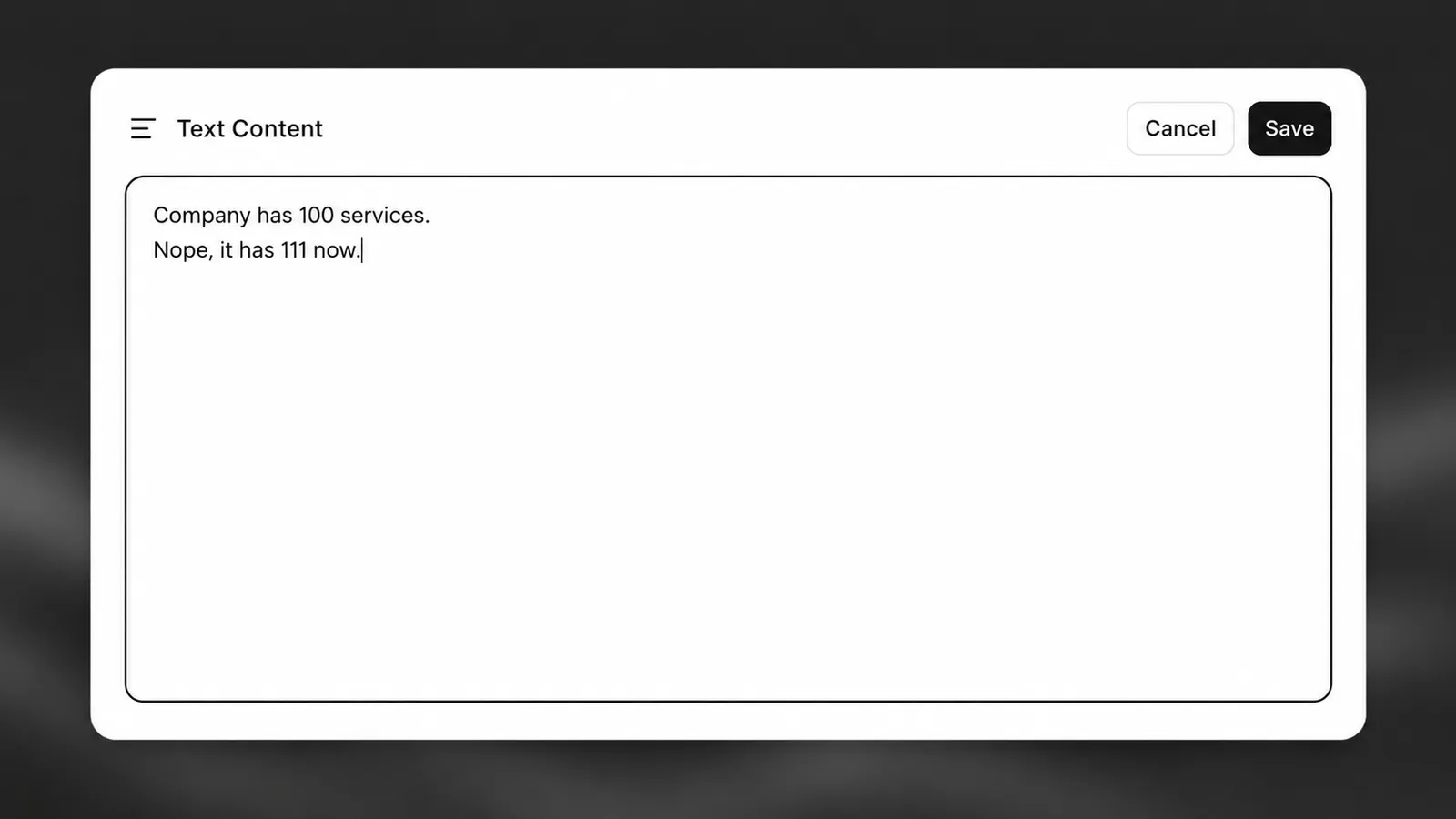
Keep URL content up to date
Documents created from a URL can be refreshed to re-fetch the latest content from their source. Refreshing re-indexes the document so RAG-enabled agents use the updated content.
In the dashboard, you can also enable auto-sync to refresh URL documents automatically on a schedule, so their content stays current without manual updates.
Organize with folders
Folders group related documents so they are easier to manage and attach in bulk. Create a folder, then move documents into it from the dashboard or the API.
A folder attached to an agent makes all of its documents available through RAG, so the agent must have RAG enabled to use folders.
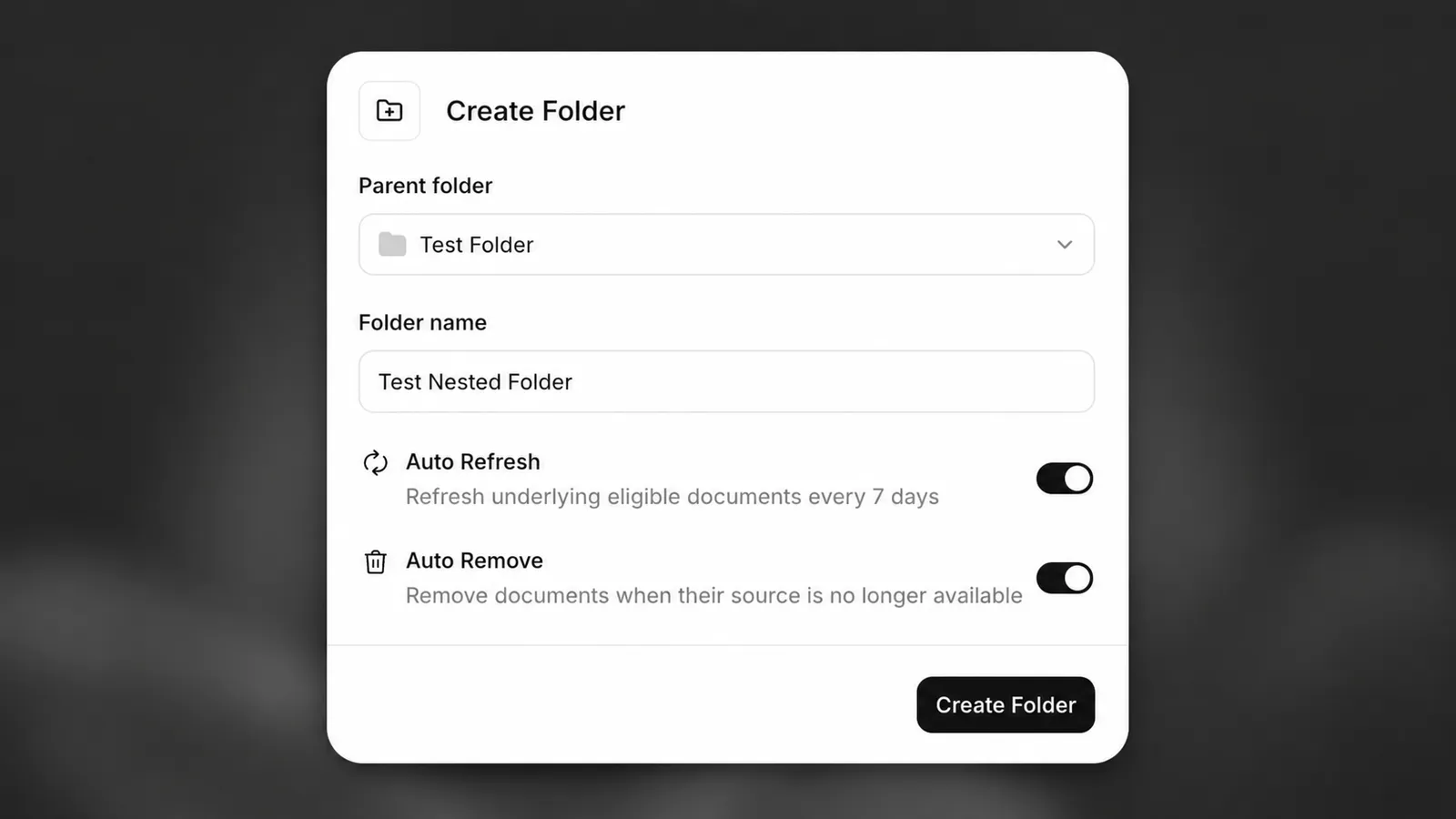
Dependencies and deletion
Each document has a Dependent agents tab that lists the agents currently depending on it.
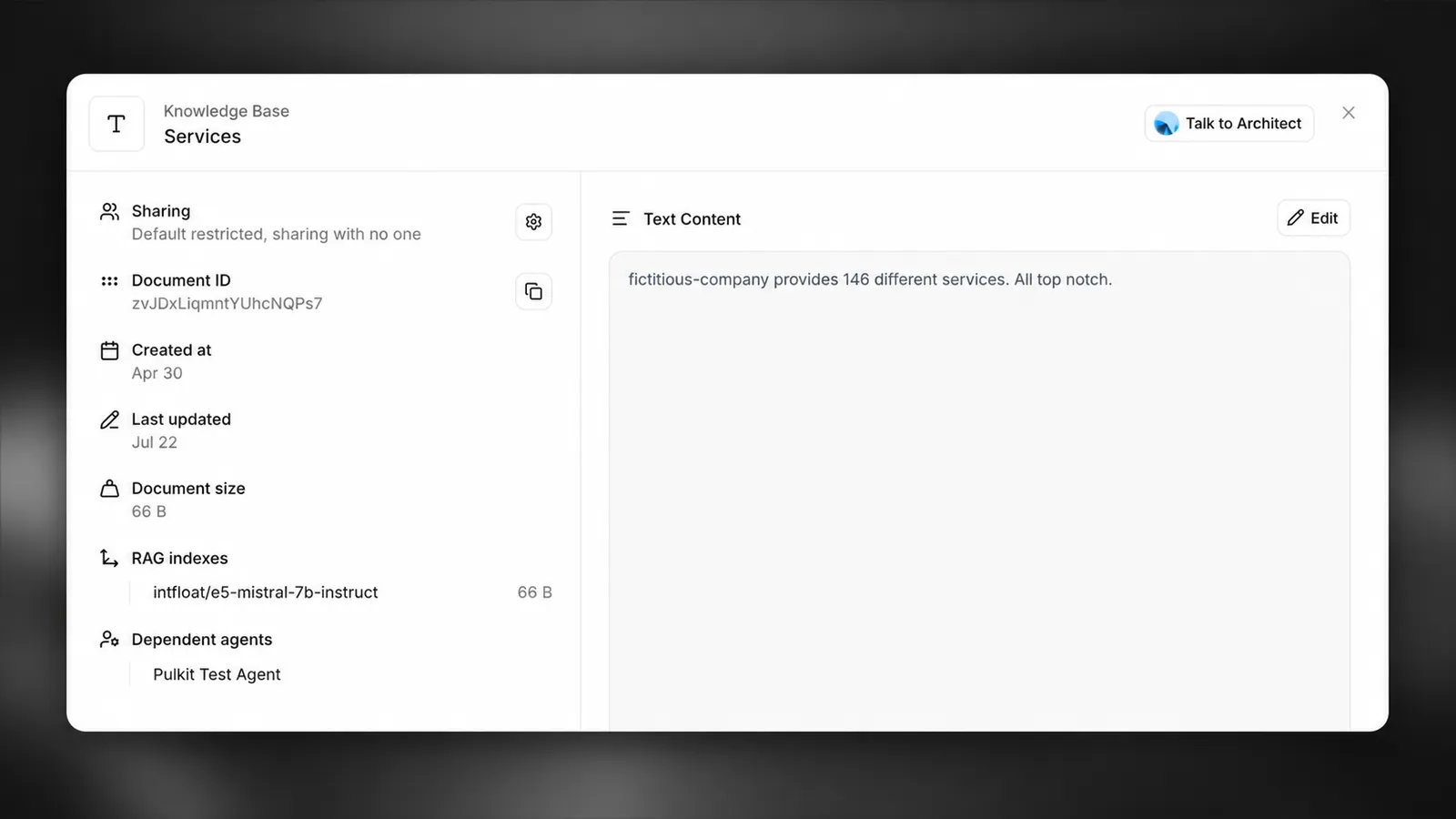
A document cannot be deleted while an agent depends on it. Remove the document from those agents first, or use force deletion to detach it from all dependents at once.