

Overrides
While overrides are still supported for completely replacing system prompts or first messages, we recommend using Dynamic Variables as the preferred way to customize your agent’s responses and inject real-time data. Dynamic Variables offer better maintainability and a more structured approach to personalization.
Overrides enable your assistant to adapt its behavior for each user interaction. You can pass custom data and settings at the start of each conversation, allowing the assistant to personalize its responses and knowledge with real-time context. Overrides completely override the agent’s default values defined in the agent’s dashboard.
Overview
Overrides allow you to modify your AI agent’s behavior in real-time without creating multiple agents. This enables you to personalize responses with user-specific data.
Overrides can be enabled for the following fields in the agent’s security settings:
- System prompt
- First message
- Language
- Voice ID
- LLM (Large Language Model)
- Tools
- Knowledge base
- Text-only mode
- Stability
- Speed
- Similarity boost
- ASR keywords
- Procedures
The Procedures override does not use conversation_config_override. Instead, the client passes procedure_ids and start_procedure_ids at the top level of the conversation initiation client data. See Choose procedures per conversation.
When overrides are enabled for a field, providing an override is still optional. If not provided, the agent will use the default values defined in the agent’s dashboard. For most fields, an error will be thrown if an override is provided when that field does not have overrides enabled.
ASR keywords use soft disallow: if the Security toggle is off and the client still sends
asr.keywords, the conversation continues and the keywords are ignored (no error). Enable the
ASR keywords override in Security settings when you want per-conversation keyword boosting to
apply. Up to 50 keywords are supported per conversation.
Here are a few examples where overrides can be useful:
- Greet users by their name
- Include account-specific details in responses
- Adjust the agent’s language or tone based on user preferences
- Pass real-time data like account balances or order status
- Boost transcription of per-call names or terms (for example CRM company names) via ASR keywords
Overrides are particularly useful for applications requiring personalized interactions or handling sensitive user data that shouldn’t be stored in the agent’s base configuration.
Guide
Prerequisites
- An ElevenLabs account
- A configured ElevenLabs Conversational Agent (create one here)
This guide shows you how to override the default agent System prompt, First message, LLM, Tools, Knowledge base, TTS settings, and ASR keywords.
Enable overrides
For security reasons, overrides are disabled by default. Enable the fields you want to allow overriding, such as first_message, prompt.prompt, prompt.tool_ids, prompt.knowledge_base, language, or asr.keywords.
Update via the dashboard
Update via the CLI
Update via the API
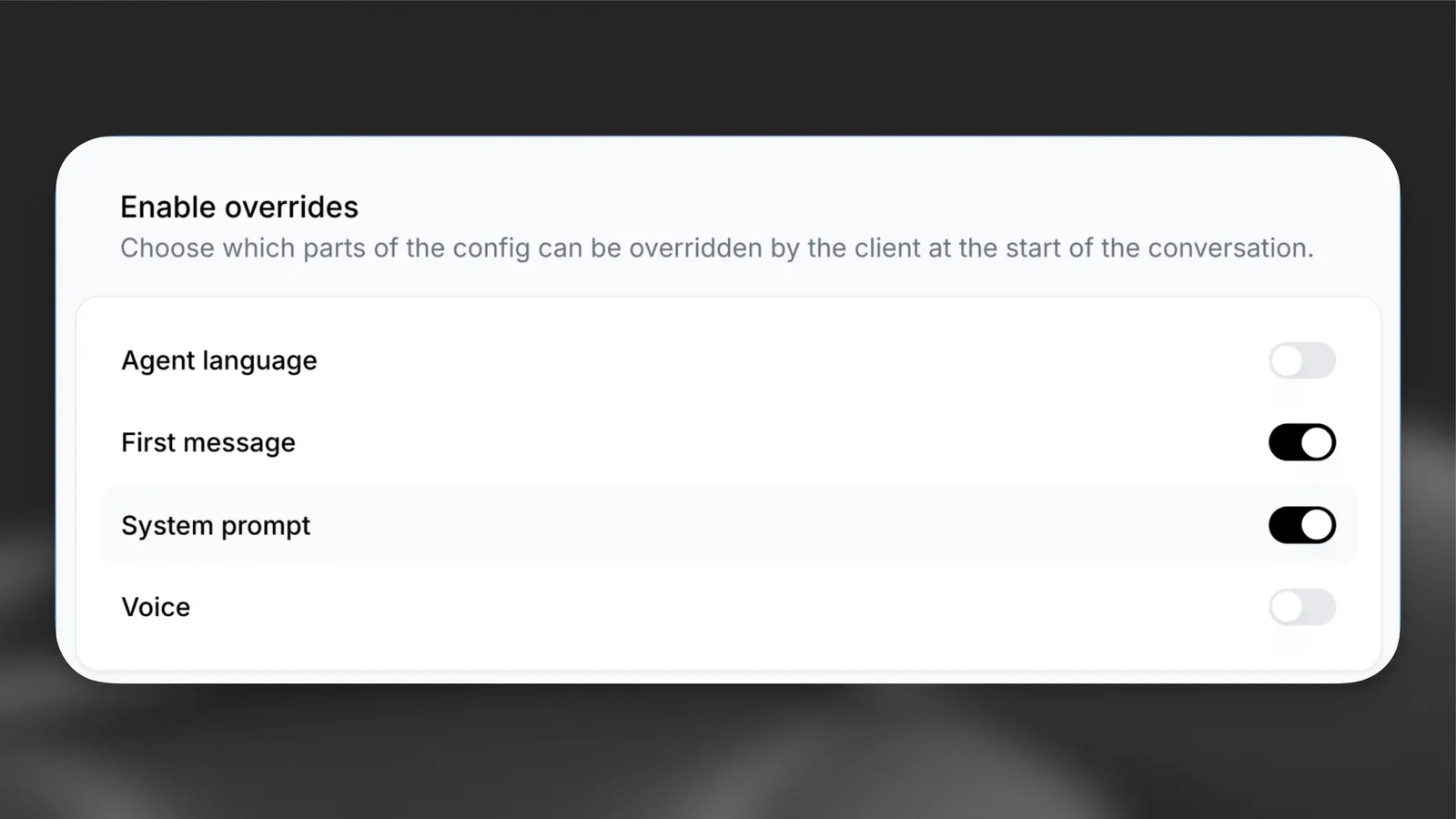
Navigate to your agent’s settings and select the Security tab. Enable the First message, System prompt, Tools, Knowledge base, ASR keywords, and any other overrides you need, such as LLM.
Override the conversation
In your code, where the conversation is started, pass the overrides as a parameter. Tool and knowledge base overrides replace the default arrays for that conversation. ASR keyword overrides replace the agent’s default keyword list for that conversation (maximum 50 keywords).
Ensure you have the latest SDK installed.
When using overrides, omit any fields you don’t want to override rather than setting them to empty strings or null values. Only include the fields you specifically want to customize.
To find the correct LLM model string, refer to the Agent API reference which lists all supported LLM models and their exact string identifiers.