

Getting started
What you’ll build
By the end of this guide, your agent answers WhatsApp text messages and voice notes on your business number, and you have sent one API-initiated template message. Expect about 20 minutes, plus a short wait for Meta to approve your first template.
Before you start
You need:
- An ElevenLabs agent. Any existing agent works.
- A Meta business portfolio you can administer.
- A phone number that is not currently used in the WhatsApp Business app or registered with another WhatsApp provider. Numbers in use elsewhere cannot be imported — see Limitations.
- A payment method in WhatsApp Manager if you plan to send templates or make calls. Meta bills these separately from ElevenLabs.
Import your WhatsApp business account
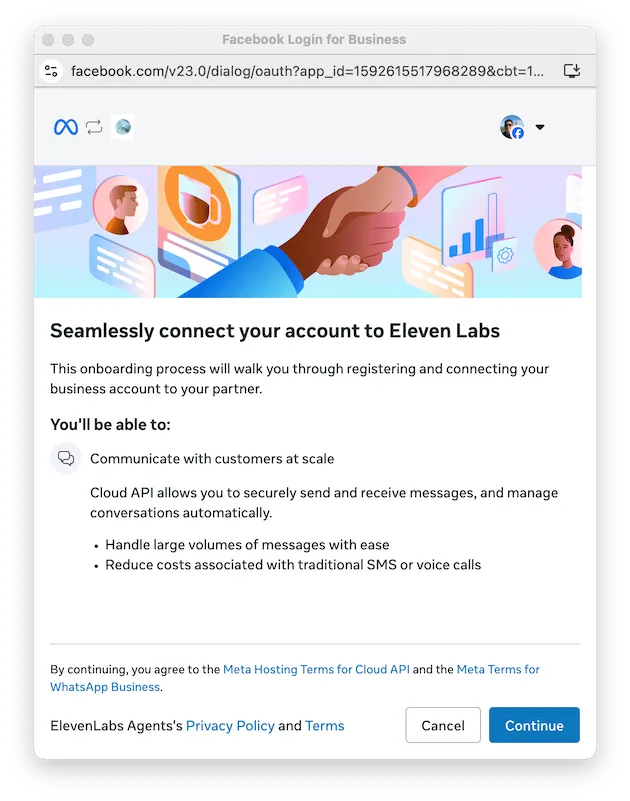
Go to the WhatsApp page and click the Import account button. This opens Meta’s authorization flow, where you select (or create) the WhatsApp business account and phone number and grant ElevenLabs permission to manage it:
Assign your agent and choose behaviors
After the import you land on the account settings page. Assign an agent — until you do, inbound messages are ignored and inbound calls are rejected:
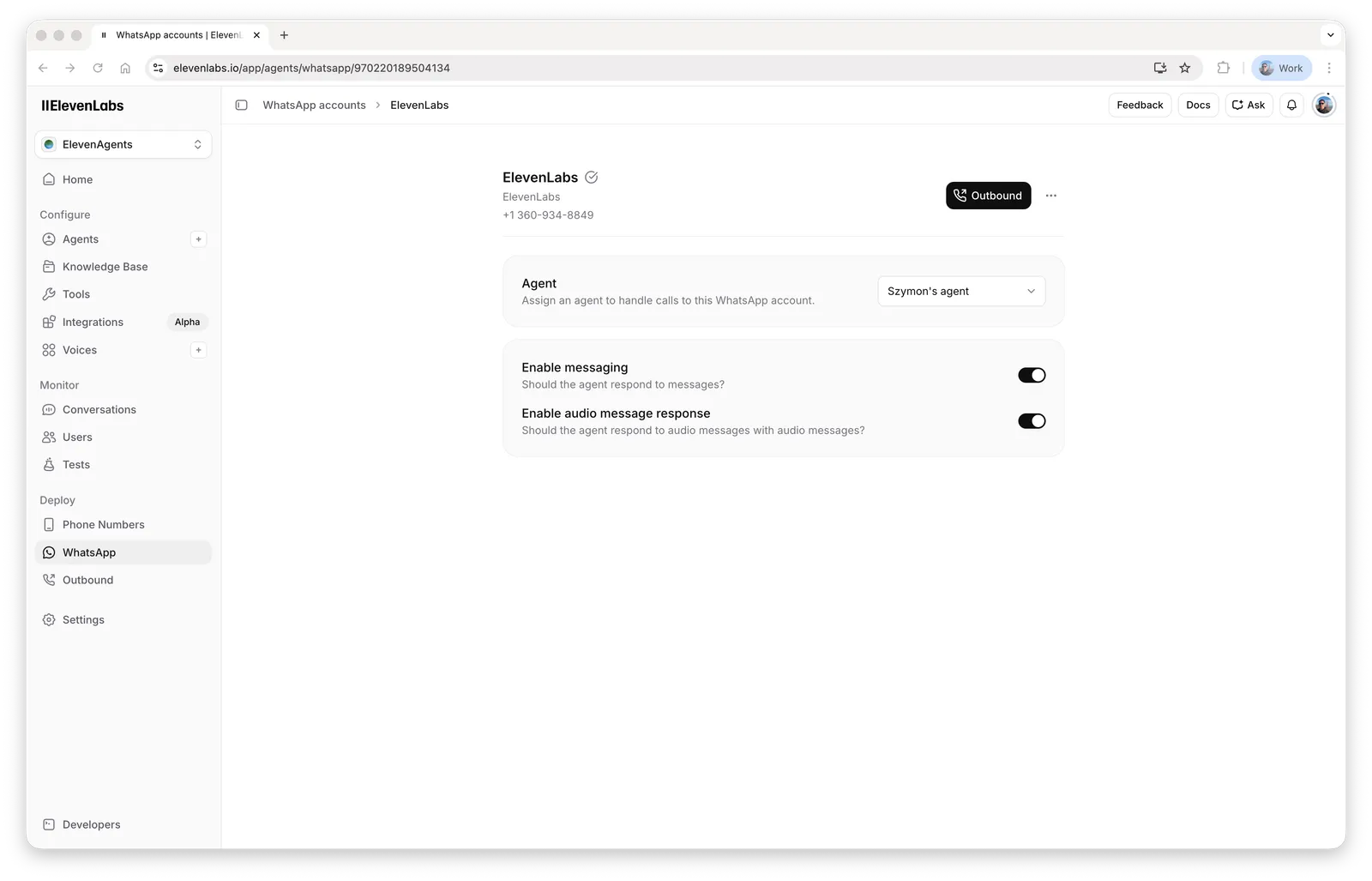
Configure how the agent behaves on this number (see account settings for the full reference):
- Enable messaging — whether the agent responds to messages at all. Turn it off if another system handles messages and ElevenLabs should only handle calls.
- Enable audio message response — when on, the agent answers voice notes with voice notes in its own voice; when off, it always replies with text.
- Enable typing indicator — when on, the agent marks incoming messages as read and shows a typing indicator while it works.
Have your first conversation
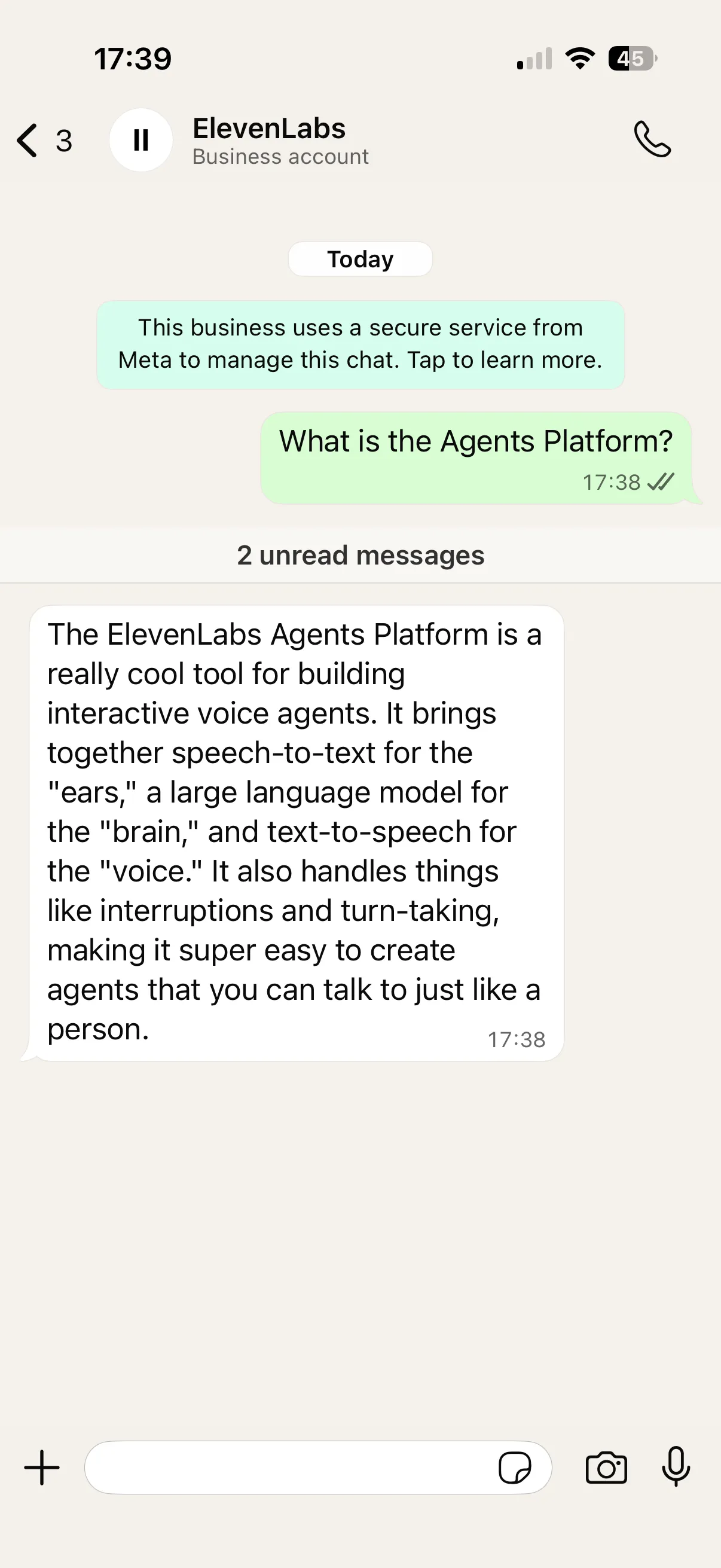
Message your business number from a personal phone. The agent replies. Send a voice note — it is transcribed for the agent, and the agent responds with a voice note of its own:
The conversation appears in your conversation history as it happens.
A message conversation ends when the agent uses the End conversation system tool, the Max conversation duration elapses, or the default 15-minute inactivity timeout passes after the agent’s most recent response. The next message from the user starts a new conversation. Learn more about conversation timeouts.
Send your first outbound message
Reaching a user first requires a Meta-approved message template — WhatsApp only allows free-form business messages inside an active conversation. Create a simple Utility template in WhatsApp Manager, for example:
Once the template is approved, send it:
Python
TypeScript
cURL
Two details matter here:
template_paramsis a list of component objects — the{"type": "body", ...}wrapper is required.whatsapp_user_idis digits only, with country code and no+(for example14155552671).
Find your whatsapp_phone_number_id on the WhatsApp page via the account menu’s Copy phone number ID option.
Your phone receives the template. Reply to it — the agent picks up the conversation from there.
If something didn’t work
- The agent never replies: no agent is assigned to the number, or Enable messaging is off. If those look right, check whether the agent requires dynamic variables — an inbound WhatsApp conversation starts with no user-provided values, so an agent whose tools or first message require one fails before replying unless a conversation initiation webhook supplies it. See initialization context.
- The import fails: the number is already registered with another provider or the WhatsApp Business app.
- The API returned 200 but no message arrived: the template is not approved yet, the parameters don’t match the template, or your WhatsApp business account has unsettled payments (Meta error 131042).
- The user’s reply started a separate conversation without context: the recipient ID format was off — see recipient number format.
For everything else, see Troubleshooting & FAQ.
Next steps
- Personalize conversations with dynamic variables and the personalization system variables.
- Run outreach at scale with outbound messages & templates.
- Let the agent offer tappable choices with interactive messages.
- Send WhatsApp messages from agents on other channels with WhatsApp tools.
- Understand costs in the pricing FAQ.