

Graph calling bot
Overview
This approach makes the agent a callable Teams identity. A user searches for it by name and calls it 1:1, and the agent answers in real time — no phone number, PSTN, or Communications Credits. It’s the only approach callable by name, and the most involved to run.
It uses a Microsoft Graph real-time media bot (the Cloud Communications calling platform). The media SDK (Microsoft.Skype.Bots.Media) is .NET on Windows Server only — there is no Linux or non-.NET path for raw audio in Teams calls.
This is the only approach that’s callable by name inside Teams. Prefer the widget tab for a lighter setup, or ACS when you specifically want a phone number.
How it works
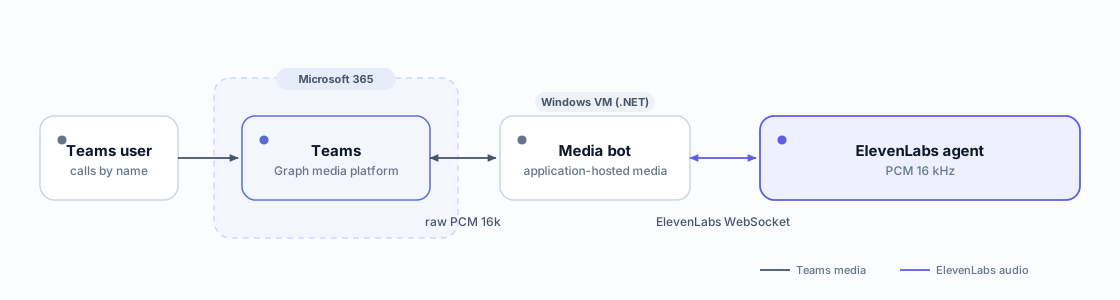
The bot answers with application-hosted media, receives 50 audio frames/sec (20 ms PCM 16 kHz), bridges them to the ElevenLabs agent over a WebSocket, and streams the agent’s audio back into the call.
Requirements
- An Azure Bot registration + app (Entra app registration).
- Graph application permissions with admin consent:
Calls.AccessMedia.All(raw media) plusCalls.Initiate.All. - A Windows Server VM (≥ 2 physical cores — e.g.
Standard_D4s_v3) with a public IP and open media ports. - A CA-signed TLS certificate on a public FQDN for the media/signaling endpoint (the media platform rejects self-signed certs).
- An ElevenLabs agent set to PCM 16000 Hz on both legs: TTS output format on the Voice tab, user input audio format on the Advanced tab.
A D2s_v3 (2 vCPU = 1 physical core) fails with MediaPlatform needs a system with at least 2 cores. Use a size with ≥ 2 physical cores (e.g. D4s_v3).
Permissions & roles
Step 1 — Register the bot + Graph permissions
Create an app registration and an Azure Bot bound to it, then grant + consent the calling permissions (you need Global Admin / Privileged Role Admin to consent):
Grant the two Graph application roles and admin consent (needs Global Admin / Privileged Role Admin), then confirm the assignments landed:
If admin-consent returns Consent validation failed, grant the app roles directly on the service principal instead:
In the portal, verify in the Entra admin center under App registrations → your app → API permissions: both permissions should show Granted with green checks.
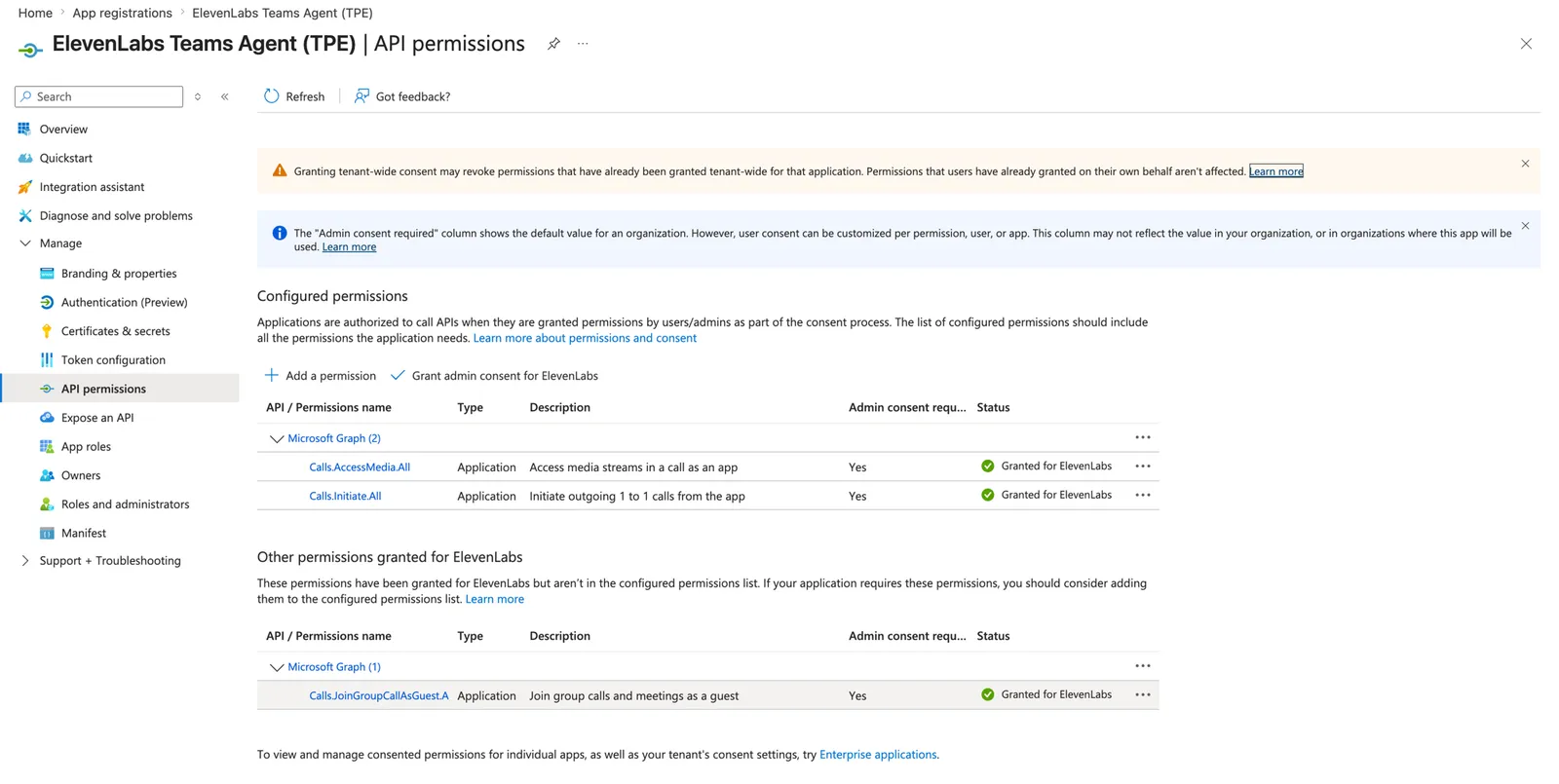
Step 2 — Provision the Windows VM, cert and ports
On the VM (the media platform’s native code needs these — Windows Server lacks them by default):
Open the same ports in the Windows firewall, and note the cert thumbprint — the bot binds Kestrel (443 + a notifications port) and the media platform (8445) to it.
The VM’s own *.cloudapp.azure.com FQDN works for a Let’s Encrypt cert — no separate domain
needed.
Step 3 — Build and run the bot
Start from Microsoft’s microsoft-graph-comms-samples PublicSamples/EchoBot — it targets net6.0 and builds with the .NET SDK (no Visual Studio Build Tools needed):
Configure the AppSettings section of appsettings.json with your AadAppId, AadAppSecret, ServiceDnsName/MediaDnsName (the VM FQDN), CertificateThumbprint, and ports (calling 443, notifications 9441, media 8445). Add two settings for the ElevenLabs bridge below: ElevenLabsAgentId and ElevenLabsOrigin (wss://api.elevenlabs.io, or your residency host). Run it as a Windows scheduled task / service so it survives reboots.
Task Scheduler’s default execution time limit (72 hours) silently kills long-running tasks — a bot started at boot dies three days later and calls fail with “we couldn’t connect you”. Disable the limit and add restart-on-failure:
The stock EchoBot crashes on a call placed to the standard port 443: HttpHelpers.SetAbsoluteUri
calls req.Host.Port.Value, which is null when the Host header has no explicit port. Patch it to
req.Host.Port ?? (req.IsHttps ? 443 : 80).
Swap the echo for ElevenLabs
EchoBot’s audio seam is clean: SpeechService.AppendAudioBuffer(in) and an OnSendMediaBufferEventArgs(out) event. Replace its Azure-Speech body with an ElevenLabs agent WebSocket bridge that keeps the same surface:
Both sides are PCM 16 kHz mono, so it’s a base64 passthrough — set the agent to pcm_16000. On an ElevenLabs interruption (barge-in), the bridge raises FlushMedia; wire that to your media stream so it drops any queued AudioMediaBuffers, otherwise the agent keeps talking over the caller. The full message reference is in the WebSocket docs. End-of-call hangup and warm transfer are covered in the sections below.
The URL in Connect() reaches a public agent. For a private agent, request a short-lived
signed URL server-side — GET /v1/convai/conversation/get-signed-url?agent_id=... with your API
key — and connect to the returned URL instead. On data
residency, set ElevenLabsOrigin to your residency
host (wss://api.eu.residency.elevenlabs.io, .in., or .sg.) — signed-URL requests use the
matching https:// host.
Step 4 — Make it callable in Teams
-
Enable Calling on the Azure Bot’s Teams channel and set the calling webhook to
https://YOUR_FQDN/api/calling:In the portal this lives at your Azure Bot resource → Channels → Microsoft Teams → Calling tab:
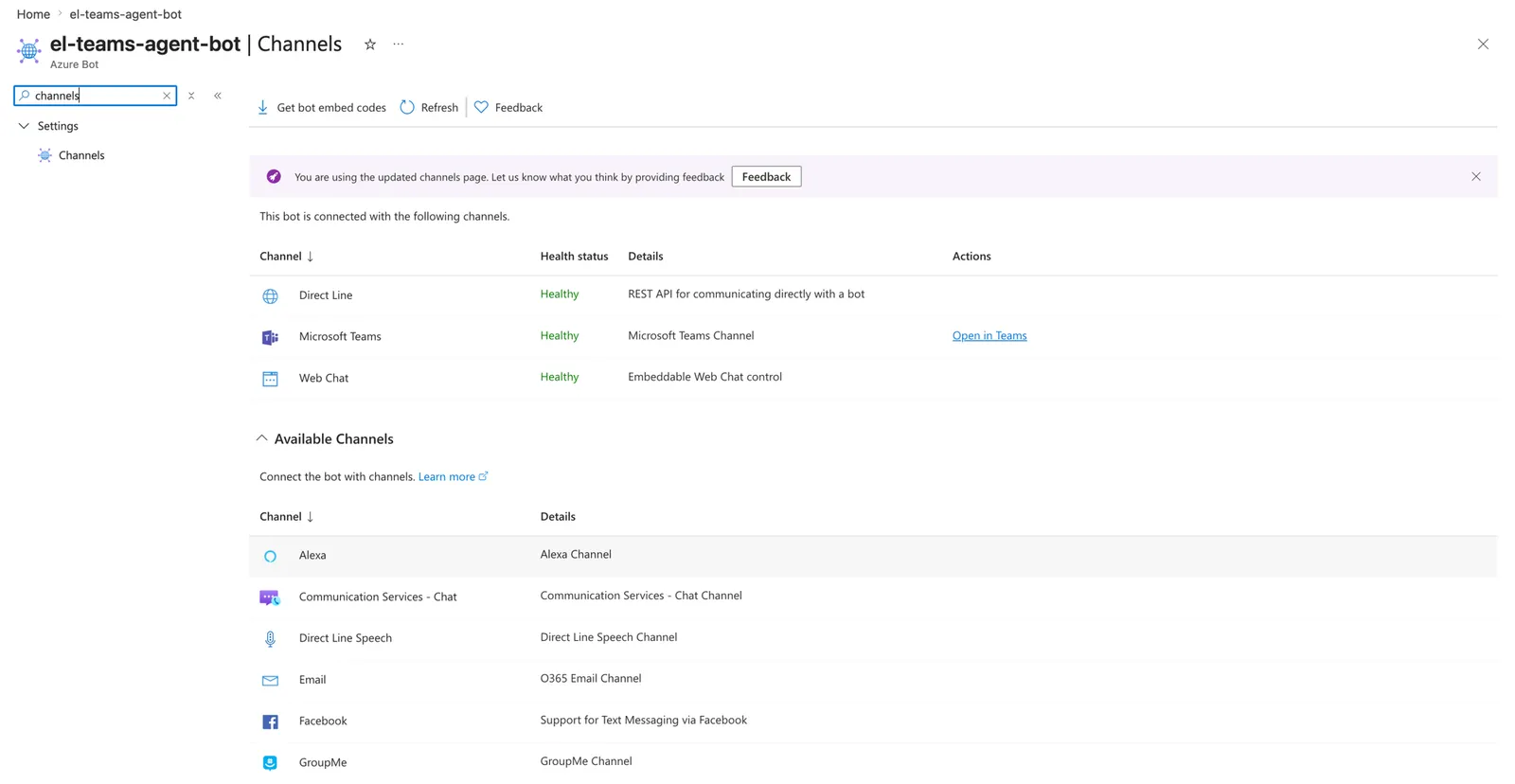
Azure Bot → Channels — the connected Microsoft Teams channel 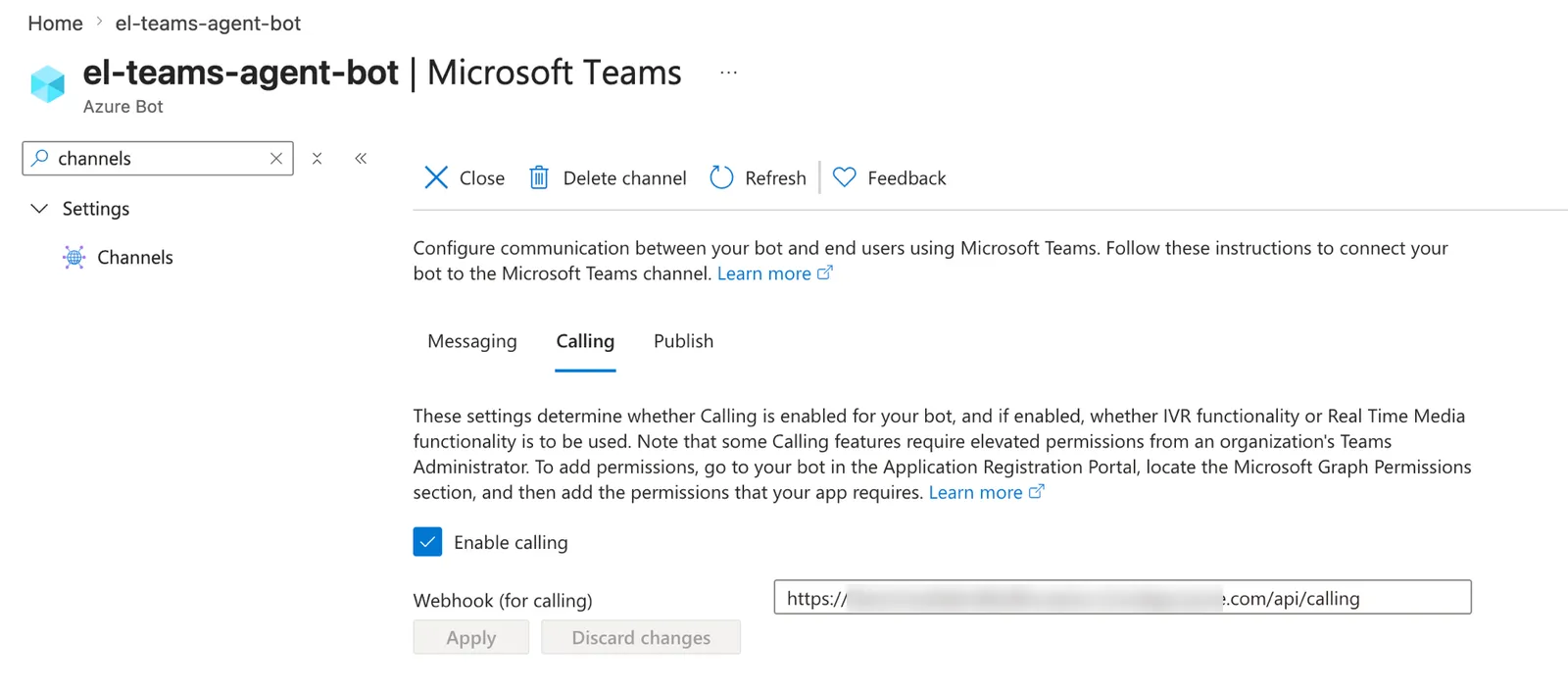
Microsoft Teams channel → Calling — calling enabled with the bot's webhook -
Build a Teams app manifest with
bots[0].supportsCalling: trueand the bot’s app ID, then sideload it (Apps → Manage your apps → Upload a custom app), or publish it org-wide without the UI:New-TeamsApp -DistributionMethod organization -Path ./bot-app.zip(MicrosoftTeams PowerShell module).
Search the app by name in Teams and call it — the bot answers and the ElevenLabs agent speaks.
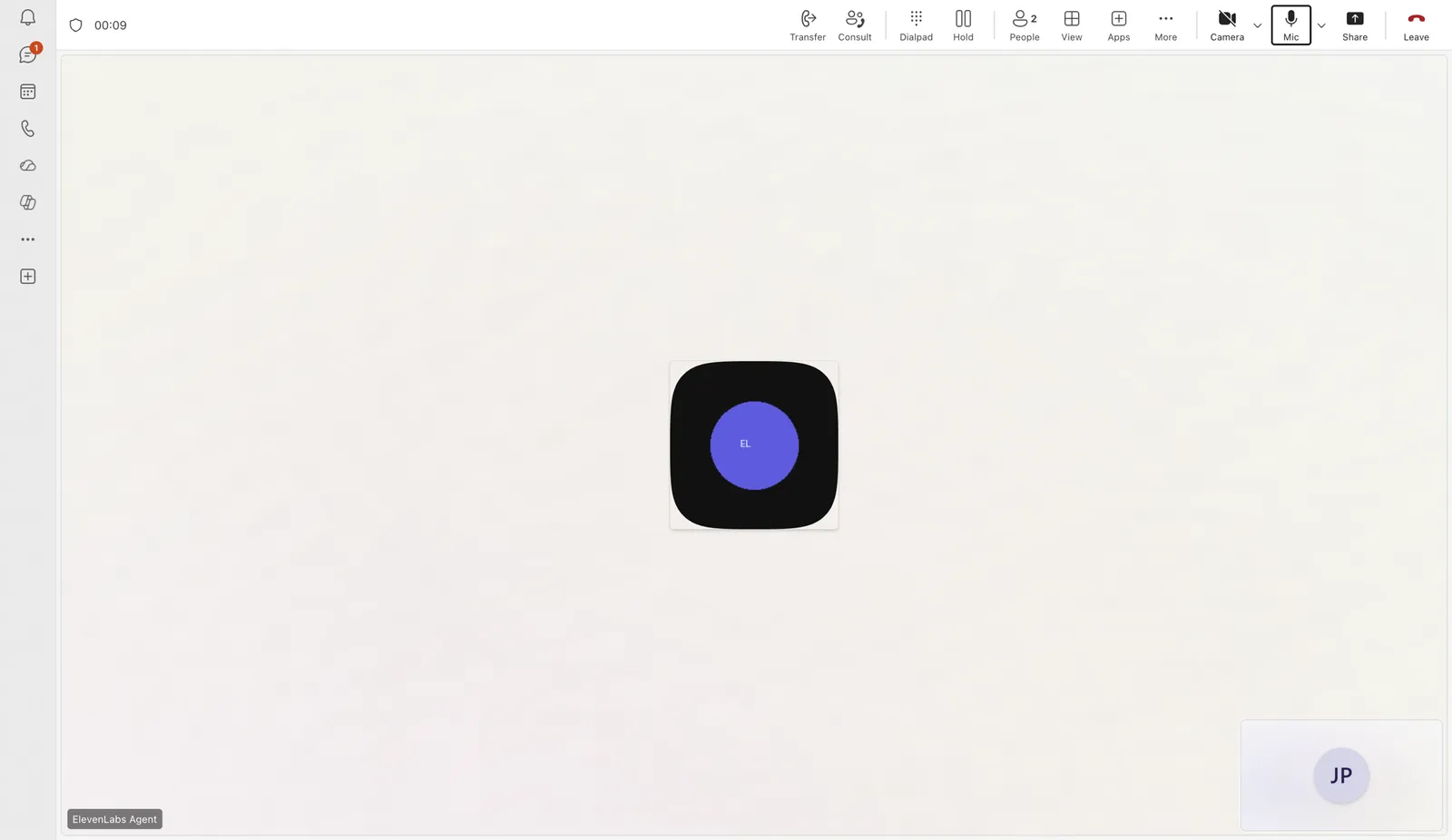
No phone number or resource account is needed for 1:1 call-by-name — those are only for PSTN
dial-in. Calls.AccessMedia.All is what enables the raw-audio bridge.
Text chat (same bot)
The same Azure Bot can also answer text in Teams — so users can either call the agent or chat with it. Calling and messaging are independent channels on the bot: the calling webhook handles voice, and a Bot Framework messaging endpoint (/api/messages) handles chat.
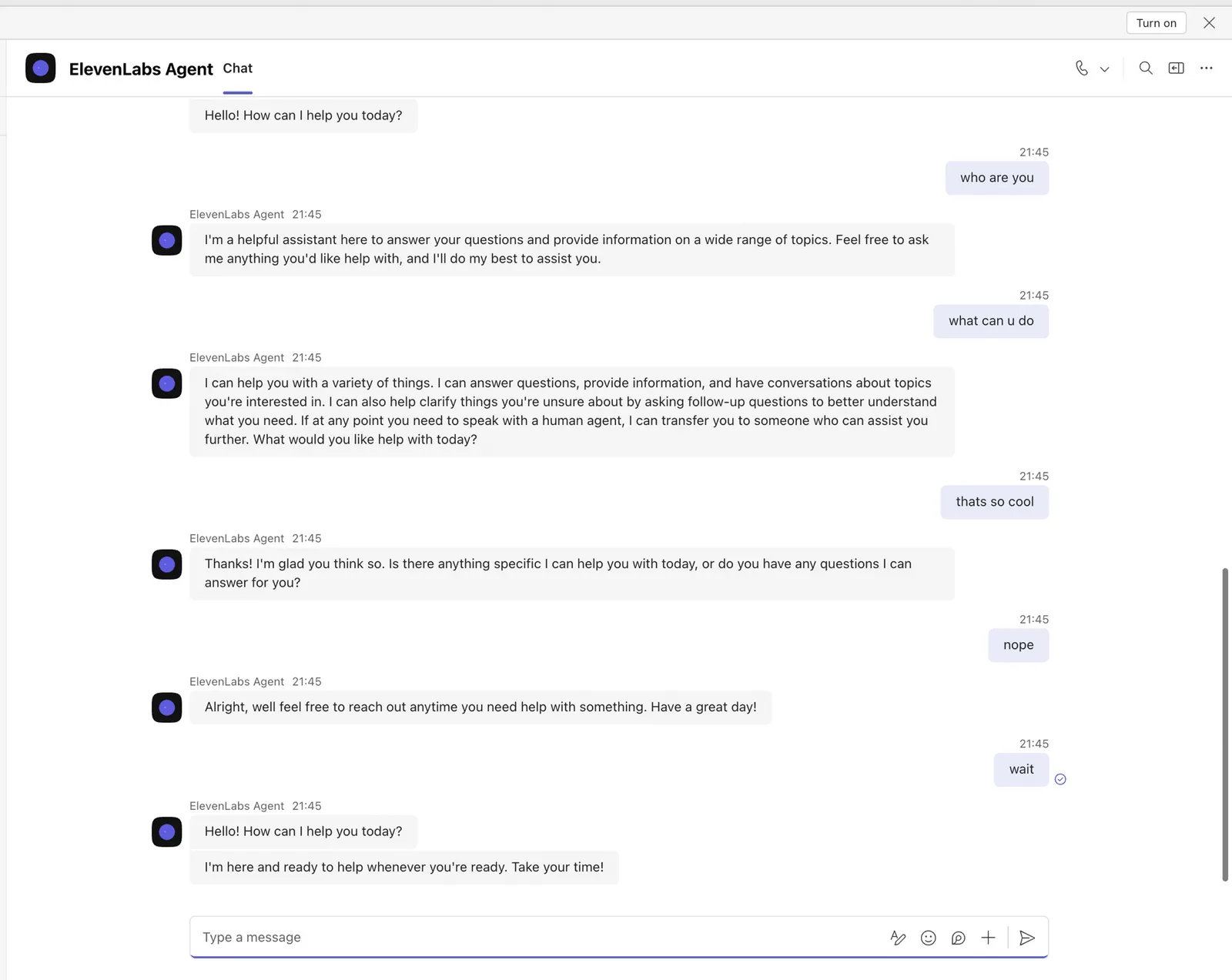
Point the bot’s messaging endpoint at whichever host serves it (the media bot, or any other service — it doesn’t have to be the Windows VM):
Implement the endpoint with the Bot Framework SDK and relay each message to the agent in text mode over the same conversation WebSocket used for voice — send a user_message event, read the agent_response event. First enable the first message field under the agent’s overrides settings — the code below overrides it to empty so the reply is the answer to the user’s message rather than the agent’s greeting:
Register it the standard way (a CloudAdapter, the bot via AddTransient<IBot, ChatBot>(), and a /api/messages controller), and add chat scopes to the manifest’s bot entry:
The snippet opens a fresh conversation per message, so each turn is independent. For chat
memory, keep one WebSocket open per Teams conversation.id (reuse it across turns) and reap
idle sessions — the agent then remembers earlier messages in that chat. The first_message
override must be enabled under the agent’s
overrides settings — the server
closes the conversation if a disallowed override is sent. If you can’t enable it, omit the
override and instead discard the first agent_response of each session (the greeting) and return
the next one.
If chat replies never arrive, enable the agent_response client
event in the agent’s Advanced
settings — text responses are delivered through that event.
End of call
When ElevenLabs ends the conversation (its End Call tool closes the WebSocket), hang up the Teams leg:
Warm transfer to a human
The agent fires a custom transfer_to_human client tool; the bot invites a Teams user into the live call (consultative add), then steps back:
Consultative transfer (replacesCallId) requires both parties be Teams users in the same
tenant; PSTN transfer targets require an application instance. To brief the human first, pass a
reason parameter from the agent and play it to the human before bridging.
Troubleshooting
MediaPlatform needs a system with at least 2 cores
MediaPlatform needs a system with at least 2 cores
The VM has only one physical core. Resize to ≥ 2 physical cores (e.g. D4s_v3) and restart.
Unable to load DLL 'NativeMedia'
Unable to load DLL 'NativeMedia'
Install the VC++ Redistributable (vcredist140) and the Server-Media-Foundation Windows
feature, then restart the bot.
Incoming call returns 500 / call won't connect
The EchoBot port-null bug on 443 — patch HttpHelpers.SetAbsoluteUri (see Step 3). Also confirm
the cert is CA-signed and reachable on 443.
Calling the bot says 'we couldn't connect you'
Confirm Calling is enabled on the Teams channel with the correct /api/calling webhook, the
Graph Calls.AccessMedia.All permission is consented, and ports 443/8445/9441 are open on both
the NSG and the Windows firewall. If calling used to work and stopped, check the bot process
is still running on the VM — Task Scheduler’s default 72-hour execution limit kills it a few
days after boot (see the warning in Step 3).