

Cal.com
Overview
Connect your ElevenLabs AI agents with Cal.com to manage scheduling and calendar bookings. This integration enables your agents to check availability, book appointments, cancel or reschedule meetings, and look up existing bookings through natural conversation.
Capabilities
Setup
This integration uses a Cal.com API key for authentication (not an OAuth app).
Generate an API key in Cal.com
Go to Settings > Developer > API Keys in your Cal.com account and click New. Copy the generated key immediately — it will not be shown again.
Demo
This demo uses legacy webhook tools. If you’re using the native Cal.com integration, the tools are configured automatically — no manual webhook setup is needed.
How it works
The agent schedules meetings by using tool calls to step through the booking process. The tabs below show a high-level summary and the detailed system prompt.
High-level overview
Detailed system prompt
Initial inquiry and meeting details
The agent asks for the meeting purpose, preferred date/time, and duration to gather scheduling information.
Check calendar availability
The agent checks calendar availability by:
- Using the
get_available_slotstool to fetch open time slots. - Verifying whether the requested time is available.
- Suggesting alternatives if the requested time is unavailable.
- Confirming the selected time with the caller.
Manual webhook setup
If you use the native Cal.com integration, tools are configured automatically. The steps below apply only to manual webhook setup.
Store your Cal.com secret
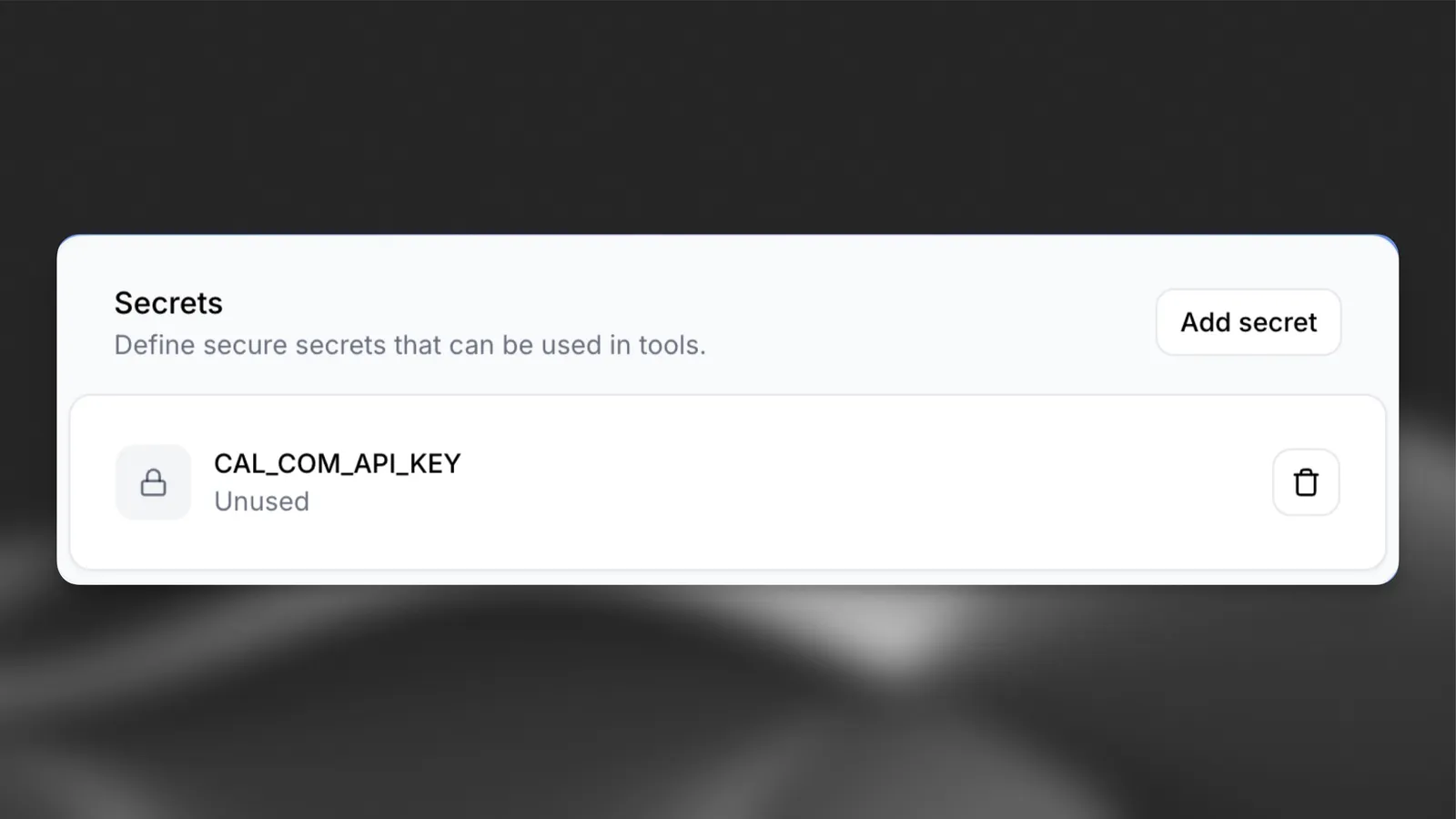
Store your API key securely before making authenticated requests. Generate a new Cal.com API key if you have not already.
The Cal.com API expects the following authentication header:
Store the key in the agent’s secret storage to keep it secure and accessible when making requests.
To match the expected authentication structure of Cal.com, remember to prepend the API key with Bearer when creating the secret.
Add tools to the agent
Enable calendar bookings by creating two tools:
-
get_available_slots: When a user asks “Is Louis free at 10:30 AM on Tuesday?”, the agent uses Cal.com’s “Get available slots” endpoint to check for open time slots. -
book_meeting: After identifying a suitable time, the agent books the meeting using Cal.com’s “Create a booking” endpoint.
Navigate to the Tools section of the dashboard and select Add Tool. Choose Webhook as the tool type, then fill in the following sections:
Tool 1: get_available_slots
Configuration
Headers
Query parameters
Metadata used by the agent to determine when the tool should be called:
Tool 2: book_meeting
Configuration
Headers
Body Parameters
Metadata used by the agent to determine when the tool should be called:
Test the agent by pressing the Test AI agent button. Adjust the system prompt as needed.
Add date and time awareness
By default, the agent does not know the current date or time. Use one of the following approaches:
-
Create a time retrieval tool: Add a tool that fetches the current date and time.
-
Overrides: Use the overrides feature to inject the current date and time into the system prompt at the start of each conversation.
Security considerations
- Use HTTPS endpoints for all webhook calls.
- Store sensitive values as secrets using the ElevenLabs Secrets Manager.
- Validate that all authorization headers follow the required format (
Bearer YOUR_API_KEY). - Never expose event type IDs or API details to callers.