

Outbound messages & templates
Overview
An agent can only send free-form WhatsApp messages inside an active conversation. To reach a user first — for notifications, re-engagement, or scheduled calls — you send a Meta-approved message template. This page covers creating templates, sending outbound messages and calls, and running them at scale.
Creating templates in WhatsApp Manager
Templates are created and approved in WhatsApp Manager, not in ElevenLabs.
When creating a template:
- Choose a category: Utility for transactional messages, Marketing for promotional messages, or Authentication for verification codes. Meta prices and rate-limits each category differently — see WhatsApp pricing.
- Choose a parameter format: positional (
{{1}},{{2}}) or named ({{customer_name}}). Named parameters require aparameter_nameon each value you send. - Submit for approval. Approval usually takes minutes to hours. A template that is pending or rejected cannot be sent — the API accepts the request but Meta never delivers the message.
Meta limits how many marketing templates a single user can receive in a given period. If a marketing template is silently not delivered, this limit is a common cause (Meta error 131049).
Sending an outbound message
Sending a template message starts a new conversation. The agent stays silent until the user replies — the template itself is the first message, and no conversation timers start until the user responds.
Dashboard
Python
TypeScript
cURL
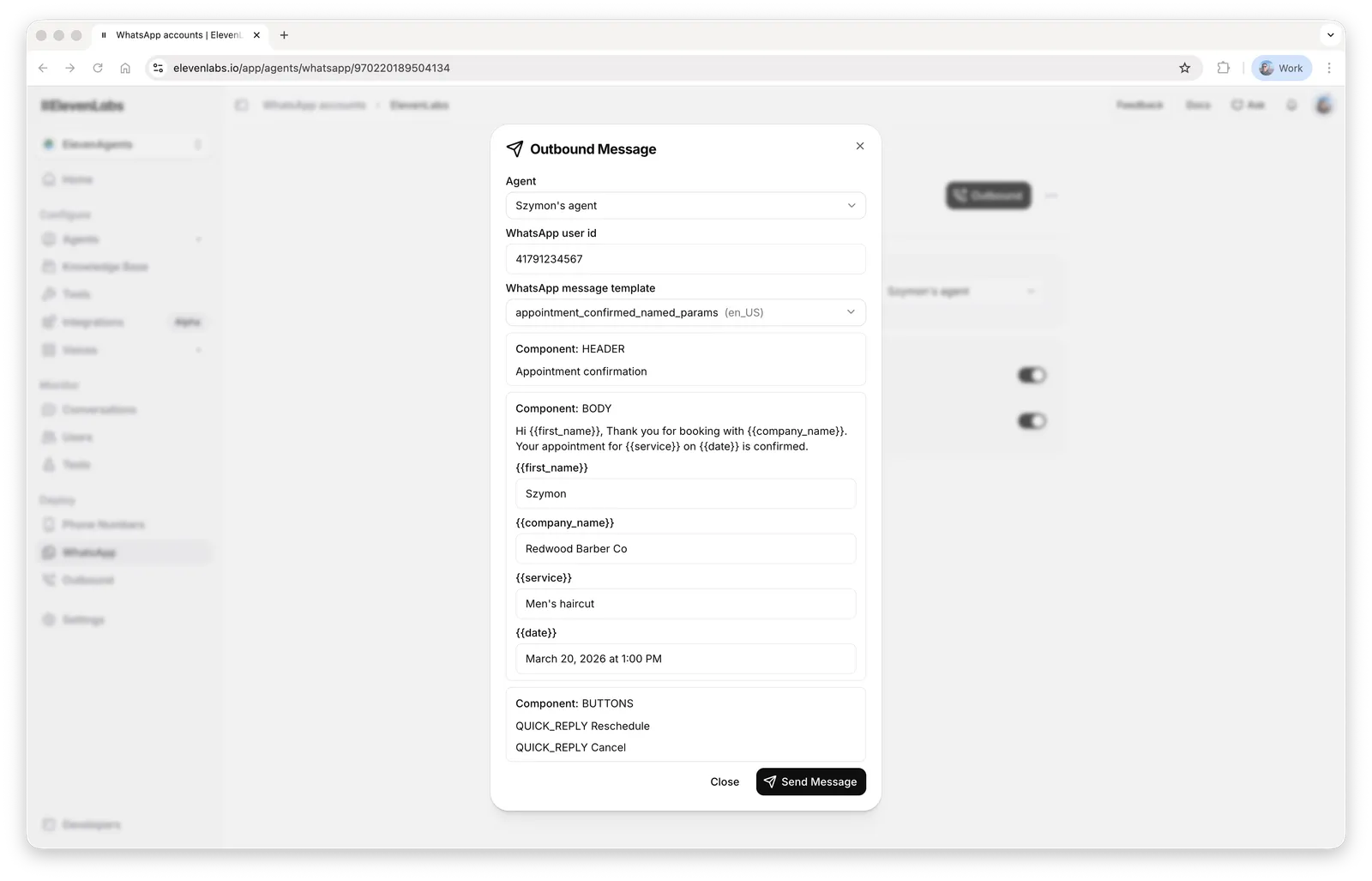
Go to the WhatsApp page, select your account, and click the Outbound -> Message button. Select an agent, provide a WhatsApp user ID, and choose the message template and its parameters:
See the API reference for the full request schema.
An AI assistant can adapt these examples to your template. Point it at the ElevenLabs docs
llms.txt (or the more detailed llms-full.txt), paste your
template definition from WhatsApp Manager, and ask for the request — it will produce a cURL
command or SDK call with the correct template_params for your template.
Template parameters
template_params is a list of component objects, one per template component that has parameters:
{"type": "body", "parameters": [...]}for body placeholders{"type": "header", "parameters": [...]}for a parameterized header (text, image, document, or location){"type": "button", "sub_type": ..., "index": ..., "parameters": [...]}for button parameters
Each entry in parameters is a value object such as {"type": "text", "text": "Daniele"}. For templates with named parameters, include parameter_name on each value. Omitting the component wrapper — for example, passing {"type": "text", ...} directly in template_params — is rejected.
Recipient number format
whatsapp_user_id must contain digits only: the country code followed by the number, with no +, spaces, or dashes. For example, 14155552671, not +1 (415) 555-2671.
In some countries the ID WhatsApp uses for a person differs from their dialed number — for
example, Mexican numbers carry an extra 1 after the country code (521...), and Brazilian
numbers may include or omit a ninth digit. If the user has messaged you before, prefer the
whatsapp_user_id from that earlier conversation, which you can copy from the conversation
history.
Dynamic variables, branches, and environments
The conversation_initiation_client_data field lets you set dynamic variables for the conversation and pin it to a specific agent branch and environment:
These settings persist for the conversation: when the user replies, the agent resumes on the requested branch and environment. The branch and environment are validated first — if either does not exist, the request fails with an error and no message is sent.
This request field is how outbound conversations receive dynamic variables; inbound conversations receive them from a conversation initiation webhook instead — see initialization context.
Template parameters fill in the template text only — they are not exposed to the agent. If the
agent needs a value from the template (such as the customer’s name), pass it again in
dynamic_variables.
After you send
A successful request returns a conversation_id and the conversation appears in your history with the rendered template as the first message. The agent does not run until the user replies. Sending the template starts neither the maximum-duration timer nor the inactivity timer; both begin once the conversation resumes. A 200 response means ElevenLabs accepted the request — Meta can still decline delivery afterwards. If the message never arrives, see Troubleshooting.
Scheduling an outbound call
Outbound WhatsApp calls require the user’s permission — see user call permissions. Create a message template with a call permission request component in WhatsApp Manager. When you schedule a call, ElevenLabs checks the permission state:
- Permission already granted: the call is placed immediately.
- Permission not yet requested: the permission-request template is sent, and the call is placed as soon as the user approves.
- Permission declined: the conversation is recorded as failed with the reason
User declined the call permission request.
Dashboard
Python
TypeScript
cURL
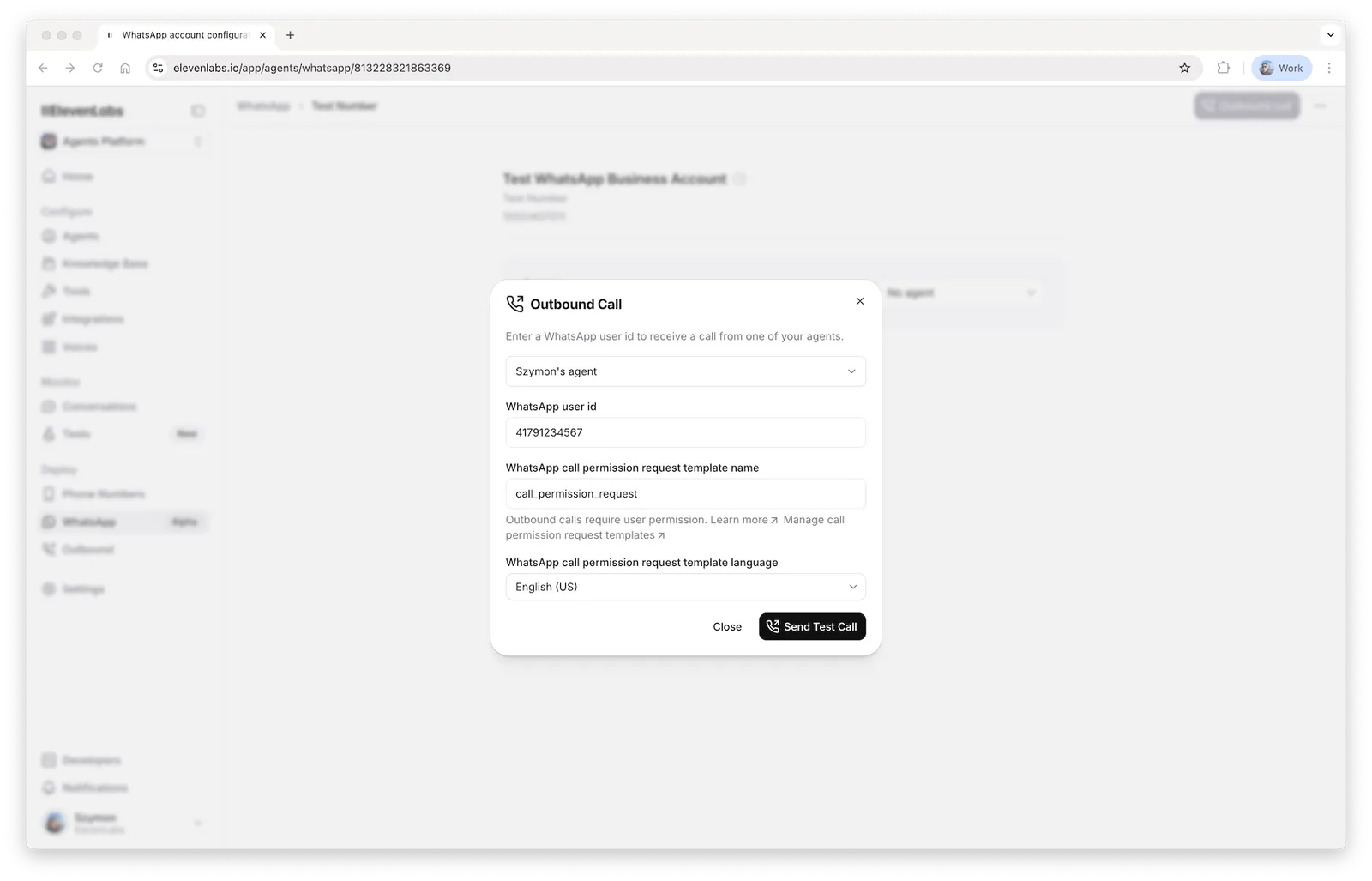
Go to the WhatsApp page, select your account, and click the Outbound -> Call button. Select an agent, provide a WhatsApp user ID, and choose the call permission request template:
See the API reference for the full request schema. As with outbound messages, conversation_initiation_client_data sets dynamic variables and pins the conversation to a branch and environment, and an unknown branch or environment is rejected before the call is scheduled.
Meta charges for outbound calls and for call permission requests sent outside a Customer Service Window. Add a payment method in WhatsApp Manager before scheduling calls.
Campaigns and batching
To call many users, use batch calling with whatsapp_params: provide the phone number ID and the call permission request template once, and a whatsapp_user_id per recipient.
There is no native batch endpoint for outbound messages yet. For template campaigns, call the outbound message endpoint once per recipient, and stay within Meta’s messaging limits for your number — see messaging limits.