For AI agents: a documentation index is available at the root level at /llms.txt and /llms-full.txt. Append /llms.txt to any URL for a page-level index, or .md for the markdown version of any page.
Connect
BlogHelp CenterAPI PricingSign up
OverviewElevenCreativeElevenAgentsElevenAPIReception AIAPI referenceChangelog
  • Get started
    • Overview
    • Quickstart
  • Configure
    • Overview
    • Voice & language
    • Knowledge base
    • Tools
    • Personalization
    • Authentication
  • Deploy
    • Overview
    • Environment variables
    • WhatsApp
    • Batch calls
  • Monitor
    • Overview
    • Users
    • Testing
    • Experiments
    • Versioning
    • Conversation Analysis
    • Analytics
    • Real-time monitoring
    • OpenTelemetry traces
    • Privacy
    • Cost optimization
    • CLI
  • Advanced
    • Events
    • Custom models
      • Cloudflare
      • Groq Cloud
      • SambaNova Cloud
      • Together AI
    • LLM cascading
    • Post-call webhooks
  • Resources
    • UI components
  • Guides
    • Chat Mode
    • Burst pricing
    • ElevenLabs' docs agent
    • Scaling user interviews
    • Simulate Conversations
LogoLogo
Login
Login
Connect
BlogHelp CenterAPI PricingSign up
On this page
  • Overview
  • Choosing a model
  • Set up Llama 3.3 on Groq Cloud
AdvancedCustom models

Groq Cloud

Connect an agent to a custom LLM on Groq Cloud.
Was this page helpful?
Previous

SambaNova Cloud

Connect an agent to a custom LLM on SambaNova Cloud.
Next
Built with

Overview

Groq Cloud provides easy access to fast AI inference, giving you OpenAI-compatible API endpoints in a matter of clicks.

Use leading Openly-available Models like Llama, Mixtral, and Gemma as the brain for your ElevenLabs agents in a few easy steps.

Choosing a model

To make use of the full power of ElevenLabs agents you need to use a model that supports tool use and structured outputs. Groq recommends the following Llama-3.3 models their versatility and performance:

  • meta-llama/llama-4-scout-17b-16e-instruct (10M token context window) and support for 12 languages (Arabic, English, French, German, Hindi, Indonesian, Italian, Portuguese, Spanish, Tagalog, Thai, and Vietnamese)
  • llama-3.3-70b-versatile (128k context window | 32,768 max output tokens)
  • llama-3.1-8b-instant (128k context window | 8,192 max output tokens)

With this in mind, it’s recommended to use meta-llama/llama-4-scout-17b-16e-instruct for your ElevenLabs Agents agent.

Set up Llama 3.3 on Groq Cloud
1

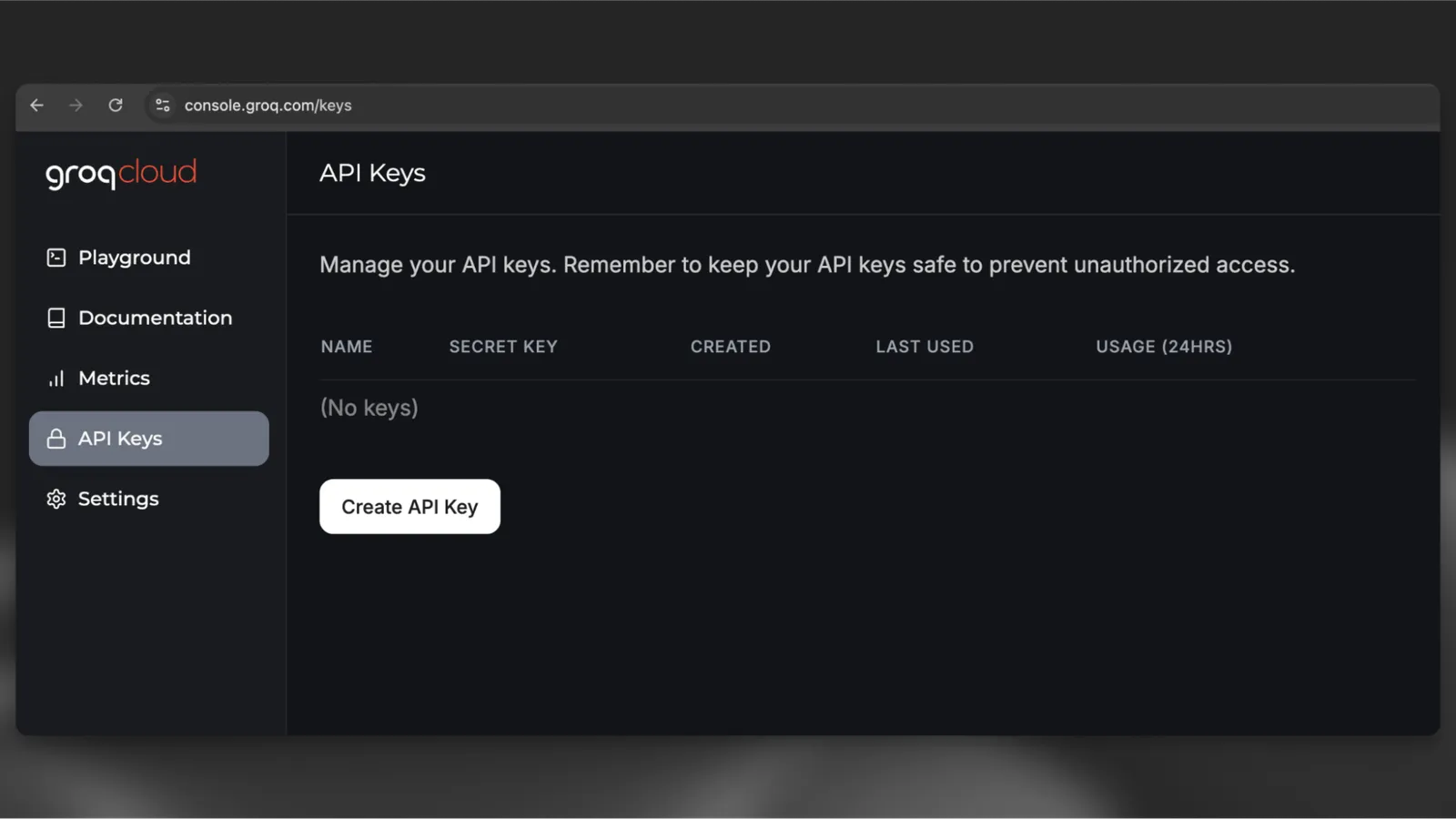
Navigate to console.groq.com/keys and create a new API key.

Add Secret

2

Once you have your API key, you can test it by running the following curl command:

$curl https://api.groq.com/openai/v1/chat/completions -s \
>-H "Content-Type: application/json" \
>-H "Authorization: Bearer $GROQ_API_KEY" \
>-d '{
>"model": "llama-3.3-70b-versatile",
>"messages": [{
> "role": "user",
> "content": "Hello, how are you?"
>}]
>}'
3

Navigate to your AI Agent, scroll down to the “Secrets” section and select “Add Secret”. After adding the secret, make sure to hit “Save” to make the secret available to your agent.
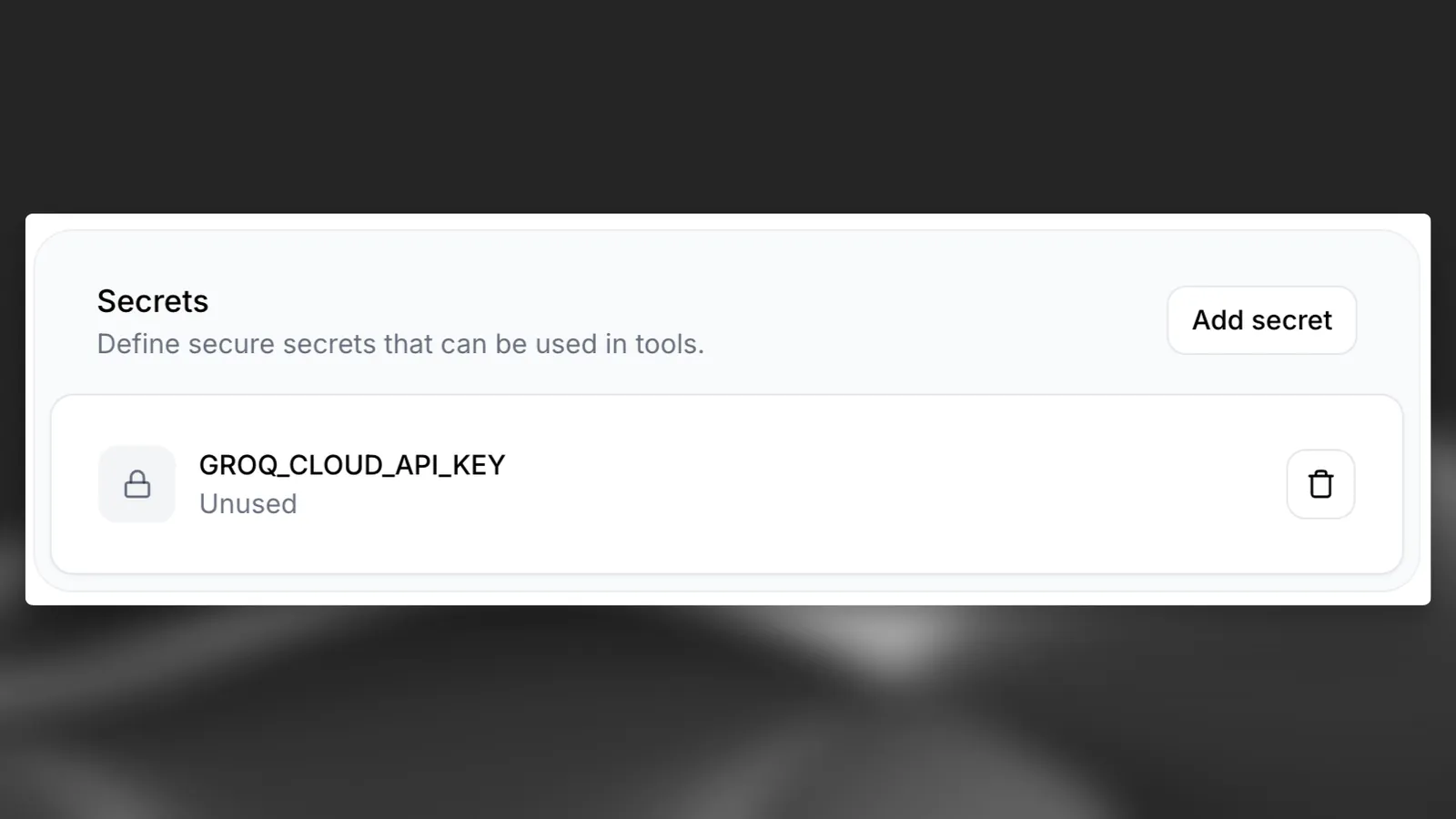
Add Secret

4

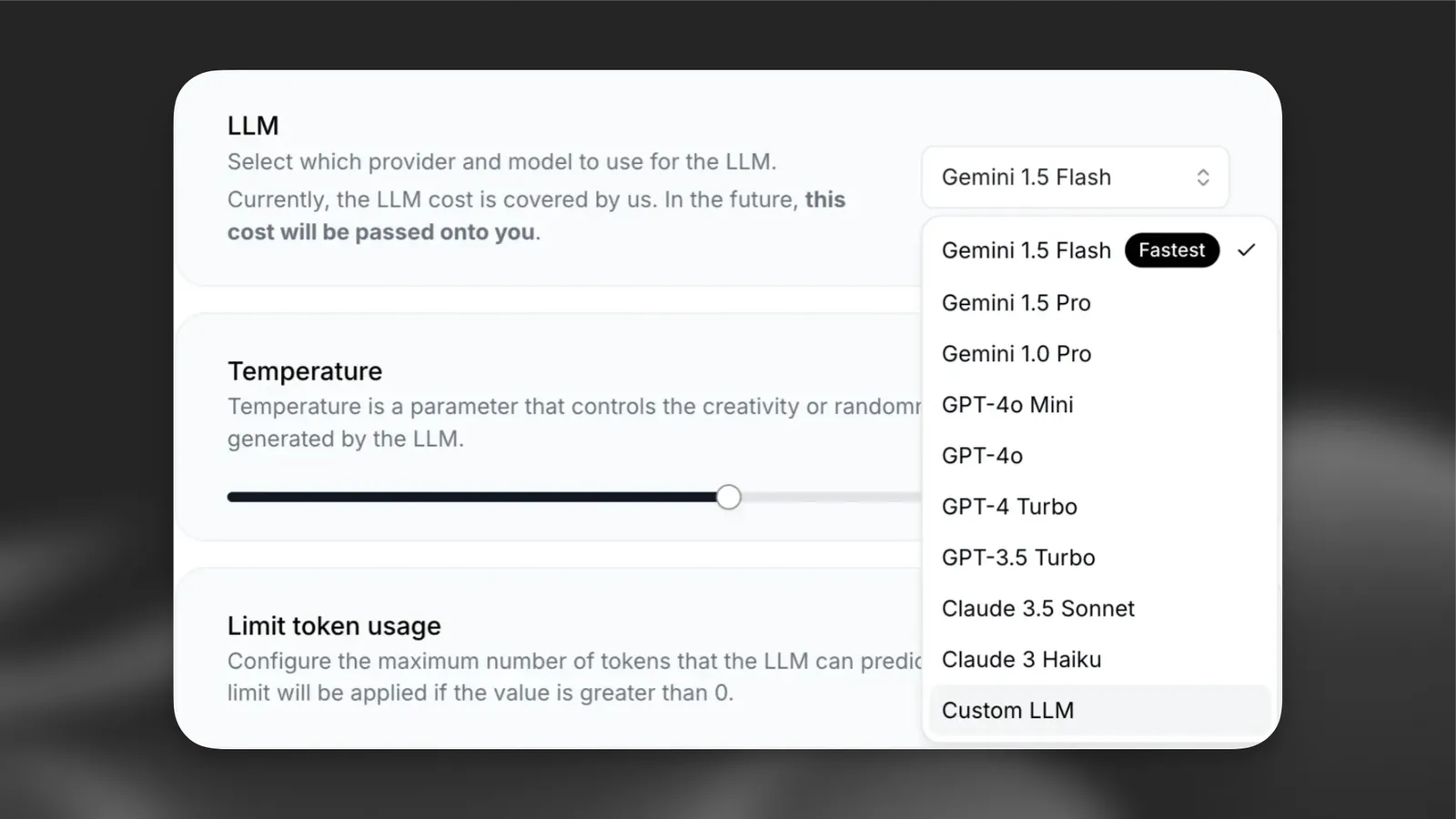
Choose “Custom LLM” from the dropdown menu.

Choose custom llm

5

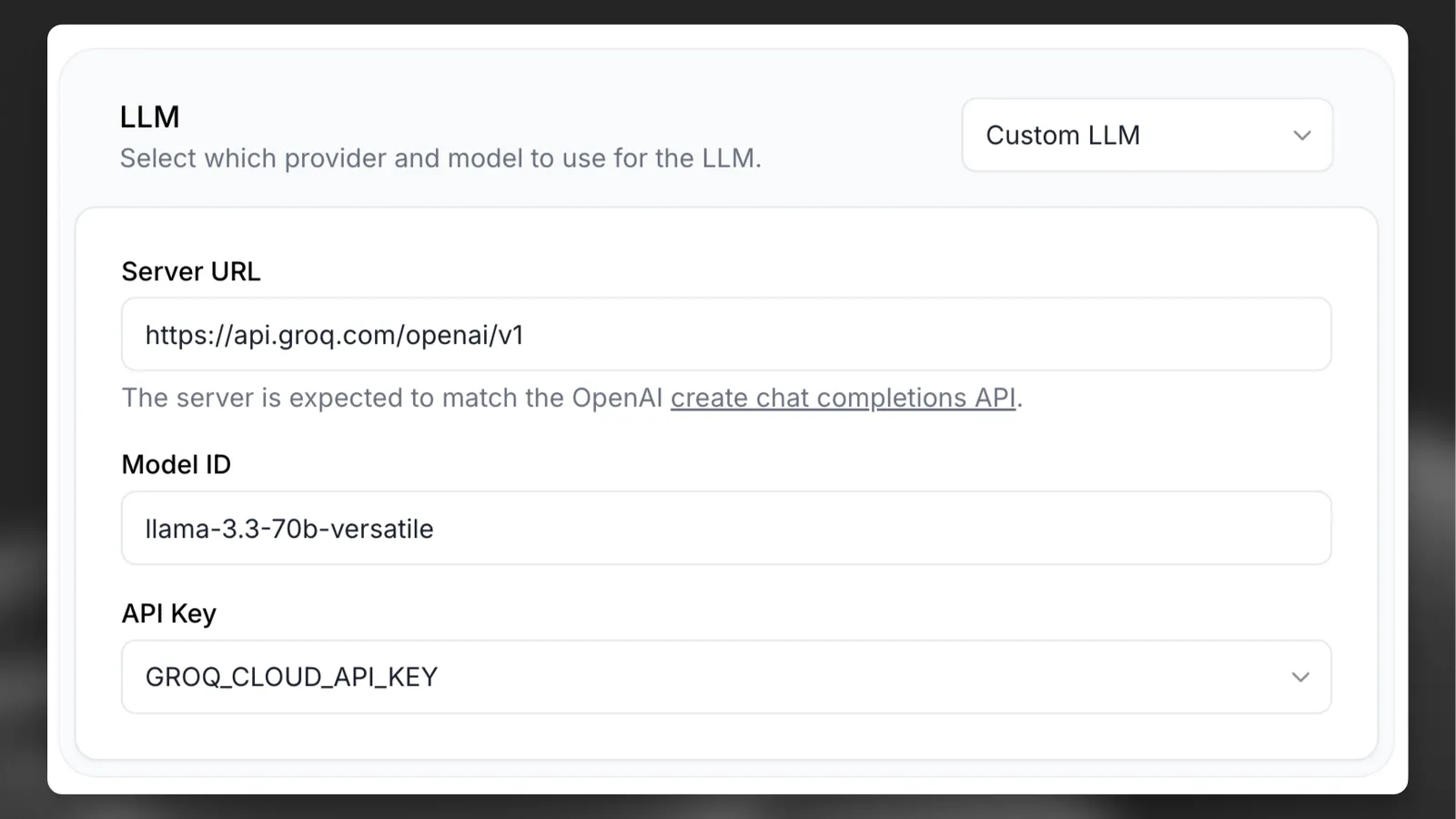
For the Server URL, specify Groq’s OpenAI-compatible API endpoint: https://api.groq.com/openai/v1. For the Model ID, specify meta-llama/llama-4-scout-17b-16e-instruct as discussed above, and select your API key from the dropdown menu.

Enter url

6

Now you can go ahead and click “Test AI Agent” to chat with your custom Llama 3.3 model.