

Voximplant
The Voximplant integration is in limited availability and is enabled per workspace. Contact your ElevenLabs representative before routing customer traffic.
Overview
The Voximplant integration connects a call in a VoxEngine scenario directly to an agent in ElevenAgents over a WebSocket, using Voximplant Media Streams. Voximplant owns telephony: it dials or answers the call and decides what happens afterwards. ElevenAgents owns the conversation. No SIP trunk or middleware is required.
Inbound and outbound calls work the same way: once the call is connected, the scenario opens one WebSocket per call to ElevenLabs. When the conversation ends, ElevenLabs sends the scenario a single decision event that says whether to hand the caller to a human, hang up, or treat the call as a timeout.
How the integration works
- Your VoxEngine scenario answers an inbound call or places an outbound one.
- The scenario opens a WebSocket to the ElevenLabs endpoint for your agent, authenticating with an ElevenLabs API key as a bearer token.
- The scenario starts the media stream with
call.sendMediaTo(), passing anycustomParameters. ElevenLabs turns each parameter into a dynamic variable and replies with its ownstart. - Voximplant and ElevenLabs exchange 16-bit linear PCM audio at 8 kHz in
mediamessages. - When the conversation ends, ElevenLabs sends the rest of the agent’s last phrase, one
elevenlabs-decisioncustom event, and astopmessage. The scenario then closes the WebSocket and acts on the decision.
Requirements
Before you begin, ensure you have:
- A Voximplant account with an application, a phone number or outbound calling, and permission to edit scenarios.
- An ElevenLabs workspace with the Voximplant integration enabled.
- An ElevenLabs agent and a dedicated API key.
Configure ElevenLabs
Create or select an agent
Create the agent in ElevenAgents. Give it a first message if it should speak as soon as the call connects. Audio formats are set by the integration, so the agent’s configured formats are not used for Voximplant calls.
Enable End call
In Agent → Tools → System tools, enable End call so the agent can finish the conversation. The reason the agent gives when it ends the call is sent to your scenario with the decision.
Add a Voximplant transfer rule (optional)
To let the agent hand the caller to a human, give it the Transfer to number system tool with a
transfer rule whose provider configuration is voximplant. The rule has no destination: the
conversation ends with a transfer-to-agent decision and your scenario routes the caller. Transfer
rules are configured through the API. Add the tool with a PATCH on the agent:
Send the agent’s full built_in_tools object, including tools it already has such as end_call.
The option the agent echoes back is the fixed token voximplant, so one Voximplant rule per tool is
enough. Phone numbers and SIP URIs configured for other providers are not offered on Voximplant
calls.
Transfer rules are an API-managed setting. Configure and update the Transfer to number tool of an agent that uses them through the API, as above; the dashboard’s tool editor works with the per-number transfer list.
Create a dedicated API key
Create an API key in the same workspace as the agent and scope it to ElevenAgents. To accept
connections only from Voximplant, restrict the key’s allowed IP addresses to Voximplant’s media
servers, which Voximplant lists at
https://api.voximplant.com/getMediaResources?with_mediaservers.
Note the WebSocket URL
The scenario connects to a URL that contains your agent ID:
To pin a branch of the agent, add ?branch_id=<branch_id>.
If your ElevenLabs account is on an isolated residency environment, replace <region> with your
region code. See data residency for the available
regions.
Set up Voximplant
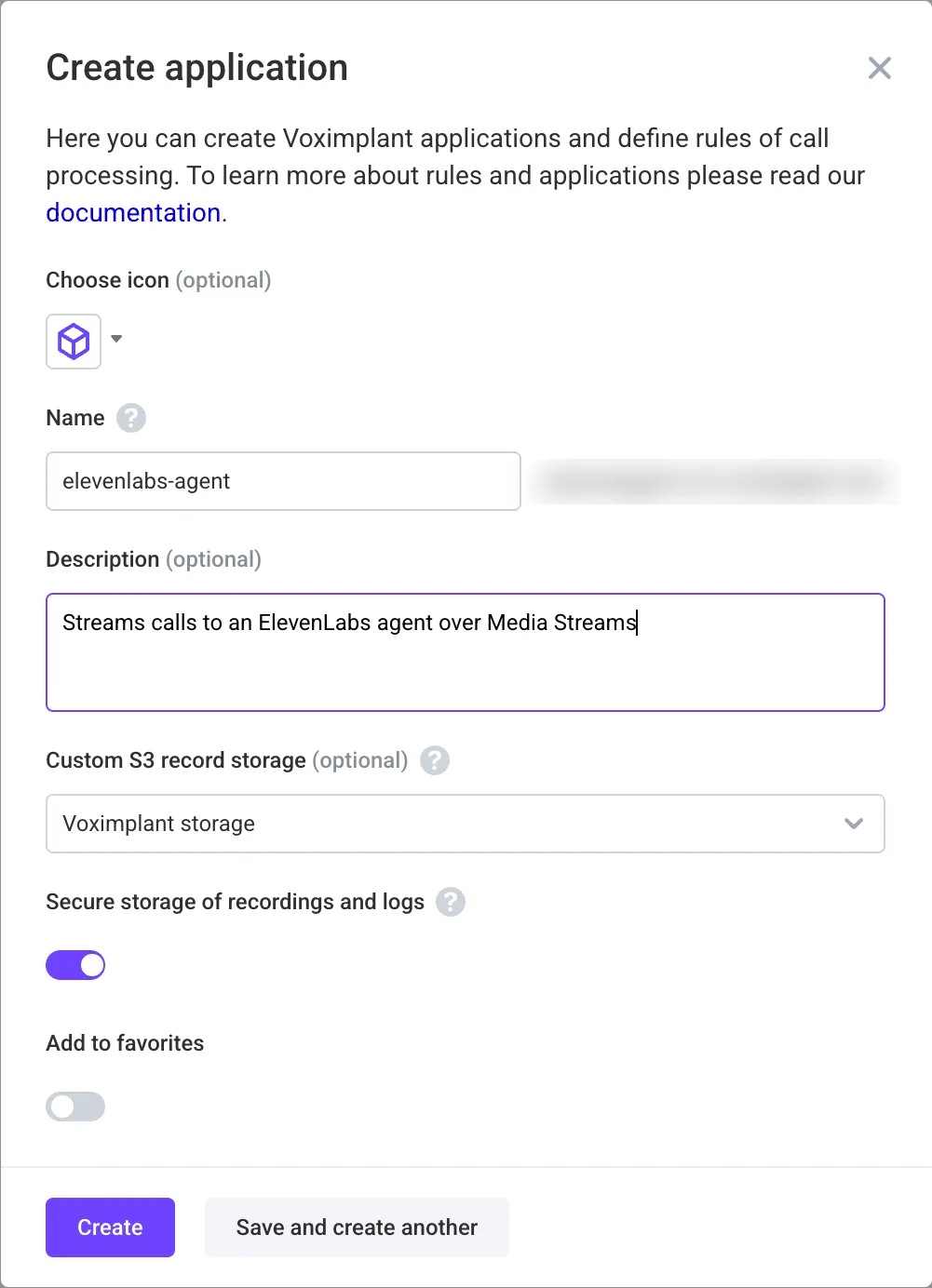
Create an application
In the Voximplant control panel, open Applications
and click Create application. Give it a name, for example elevenlabs-agent, and click
Create.
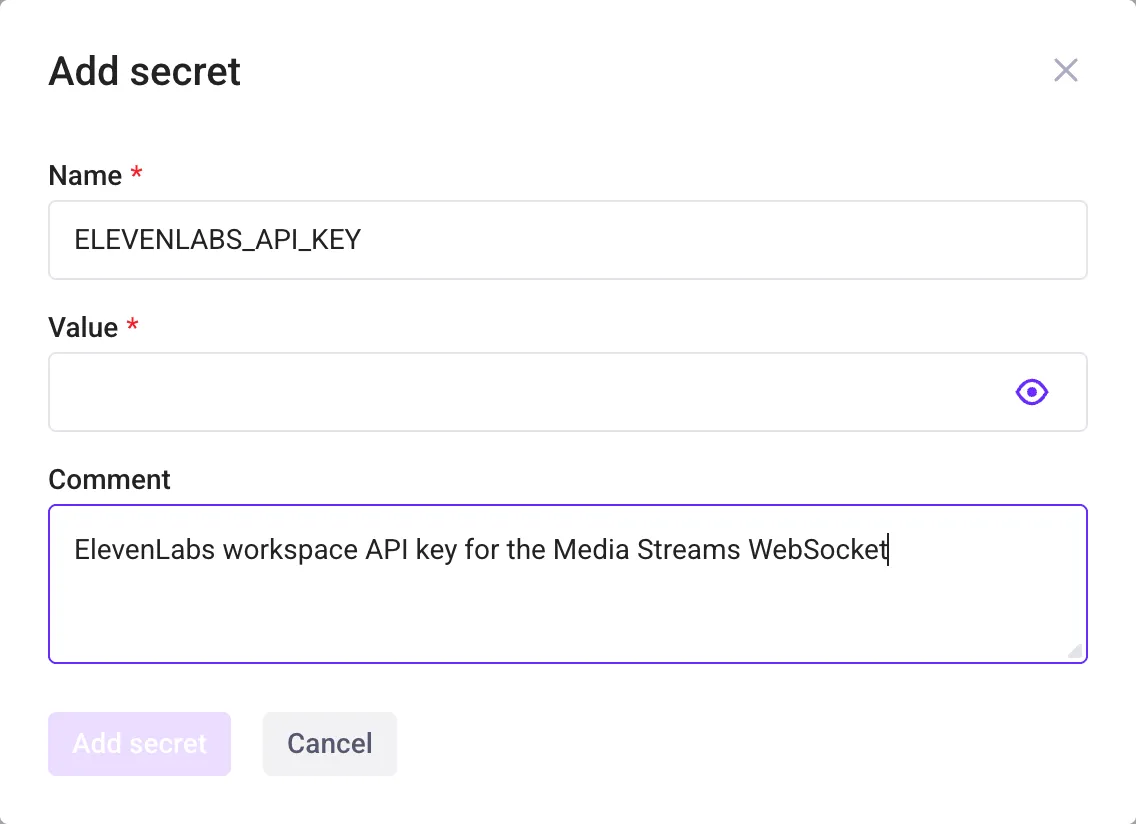
Store the API key as a secret
In the application, open Secrets and click Add secret. Name it ELEVENLABS_API_KEY, paste
the API key you created for the agent’s workspace into Value, and click Add secret. The
scenario reads it with VoxEngine.getSecretValue(), so the key never appears in the scenario code.
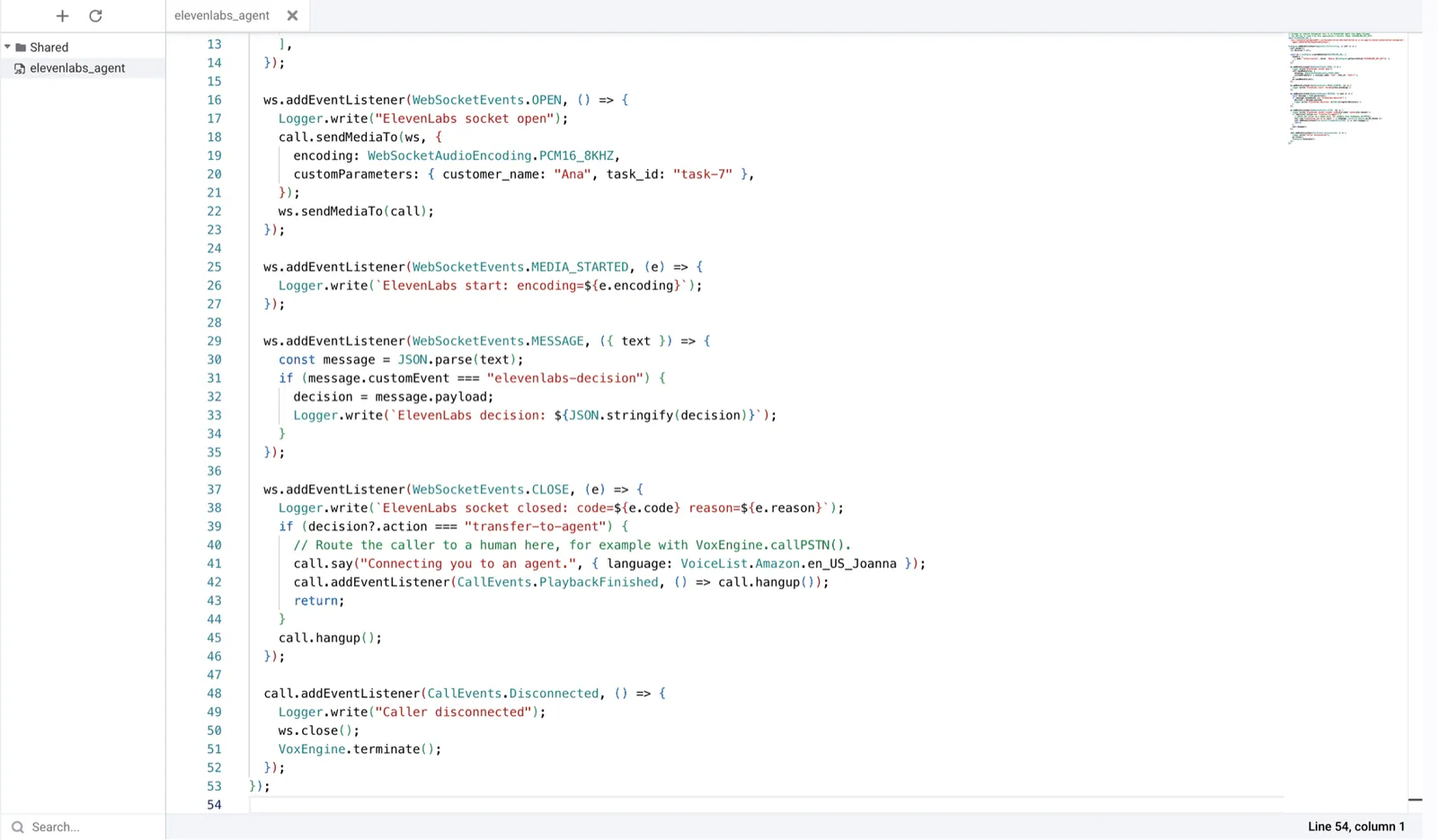
Create the scenario
Open Scenarios, click Create scenario, name it elevenlabs_agent, paste the code below,
replace the agent ID in ELEVENLABS_URL, and click Save. It answers an inbound call, streams
it to the agent, and acts on the decision when the conversation ends. For an outbound call, open
the WebSocket in the CallEvents.Connected handler of the call you placed.
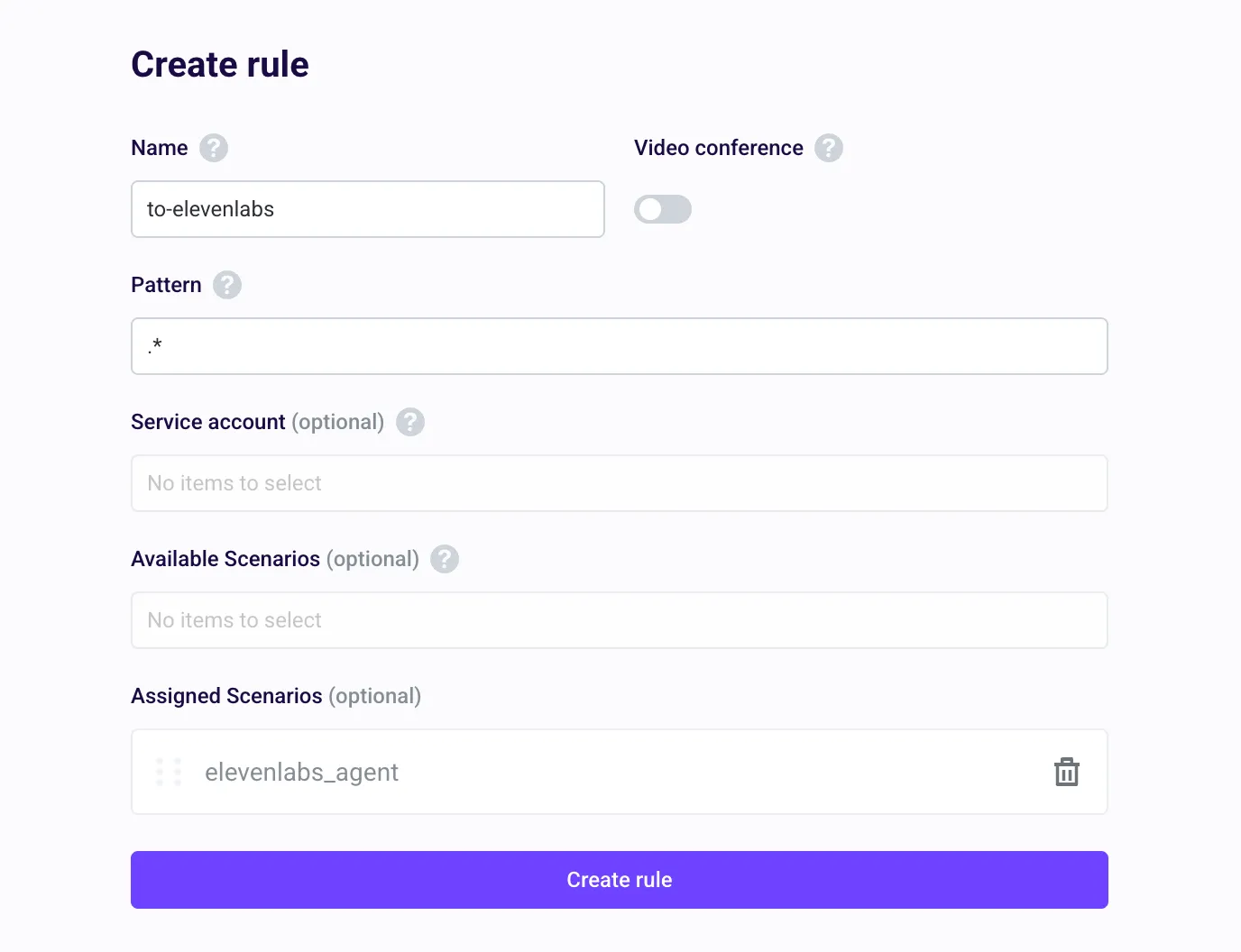
Route calls to the scenario
Open Routing, click Create rule, give it a name, and assign the elevenlabs_agent
scenario. The default pattern .* sends every call to the application through the scenario;
narrow it to a phone number if the application handles other calls too. To route a phone number,
attach it to the application under Numbers.
Make a test call
You can call the application from the browser without a phone number:
-
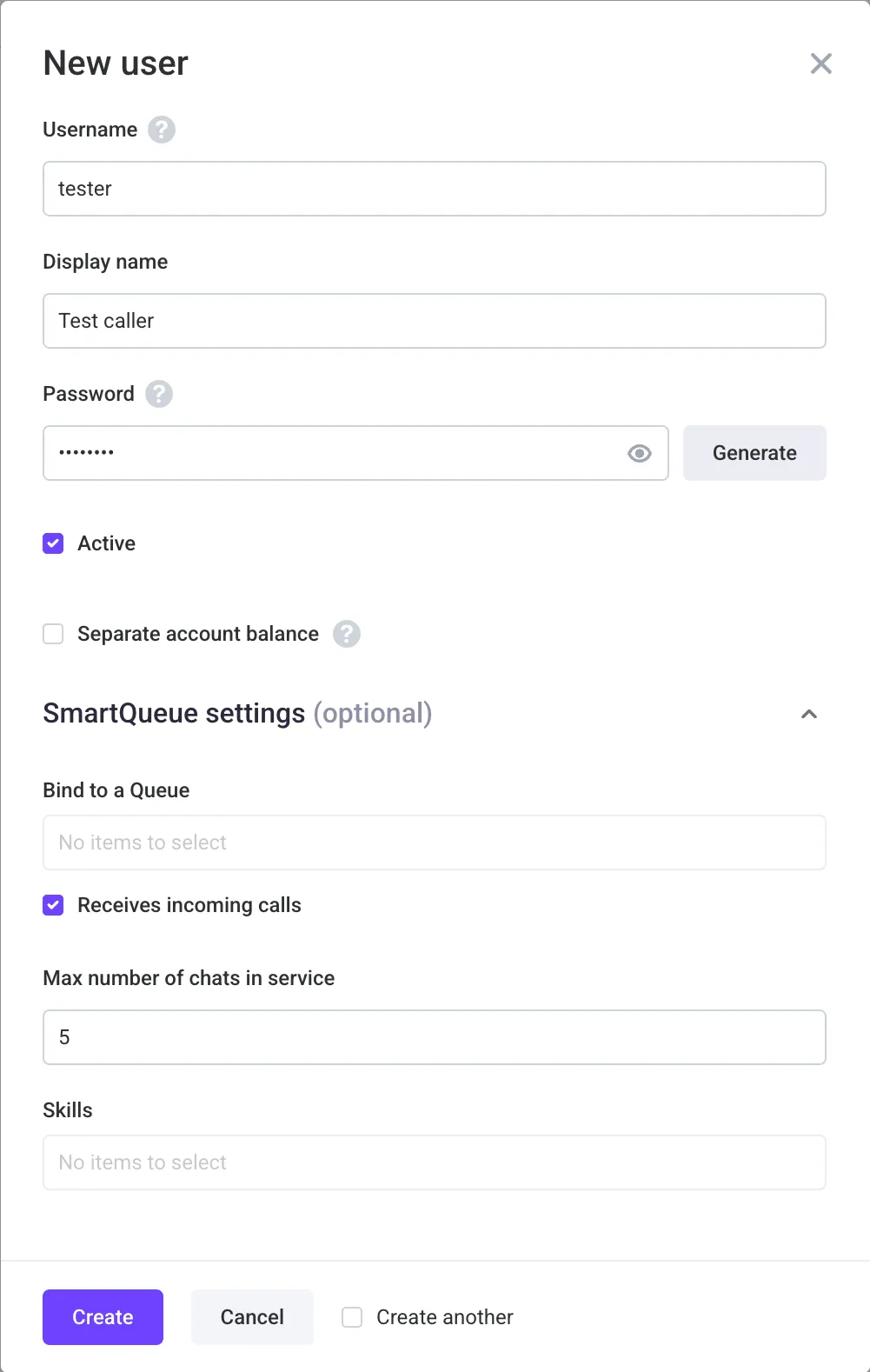
Open Users, click Create user, and create a user with a password.
-
In Routing, click Test tools, then Softphone. Sign in as that user, allow microphone access, enter any destination, and call. The agent answers with its first message.
-
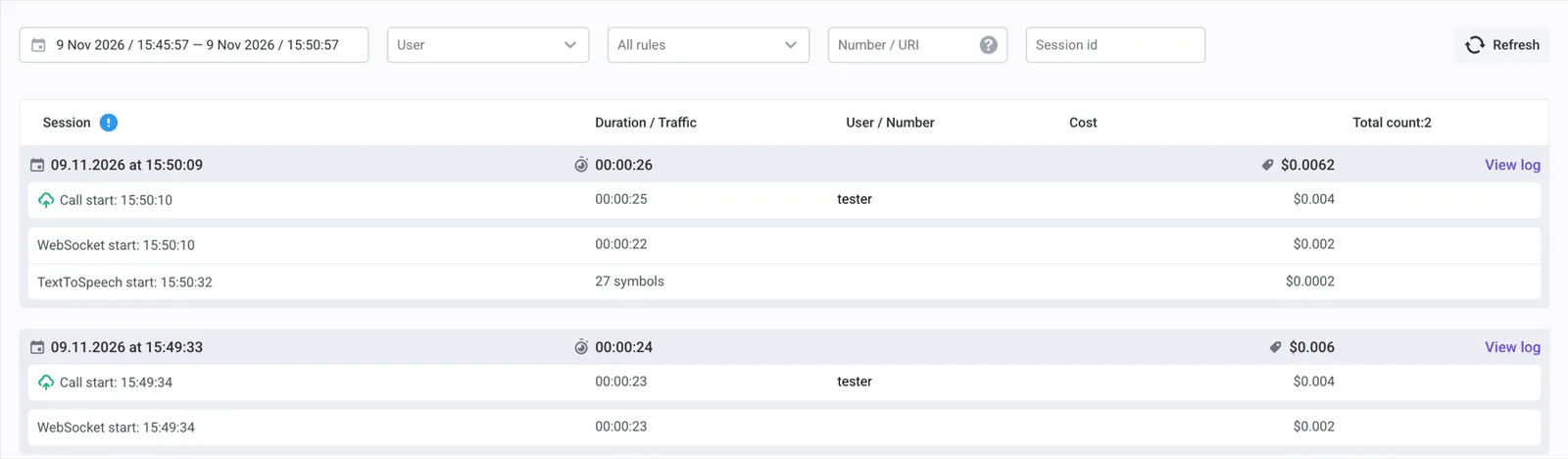
When the call ends, open Call history. Each call lists a WebSocket leg next to the call itself. Click View log to see the session.
The log shows the decision ElevenLabs sent, the WebSocket close, and what the scenario did next. In this example the caller asked for a person, so the decision is
transfer-to-agentwith the reason the agent gave.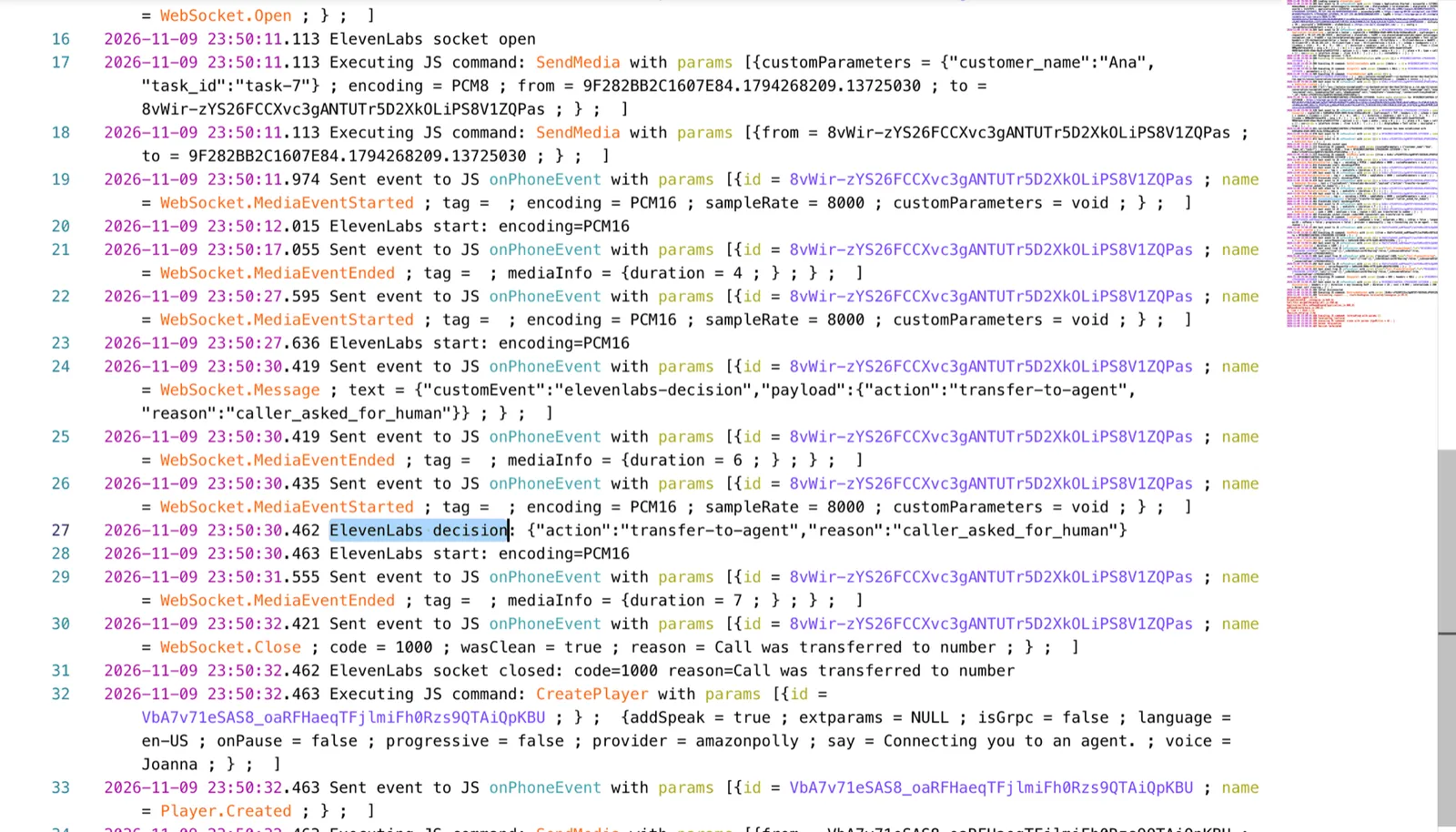
Act on the elevenlabs-decision event, not on MEDIA_ENDED. Voximplant fires MEDIA_ENDED after
about a second without audio from ElevenLabs, which can happen in the middle of a conversation.
Dynamic variables
Every key in customParameters becomes a dynamic variable with the same name. Values that are not
strings are converted to text, for example true becomes "true". customParameters can be an
object or a JSON-encoded string. Keys that start with system__ or integration__ are reserved and
are dropped.
Decision events
When the conversation ends, ElevenLabs sends exactly one decision before its stop message:
If the scenario sends stop or closes the WebSocket first, for example because the caller hung up,
ElevenLabs sends no decision.
Audio
Voximplant and ElevenLabs exchange 16-bit mono linear PCM at 8 kHz in both directions. ElevenLabs paces the agent’s audio close to real time, so when the caller interrupts the agent, at most about 0.4 seconds of the interrupted response is still played.
Authentication errors
ElevenLabs closes the WebSocket with code 1008 and reason bad auth token when the
Authorization header is missing or malformed, the API key is invalid or not allowed from the
connecting IP address, the key belongs to another workspace, or the key’s user cannot access an
agent that has authentication enabled.
Limitations and unsupported features
- Client tools and the Play keypad touch tone system tool are not supported. Transfer to number works only through a Voximplant transfer rule; the scenario decides where the caller goes.
- Configuration overrides such as a different first message cannot be passed from the scenario; only dynamic variables can.
- Data collection results are not sent to the scenario. Use the post-call webhook for them.