

Alerts
Overview
Alerts notify you when something goes wrong with the agents in your workspace. ElevenLabs continuously monitors conversation activity and raises an alert when an error rate exceeds a configured threshold or rises sharply above its recent baseline. Alerts require no setup to start working: monitors run automatically with default thresholds, and you can tune thresholds or add notifications when needed.
Alerts are viewed and managed in the ElevenLabs dashboard, where settings are configured at the workspace and agent level. Agent-level settings can also be set programmatically through the platform_settings.alerting field when creating or updating an agent with the Update agent API, SDKs, or Agents CLI configuration files. Workspace-level settings and the alert history are dashboard-only.
The following monitors are evaluated for every agent:
Each alert has one of the following statuses:
- Active: The condition is currently firing.
- Resolved: The condition stopped firing and the alert auto-resolved after a period of inactivity.
- Dismissed: A user manually dismissed the alert.
Viewing alerts
Navigate to Developers > Alerts to see recent monitoring alerts for agents in your workspace. The page shows a timeline of alert activity and a table listing each alert’s timestamp, duration, status, type, and agent. You can filter by status, agent, or tool, and adjust the time range (up to 90 days).
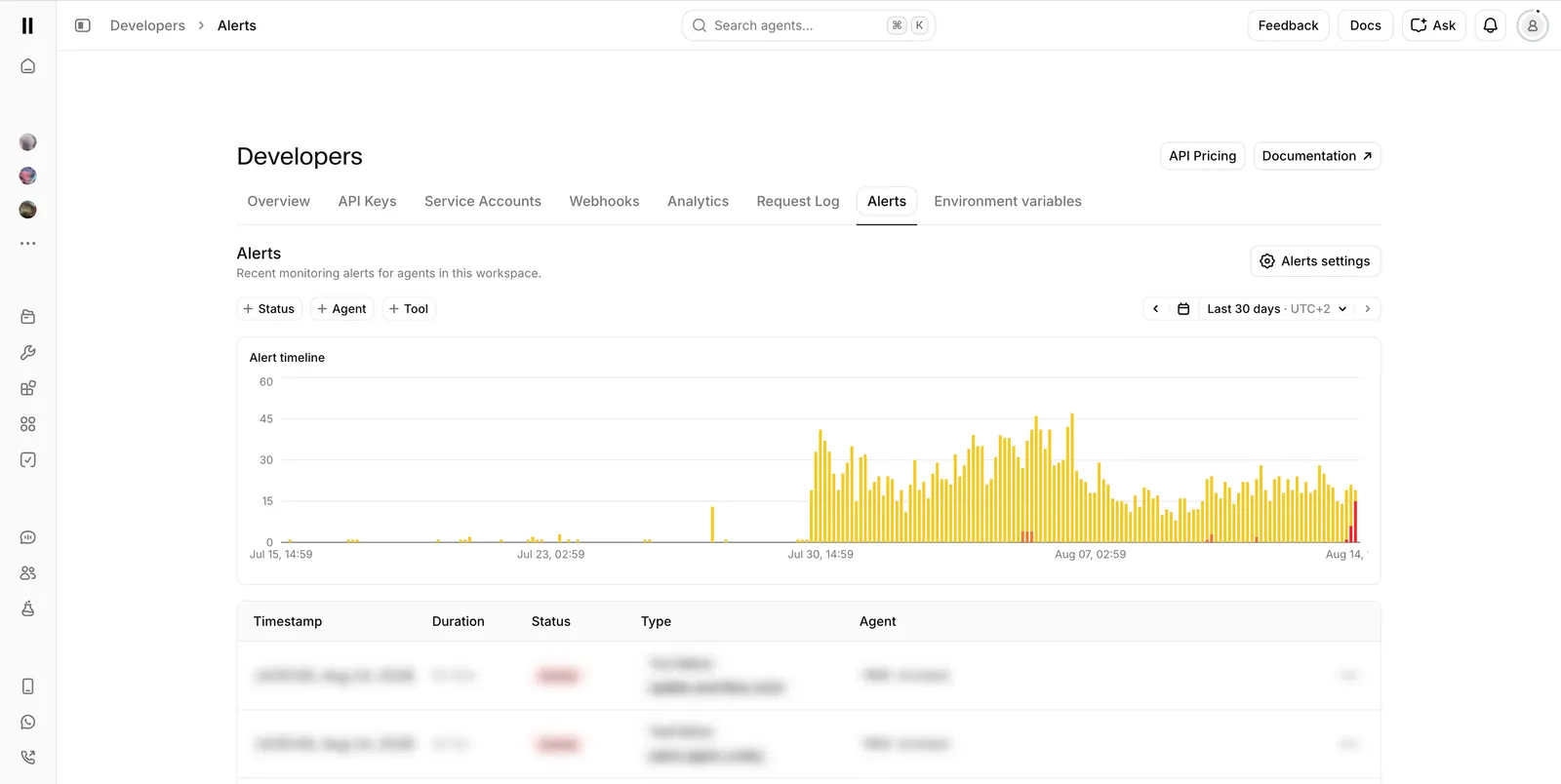
Click an alert to open the affected conversations, or use the row menu to Inspect conversations in the conversation history. Active alerts can be dismissed from the same menu.
Active alerts also appear as high-priority cards in Spotlight, the overview dashboard on each agent’s page, and a banner on the Agents dashboard links to the Alerts page whenever your workspace has active alerts.
Configuring thresholds
Alert thresholds can be configured at the workspace level and overridden per agent. Unset values fall back to the workspace configuration, and unset workspace values fall back to system defaults.
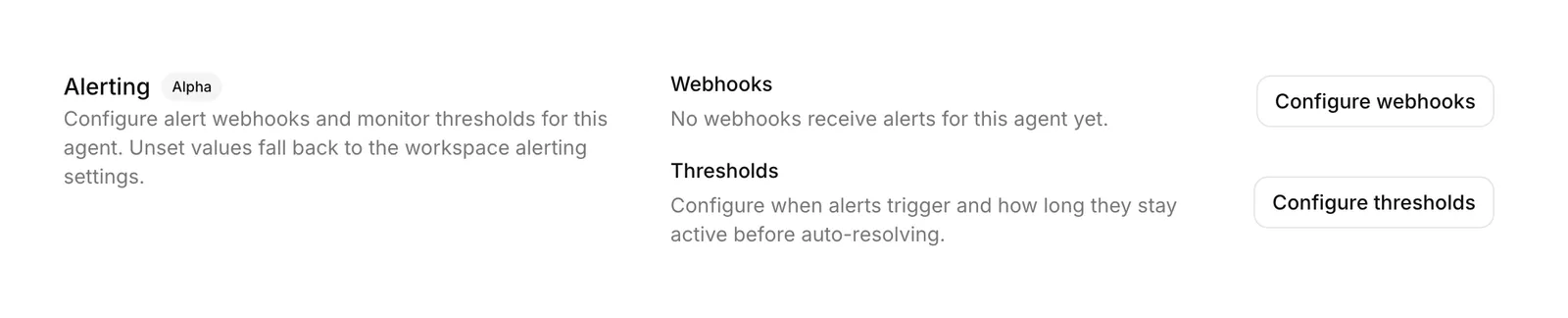
On the Developers > Alerts page, click Alerts settings and select Configure thresholds. To override thresholds for a single agent, open the Alerting section in the agent’s Advanced settings tab and click Configure thresholds instead.
Each monitor can be enabled or disabled and has a Threshold setting: the error rate that triggers an alert, as a percentage between 0% and 100%. You can also set Auto-resolve after inactivity (minutes) to control how long an alert can stay inactive before it auto-resolves.
Notifications
Alerts can notify external systems through workspace webhooks, Slack, and PagerDuty. When an alert triggers, resolves, or is dismissed, ElevenLabs notifies each configured notifier. Notifiers can be attached at the workspace level and per agent; agent-level notifiers are added on top of workspace notifiers rather than replacing them. Up to 10 notifiers can be configured per level.
To set up a notifier, click Alerts settings > Configure notifications on the Developers > Alerts page, or, for a single agent, Configure notifications in the Alerting section of the agent’s Advanced settings tab. Each notifier has a Send test action to verify delivery before an alert fires.
Webhooks
Select an existing workspace webhook, or create a new one with an HTTPS callback URL. ElevenLabs sends a POST request for every alert lifecycle event. Your endpoint should verify the request signature and return HTTP 200 promptly; webhooks that repeatedly fail are automatically disabled, following the same rules as other workspace webhooks.
Notification payload
Alert notifications use the convai_alerting_notification event type. The event.name field indicates what happened: triggered when the alert becomes active, auto_resolved when it resolves after inactivity, and resolved when a user dismissed it (in which case was_resolved_by_user is true). The text field contains a human-readable summary formatted with Slack markup, so the notification can be forwarded directly to a Slack incoming webhook.
The monitor field is one of elevated_conversation_failure_rate, elevated_tool_failure_rate, webhook_error_spike, guardrail_trigger_spike, call_initiation_error_spike, or low_evaluation_success_score. The tool_name field is only set for tool failure alerts.
Slack
Slack notifiers post alert notifications directly to a Slack channel. Connect the Slack integration to your workspace, then add the connection as a notifier and enter the ID of the channel to post to. To find the channel ID in Slack, open the channel, click the channel name in the header, then scroll to the bottom of the About tab and copy the Channel ID (for example C0123456789). Add the connected Slack app to the channel; the app needs the chat:write scope, or chat:write.public to post to public channels it has not joined. A message is posted when an alert triggers and again when it resolves.
PagerDuty
PagerDuty notifiers deliver alerts as PagerDuty incidents through the Events API. Connect the PagerDuty integration on the Integrations page with an Events API v2 integration key from the PagerDuty service that should receive the alerts, then add the connection as a notifier. An incident is triggered when an alert becomes active and resolved automatically when the alert resolves; repeated triggers of the same alert are deduplicated into a single incident. Both the US and EU PagerDuty service regions are supported.