

Exotel integration
Overview
This guide explains how to connect your Exotel phone numbers directly to ElevenAgents. This integration allows you to use your existing Exotel numbers and infrastructure while leveraging ElevenLabs’ advanced voice AI capabilities, for both inbound and outbound calls.
How the integration works
The Exotel integration uses two Exotel surfaces:
- Voicebot applet (inbound + outbound media): An ExoML applet on Exotel that opens a WebSocket to ElevenLabs and streams the call’s audio in both directions.
- Connect API (outbound dialing): For outbound calls, ElevenLabs calls Exotel’s
Calls/connect.jsonendpoint using your API Key and API Token. Exotel dials the destination and, when the leg is answered, routes the audio through the same Voicebot applet to ElevenLabs.
For inbound calls, Exotel routes incoming calls to the Voicebot applet you assign to the phone number, which opens the WebSocket to ElevenLabs.
For outbound calls, ElevenLabs initiates the call via the Connect API and Exotel bridges the call back through the Voicebot applet.
Requirements
Before setting up the Exotel integration, ensure you have:
- An active Exotel account with at least one provisioned phone number.
- Administrator access to the Exotel dashboard at my.exotel.com (Singapore) or my.exotel.in (Mumbai).
- An ElevenLabs account and an agent you want to attach the phone number to.
Exotel is currently supported on the Singapore (api.exotel.com) and Mumbai
(api.in.exotel.com) clusters. Pick the cluster your Exotel account was provisioned in. Using the
wrong region will cause authentication failures.
Enabling Voicebot on your Exotel account
Before anything else, contact Exotel support and ask them to:
- Enable the Voicebot applet on your account. It is gated by default and won’t appear in the App Bazaar until your account has been provisioned for it.
- Provision the number of channels (concurrent calls) you need. This is the cap on simultaneous Voicebot calls Exotel will let your account run. Size it for your expected peak traffic.
This step usually takes 1 to 2 business days. Start it before you begin the rest of the setup.
ElevenLabs WebSocket endpoint
You will configure your Exotel Voicebot applet to stream audio to the following WebSocket URL.
If your ElevenLabs account is on an isolated residency environment (EU or India), you must use the corresponding residency URL. Learn more about data residency.
Setup on Exotel
Collect your Exotel credentials
In the Exotel dashboard, open the left-hand Monitor menu and click Developer. This opens the API credentials page where you can read the Account SID, API Key and API Token.
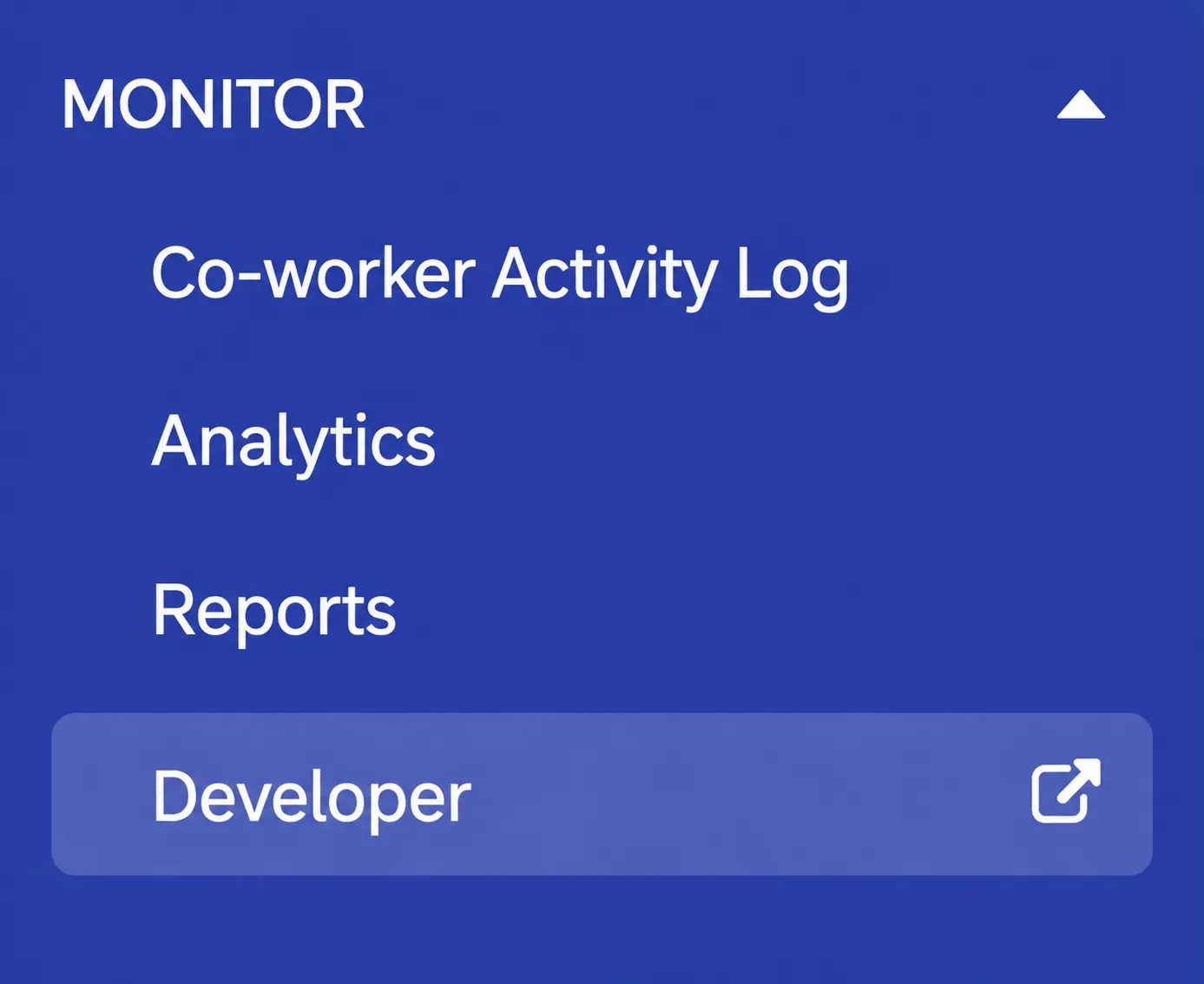
You will need four values:
- Account SID: Your Exotel account SID.
- API Key: The username portion of the Exotel API credentials.
- API Token: The password portion of the Exotel API credentials. Keep this secret.
- Region (API subdomain): The cluster your Exotel account lives in. This is either
api.exotel.com(Singapore) orapi.in.exotel.com(Mumbai). You can confirm which one by looking at the host of any API URL shown on the Developer page.
ElevenLabs uses the API Key + API Token for HTTP Basic Auth when calling Exotel’s Connect API for outbound dialing.
Create a Voicebot applet in App Bazaar
-
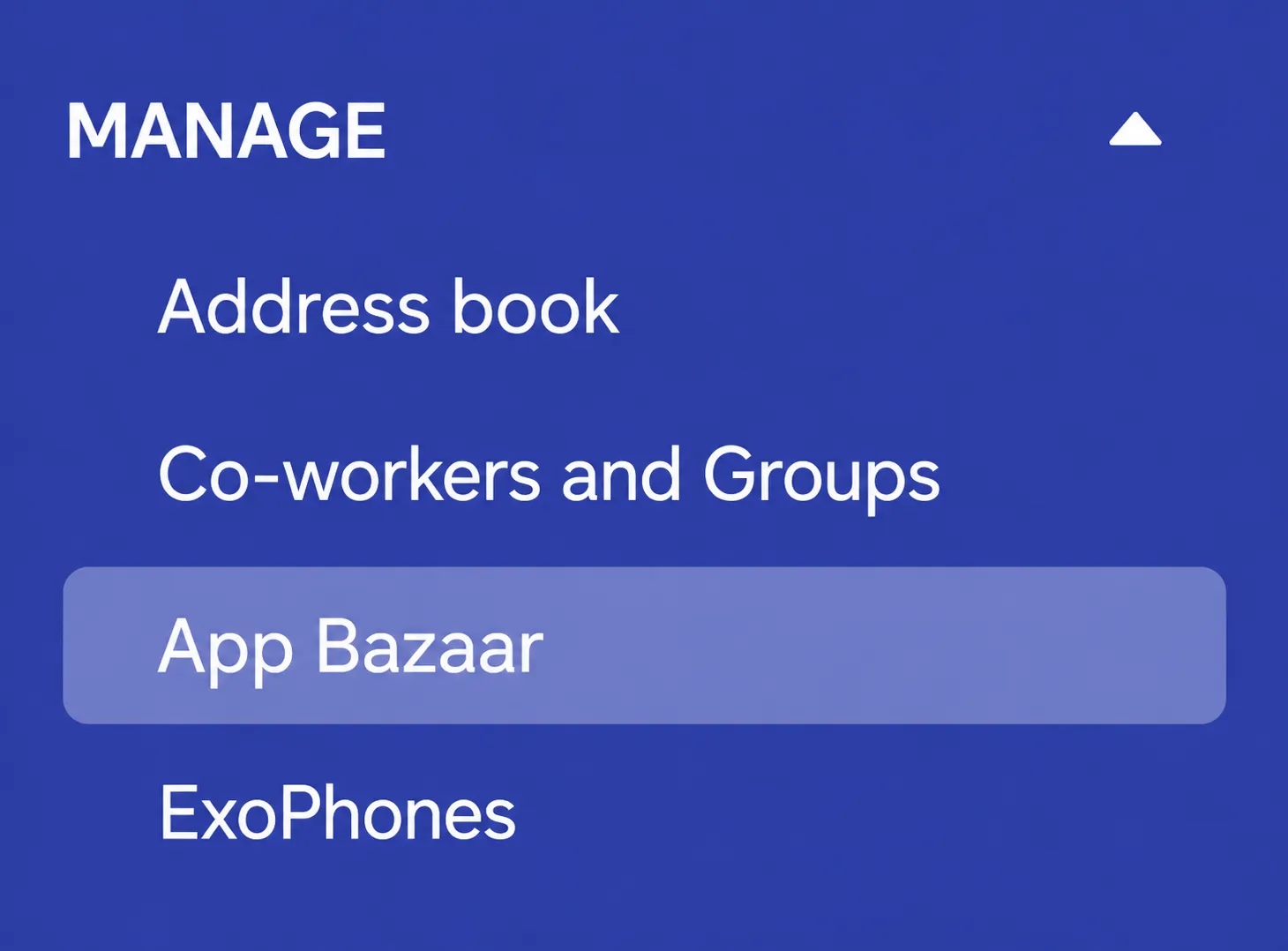
In the Exotel dashboard, open the left-hand Manage menu and click App Bazaar.
-
Click Create / Add New Flow and give the app a descriptive name (e.g.
ElevenLabs), then click OK.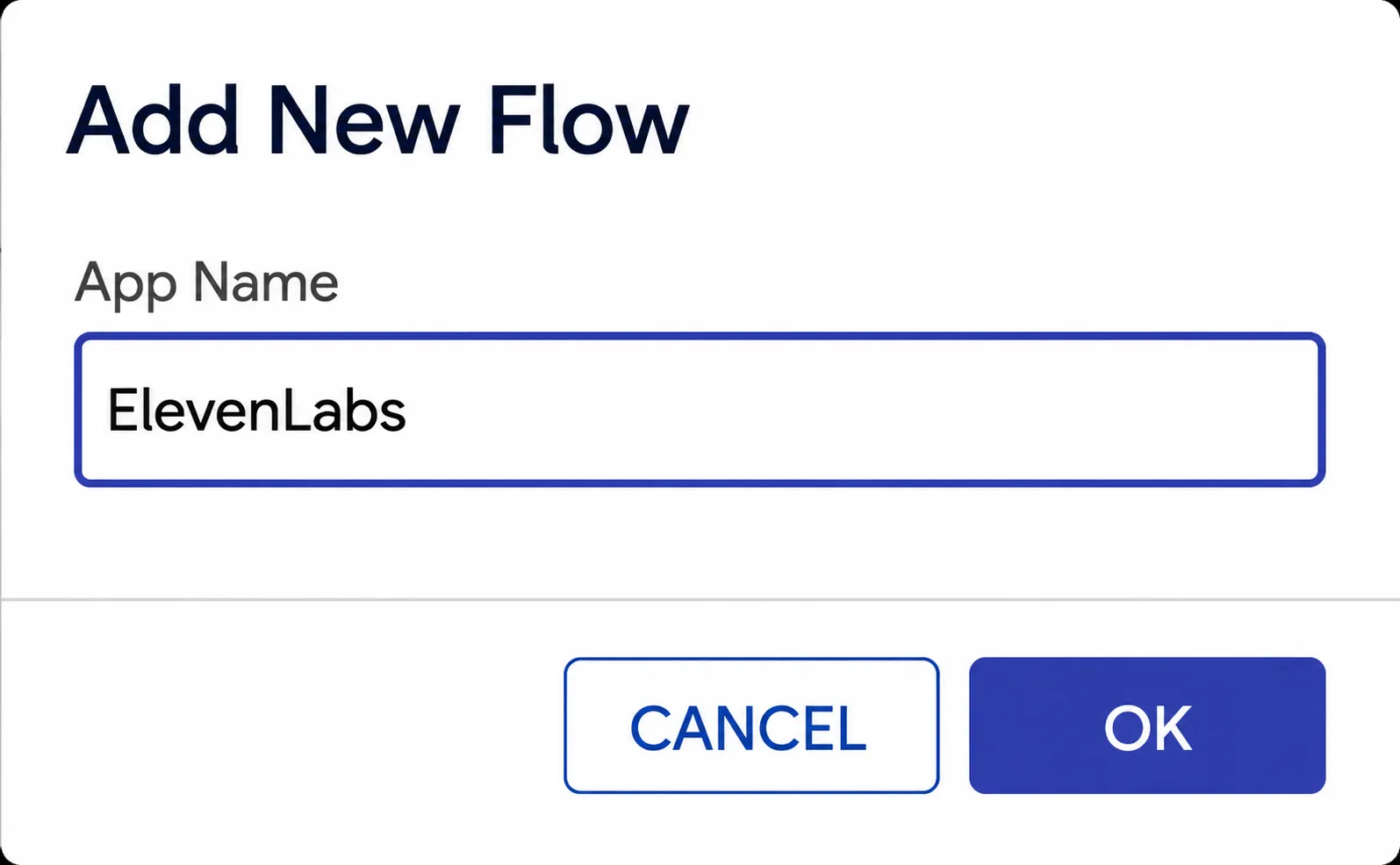
-
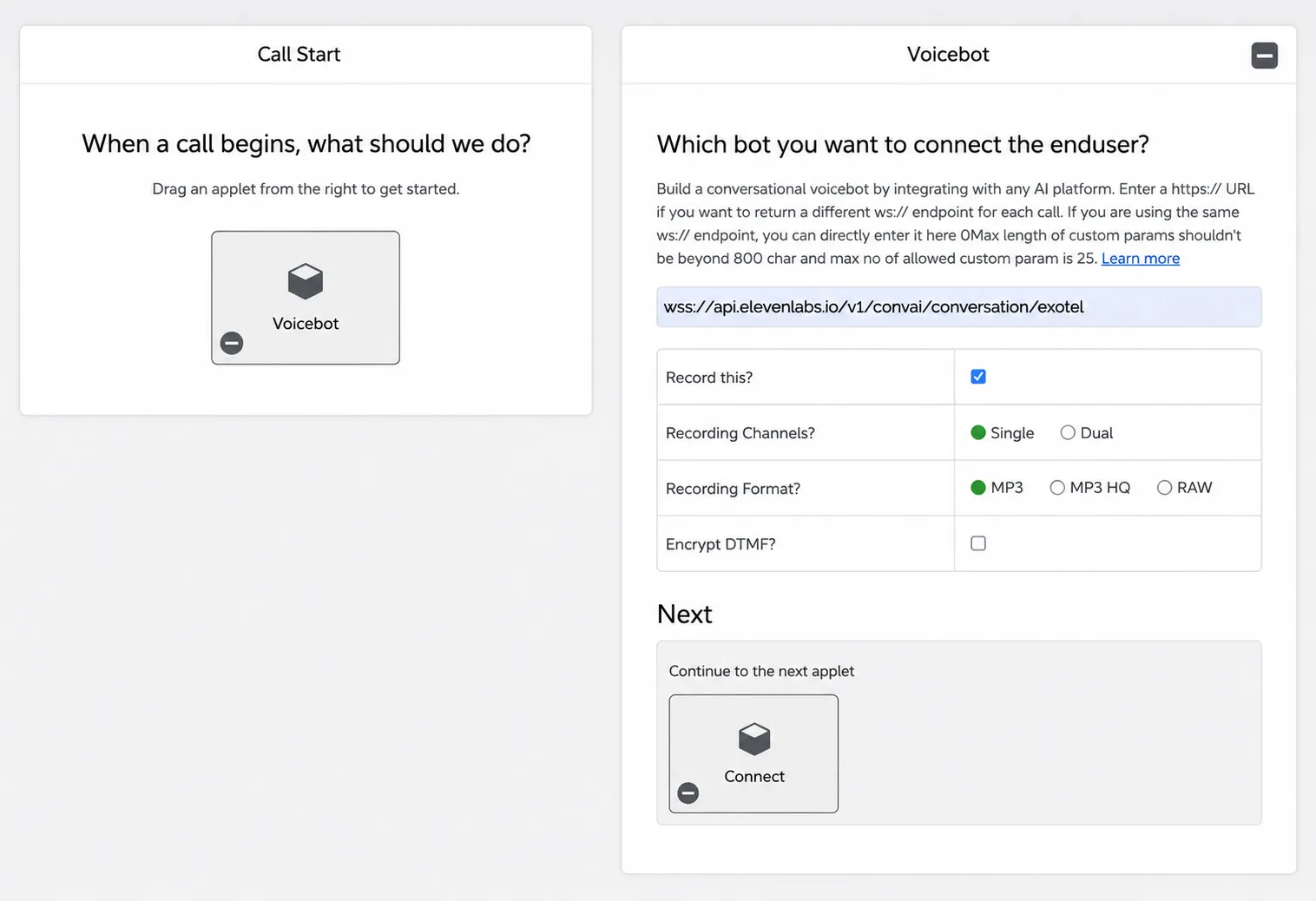
From the applet palette on the right, drag the Voicebot applet onto the Call Start canvas.
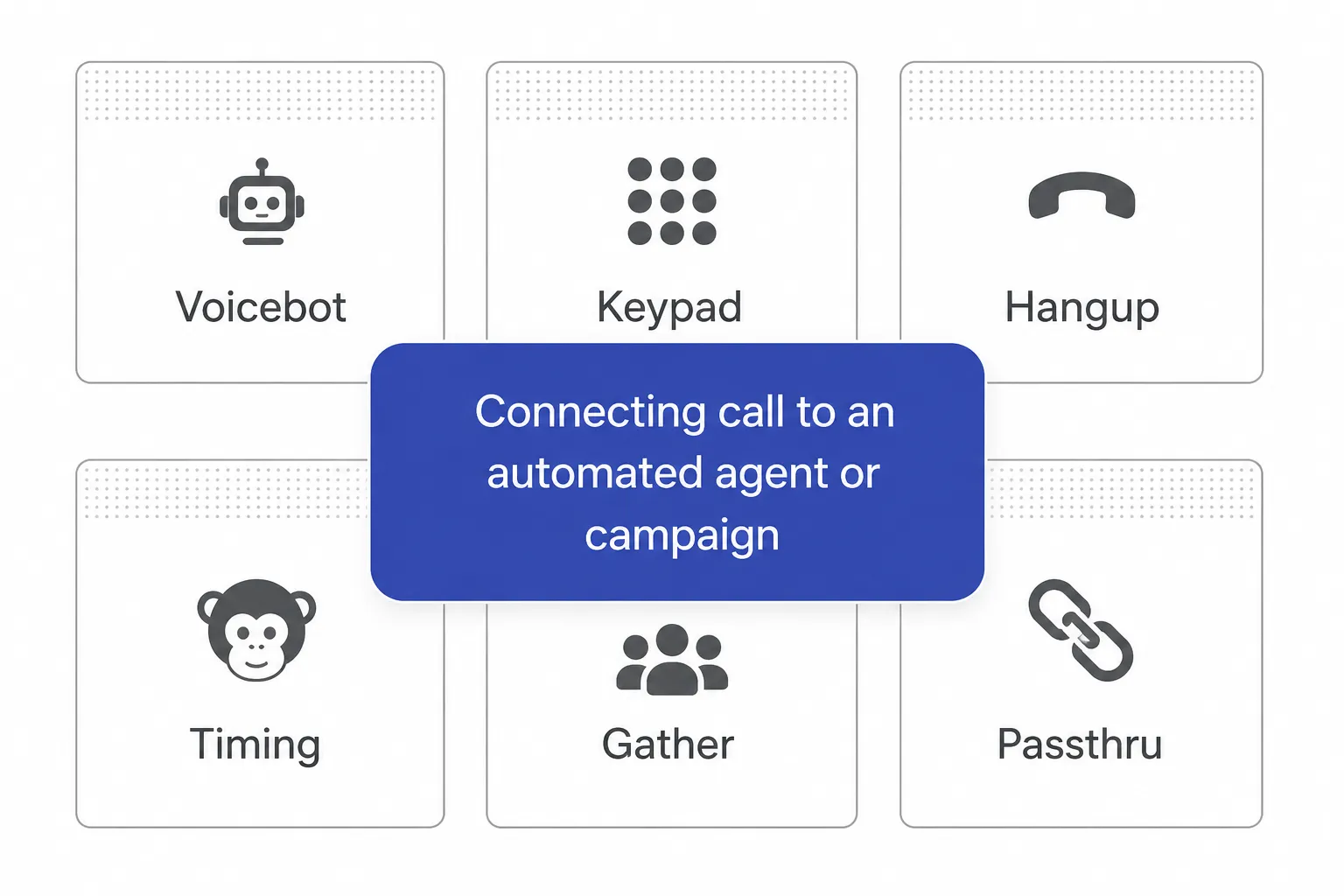
-
Open the Voicebot applet’s configuration and paste the ElevenLabs WebSocket URL for your residency into the URL field (the “Which bot you want to connect the enduser?” field):
If your ElevenLabs account is on EU or India residency, use the matching residency URL from the table above (e.g.
wss://api.in.residency.elevenlabs.io/v1/convai/conversation/exotel) instead of the defaultapi.elevenlabs.io.The rest of the Voicebot options (“Record this?”, “Recording Channels”, “Recording Format”, “Encrypt DTMF”) can stay at their defaults unless you have a specific recording or compliance need.
-
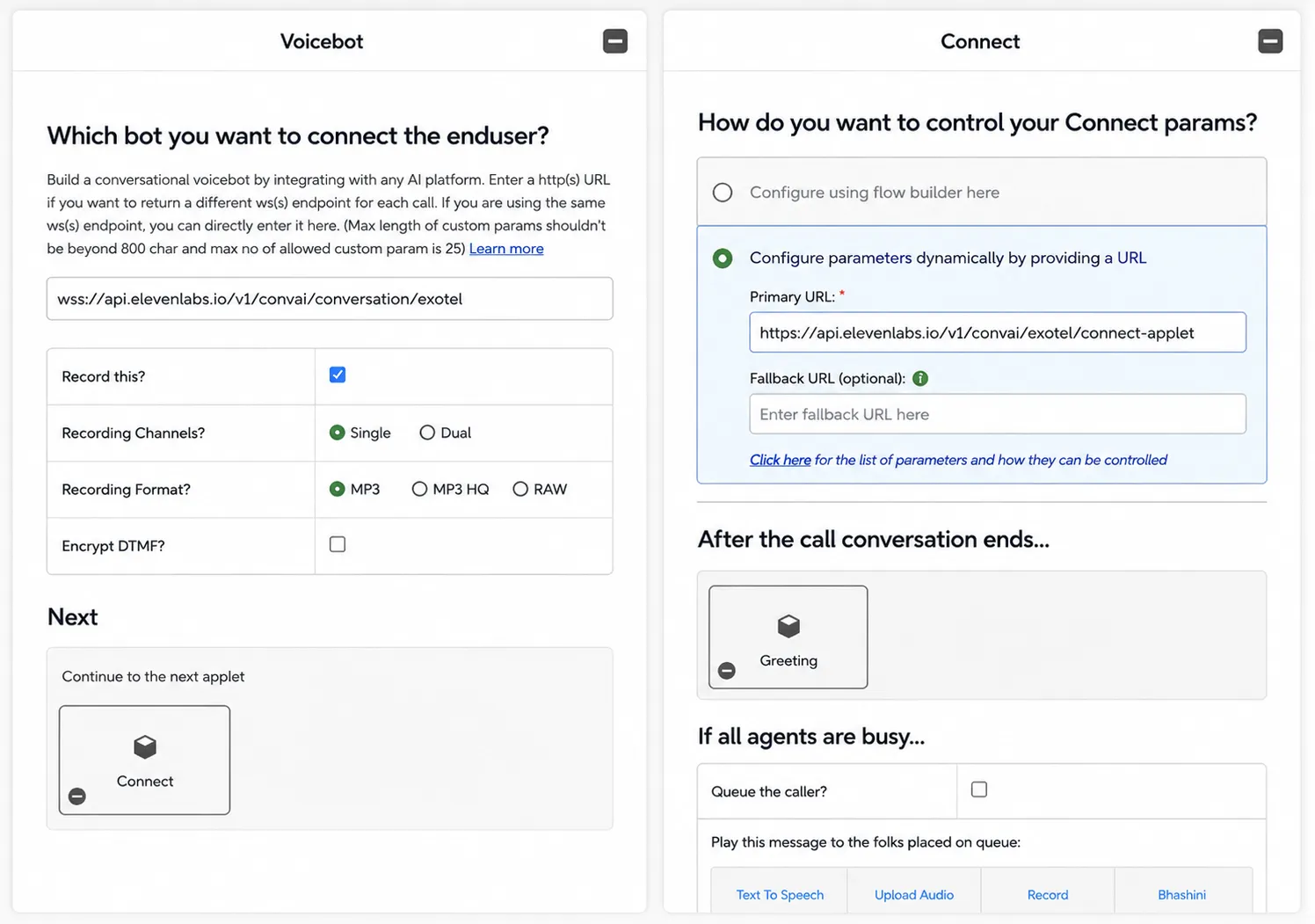
(Optional) Chain a Connect applet for human transfers. Skip this if you don’t need the agent to be able to transfer the call to a human. If you want to use the agent’s Transfer to number tool, you must add a Connect applet immediately after the Voicebot applet in the flow.
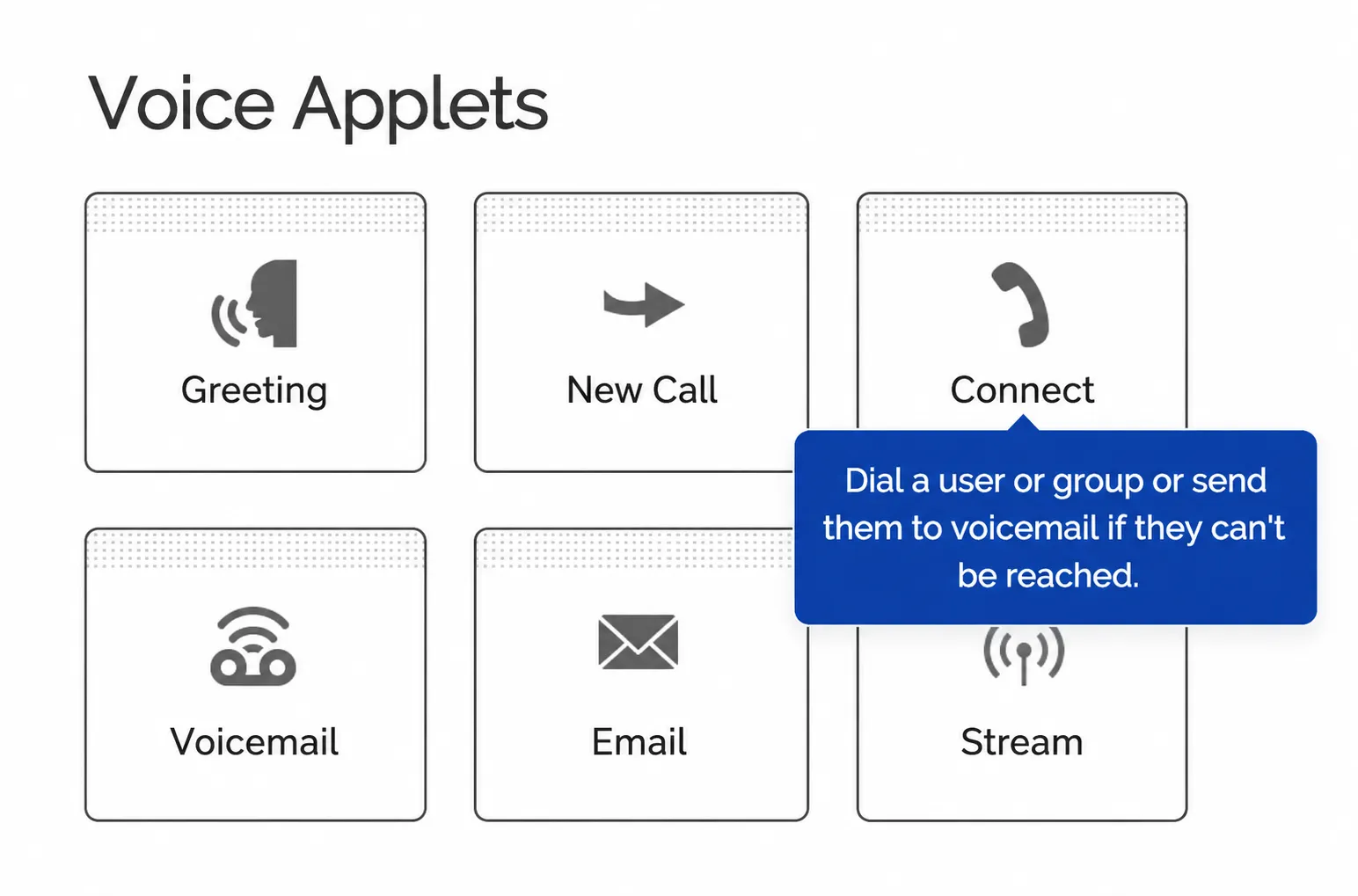
From the Voice Applets palette on the right, drag the Connect applet into the Next → Continue to the next applet slot of the Voicebot.
In the Connect applet’s configuration, choose Configure parameters dynamically by providing a URL and paste the ElevenLabs connect-applet endpoint for your residency into Primary URL:
The matching residency URLs are:
When the agent invokes its Transfer to number tool, ElevenLabs hands control back to Exotel and Exotel fetches this URL to retrieve the destination number to dial. Leave Fallback URL empty and keep all other defaults.
-
Save and publish the applet.
-
Note the Applet ID (sometimes called App ID). You’ll find it in the URL of the ExoML editor (e.g.
.../exoml/start_voice/12345) or in the App list. You will need this when importing the number into ElevenLabs.
The Voicebot applet handles both inbound and outbound legs. You only need a single applet per account. Every phone number you import into ElevenLabs can share it.
Assign the flow to a phone number (inbound only)
Save and publish the ExoML flow from the previous step. Then route an Exotel phone number to it so inbound calls land on your Voicebot applet.
-
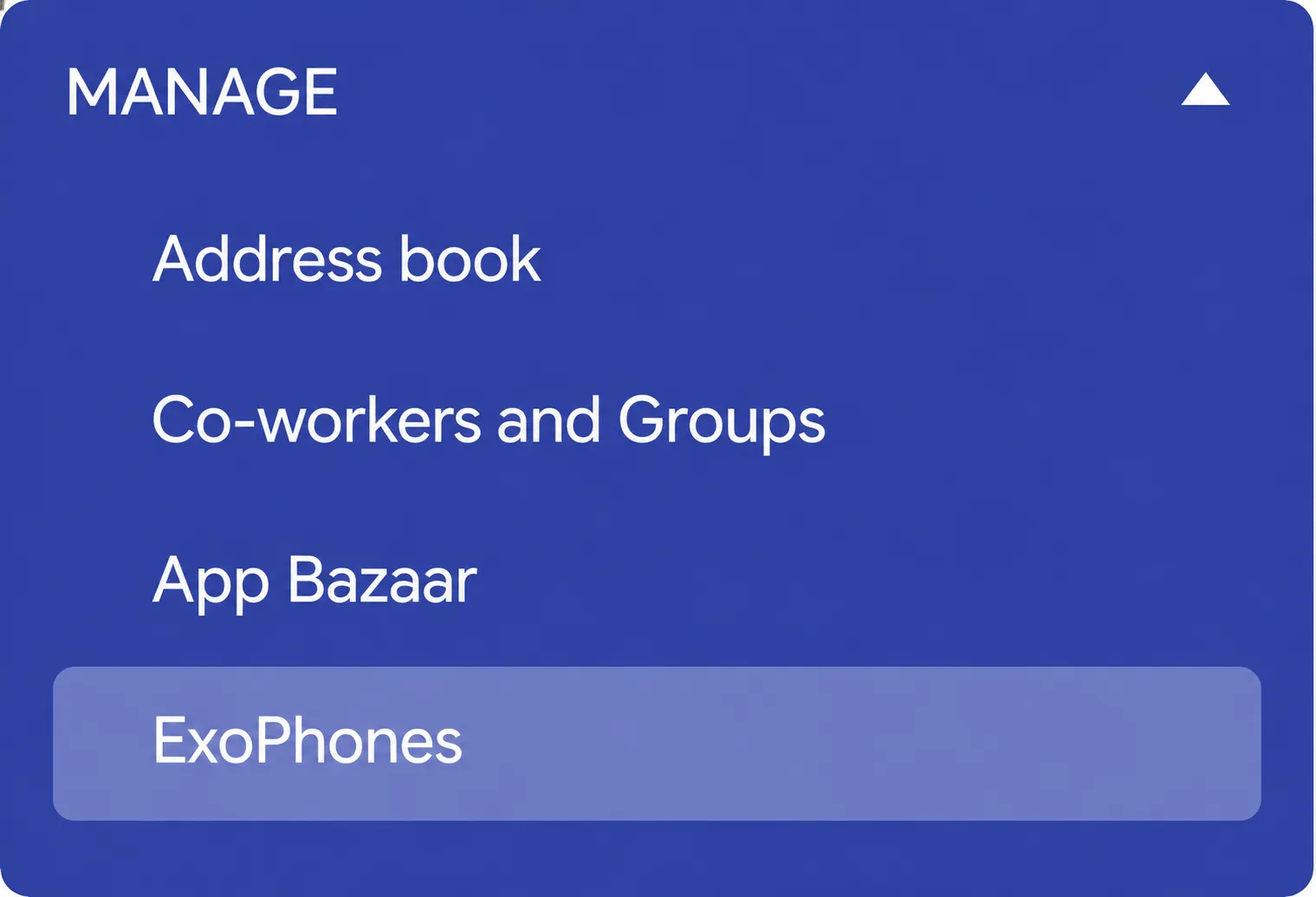
In the Exotel dashboard, open the left-hand Manage menu and click ExoPhones (just below App Bazaar).
-
If you don’t already have a phone number, click Buy a number and purchase one in the country / area you need before continuing.
-
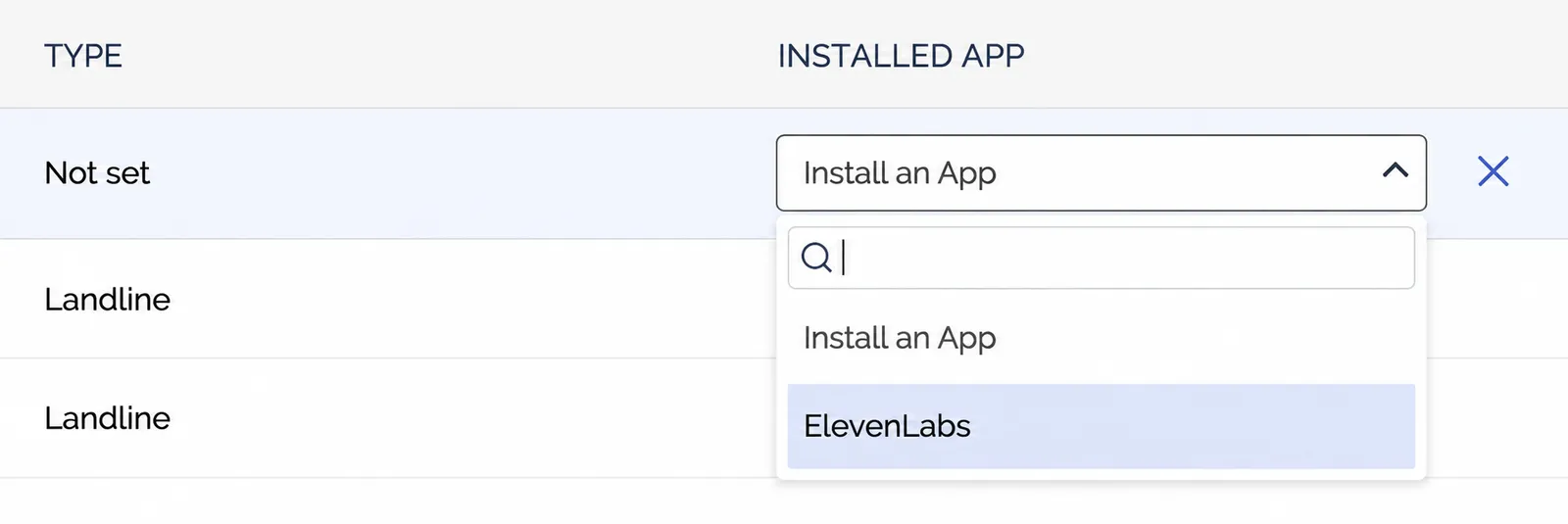
Find the number you want to use with your ElevenLabs agent. In its Installed App column, open the dropdown and select the flow you created in the previous step (e.g. ElevenLabs).
-
Save the configuration. Incoming calls to that number will now be routed straight into the Voicebot applet and streamed to ElevenLabs.
If the number will only be used for outbound calls, you can skip this step. Outbound calls are dialed via the Connect API from ElevenLabs and don’t depend on the Installed App assignment.
Setup on ElevenLabs
Import the Exotel phone number
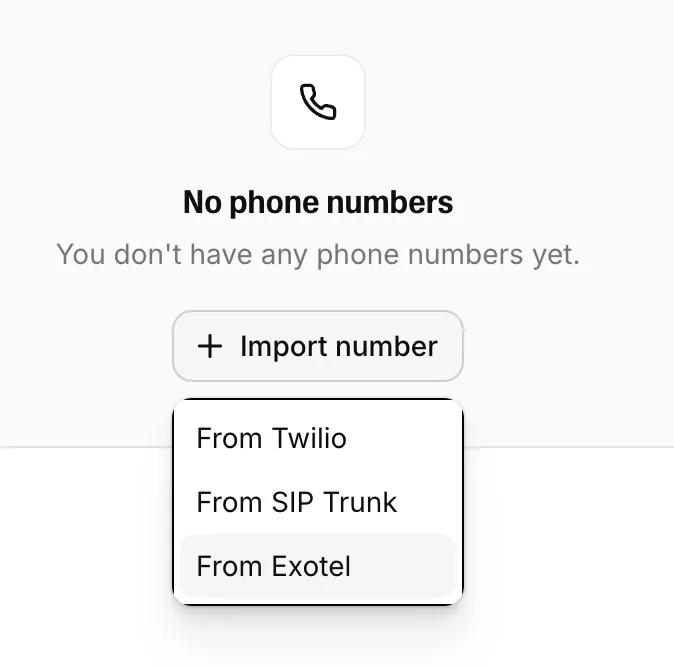
In the ElevenAgents dashboard, go to the Phone Numbers tab. Click + Import number and select From Exotel from the dropdown.
Fill in the following fields:
- Label: A descriptive name (e.g.
Support Line). - Phone number: The Exotel number in E.164 format (e.g.
+918048961234). - Exotel Account SID: From step 1 above.
- Exotel API Key: From step 1 above.
- Exotel API Token: From step 1 above (stored as a workspace secret).
- Region: Pick
Singapore (api.exotel.com)orMumbai (api.in.exotel.com)matching your Exotel cluster. - Voicebot Applet ID: The App ID from step 2 above.
Click Import to save the number. ElevenLabs will verify the credentials against Exotel and store the API token as a workspace secret.
Assign your agent
Once the number is imported, open it from the Phone Numbers list and pick the agent that should handle inbound calls in the Assigned agent dropdown.
Inbound calls require that the Voicebot applet is assigned to the number on Exotel’s side (see the previous section). Outbound-only setups do not need an inbound assignment.
Test an inbound call
Call your Exotel number from any phone. The call will be routed by Exotel to the Voicebot applet, which opens a WebSocket to ElevenLabs. Your agent will pick up and start the conversation.
Monitor the call in the Calls History dashboard to verify everything is working as expected.
Making outbound calls
Imported Exotel numbers can also initiate outbound calls. Your agent dials a phone number and starts the conversation when the recipient picks up.
Initiate an outbound call
From the Phone Numbers tab, locate your Exotel number and click the Outbound call button.
Configure the call
In the Outbound Call modal:
- Select the agent that will handle the conversation.
- Enter the recipient’s phone number in E.164 format.
- Click Send Test Call to initiate the call.
ElevenLabs calls Exotel’s Connect API with your stored credentials. Exotel dials the recipient and routes the audio back through the Voicebot applet when the call is answered.
When making outbound calls, your agent is the initiator of the conversation, so ensure your agent has an appropriate first message configured.
To trigger outbound calls programmatically instead of from the dashboard, use the Outbound call via Exotel endpoint. The API reference includes the request schema and ready-to-use SDK snippets.
Agent configuration requirements
The Voicebot applet streams audio at 8 kHz PCM. The ElevenLabs platform handles the audio format conversion automatically. You do not need to change your agent’s TTS or input audio settings.
Phone number formats
Phone numbers are stored in E.164 format (e.g. +918048961234). When importing an Indian Exotel number that you might write locally as 08048961234 or 8048961234, enter it as +918048961234. ElevenLabs will reject duplicate imports of the same number in different formats.
Call transfers
You can transfer calls from your agent back to Exotel by configuring a Transfer to number tool on your agent. When the tool fires, ElevenLabs ends the Voicebot leg and Exotel fetches the destination number from the chained Connect applet’s dynamic URL, then dials the target.
For this to work you need both:
- The optional Connect applet configured immediately after the Voicebot applet in your ExoML flow (see step 5 in Setup on Exotel).
- The Transfer to number tool configured on your agent. See the agent transfer guide.
Without the Connect applet in the flow, the agent’s transfer attempts will fail because Exotel will have nowhere to route the call after the Voicebot ends.
Troubleshooting
exotel_connect_failed error when starting an outbound call
exotel_connect_failed error when starting an outbound call
ElevenLabs received a non-200 response from Exotel’s Connect API. The most common causes are:
- Wrong Region. Make sure the region you picked at import time matches the Exotel cluster your account lives in (
SingaporevsMumbai). - Invalid API Key or API Token. Re-check the credentials in the Exotel API Settings page and re-import the number with the correct values.
- The Account SID does not match the API Key / Token pair.
- The destination number is not in E.164 format.
Inbound calls don't reach my agent
- Confirm the Voicebot applet’s URL field matches the ElevenLabs WebSocket endpoint for your data residency exactly (including
wss://). - Confirm the Exotel phone number is routed to the ExoML app that contains the Voicebot applet (Exotel dashboard, ExoPhones, the number, Installed App).
- In ElevenLabs, confirm the phone number has an agent assigned in the Phone Numbers tab.
Applet ID mismatch errors when importing
Applet ID mismatch errors when importing
The Voicebot Applet ID field expects the numeric App ID from the ExoML editor URL (e.g. for .../exoml/start_voice/12345 the ID is 12345). Don’t paste the full URL. Use only the ID.
Phone number imported twice in different formats
ElevenLabs normalizes Exotel numbers to E.164 before storing them, and enforces uniqueness on (provider, phone_number). If you previously imported the same number in a non-E.164 format, delete the old entry first and then re-import it in E.164 form.