For AI agents: a documentation index is available at the root level at /llms.txt and /llms-full.txt. Append /llms.txt to any URL for a page-level index, or .md for the markdown version of any page.
Connect
BlogHelp CenterAPI PricingSign up
OverviewElevenCreativeElevenAgentsElevenAPIReception AIAPI referenceChangelog
  • Get started
    • Overview
    • Quickstart
  • Configure
    • Overview
    • Voice & language
    • Knowledge base
    • Tools
    • Personalization
    • Authentication
  • Deploy
    • Overview
    • Environment variables
    • WhatsApp
    • Batch calls
  • Monitor
    • Overview
    • Users
    • Testing
    • Experiments
    • Versioning
    • Conversation Analysis
    • Analytics
    • Real-time monitoring
    • OpenTelemetry traces
    • Privacy
    • Cost optimization
    • CLI
  • Advanced
    • Events
    • Custom models
      • Cloudflare
      • Groq Cloud
      • SambaNova Cloud
      • Together AI
    • LLM cascading
    • Post-call webhooks
  • Resources
    • UI components
  • Guides
    • Chat Mode
    • Burst pricing
    • ElevenLabs' docs agent
    • Scaling user interviews
    • Simulate Conversations
LogoLogo
Login
Login
Connect
BlogHelp CenterAPI PricingSign up
On this page
  • Overview
  • Choosing a model
  • Set up DeepSeek R1 on Cloudflare Workers AI
AdvancedCustom models

Cloudflare Workers AI

Connect an agent to a custom LLM on Cloudflare Workers AI.
Was this page helpful?
Previous

Groq Cloud

Connect an agent to a custom LLM on Groq Cloud.
Next
Built with

Overview

Cloudflare’s Workers AI platform lets you run machine learning models, powered by serverless GPUs, on Cloudflare’s global network, even on the free plan!

Workers AI comes with a curated set of popular open-source models that enable you to do tasks such as image classification, text generation, object detection and more.

Choosing a model

To make use of the full power of ElevenLabs Agents you need to use a model that supports function calling.

When browsing the model catalog, look for models with the function calling property beside it.

Try out DeepSeek R1

Cloudflare Workers AI provides access to DeepSeek-R1-Distill-Qwen-32B, a model distilled from DeepSeek-R1 based on Qwen2.5. It outperforms OpenAI-o1-mini across various benchmarks, achieving new state-of-the-art results for dense models.

Set up DeepSeek R1 on Cloudflare Workers AI

1

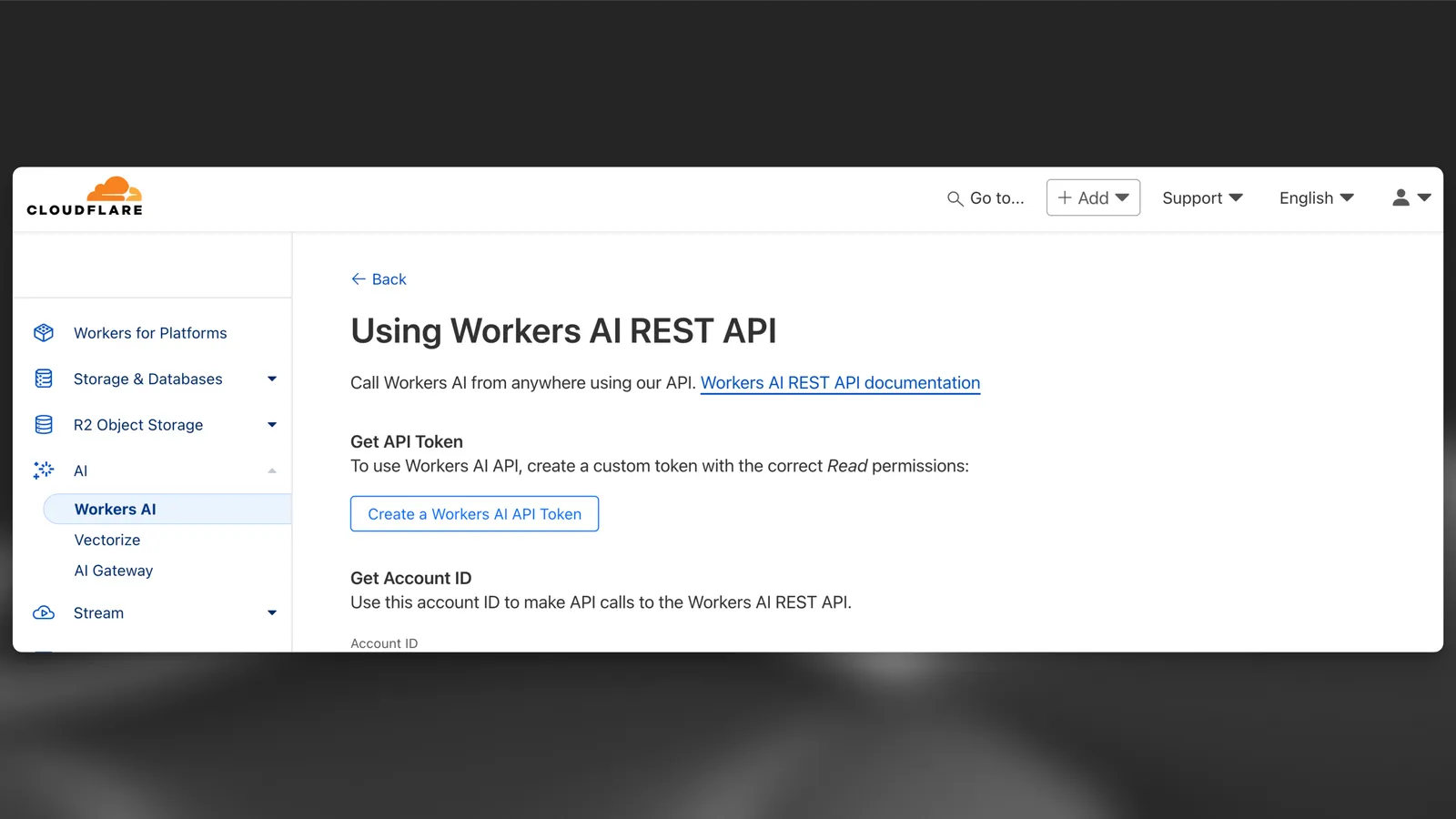
Navigate to dash.cloudflare.com and create or sign in to your account. In the navigation, select AI > Workers AI, and then click on the “Use REST API” widget.
Add Secret

2

Once you have your API key, you can try it out immediately with a curl request. Cloudflare provides an OpenAI-compatible API endpoint making this very convenient. At this point make a note of the model and the full endpoint — including the account ID. For example: https://api.cloudflare.com/client/v4/accounts/{ACCOUNT_ID}c/ai/v1/.

$curl https://api.cloudflare.com/client/v4/accounts/{ACCOUNT_ID}/ai/v1/chat/completions \
>-X POST \
>-H "Authorization: Bearer {API_TOKEN}" \
>-d '{
> "model": "@cf/deepseek-ai/deepseek-r1-distill-qwen-32b",
> "messages": [
> {"role": "system", "content": "You are a helpful assistant."},
> {"role": "user", "content": "How many Rs in the word Strawberry?"}
> ],
> "stream": false
> }'
3

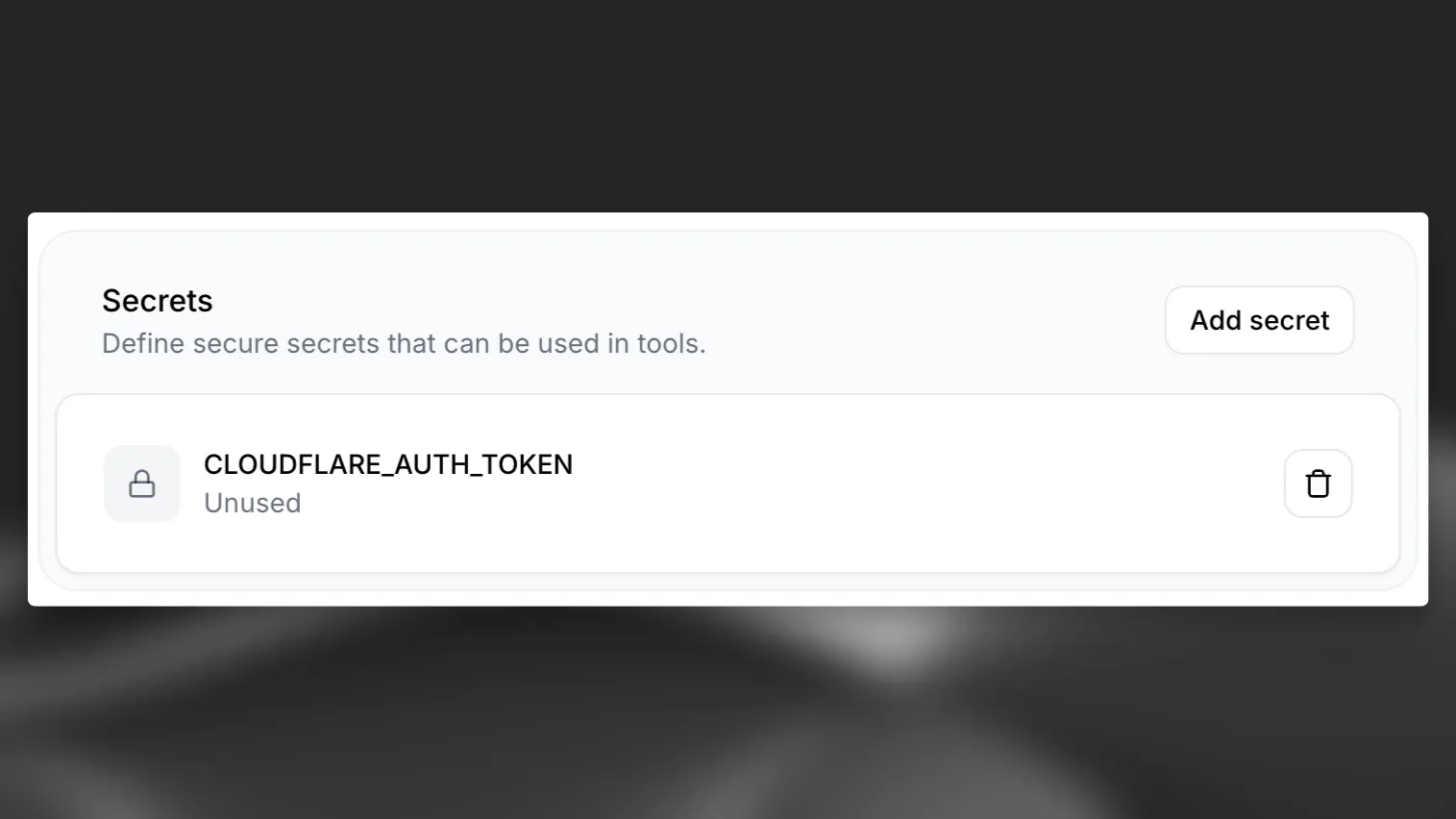
Navigate to your AI Agent, scroll down to the “Secrets” section and select “Add Secret”. After adding the secret, make sure to hit “Save” to make the secret available to your agent.
Add Secret

4

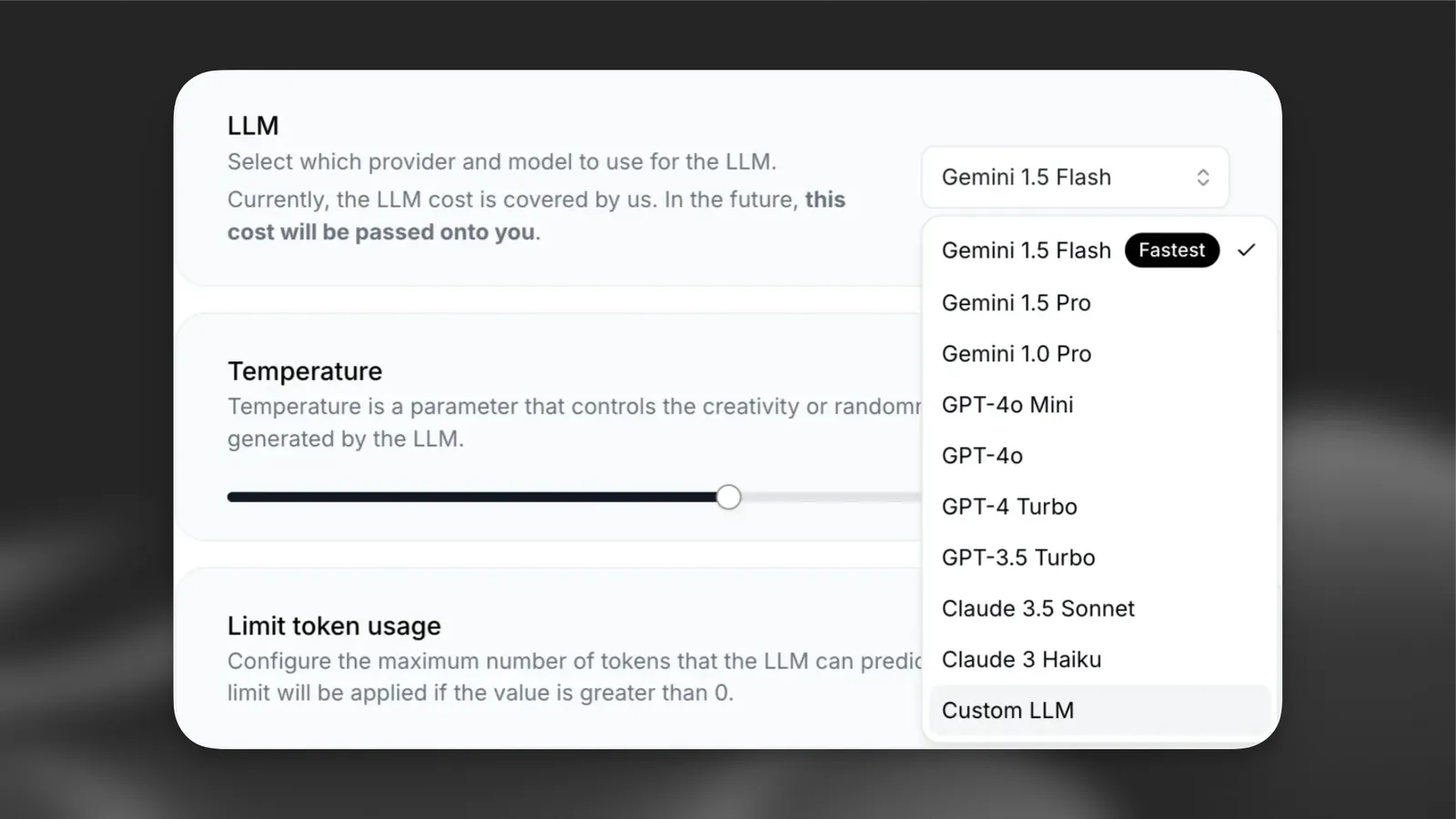
Choose “Custom LLM” from the dropdown menu.

Choose custom llm

5

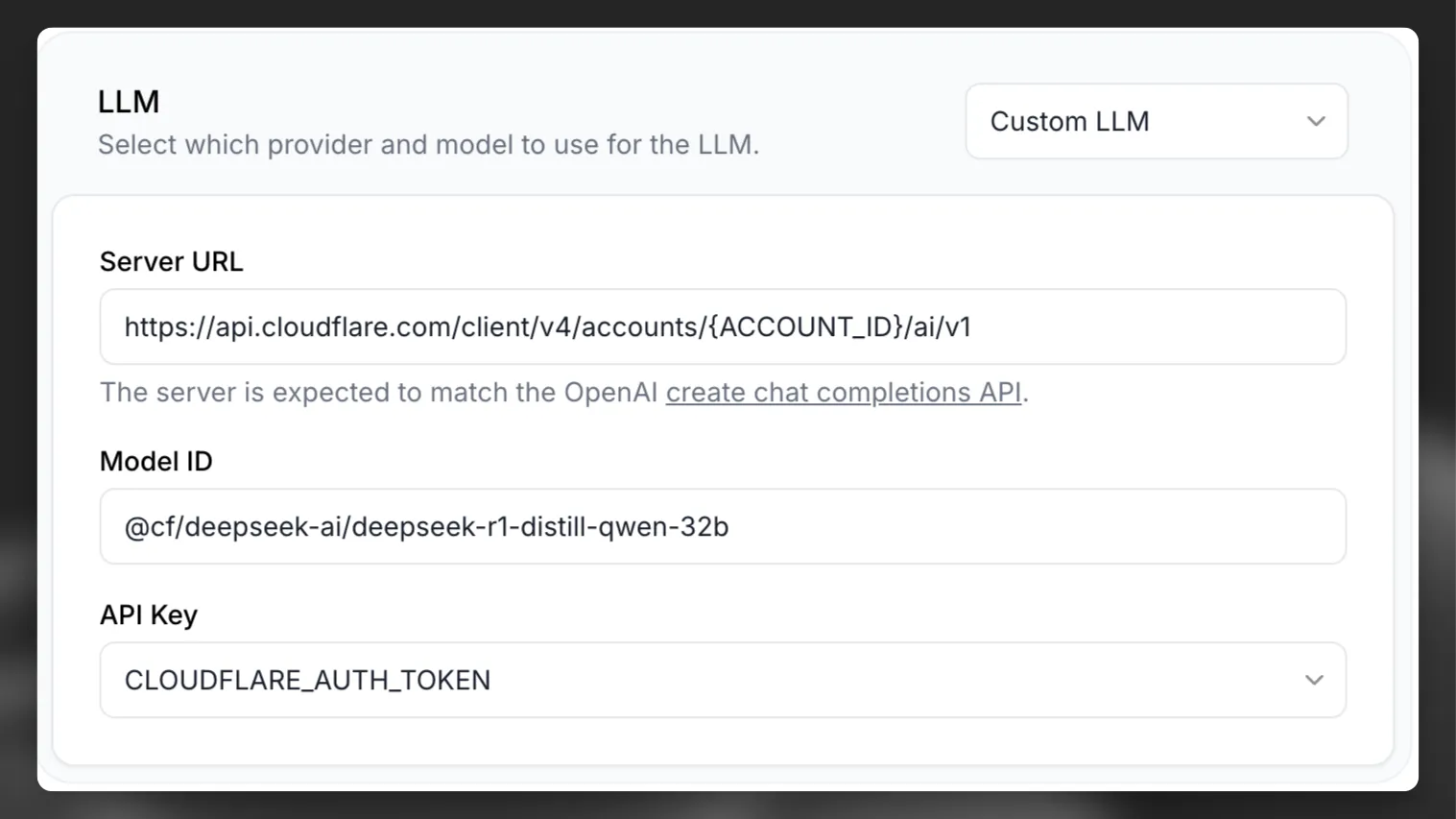
For the Server URL, specify Cloudflare’s OpenAI-compatible API endpoint: https://api.cloudflare.com/client/v4/accounts/{ACCOUNT_ID}/ai/v1/. For the Model ID, specify @cf/deepseek-ai/deepseek-r1-distill-qwen-32b as discussed above, and select your API key from the dropdown menu.

Enter url

6

Now you can go ahead and click “Test AI Agent” to chat with your custom DeepSeek R1 model.