

Retrieval-Augmented Generation
Overview
Retrieval-Augmented Generation (RAG) enables your agent to access and use large knowledge bases during conversations. Instead of loading entire documents into the context window, RAG retrieves only the most relevant information for each user query, allowing your agent to:
- Access much larger knowledge bases than would fit in a prompt
- Provide more accurate, knowledge-grounded responses
- Reduce hallucinations by referencing source material
- Scale knowledge without creating multiple specialized agents
RAG is ideal for agents that need to reference large documents, technical manuals, or extensive knowledge bases that would exceed the context window limits of traditional prompting. RAG adds on slight latency to the response time of your agent, around 250ms.
This video was recorded with an earlier version of the dashboard. The RAG configuration steps are unchanged, but some interface elements may look different.
How RAG works
When RAG is enabled, your agent processes user queries through these steps:
- Query processing: The user’s question is analyzed and reformulated for optimal retrieval.
- Embedding generation: The processed query is converted into a vector embedding that represents the user’s question.
- Retrieval: The system finds the most semantically similar content from your knowledge base.
- Response generation: The agent generates a response using both the conversation context and the retrieved information.
This process ensures that relevant information to the user’s query is passed to the LLM to generate a factually correct answer.
Guide
Prerequisites
- An ElevenLabs account
- A configured ElevenLabs Conversational Agent
- At least one document added to your agent’s knowledge base
Enable RAG for your agent
Update via the dashboard
Update via the CLI
Update via the API
In your agent’s settings, navigate to the Knowledge Base section and toggle on the Use RAG option. Configure the embedding model, maximum document chunks, and maximum vector distance under the Advanced tab as needed.
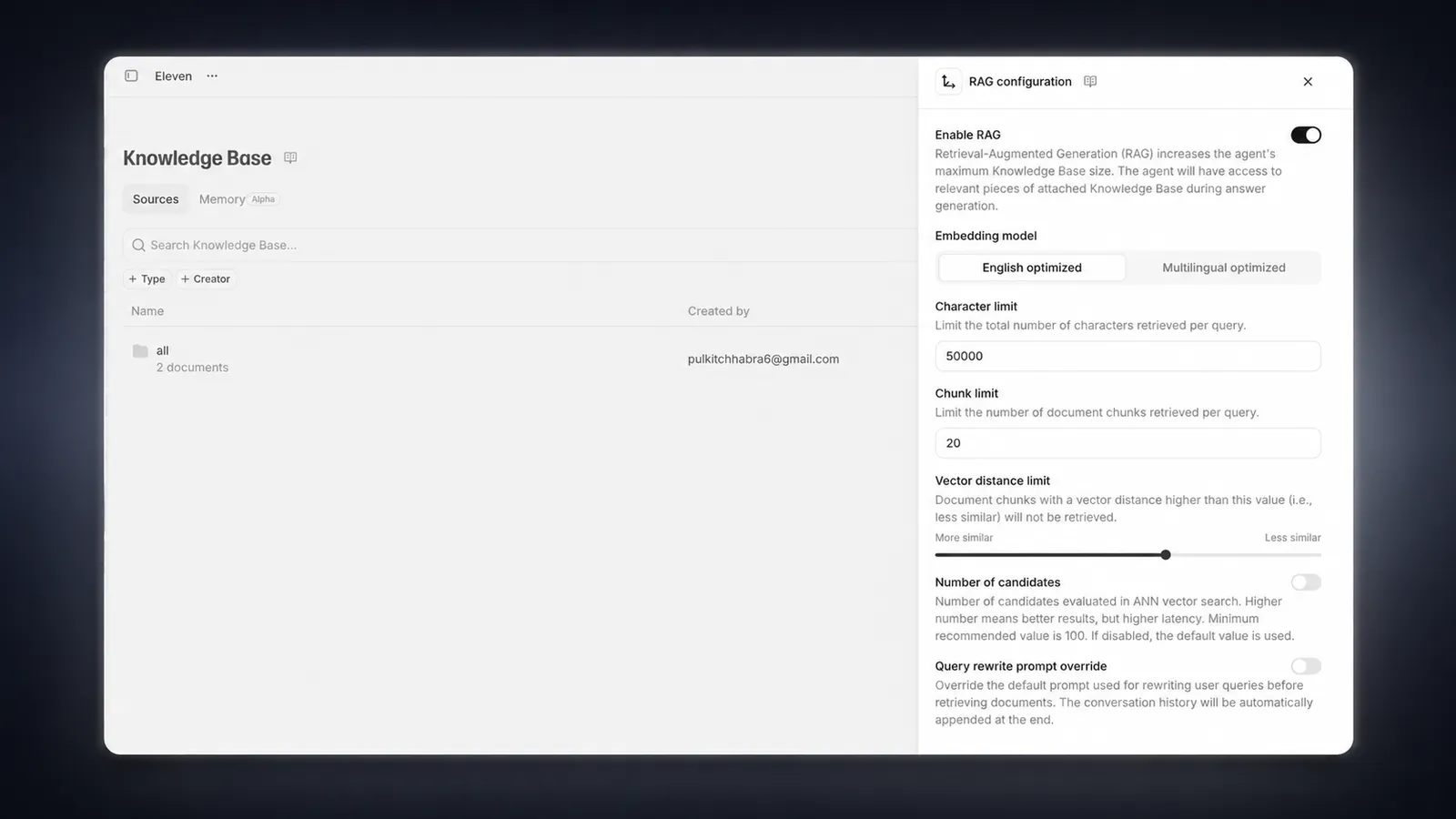
Knowledge base indexing
Each document in your knowledge base needs to be indexed before it can be used with RAG. This process happens automatically when a document is added to an agent with RAG enabled.
Indexing may take a few minutes for large documents. You can check the indexing status in the knowledge base list.
Configure document usage modes (optional)
For each document in your knowledge base, you can choose how it’s used:
- Auto (default): The document is only retrieved when relevant to the query
- Prompt: The document is always included in the system prompt, regardless of relevance
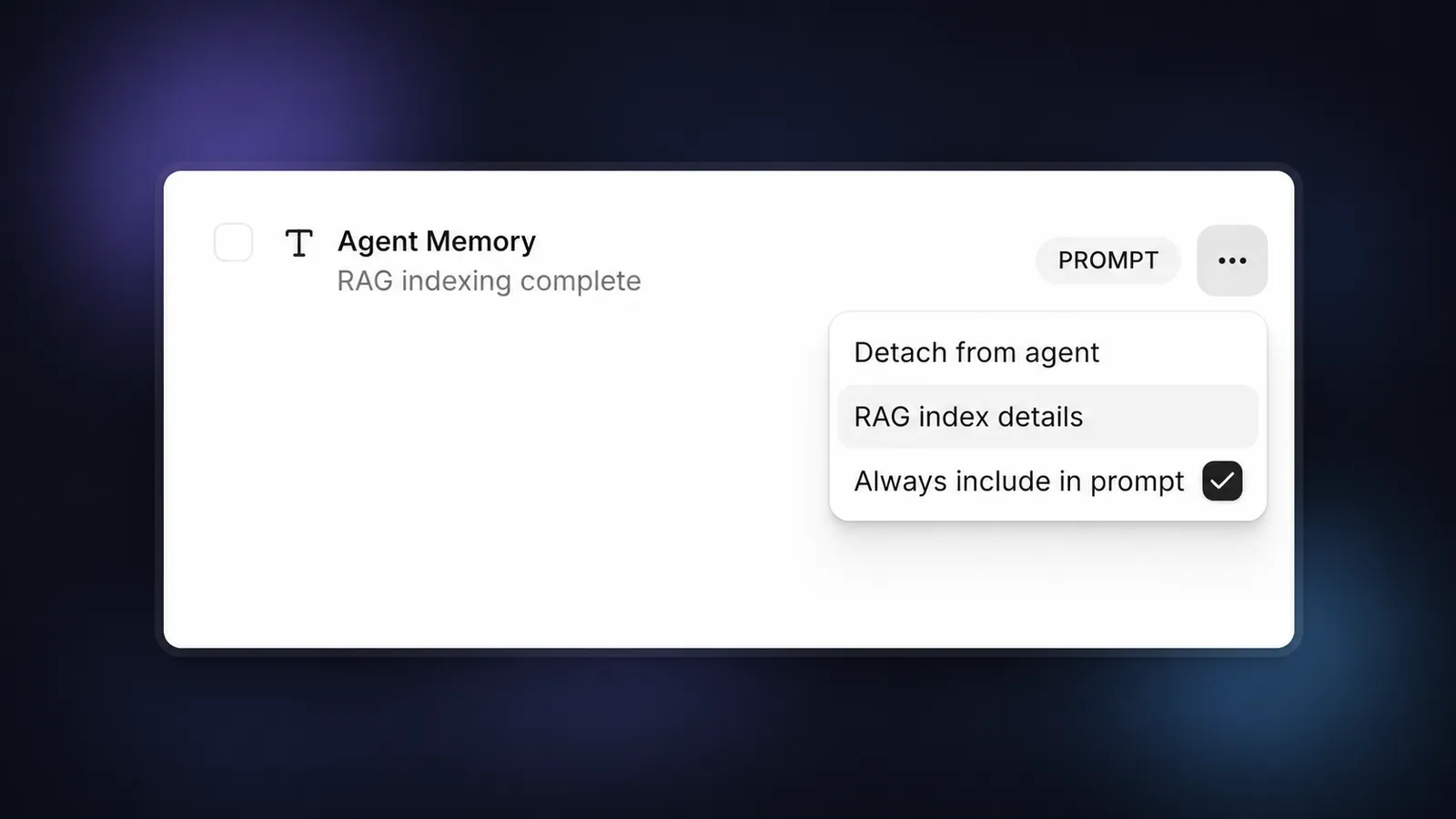
Setting too many documents to “Prompt” mode may exceed context limits. Use this option sparingly for critical information.
Test your RAG-enabled agent
After saving your configuration, test your agent by asking questions related to your knowledge base. The agent should now be able to retrieve and reference specific information from your documents.
Usage limits
To ensure fair resource allocation, ElevenLabs enforces limits on the total size of documents that can be indexed for RAG per workspace, based on subscription tier.
The limits are as follows:
Note:
- These limits apply to the total original file size of documents indexed for RAG, not the internal storage size of the RAG index itself (which can be significantly larger).
- Documents smaller than 500 bytes cannot be indexed for RAG and will automatically be used in the prompt instead.
API implementation
You can also implement RAG through the API: