

Client tools
Empower your assistant to trigger client-side operations.
Client tools enable your assistant to execute client-side functions. Unlike webhook tools, client tools allow the assistant to perform actions such as triggering browser events, running client-side functions, or sending notifications to a UI.
Overview
Applications may require assistants to interact directly with the user’s environment. Client-side tools give your assistant the ability to perform client-side operations.
Here are a few examples where client tools can be useful:
- Triggering UI events: Allow an assistant to trigger browser events, such as alerts, modals or notifications.
- Interacting with the DOM: Enable an assistant to manipulate the Document Object Model (DOM) for dynamic content updates or to guide users through complex interfaces.
To call server-side APIs, use webhook tools instead.
Guide
Prerequisites
- An ElevenLabs account
- A configured ElevenLabs Conversational Agent (create one here)
Create a new client-side tool
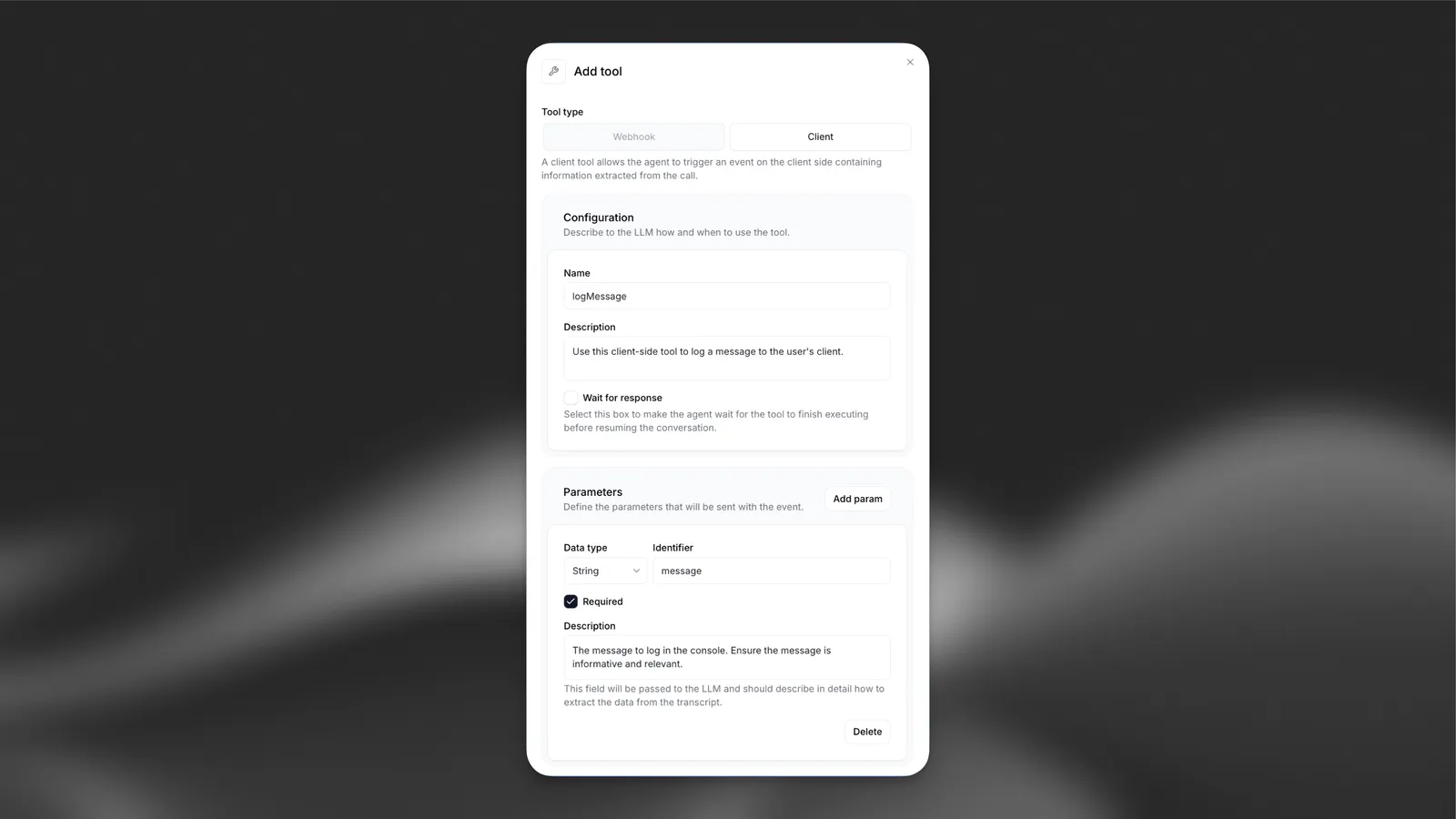
Configure a client tool named logMessage with a required string parameter message (“The message to log in the console”).
Add via the dashboard
Add via the CLI
Add via the API
Navigate to your agent dashboard. In the Tools section, click Add Tool. Ensure the Tool Type is set to Client. Then configure the following:
Then create a new parameter message with the following configuration:
Register the client tool in your code
Unlike webhook tools, client tools need to be registered in your code.
Use the following code to register the client tool:
The tool and parameter names in the agent configuration are case-sensitive and must match those registered in your code.
Testing
Initiate a conversation with your agent and say something like:
Log a message to the console that says Hello World
You should see a Hello World log appear in your console.
Next steps
Now that you’ve set up a basic client-side event, you can:
- Explore more complex client tools like opening modals, navigating to pages, or interacting with the DOM.
- Combine client tools with server-side webhooks for full-stack interactions.
- Use client tools to enhance user engagement and provide real-time feedback during conversations.
Passing client tool results to the conversation context
When you want your agent to receive data back from a client tool, ensure that you tick the Wait for response option in the tool configuration.
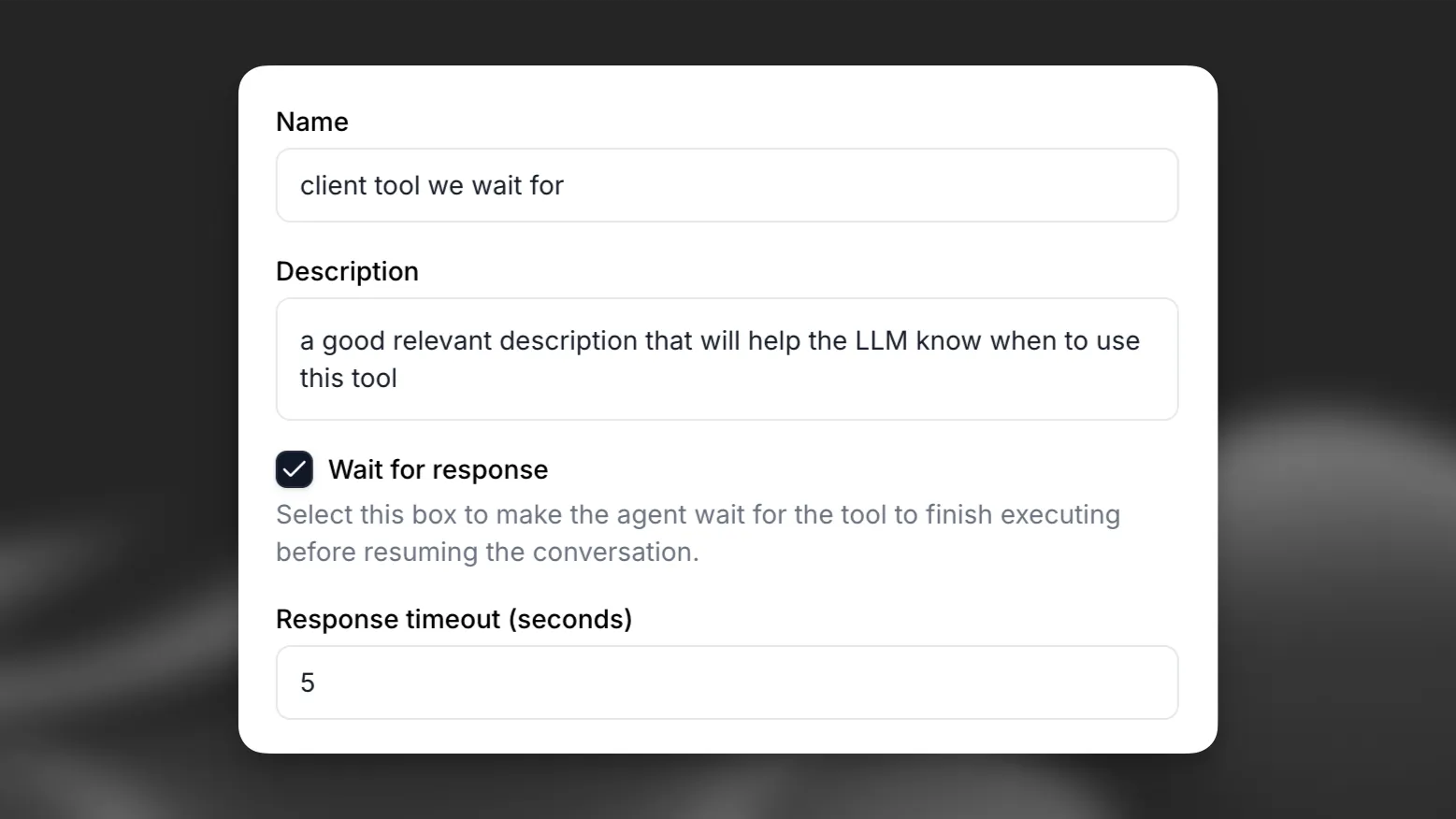
Once the client tool is added, when the function is called the agent will wait for its response and append the response to the conversation context.
In this example, when the agent calls getCustomerDetails, the function will execute on the client and the agent will receive the returned data, which is then used as part of the conversation context. The values from the response can also optionally be assigned to dynamic variables, similar to webhook tools. Note system tools cannot update dynamic variables.
Troubleshooting
Tools not being triggered
- Ensure the tool and parameter names in the agent configuration match those registered in your code.
- View the conversation transcript in the agent dashboard to verify the tool is being executed.
Console errors
- Open the browser console to check for any errors.
- Ensure that your code has necessary error handling for undefined or unexpected parameters.
Best practices
Name tools intuitively, with detailed descriptions
If you find the assistant does not make calls to the correct tools, you may need to update your tool names and descriptions so the assistant more clearly understands when it should select each tool. Avoid using abbreviations or acronyms to shorten tool and argument names.
You can also include detailed descriptions for when a tool should be called. For complex tools, you should include descriptions for each of the arguments to help the assistant know what it needs to ask the user to collect that argument.
Name tool parameters intuitively, with detailed descriptions
Use clear and descriptive names for tool parameters. If applicable, specify the expected format for a parameter in the description (e.g., YYYY-mm-dd or dd/mm/yy for a date).
Consider providing additional information about how and when to call tools in your assistant’s system prompt
Providing clear instructions in your system prompt can significantly improve the assistant’s tool calling accuracy. For example, guide the assistant with instructions like the following:
Provide context for complex scenarios. For example:
LLM selection
When using tools, we recommend picking high intelligence models like GPT 6 or Claude Sonnet 5.5.
It’s important to note that the choice of LLM matters to the success of function calls. Some LLMs can struggle with extracting the relevant parameters from the conversation.