

Agent Testing
Agent testing lets you verify conversational responses, tool usage, and full multi-turn outcomes before you deploy. Create tests from scratch or from existing conversations, then run them from the dashboard, CLI, or API.
Video Walkthrough
Overview
The framework includes three complementary test types:
- Simulation Testing — Runs end-to-end, multi-turn conversations with a simulated user
- Next Reply (Scenario) Testing — Validates the agent’s next response against success criteria
- Tool Call Testing — Ensures the agent calls the right tool with the right parameters
When to use which test
Creating tests from conversations
Transform real conversations into test cases when you find an interaction where the agent underperformed.
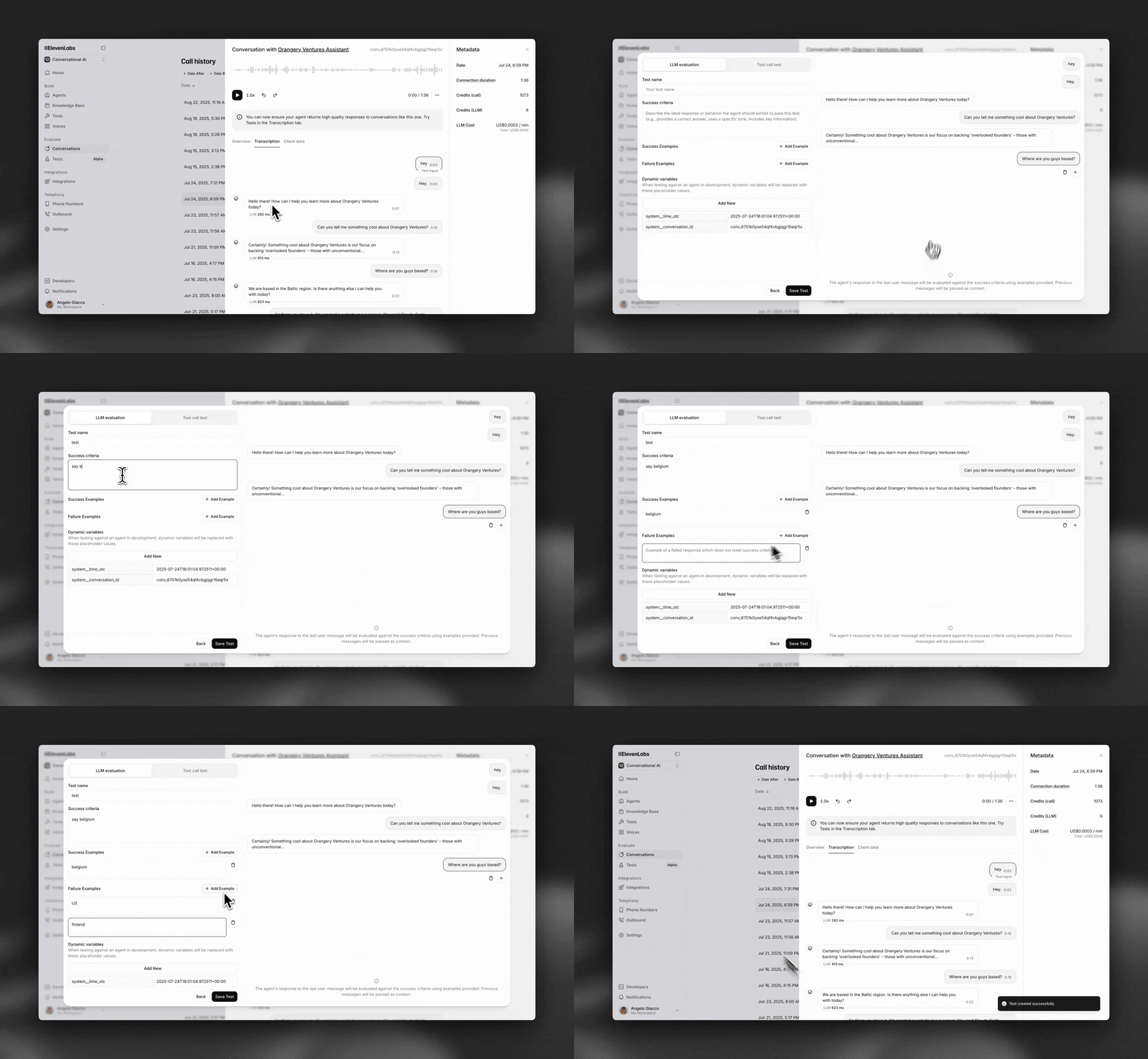
- Open the conversation in call history
- Click Create test from this conversation
- Review the prefilled context, then define the expected behavior
- Add the test to your suite to catch similar failures later
Simulation Testing
Simulation testing evaluates your agent across a full, multi-turn conversation with a simulated AI user. Unlike Next Reply tests, this type checks whether the complete interaction reaches your defined outcome.
Creating a Simulation Test
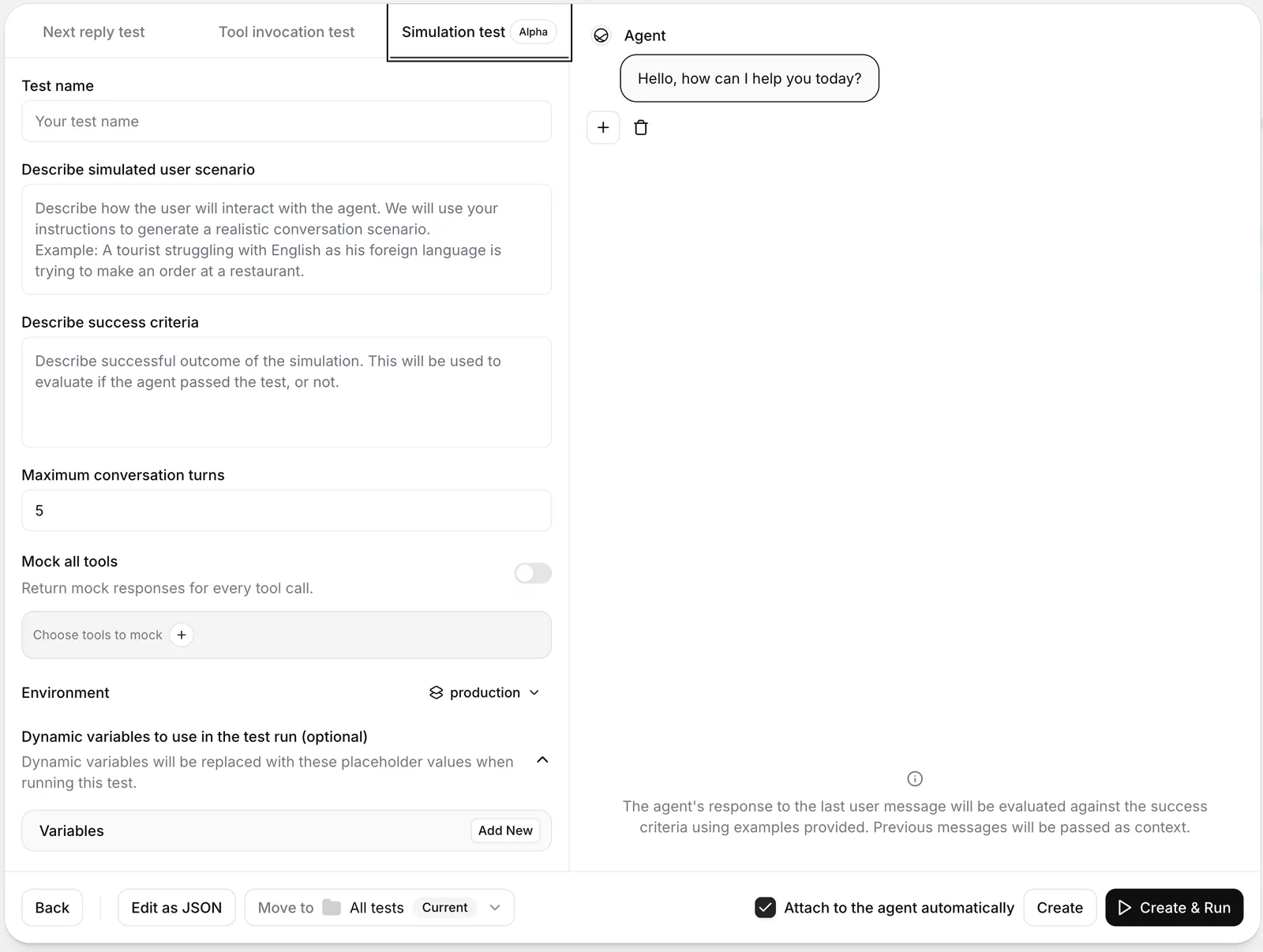
Define the scenario
Describe the user’s context, intent, and behavior in natural language. The simulator uses this scenario to drive the conversation.
Example scenario:
“A tourist who is not fluent in English is trying to place an order at a restaurant.”
Set the success condition
Define the outcome that should count as a pass. This prompt is used to evaluate whether the full conversation succeeded.
Example success condition:
“The agent confirmed the order details, handled clarifying questions, and completed the order without misunderstandings.”
Optional Configuration
You can refine simulation behavior in the test configuration panel:
- Environment: Select which environment to test against when your agent has multiple environments configured. If only one environment is available, this selector is hidden.
- Chat history: Start from a partial conversation instead of a blank state. This is useful for testing in-progress conversations and recovery behavior.
- Dynamic variables: Inject test-specific values into your agent variables (for example, user names or order IDs) without changing the base agent configuration.
Tool Mocking
Simulation tests support tool mocking so your agent can receive controlled responses during a run instead of calling live systems.
Mocking strategy
- Mock none: No tools are mocked.
- Mock all tools: Every mockable tool returns a mock response.
- Mock selected tools: Only tools you explicitly choose are mocked.
System tools and workflow tools are never mocked.
Fallback behavior
If a mocked tool is called and no matching mock response is found, choose one of these behaviors:
- Call real tool: Executes the real tool call.
- Finish with error: Returns an error response from the tool instead of calling the real tool.
The fallback setting appears only when at least one tool is mocked.
Next Reply (Scenario) Testing
Next Reply (Scenario) testing evaluates only the agent’s next message, not a full multi-turn outcome. Provide conversation history that leads up to the reply you want to evaluate, then score that reply against success criteria.
For full multi-turn outcomes, use Simulation Testing.
Creating a Next Reply Test
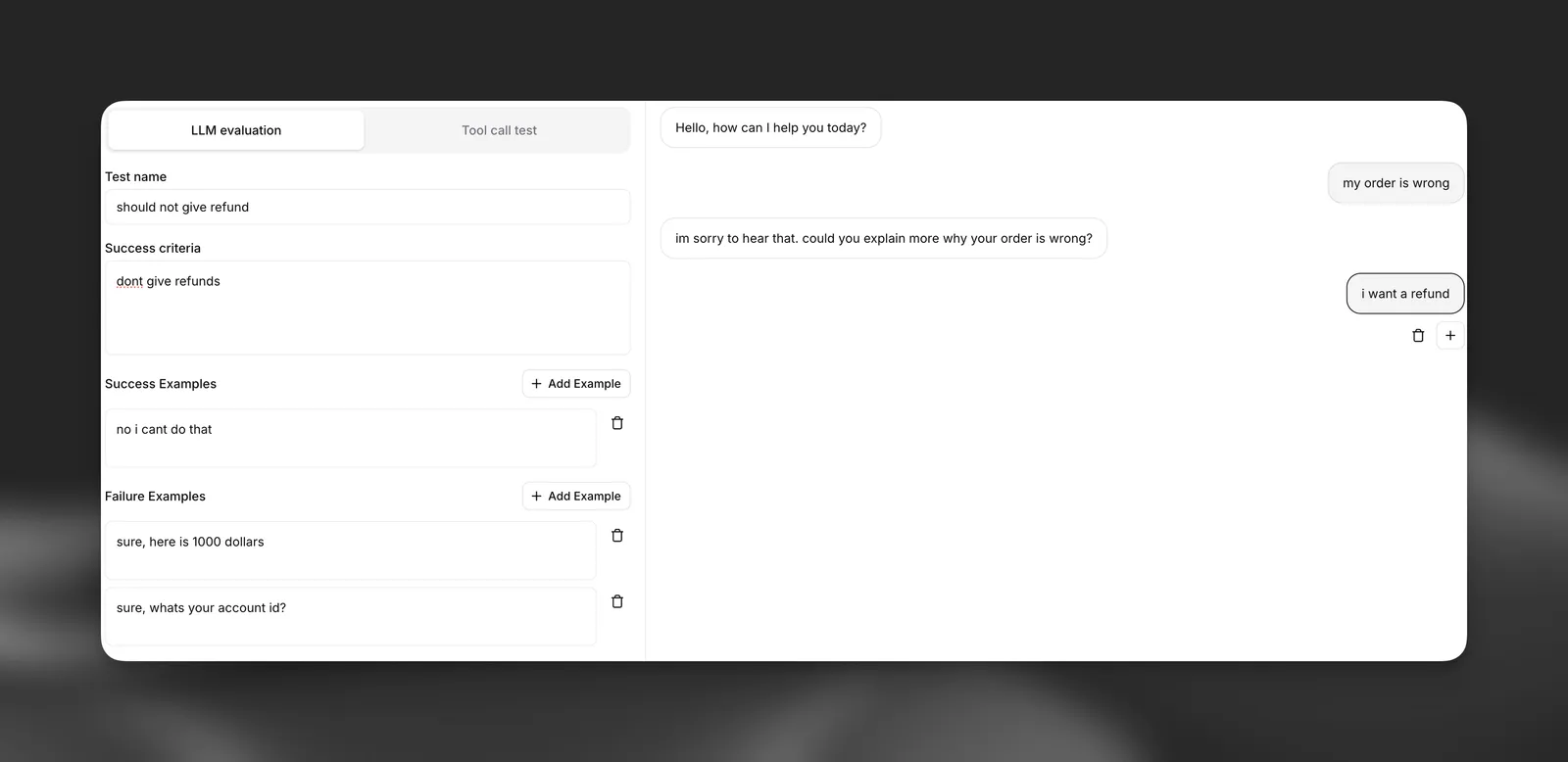
Define the chat history
Provide the conversation history leading up to the reply you want to evaluate. This can be a single user message or multiple turns of context.
Example chat history:
Set success criteria
Describe in plain language what the agent’s response should achieve. Be specific about the expected behavior, tone, and actions.
Example success criteria:
- The agent should acknowledge the customer’s frustration with empathy
- The agent should offer to investigate the duplicate charge
- The agent should provide clear next steps for cancelation or resolution
- The agent should maintain a professional and helpful tone
Provide examples
Supply both success and failure examples to help the evaluator understand the nuances of your criteria.
Success example:
“I understand how frustrating duplicate charges can be. Let me look into this right away for you. I can see there were indeed two charges this month - I’ll process a refund for the duplicate charge immediately. Would you still like to proceed with cancellation, or would you prefer to continue once this is resolved?”
Failure example:
“You need to contact billing department for refund issues. Your subscription will be cancelled.”
Tool Call Testing
Tool call testing verifies that your agent correctly uses tools and passes the right parameters in specific situations. This is critical for actions like call transfers, data lookups, or external integrations.
Creating a Tool Call Test
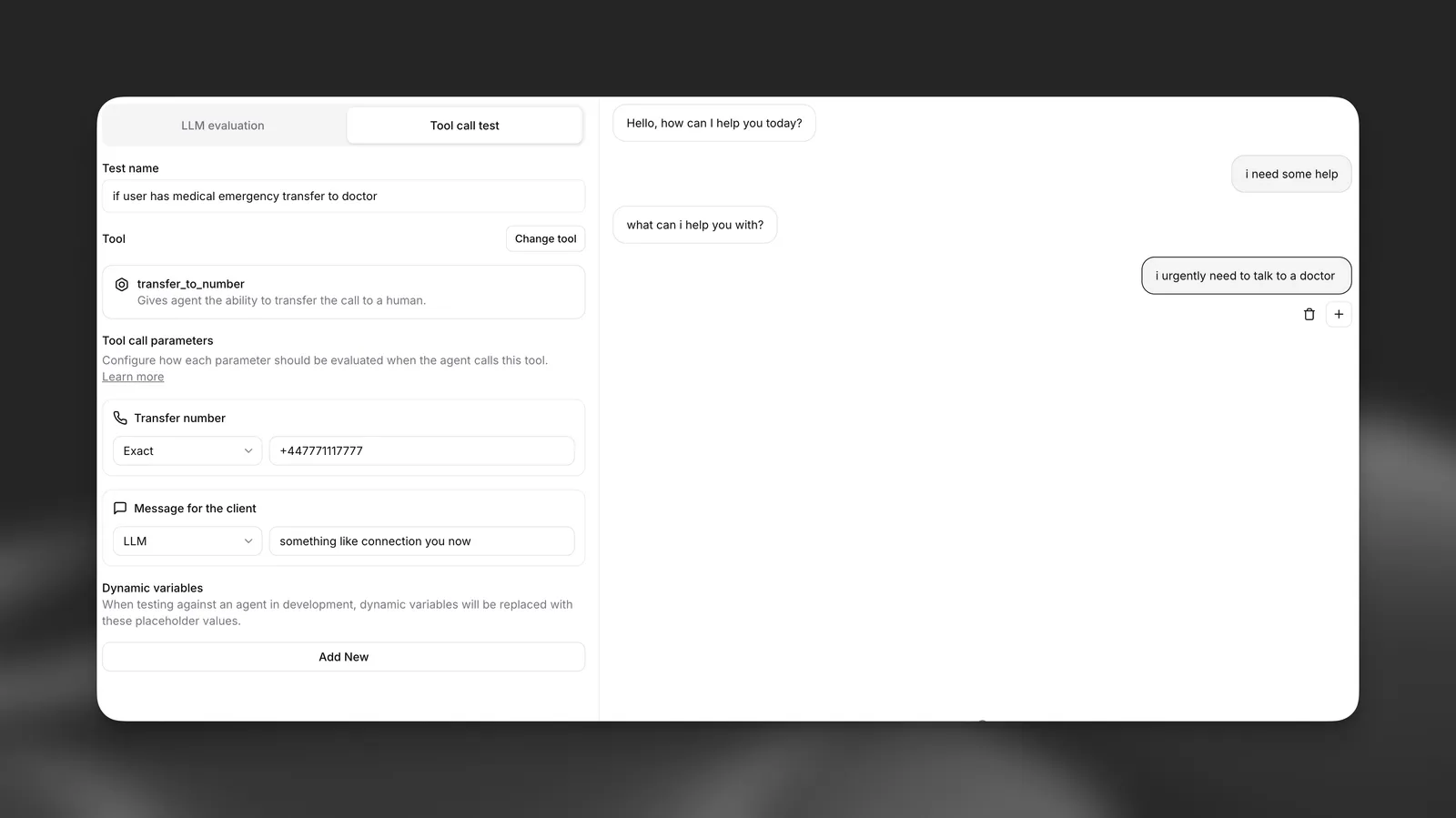
Select the tool
Choose which tool you expect the agent to call in the given scenario (e.g.,
transfer_to_number, end_call, lookup_order).
Define expected parameters
Specify what data the agent should pass to the tool. You have three validation methods:
Validation Methods
Exact Match
The parameter must exactly match your specified value.
Regex Pattern The parameter must match a specific pattern.
LLM Evaluation An LLM evaluates if the parameter is semantically correct based on context.
Critical Use Cases
Tool call testing is essential for high-stakes scenarios:
- Emergency Transfers: Ensure medical emergencies always route to the correct number
- Data Security: Verify sensitive information is never passed to unauthorized tools
- Business Logic: Confirm order lookups use valid formats and authentication
Running Tests
Write tests for new behavior or known failures, run them while you iterate on prompts and configuration, then save once they pass.
Run via the dashboard
Run via the CLI
Run via the API
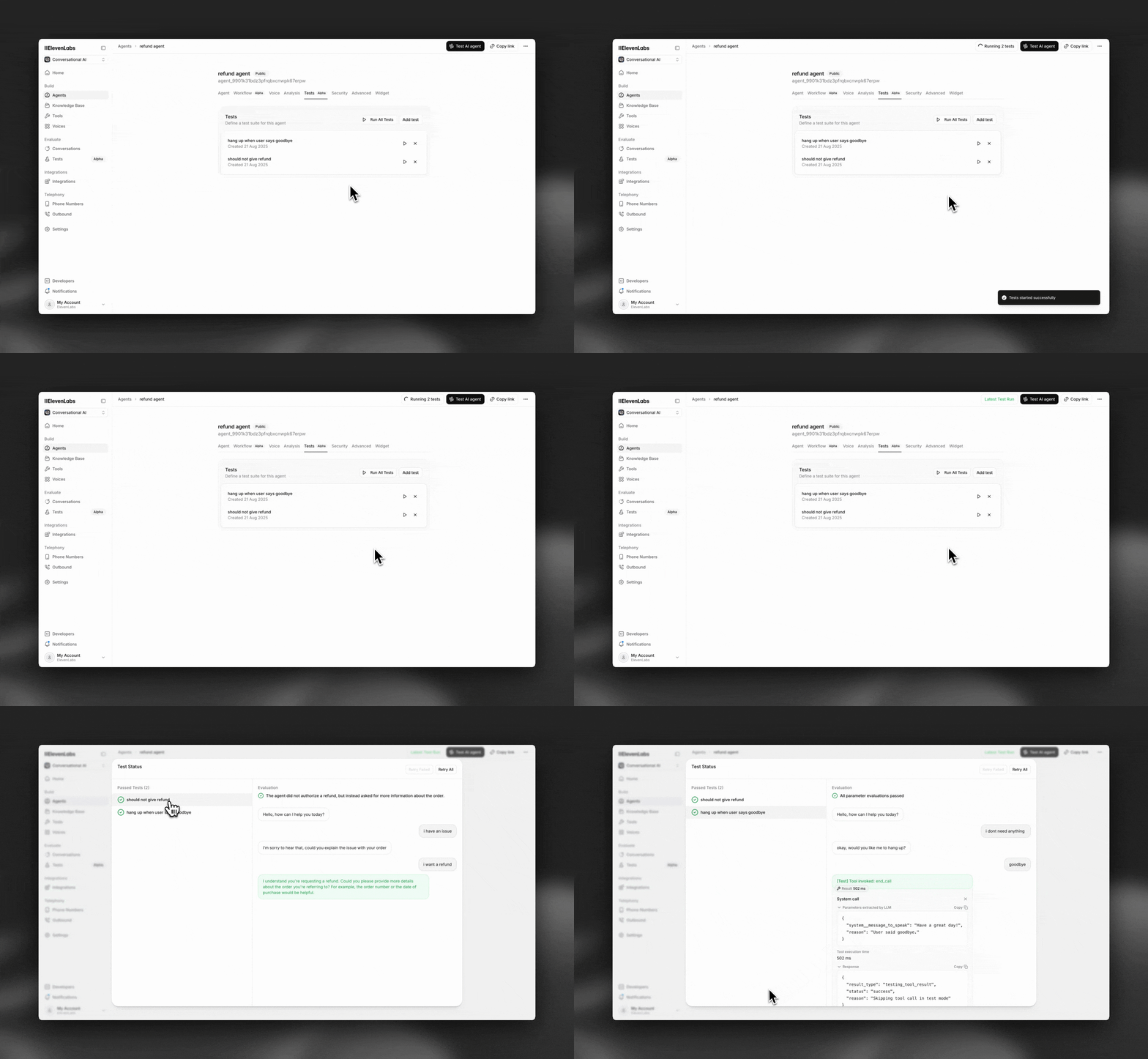
Navigate to the Tests tab in your agent’s interface. From there, you can run individual tests, select multiple tests from your library as a batch, or execute your entire suite with Run All Tests.
Probabilistic testing
Agent outputs can vary between runs. A single pass shows the agent can succeed; probabilistic testing shows how often it will by running the same test multiple times and reporting a pass rate.
Running a test multiple times
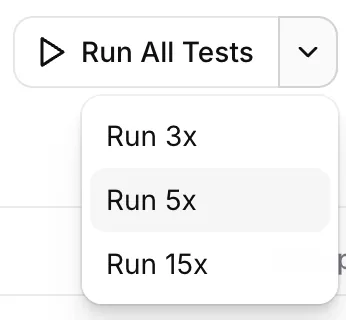
When triggering a test from the dashboard, use the split-run control on the run button to choose how many times to execute it (for example 3×, 5×, or 15×). Each run is independent: the agent receives the same chat history, dynamic variables, and other inputs, but its response is generated fresh every time.
Multi-run works for individual tests, folders, and running the entire test suite attached to an agent. It’s compatible with all three test types — Simulation, Next Reply (Scenario), and Tool Call — and is typically most useful for Simulation tests, where the larger surface area of a multi-turn conversation makes response variation more likely.
Pass rates and result bucketing
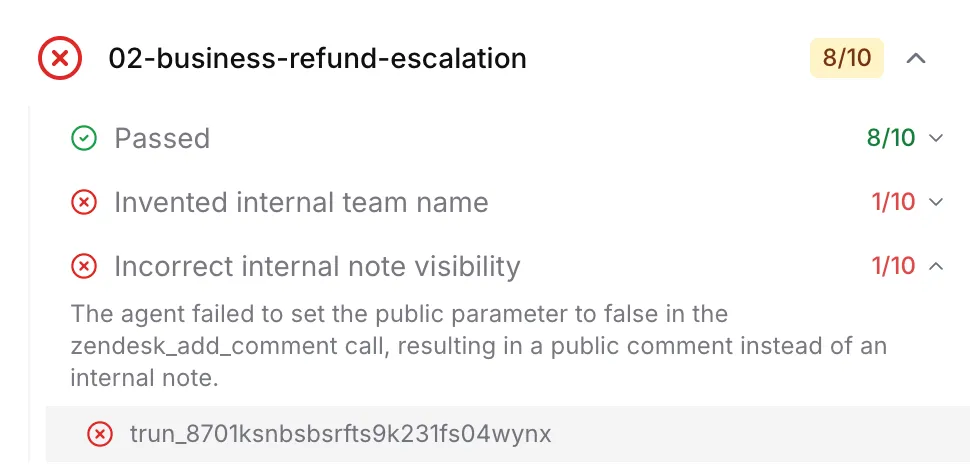
After a multi-run finishes, results are summarized as a pass rate (for example, 4/5 passed) with a colored badge:
- Green — 100% passed
- Amber — at least 80% passed
- Red — below 80%
Individual runs are then grouped by failure reason so you can see how the agent fails, not just that it fails. Instead of scrolling through five separate transcripts to spot what differed, you see clusters like “Correctly routed to billing (4 runs)” and “Hallucinated a support number (1 run)”, each expandable to the underlying transcripts and evaluation rationale.
When to use it
- Before shipping a change — Re-run attached tests probabilistically to confirm reliability hasn’t dropped (for example, from 95% to 60%).
- Diagnosing flaky behavior — A single failure could be noise; a 1-in-5 failure with a clearly named failure bucket is a reproducible issue to fix.
- Tuning prompts and tools — Iterate on configuration and compare pass rates side by side, rather than relying on one-off runs.
Running probabilistically via the API or SDK
Pass repeat_count (between 2 and 20) on the run-tests request to execute each test that many times. Setting repeat_count automatically enables failure bucketing on the response, so the returned invocation includes the per-bucket grouping and pass rate you’d see in the dashboard.
Best Practices
Next Steps
- View CLI Documentation for automated testing setup
- Explore Tool Configuration to understand available tools
- Read the Prompting Guide for writing testable prompts