
JavaScript speech recognition tutorial: Build voice UX
- Written by
- Jack Limebear
- Published
- Last updated
ListenListen to this article
Introducing speech recognition to websites and browser-based apps is now easier, thanks to browser-native speech to text (STT) APIs like the Web Speech API. Developers can easily stream microphone input, analyze audio data, and process transcripts by making API calls, without building a local automatic speech recognition server.
The Web Speech API is a common speech recognition API for implementing voice commands in JavaScript. It exposes methods, arguments, and properties that let you run real-time transcription in a web browser. However, developers might find the Web Speech API limited for complex web clients.
This guide walks through setting up a simple JavaScript speech recognition web app with the Web Speech API, its limitations, and alternatives for building more robust real-time transcription clients.
Summary
- Web Speech API is a browser-native speech to text API that sends microphone audio to a backend cloud service for processing.
- Developers use the SpeechRecognition API class to build JavaScript voice command applications.
- When building a speech recognition app, consider user privacy by indicating that audio recording is in progress.
- The Web Speech API has several limitations, including transcription inconsistency, browser dependence, and a lack of intent understanding.
- ElevenLabs offers highly accurate, production-grade speech to text APIs that support both client and server-side streaming.
How the Web Speech API works
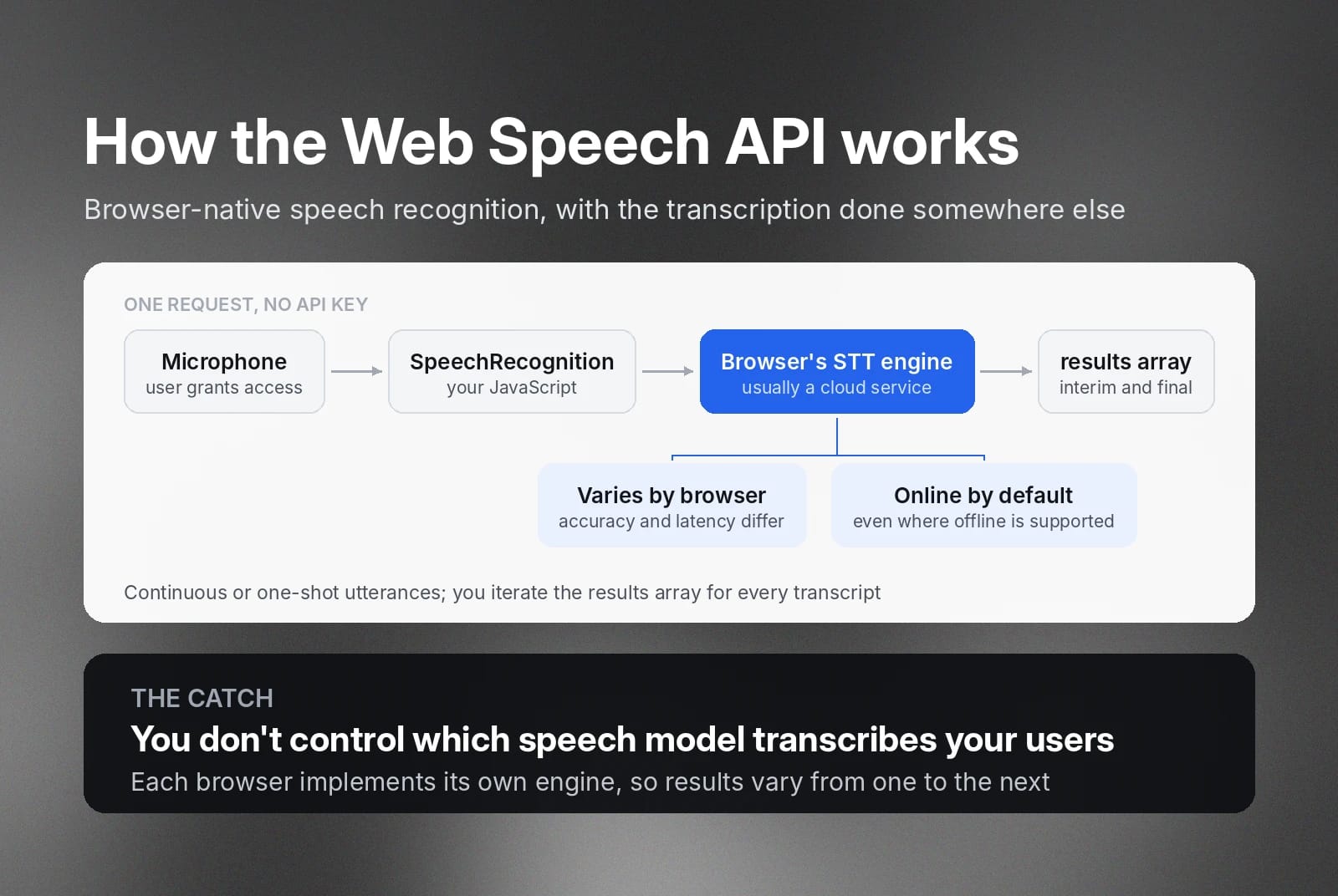
The Web Speech API gives web developers browser-native speech recognition without requiring a local server. Basically, the Web Speech API sends an audio stream from your web browser to a backend cloud service to process, analyze, and convert audio into transcripts. Because it relies on the browser’s backend engine to run transcription, you will get varying results across browsers.
Generally, the Web Speech API requires an active online connection to transcribe audio streams, particularly if you’re building for Chrome and Safari. However, some browsers now support offline transcription. For offline transcription, the browser acts as the speech to text engine, identifying phonemes and turning them into coherent text.
Regardless of the browser you use, the API’s fundamentals are the same.
- You don’t need an API key to make an API request.
- The Web Speech API supports continuous or one-shot utterances.
- It returns both interim and final transcripts.
However, because each browser may implement the STT engine differently, accuracy and latency may vary.
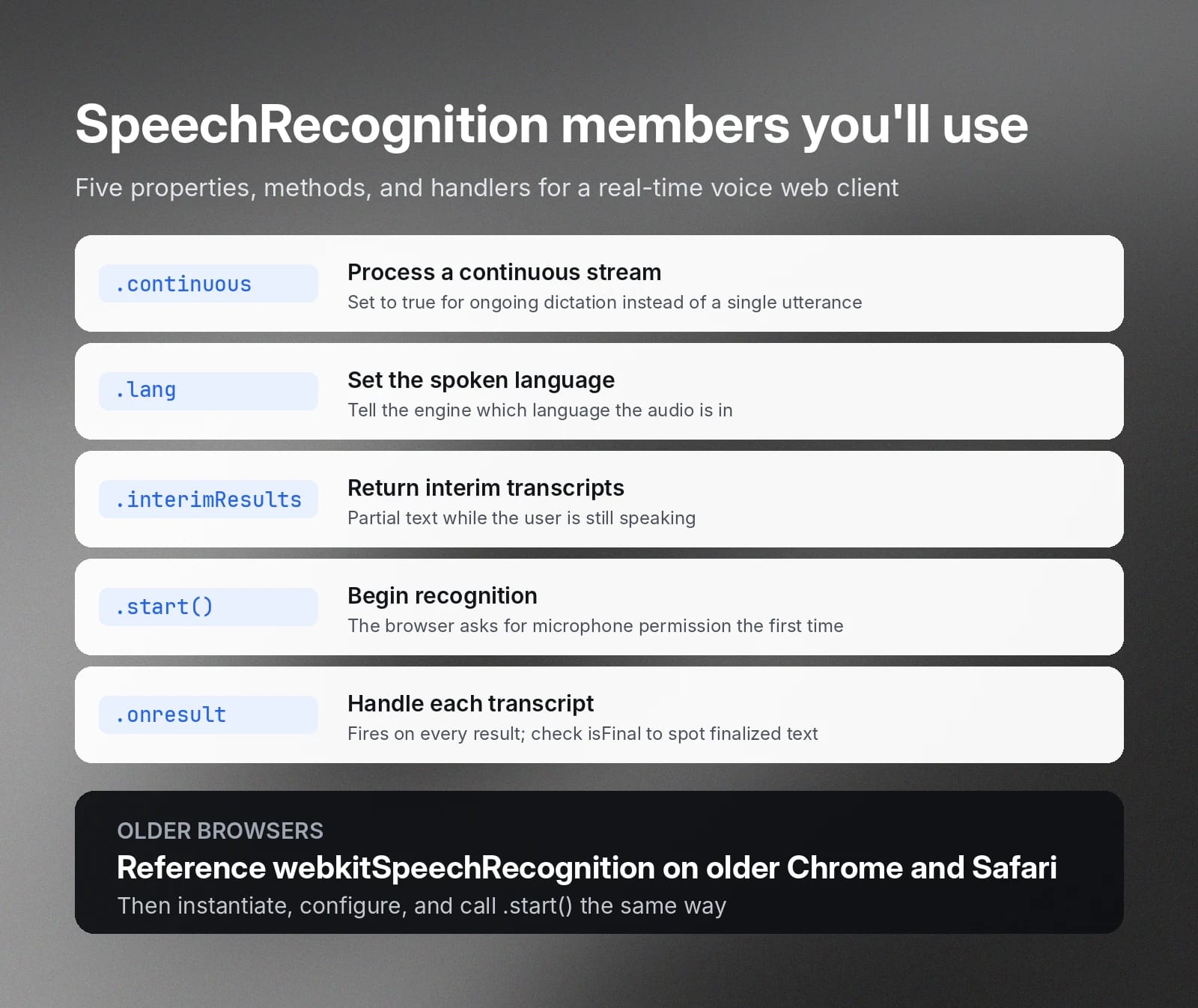
To use the Web Speech API, you initiate the SpeechRecognition interface in your JavaScript code. Then, you access methods, attributes, and event handlers as you code. Here are some you’ll use to build a voice search web client.
- SpeechRecognition.continuous: Enables the speech engine to process a continuous stream when set to true.
- SpeechRecognition.lang: Sets the language of the audio.
- SpeechRecognition.interimResults: Instructs the engine to return interim transcripts.
- SpeechRecognition.start(): Begins the speech recognition process.
- SpeechRecognition.onresult: Accepts an event handler, which the API triggers when it finishes transcribing.
The Web Speech API returns the transcription in a string array. When the STT engine returns a transcript, whether interim or final, you can find it in the results array. It may return one or more strings. Therefore, you need to iterate through the result strings to retrieve all transcribed text.
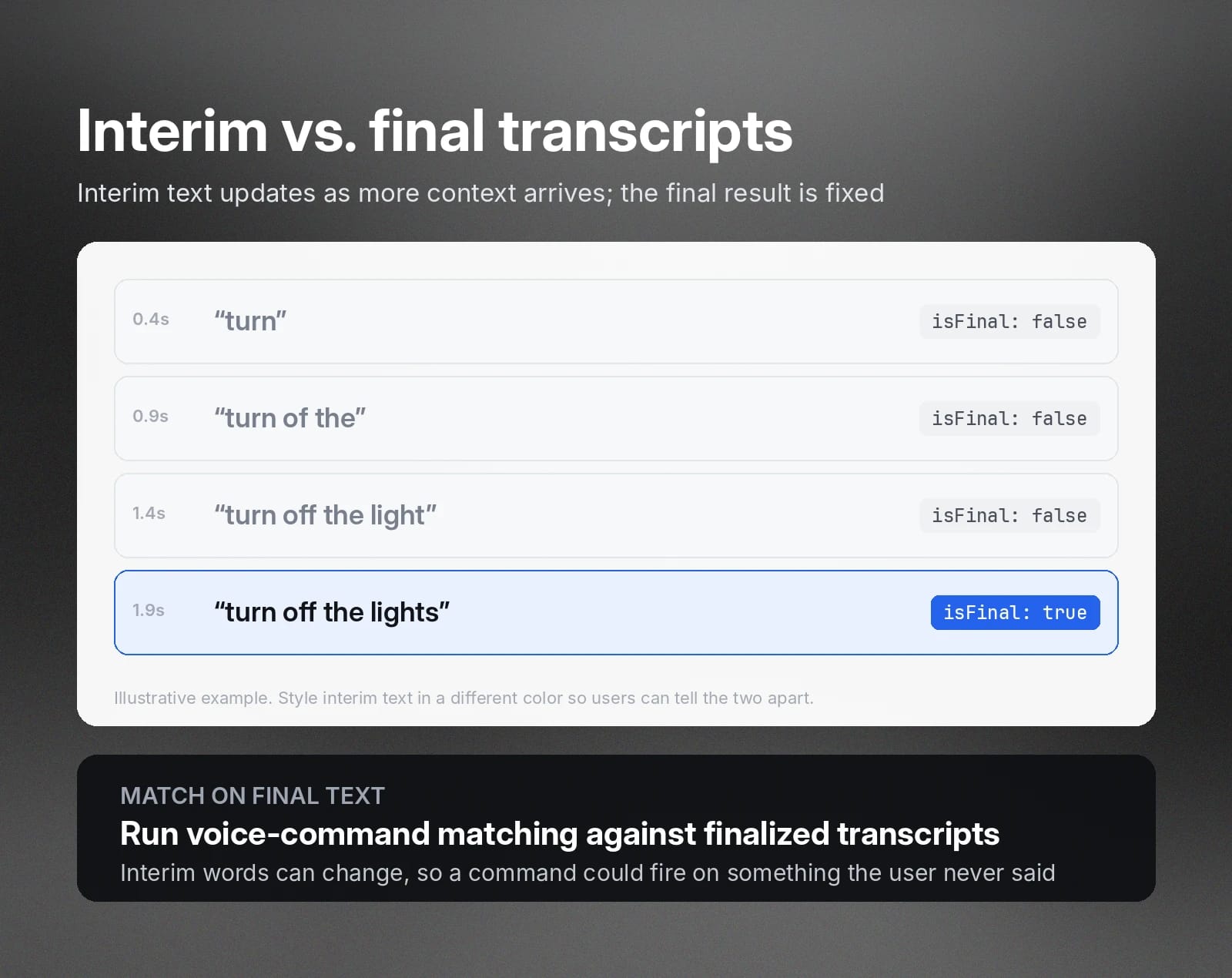
Note: If you’ve enabled interim transcription, you check the isFinal property to determine if the text is a finalized transcript.
Build a JavaScript speech recognition example
This example uses the JavaScript SpeechRecognition interface to build a real-time transcription web app. The screenshot below shows the finished page.
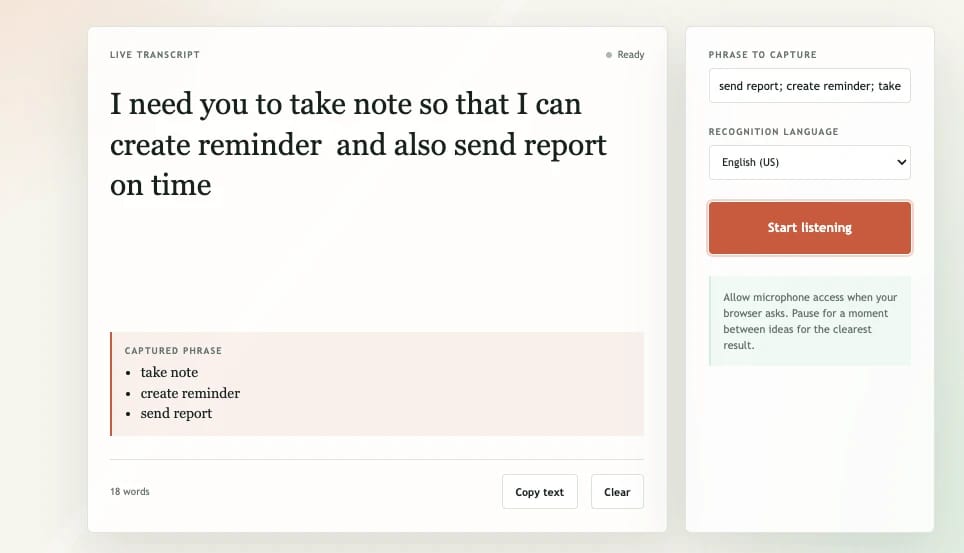
In the example page, a Start listening button begins recording. As the user speaks, the browser sends the audio to the STT engine, waits for the transcription, and displays both the interim and final text.
The example also includes a voice command feature, which captures specific terms the user lists. It compares the transcript against a predetermined phrase list in your own code, which is different from keyterm prompting in a speech to text API.
The snippets below show the key parts of this example.
Set up the SpeechRecognition API and request microphone access
To use it in your code, you first need to instantiate the SpeechRecognition class. If you’re using an older Chrome or Safari, you reference webkitSpeechRecognition.
Then, create a SpeechRecognition instance and configure the streaming mode, interim transcription support, and spoken language.
Then, you can start transcribing by invoking the .start() method.
When starting the speech recognition process for the first time, the browser will ask the user for permission. The user must click Allow to start transcribing. Otherwise, the API will return a "not-allowed” value in the SpeechRecognitionErrorEvent handler.
Display live transcripts and final results
In this example, we display the transcript as the user speaks into the microphone. To do so, we append a function to the onresult event.
Interim transcripts are not finalized. So, the text displayed may not be the exact words you’ve spoken. As the STT engine receives more context from subsequent words, it will correct the transcript and return it in the string.
You can also style interim text in a different color so it stands out from the final transcript. This CSS does that:
Add voice commands in JavaScript
Add a text box where users enter the phrases they want to detect, separated by semicolons. (Alternatively, you can store the phrases in a JSON file and load them into your code.)
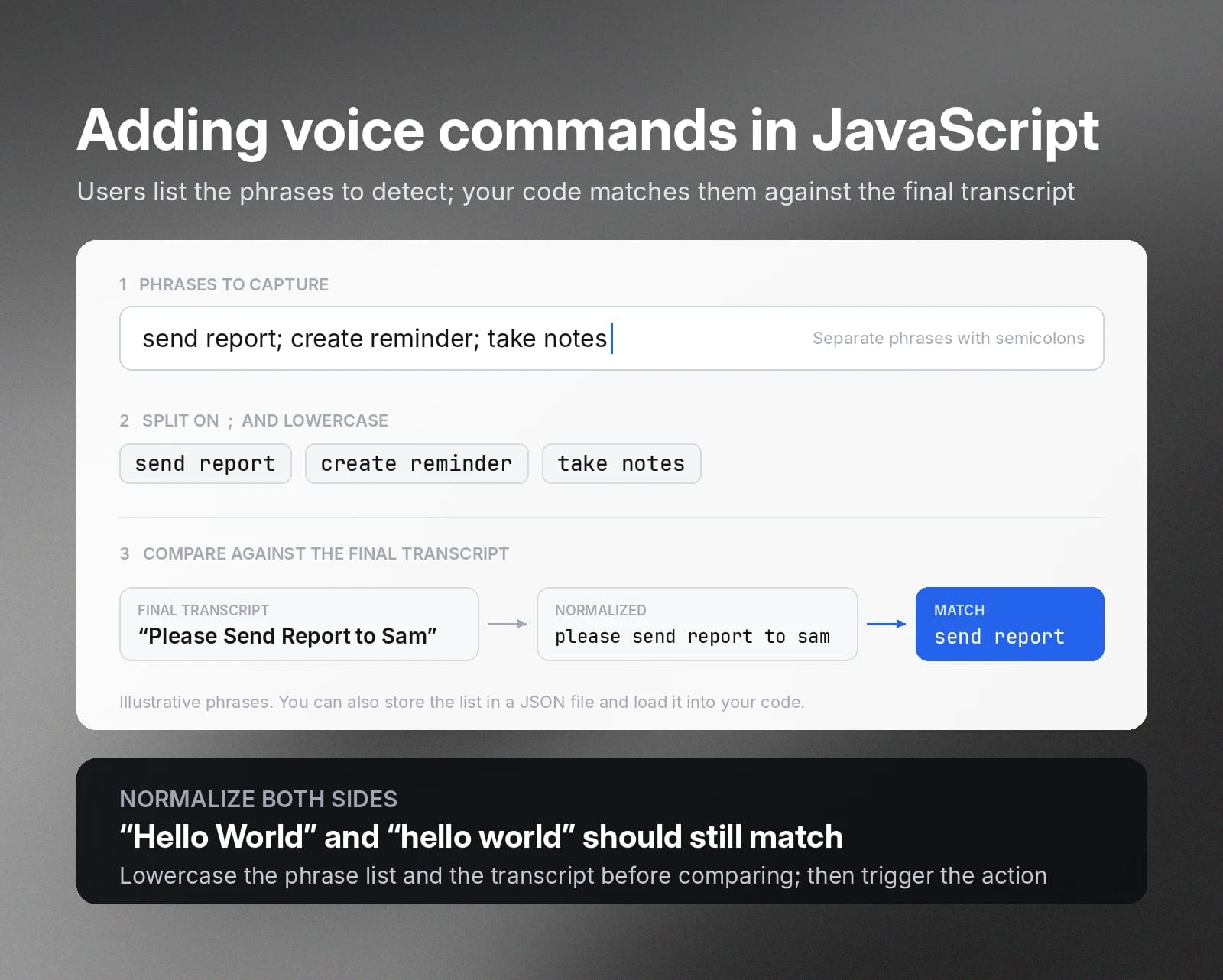
Then, you create a function that compares the final transcript against the phrase list. When performing text-matching, normalize both lists by converting them to lowercase. This is because users might capitalize words, which can cause a mismatch even if they’re the same word. For example, “Hello World” and “hello world” should result in a match, even if one is capitalized.
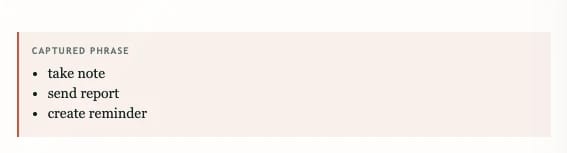
Each time the code receives a transcript, it iterates through the phrase list. If there is a match, you trigger an action, such as launching an application or, in this case, displaying the matching phrase in a separate panel.
Handle browser support, permissions, and recognition errors
The Web Speech API makes running the speech to text recognition in JavaScript accessible, but it isn’t always glitch-free. Users might use a browser that has limited or no backend support for the SpeechRecognition API. In some cases, network issues will cause the transcription to fail.
Therefore, your code needs to handle these conditions and alert users accordingly.
For example, you inform users to use Chrome or Edge, where the SpeechRecognition API is proven to work.
Meanwhile, to handle errors, you associate an error-handling function with the onerror event handler and process the respective error code.
For example,
Error code
Action
not-allowed
Display text that tells the user to check the browser’s settings.
no-speech
Instruct the user to speak closer to the microphone
network
Ask the user to check their internet connection
aborted
Inform the user that the speech recognition process was stopped.
Make JavaScript voice recognition accessible and privacy-conscious
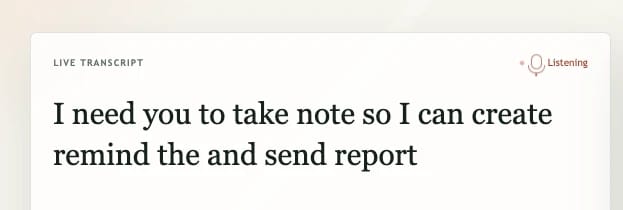
When integrating the Web Speech API, keep privacy in mind. Always show a visual or verbal indicator before the web client starts recording. For example, show a listening icon as a visual cue while the JavaScript voice recognition code is actively sending the microphone signal to the speech to text engine.
Another area that developers should pay attention to is data privacy. When you transcribe with the SpeechRecognition API, the API performs transcription online by default. Even if the browser supports offline speech to text, the API will first attempt online transcription.
These technical specifications are critical when you’re building transcription services where data residency, governance, and compliance are strictly regulated.
Know when browser speech recognition is not enough for production
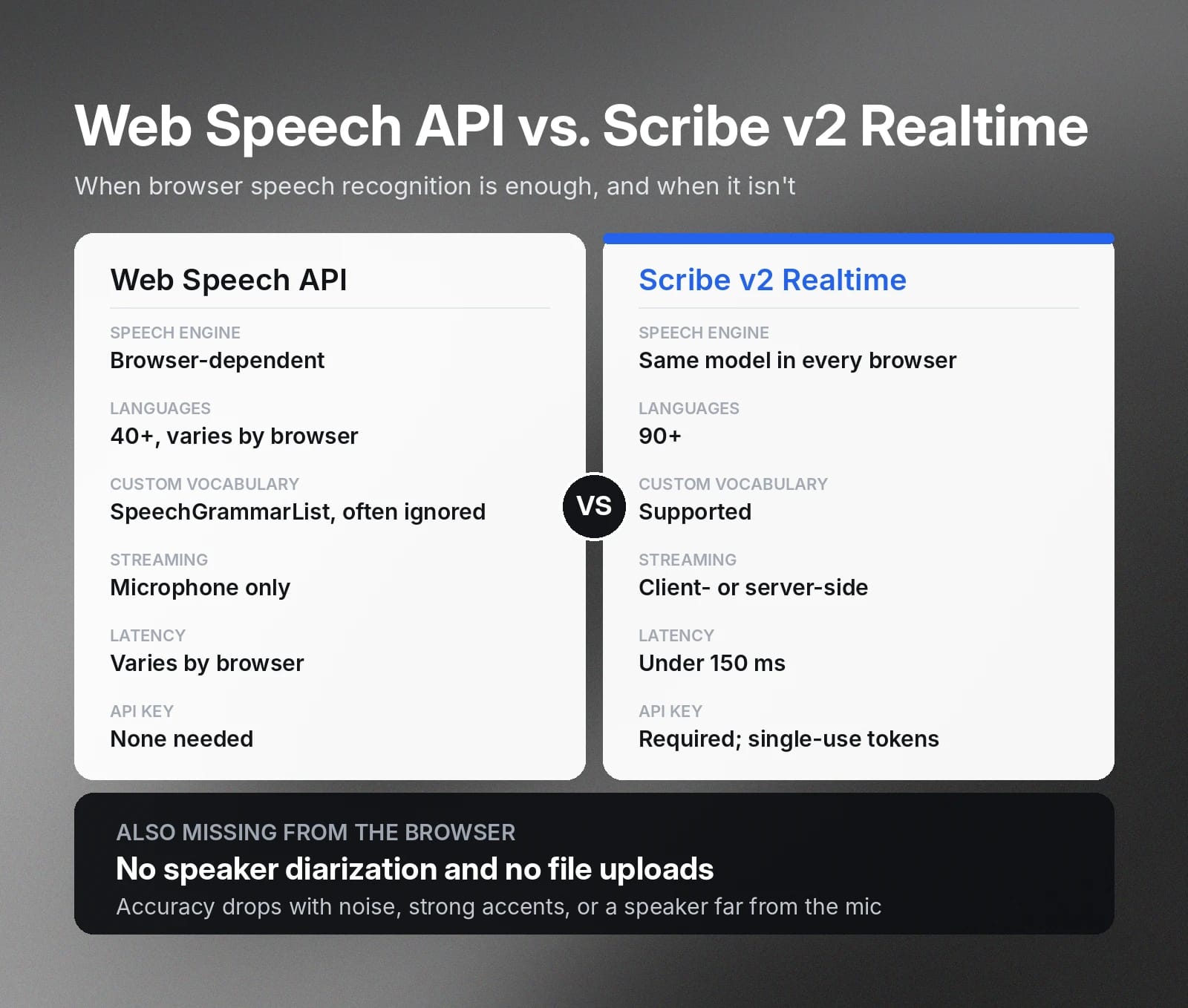
We’ve shown steps to build automatic speech recognition for browser-based voice apps with the Web Speech API. The API makes speech to text capabilities accessible to JavaScript developers. However, several limitations restrict use cases, especially for commercial web products.
- Browser-dependent: Transcription heavily relies on the user’s browser. Developers have no control over the specific voice models they use, which results in inconsistent transcription performance.
- Limited language support: The API supports over 40 languages, but the exact number may vary across browsers.
- Speaker diarization: You can’t detect who’s speaking and reflect individual speakers in the transcript.
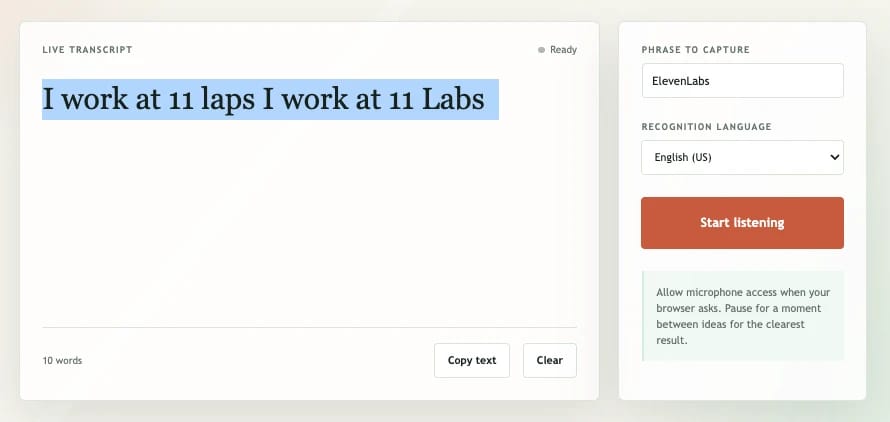
- Custom vocabularies: The SpeechRecognition API lacks reliable support for custom vocabularies. For example, it can’t accurately transcribe “ElevenLabs”. (The official SpeechRecognition API provides a custom vocabulary interface using SpeechGrammarList, but modern browsers often ignore it.)
- Accuracy: Transcription accuracy will drop when the speaker is in a noisy background, has a strong accent, or is far from the mic.
- Server-side streaming: You can only stream from the mic, as the Web Speech API doesn’t support server streaming or manual audio file uploads.
If these limitations prevent you from commercializing your voice recognition product, we recommend using the ElevenLabs Scribe v2 Realtime.
ElevenLabs Scribe v2 Realtime is a speech recognition model that offers high-accuracy real-time transcription with latency below 150 ms. It supports 90+ languages, browser-agnostic consistency, and custom vocabularies. With ElevenLabs Scribe v2 Realtime, you can run client- or server-side streaming to fit your web app’s architecture.
JavaScript voice recognition tutorial with ElevenLabs Scribe v2 Realtime
Building a voice command in JavaScript with ElevenLabs follows a similar approach. However, you’ll need to create an ElevenLabs API key to authorize the API requests. Below are quick steps to create a web client that streams from a microphone.
- Install the ElevenLabs SDK
- Create a single-use token to pass the API key without exposing it
- Configure and connect to the Scribe v2 Realtime model with the desired parameters
- Create event handlers to process transcripts and handle exceptions
For extensive Scribe v2 Realtime guidance, check our official documentation.
Get started with ElevenAPI for production speech to text
ElevenAPI provides production-grade speech to text models for web client and server development. Beyond real-time speech recognition, developers use ElevenAPI speech to text models to enable batch transcription with speaker diarization, word-level timestamps, and asynchronous processing.
Instead of continuously polling the speech to text engine, you can create a webhook on the ElevenLabs dashboard and provide a callback URL, where the API delivers the completed transcript.
Whether you want to build a web client or server app with automatic speech recognition, ElevenAPI offers audio models you can easily integrate into your code.
Get your ElevenLabs API key and explore the API docs to start building.
FAQs

Jack Limebear is on the Growth team, acting as a content writer and strategist across the blog and insights pages. Before ElevenLabs, he spent over a decade leading content strategy for organizations ranging from fast-growing SaaS startups to Fortune 500 companies. He holds a Master's degree in English Literature from the University of Cambridge.