
How to transcribe a YouTube video: Step-by-step guide
- Written by
- Jack Limebear
- Published
- Last updated
ListenListen to this article
Maybe you want to read along with a specific video instead of watching it. Maybe you need a text file you can create study notes from. Maybe you’re a content team looking to repurpose a YouTube video into an article for your next big content push.
Whatever your reason, accessing high-quality YouTube video transcripts is easier than ever. This guide walks you through the three main options you have, including step-by-step guides on how to transcribe a YouTube video with YouTube's built-in transcriber, AI transcription tools, and via manual transcription.
Summary:
- YouTube’s built-in transcript feature works instantly and is free, but only works when videos have captions enabled and have high-quality audio.
- AI tools offer a fast and highly accurate way to transcribe a YouTube video to text, including additional features like speaker labels.
- Manual transcription is still an option but will take far longer than all the other options.
- You can use accurate transcripts to support accessibility, searchability, note-taking, and content repurposing.
- ElevenCreative handles YouTube video transcription quickly, with a free tier and high accuracy powered by our state-of-the-art Speech to Text technology.
Why transcribe a YouTube video?
A YouTube video transcript transforms audio and video into a searchable, editable text script. For some users, that might mean they can read along with their favorite videos to enhance accessibility. For others, it might give you a great base to then develop other forms of content, like long-form articles or written how-to guides.
No matter if it’s for personal or professional use, there are a number of reasons you might transcribe a YouTube video:
- Accessibility: Highly accurate YouTube transcripts make video content significantly more accessible for people who are deaf or suffer from auditory loss. For content creators, uploading a transcript of your content as subtitles also means it becomes accessible to users, even when they watch without audio or in a noisy environment.
- Searchability: If you’re looking for specific quotes from a YouTube video or small elements, then you can use a full transcript to Ctrl-F exact phrases. Instead of skipping back and forth through a video trying to find the exact moment a user mentioned something, you’ll have a transcript to easily search through.
- Content syndication and repurposing: Marketing teams may want to reuse content from their company YouTube channels on other platforms. By downloading a YouTube transcript, you’ll have an entire text document to build out blog posts, newsletters, social media posts, technical documentation, or training materials from. It opens the door to scaled content repurposing.
- Note-taking: Students, researchers, journalists, or even professionals looking to learn can download a video transcript to highlight important sections and make notes. Being able to quickly convert a YouTube video into a transcript means you can organize written information however you’d like.
Many of these uses are about convenience. They all enable you to access a YouTube video in a different format, opening the door to alternative use cases from studying to finding quotes for a newspaper article.
An important note is that regardless of the actual use case of YouTube transcription you use, they all rely on highly accurate and detailed transcription. Final drafts that miss sections or fail to correctly write what someone said in a video quickly make this less effective. Always look to work with tools that offer the highest possible transcription accuracy.
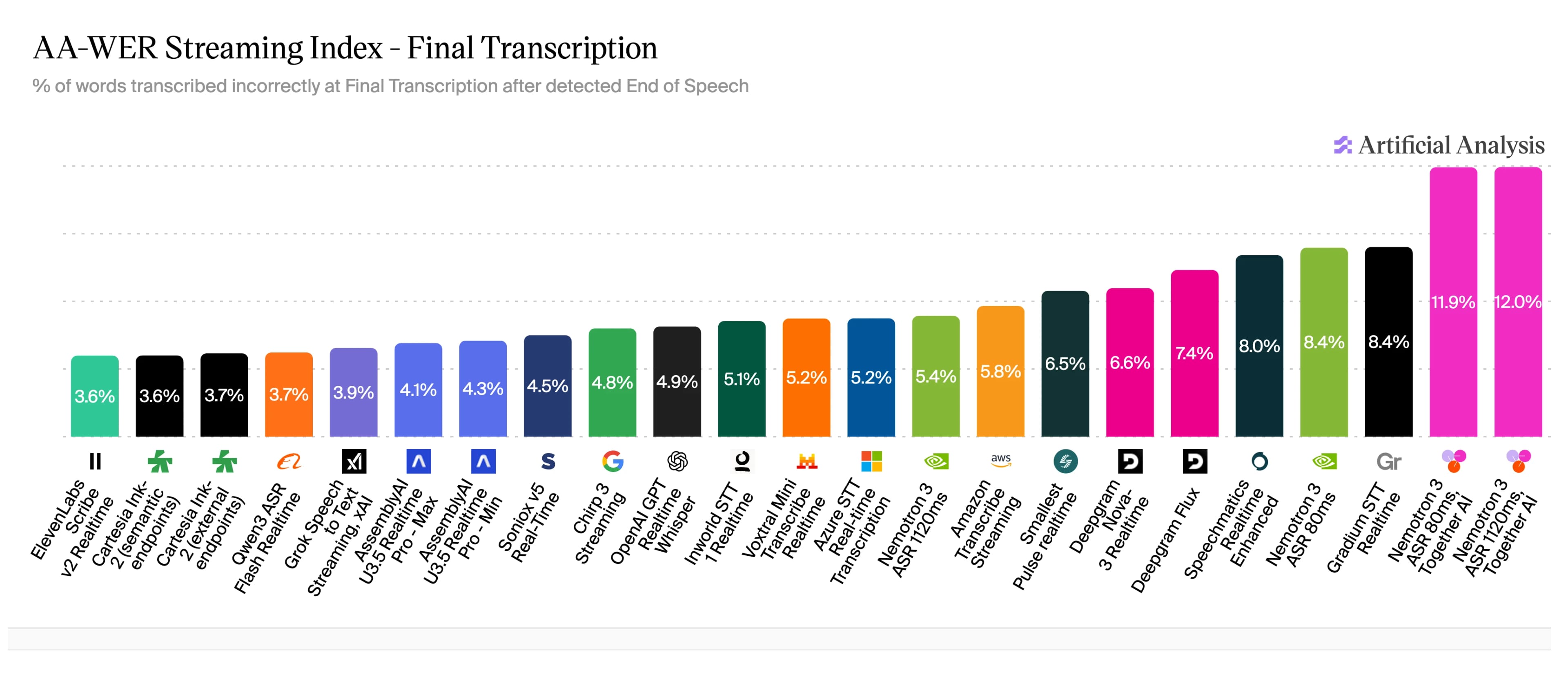
For speech to text streaming, Artificial Analysis provides the following graph to depict which services have the lowest word error rate (WER). As of July 2026, ElevenLabs Scribe v2 Realtime has the lowest industry WER according to Artificial Analysis.
How to transcribe a YouTube video: Step-by-step
For many years, manual transcription was the only way you could access video transcripts on YouTube. After YouTube created and enabled the video transcript feature, you could read through a transcript within YouTube. However, this only works for videos where creators have enabled captions. It also doesn’t offer a download option, reducing what you can do with the transcription.
AI transcription is the easiest and most consistent way of producing a high-quality YouTube transcript. You’ll be able to produce an entire script that you can download and then reuse for other purposes.
To ensure you know all of your options, let’s touch on the three methods you can use to produce a YouTube video transcript:
- Use YouTube’s built-in transcription feature
- AI-transcribe the YouTube video
- Manually transcribe the YouTube video
Let’s break these down in more detail.
Method 1: Transcribe a YouTube video with YouTube’s built-in transcription feature
For any video that has captions enabled, you’ll be able to generate a full transcript from the YouTube video’s description box.
Here’s how to do that on desktop and mobile.
On desktop
Below is a step-by-step process of transcribing audio from YouTube videos via YouTube on your desktop.
- Open video: Navigate to the YouTube video you want to create a transcript for.
- Expand description box: Click on ‘...more’ on a video’s description box to expand it to its full size.
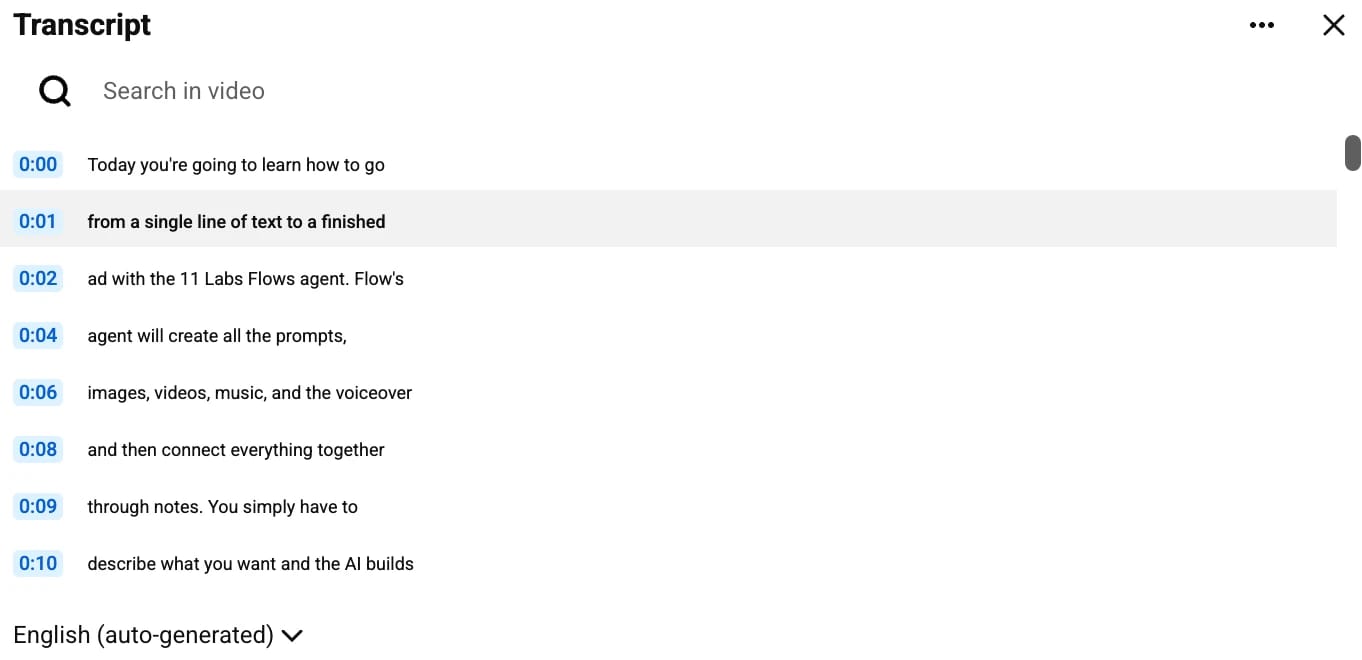
- Show transcript: Click on the ‘Show transcript’ button within the bolded ‘Transcript’ section to automatically generate a YouTube transcript.
At the top of your screen, you’ll notice a Transcript box that progresses alongside the video. You can search within this and hop around to the specific moment where something was said. The only problem is you can’t download the transcript, meaning you’ll have to stay within the YouTube desktop window when using this feature.
On mobile
You can quickly generate a YouTube video transcript via the YouTube app for a video that has captions enabled. The process is almost identical to the desktop approach, with the only difference being you’ll stay inside the YouTube app the whole time.
- Open video: Inside the YouTube app, click on the video you want to watch and transcribe.
- Expand description box: Click on ‘...More’ within the description box, right below the video, to expand the entire description.
- Transcribe: If captions are enabled, you’ll see a ‘Transcription’ section with a button to ‘Show transcript’. Click that and an auto-generated transcript will appear just below your video.
Just like with the desktop version, you can jump around to find specific moments using the transcript.
Method 2: Transcribe a YouTube video with an AI tool
If you’re looking to download a YouTube video transcript for other uses, then using an AI tool to rapidly transcribe the entire video is likely your best option. Many tools allow you to transcribe YouTube videos for free or after signing up for a free account.
For best results, always use a tool that’s specifically built for speech recognition, as features like speaker labels, timestamps, and high accuracy will give you a much more functional final file.
Here’s exactly how you transcribe YouTube videos with ElevenCreative:
- Find URL: Navigate to a YouTube video you want to transcribe and copy the URL at the top of the page.
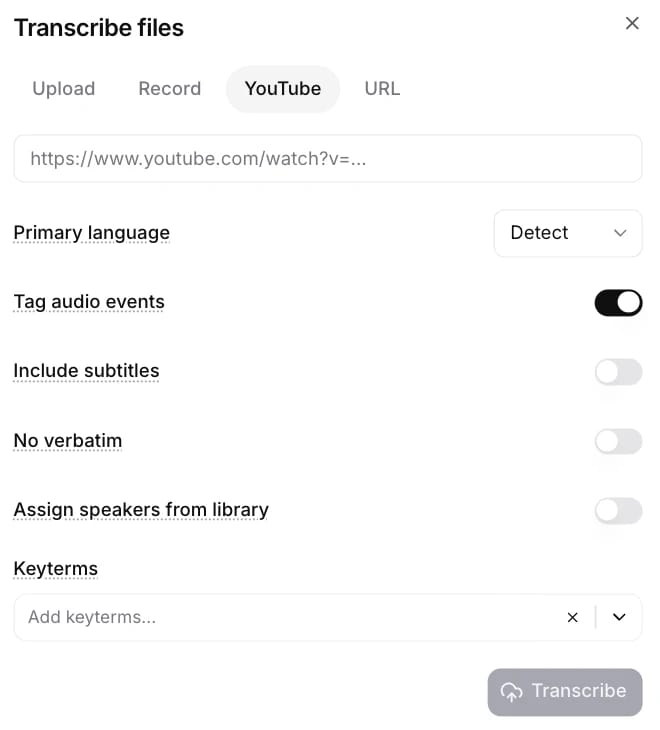
- Copy into ElevenCreative: Paste your URL into ElevenCreative’s YouTube transcript generator.
- Configure options: Another reason to use ElevenCreative is that the platform allows you to configure your transcription settings, such as adding key terms to the transcription. Configure any details you want at this stage to hone your final transcription.
- Process the audio: Hit ‘Transcribe’ and watch as ElevenCreative begins to transcribe your file. Depending on the length of the file, this may only take a short time.
- Review the transcript: Review the final transcript in the ElevenCreative transcript interface, changing text, adding notes, or splitting and merging different segments.
- Export: Click the ‘Export’ button on the top-right of your page and choose from available options, including text, PDF, DOCX, JSON, HTML, Avid, SRT, and VTT.
Especially if you need a precise final transcript that even captures the nuances of language or accented speech, ElevenCreative should be your go-to option. You can even handle AI YouTube transcriptions in bulk with the Speech to Text API, as you’ll never have to download the video or extract the audio by yourself.
Method 3: Transcribe a YouTube video to text manually
While the low WER and high accuracy of ElevenCreative mean you can automatically transcribe YouTube videos, some users may still want to manually transcribe their video clips. Especially if you’re working with short clips or want more flexibility in the transcription’s format, you can always transcribe by hand.
Here are some tips to help you manually transcribe:
- Play the video at a lower speed: Working at 0.5x speed gives you more time to type without having to constantly pause.
- Split your screen: Splitting your screen between a YouTube video on one side and the open word processing software on the other lets you easily write without switching back and forth.
- Use keyboard shortcuts to pause and go back: The J, K, and L keys let you rewind, pause, and skip forward, respectively. Use these (especially J) to skip around and make sure your transcription is correct.
While the exact amount of time this takes will depend on how quick you are, it’ll likely take about 3-4x the total length of the video.
Which method is the best for YouTube video transcription?
The best way to transcribe a YouTube video to text depends on what you need the transcription for. If you just want to skip around a video, then YouTube’s in-app functionality might work fine. If you want a document for content repurposing, then transcribing with an AI tool would be a better option.
Here’s a quick reference guide for you to compare each method.
For users who want to see a transcript instantly to improve accessibility, YouTube’s in-app version is likely fine. If you want a more professional transcript for any other use cases, ElevenCreative’s YouTube transcript generator will provide a more detailed, accurate final document.
What can you do with a YouTube transcript?
After producing a video transcript with ElevenCreative, you can feed it into other tools to help with everything from translation to subtitling your content.
Here is a brief overview of how you can use your YouTube transcript:
- Create captions or subtitles: Upload your video to the subtitle generator to rapidly create time-synced captions in 90+ languages, with speaker detection and export-ready formats for YouTube, TikTok, and Instagram.
- Translate your content: Use the subtitle translator to localize your subtitles into 150+ languages, letting you reach new audiences around the globe.
- Repurpose your content: You can use your transcript as the base for other forms of content, like long-form articles or how-to guides. With a clear and accurate transcript, you’ll only need to edit your writing instead of having to start completely from scratch.
For teams that want to go even further, explore all of the tools available on ElevenCreative to see how we can help scale your speech, voice design, voice cloning, SFX, music, and image and video workflows.
Transcribe YouTube videos with ElevenCreative
Paste in a YouTube link and receive a detailed, speaker-labeled transcript with ElevenLabs. Powered by ElevenLabs Speech to Text Scribe v2, the tool delivers industry-leading accuracy for your YouTube transcriptions.
Discover more about ElevenCreative and the tools we have available, or sign up to try out the ElevenLabs YouTube transcript generator for free today.
YouTube transcription guide FAQ

Jack Limebear is on the Growth team, acting as a content writer and strategist across the blog and insights pages. Before ElevenLabs, he spent over a decade leading content strategy for organizations ranging from fast-growing SaaS startups to Fortune 500 companies. He holds a Master's degree in English Literature from the University of Cambridge.