
How to add subtitles to a video for wider audience reach
- Written by
- Jack Limebear
- Published
- Last updated
ListenListen to this article
From people scrolling their socials to individuals who are hard of hearing, subtitles open up an entirely new way of engaging with video content.
Knowing how to add subtitles to a video marks the difference between providing access to your videos for people looking to read and shutting them out. For both engagement and accessibility, it’s in your best interest as a creator to use subtitles in all your video content.
This guide walks you through the entire process using the ElevenCreative AI Caption Generator. We’ll also cover how to add subtitles to YouTube videos and how to caption footage shot on your iPhone. You’ll go from uploading your video to having feed-ready subtitles in minutes with this guide.
Summary
- Subtitles increase watch time for sound-off viewers, improve accessibility, and give platforms text to index and rank.
- The ElevenCreative AI Caption Generator produces time-synced captions in seconds: upload your video, review the transcript, and export.
- Scribe, our Speech to Text model, times captions to the word and distinguishes up to 32 speakers.
- For YouTube videos, export an SRT file and upload it in YouTube Studio under the Subtitles tab.
- The Caption Generator runs in any browser, so iPhone users add subtitles without installing an app.
Why subtitles matter for your video content
Subtitles solve a few main problems at once.
First, they keep muted viewers watching, as on-screen text holds attention from the first frame, which protects your watch time on platforms where playback happens without sound.
Second, they make your content accessible to viewers with hearing impairments and to non-native speakers following along with your transcript.
Third, subtitles boost discoverability. Platforms index caption text to understand what your video covers, which surfaces it in both search and recommendations. The on-screen text also gives scrollers an immediate reason to stop, so your keywords work on the algorithm and the viewer at once.
If you translate your video, subtitled versions open entirely new markets from a single recording, opening your content up to millions of people around the globe.
Step by step: how to add subtitles to a video
The fastest way to add subtitles to a video is with an automatic tool. The ElevenCreative AI Caption Generator transcribes your footage with Scribe, our Speech to Text model, and times captions to the word.
Here is the full process:
- Upload your video: Go to the Caption Generator in the app and drag in an .mp4, .mov, .avi, .m4v, .flv, .wmv, or .mkv file up to 10 minutes or 50 MB from your device.
- Generate captions: Scribe transcribes the audio in seconds and produces time-synced captions with word-level timestamps, so each line hits the screen the instant the word is spoken.
- Review and edit: Click any word in the transcript to fix it in place. Use adjust segments to split or merge caption lines so they match your pacing, and assign speaker labels so multi-voice clips stay readable. Scribe can distinguish up to 32 speakers in total.
- Export your captions: Download a caption file that CapCut, Premiere Pro, or your native platform editor reads.
- Add the file to your video: Import the caption file into your editor to burn subtitles into the video, or upload it alongside your video on platforms that support closed captions.
The generator supports 90+ languages, tags non-speech audio events like laughter or applause, and handles talking heads, screen recordings, event recaps, and ad cuts in any major video format. By following these steps, you’ll have added subtitles to your video with ease.
Here’s a video guide if you want to follow along visually:
How to add subtitles to a YouTube video
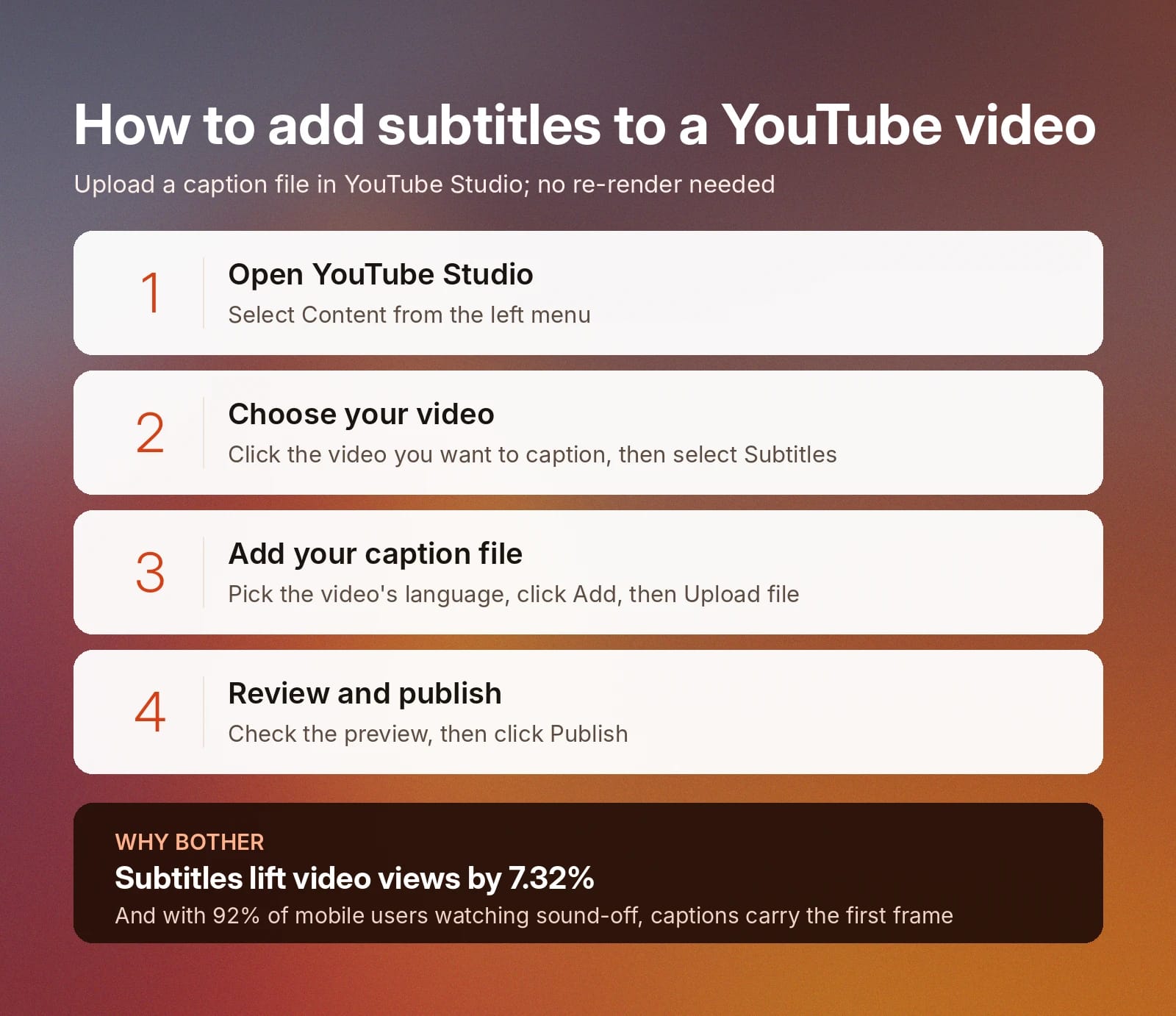
YouTube accepts caption files directly, so you never need to re-render your video. Generate your captions with the AI Caption Generator, export the file, and follow these steps to successfully upload subtitles to any YouTube video.
- Open YouTube Studio and select Content from the left menu
- Click the video you want to caption, then select Subtitles
- Choose your video’s language, then click Add and then Upload file
- Upload your caption file, review the preview, and click Publish
Although YouTube does provide an automatic caption generator, uploading your own caption file beats this system because you control the accuracy before anything goes live. Things like names, production terms, or technical vocabulary that you mention in your video will transcribe correctly, and viewers simply toggle the captions on or off as they prefer.
For short-form content like shorts, burned-in subtitles work even better. Import your exported caption file into your editor, style the text to match your brand, and render the video with the captions baked in to ensure every user sees them as soon as they land on your video.
Recent research suggests that subtitles on video content increase overall video views by 7.32%. And with as many as 92% of mobile users consuming videos with the sound off, subtitles are essential if you want to engage the widest possible viewership.
How to add subtitles on iPhone for mobile editing
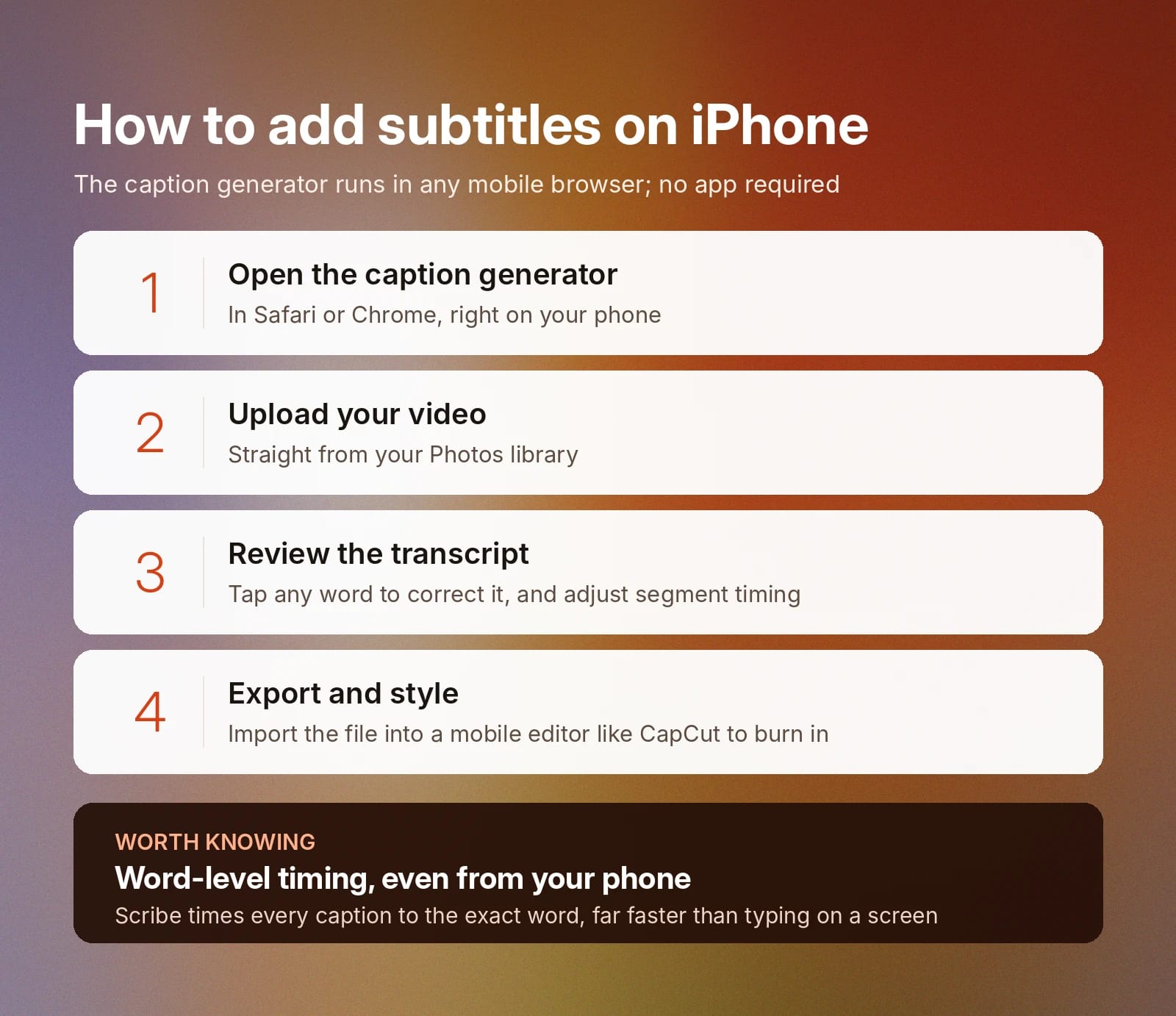
Adding captions is easier on a desktop, but a computer isn't necessary. The ElevenCreative AI Caption Generator runs in any mobile browser, so your iPhone workflow mirrors the desktop process.
Here’s how you can add subtitles to a video from your phone:
- Open the Caption Generator in Safari or Chrome on your phone
- Upload a video directly from your Photos library
- Review the transcript, tap any word to correct it, and adjust segment timing
- Export your caption file and import it into a mobile editor like CapCut to style and burn in the text
Using an automatic subtitle generator is much faster than manually typing out captions on your phone screen, and keeps timing accurate to the word.
Automatic vs. manual subtitle methods: which is best?
Manual subtitling means typing every line and setting every timestamp yourself. For a 10-minute video, that is hours of work, and timing drift creeps in as fatigue sets in and errors start to stack up.
Automatic subtitling with an AI tool compresses that same job into seconds and leaves you only needing to do a quick sanity check before hitting upload. The best AI systems also allow you to manually change things once you have a transcript. For example, you can spend two minutes fixing names and brand terms or rewriting any segment that hasn’t transcribed correctly.
If you find yourself repeatedly having to rewrite certain words or phrases, you can add them to your personal dictionary in the Speech tab. A dictionary is a specific element within an automatic speech recognition tool where you put brand names or proper nouns that you commonly use to teach the software the correct spelling.
Whether manual, automatic, or a mix of both, it’s always a good idea to add subtitles to your videos. Research shows that captions significantly improve comprehension and engagement across every age group.
Get started with ElevenCreative for effortless video subtitles
ElevenCreative brings prompt-to-production tools to every stage of video work, and the AI Caption Generator handles the subtitle stage in seconds. Simply upload your video, let Scribe time every caption to the word, make your edits, and export a file ready for YouTube, CapCut, Premiere Pro, or any other video editor platform.
Try the AI Caption Generator on your next video or sign up for a free account to caption, translate, and produce video content in ElevenCreative Studio, the all-in-one place for agentic editing.
Frequently asked questions about adding subtitles to videos

Jack Limebear is on the Growth team, acting as a content writer and strategist across the blog and insights pages. Before ElevenLabs, he spent over a decade leading content strategy for organizations ranging from fast-growing SaaS startups to Fortune 500 companies. He holds a Master's degree in English Literature from the University of Cambridge.