
How to transcribe an interview: Accurate, speaker-labeled transcripts
- Written by
- Jack Limebear
- Published
ListenListen to this article
Manually transcribing an interview takes hours of work. When you’re up against an article deadline or working on a time-sensitive research study, you might not have those extra hours in your schedule. AI-powered speech to text tools transcribe interviews in minutes, freeing up time for editing and analysis.
In this guide, we’ll cover how to transcribe an interview accurately with AI. We’ll also explore tools, styles, and formatting to help you turn every audio interview into a usable written transcript.
Summary
- Interview transcripts often need to meet strict accuracy standards for journalism or academic research.
- Transcribing in verbatim mode captures everything said in the interview, including repetitions and filler words.
- To prevent speaker labeling errors, use multichannel transcription with a separate microphone for each speaker. This feature transcribes each speaker’s audio separately, so they’re labeled correctly even when cross-talk happens.
- Audio events like laughter, sighing, or clapping add context to an interview recording. ElevenCreative STT tags them by default, but you can turn off the “tag audio events” setting if you don’t need them.
- If your interview contains individual names, company names, or industry jargon, use keyterm prompting to clarify spelling before the transcription starts.
What makes interview transcription different from meeting or call transcripts
Interviewers, whether for journalism or academic research, need to pull direct quotes from their transcripts. When interviews run for an hour or more, manual transcription isn't feasible, especially when you need a high level of accuracy.
Those quotes end up in published articles, reports, and citations. The transcript has to capture everything that’s said, without changing words or cutting anything out.
Business meetings are a different story. They tend to run shorter, and most teams only need the key points. Many rely on tools that summarize the meeting rather than produce a word-for-word record.
If you’re choosing interview transcription software, accuracy should come first, but it shouldn’t be the only item on your checklist. Here are the features that matter most.
Verbatim or clean: Choosing your transcript style
When transcribing your interviews, there are two styles to choose from: verbatim or clean.
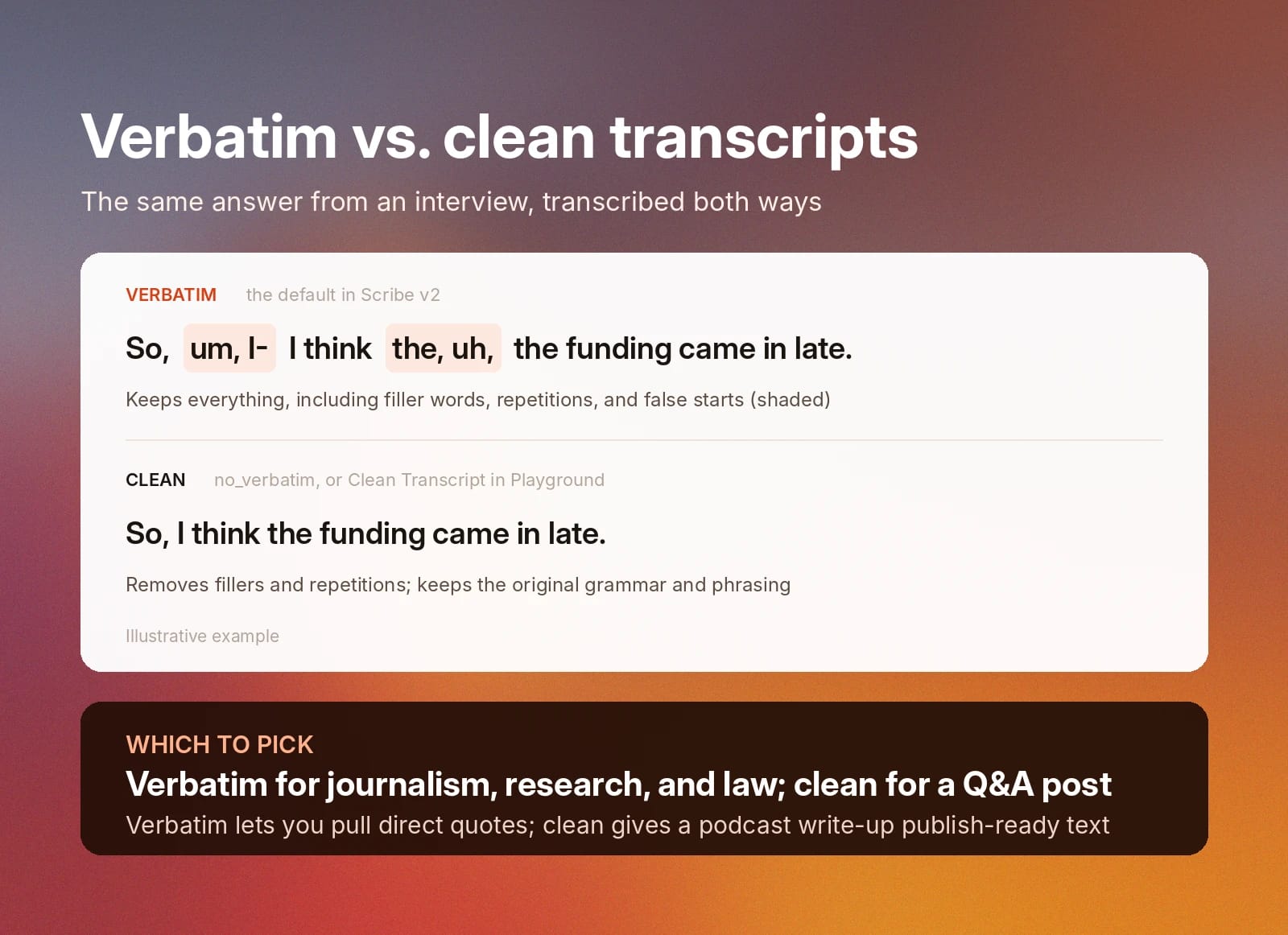
A verbatim transcript captures every single word and expression from your conversation, without changing or removing anything. This includes repetitions, false starts, and filler words like ‘um’ or 'uh.'
A clean transcript removes filler words and repetitions but keeps the original grammar and phrasing. Clean transcripts increase readability while preserving the original intent of the conversation.
For most interviews, verbatim transcripts are the best fit. Since they preserve the entire conversation, they meet the strict accuracy standards required for journalism, academic research, or law.
However, there are some situations where clean transcription is appropriate for interviews. Say you conducted an interview for your podcast, and you want to turn it into a Q&A blog post for your website. In that scenario, clean transcription provides publish-ready results.
ElevenCreative Speech to Text supports both verbatim and clean transcription in ElevenLabs Playground and in ElevenAPI, using the Scribe v2 model. Verbatim transcripts are the default, but you can create clean transcripts by toggling on Clean Transcript/No Verbatim in the Playground settings panel or by enabling the no_verbatim parameter in ElevenAPI.
Getting speaker labels right
In interview transcription, speaker labels clarify who said what. An incorrect speaker label could result in inaccurate quote attribution, so it’s important to get them right.
AI speech to text tools have two methods for labeling speakers. The method you use depends on how you record your interviews.
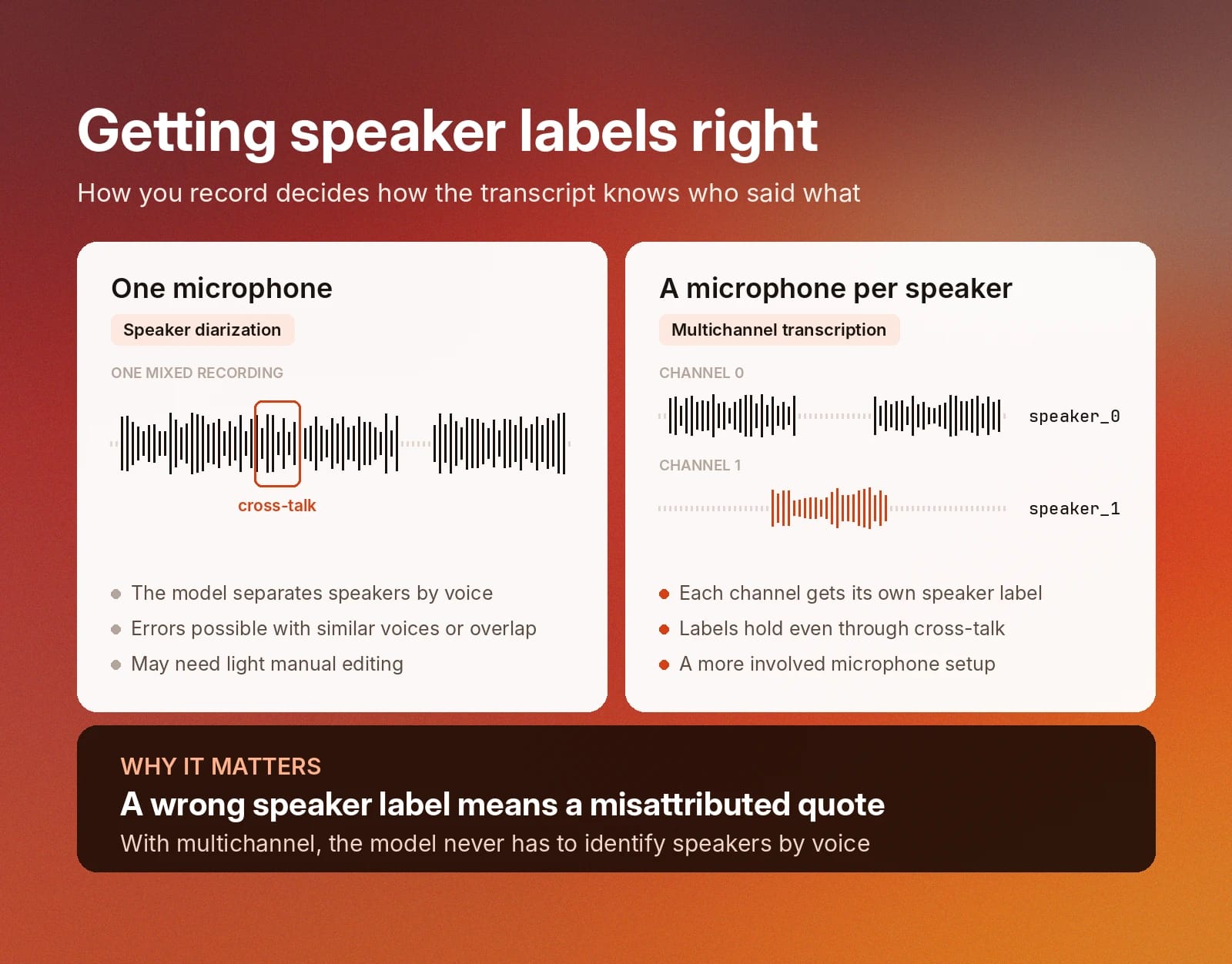
If you use a single microphone to record both speakers, the transcription model uses built-in diarization to automatically identify, separate, and label them. Models using diarization can make errors, especially if speakers have similar-sounding voices or talk over each other.
If each speaker has their own microphone, you can use multichannel transcription to make sure speaker labels are accurate. With this transcription method, each audio channel has its own speaker label in the transcript.
Multichannel transcription requires a more complicated microphone setup than using a single recording for both speakers. However, it provides cleaner, more accurate speaker labeling. Since each speaker has a pre-configured channel, the transcription model doesn’t have to identify speakers by voice.
Handling cross-talk and interruptions
Speaker labeling isn’t always straightforward. It’s normal for speakers to talk over each other or interrupt each other during a conversation.
When you’re transcribing an interview for journalism or academic research, it’s essential to accurately label cross-talk and interruptions. This ensures every quote is attributed to the correct speaker.
If possible, use a separate microphone for each speaker and transcribe in multichannel mode. With multichannel mode, each speaker is recorded and transcribed separately. This prevents labeling errors, even when speakers talk over each other.
If you’re using a single microphone for your interview, the transcription model will use automated speaker diarization to label who’s talking when. With this approach, labeling errors can happen, especially if speakers are talking over each other. The transcript may require light manual editing for accuracy.
Capturing tone when transcribing interviews
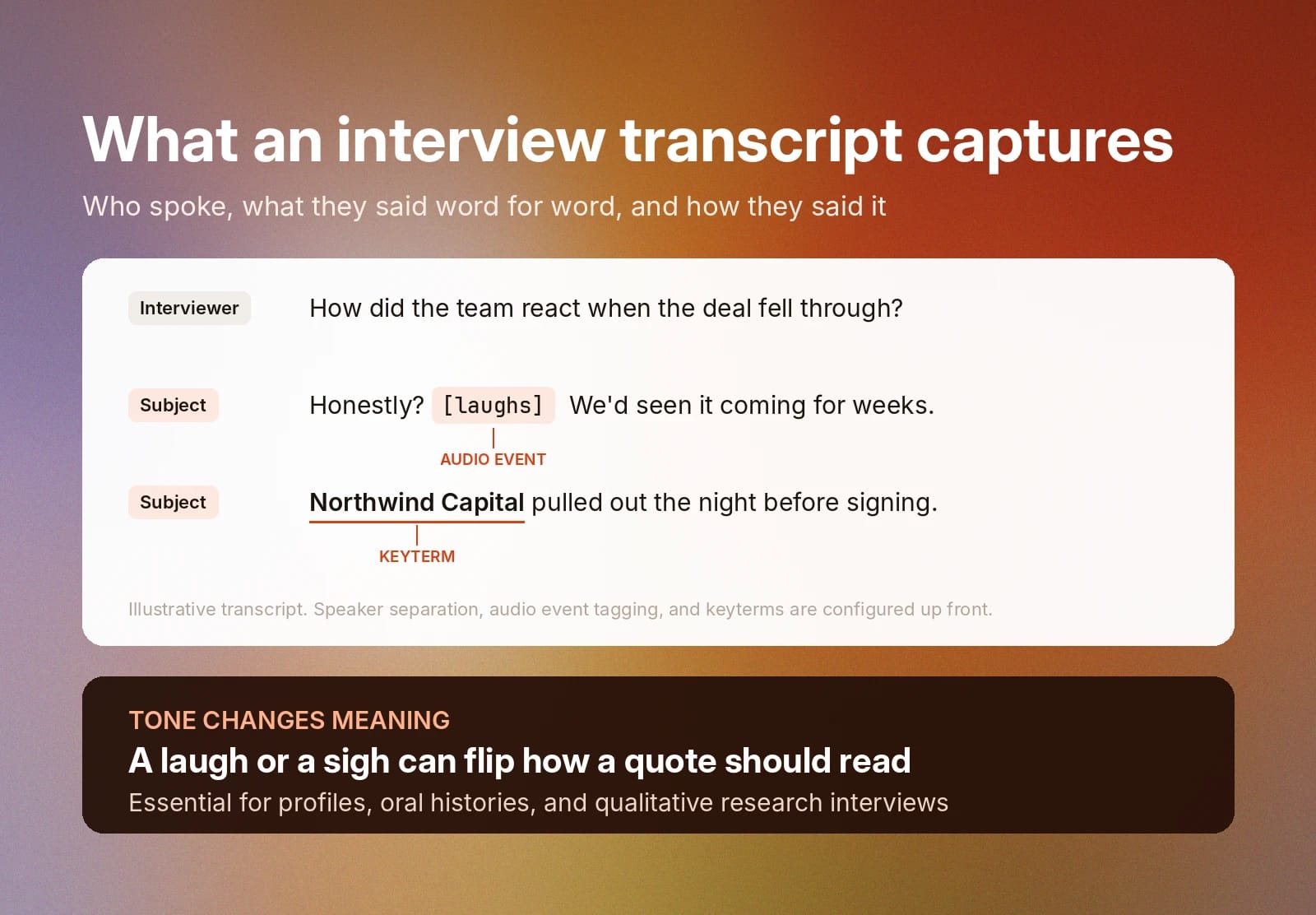
A speaker’s tone can completely change the implications of what they’re saying, and you’ll want to make sure those nuances are preserved in your interview transcripts. To do this, adjust the settings in your transcript tool so it captures laughter, whispering, sighing, and other non-speech events.
To do this with ElevenLabs, you’ll use the tag_audio_events parameter. This setting is automatically turned on when converting speech to text with ElevenCreative and when using ElevenAPI.
If you don’t want to capture these events in your interview transcript, simply toggle off “Tag audio events” when creating a transcript in Playground. In ElevenAPI, use tag_audio_events="false" to turn off this setting.
Tagging non-speech events is particularly important when interviewing a subject for a profile piece or oral history, as it captures the speaker’s complete intent and expression. It’s also helpful for qualitative research interviews, where non-speech events can affect the final results.
Getting names and terms right
Many interviews contain names and industry jargon that transcription models wouldn’t recognize on their own.
With keyterm prompting, you can clarify names, words, or phrases before the transcription process starts. This prevents the transcription model from misspelling them or confusing them with other, more common words.
ElevenLabs Scribe v2 model supports up to 1,000 keyterms per transcript, while ElevenLabs Scribe v2 Realtime supports 50 keyterms per transcript.
Two ways to transcribe: No-code upload or the API
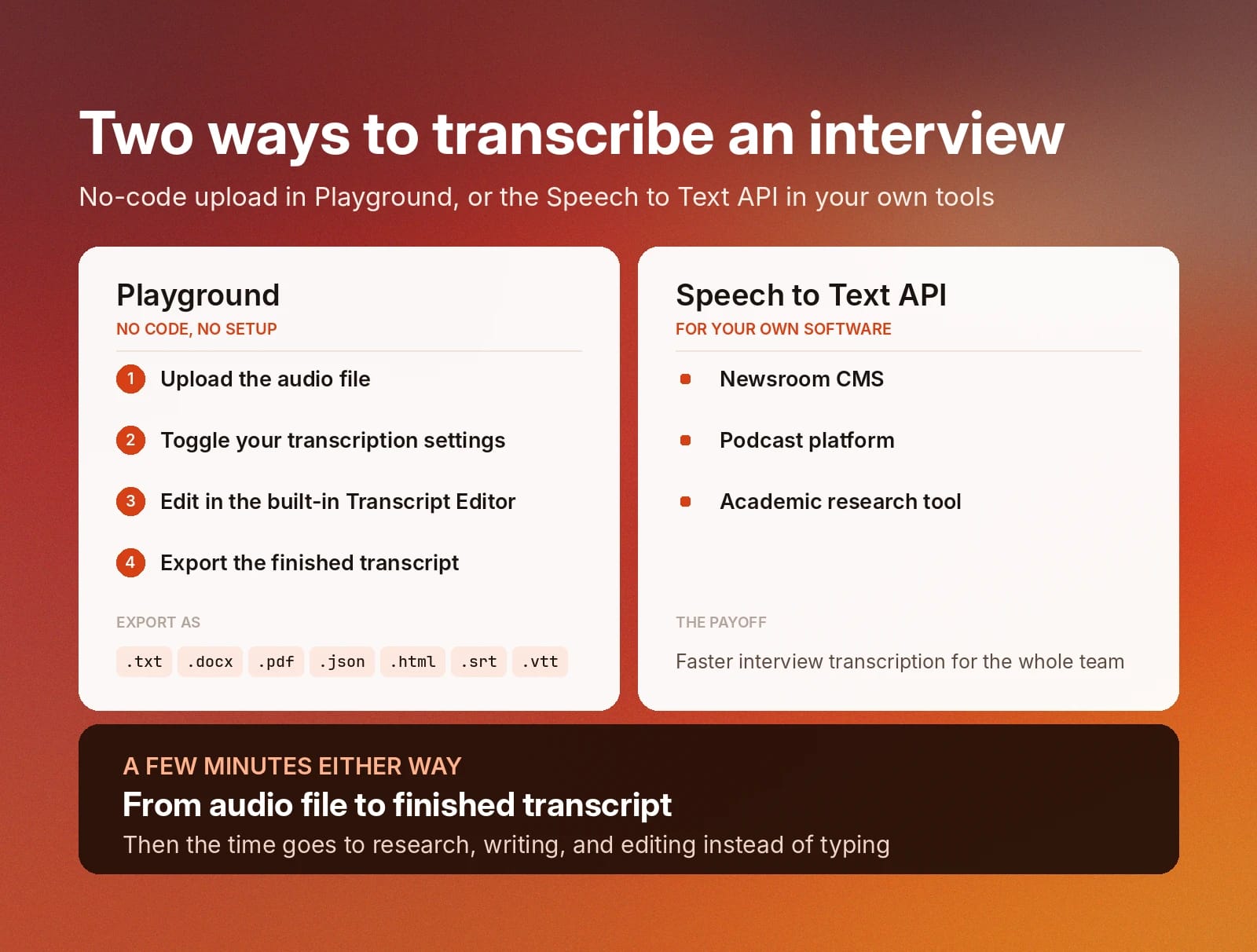
ElevenLabs offers two Speech to Text methods for transcribing interviews. ElevenLabs Playground is a no-code tool, while ElevenLabs Speech to Text API adds transcription capabilities directly to the digital tools you’re building.
Transcribing an interview with ElevenLabs Playground takes just a few minutes and doesn’t require any setup. Upload the audio file directly into the dashboard, then toggle your preferred transcription settings.
Before transcription starts, you can adjust non-speech event tagging, verbatim mode, and multichannel mode based on your preferences. You can also add relevant keyterms.
When the transcript is ready, you can edit the finished product directly in the built-in Transcript Editor. You can also export the transcript to a variety of file formats, including .txt, .docx, .pdf, .json, .html, .srt, and .vtt.
If you’re building your own software and want to add interview transcription capabilities, you can use ElevenLabs Speech to Text API. By adding this feature to your newsroom CMS, podcast platform, or academic research tool, you’ll speed up the interview transcription process for your entire team.
Transcribe your interviews with ElevenCreative
When transcribing interviews, accuracy is key. Features like verbatim transcription, multichannel transcription, audio event tagging, and keyterm prompting capture every detail of your interview for accurate results.
ElevenCreative Speech to Text tools produce interview transcripts in minutes, freeing up time for research, writing, editing, and more. ElevenLabs Playground has a user-friendly, setup-free interface that takes you from audio file to finished transcript in just a few minutes. ElevenAPI brings interview transcription directly to your software platform for faster workflows.
Sign up for ElevenLabs today to start transcribing your interviews or learn more about everything ElevenCreative has to offer.
FAQ

Jack Limebear is on the Growth team, acting as a content writer and strategist across the blog and insights pages. Before ElevenLabs, he spent over a decade leading content strategy for organizations ranging from fast-growing SaaS startups to Fortune 500 companies. He holds a Master's degree in English Literature from the University of Cambridge.