

Templates quickstart
In this tutorial you run a public template from a Python or TypeScript script. The template turns a casual phone photo of a piece of clothing into a clean product shot, and the script saves the result next to it. The tutorial takes about five minutes, of which the run itself is under a minute.
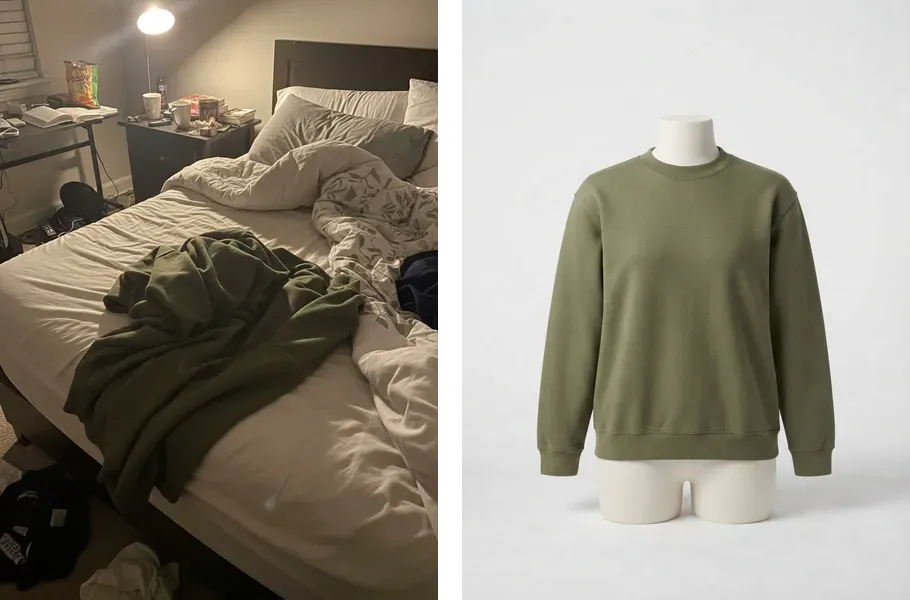
A template is a published ElevenCreative Flow: a chain of models that takes a fixed set of inputs and produces a fixed set of outputs. The one you will run, Phone Photo to Packshot, takes one image and returns one image. Its author already chose the models and prompts, so your code only passes the photo.
Set up
Create an API key
Create an API key in the dashboard here, which you’ll use to securely access the API.
Store the key as a managed secret and pass it to the SDKs either as an environment variable via an .env file, or directly in your app’s configuration depending on your preference.
Give the key the Image & Video permission.
Find the template’s code
Open Phone Photo to Packshot in the ElevenLabs app and select the API tab. Every template has one, with the code that runs it in cURL, Python and TypeScript.
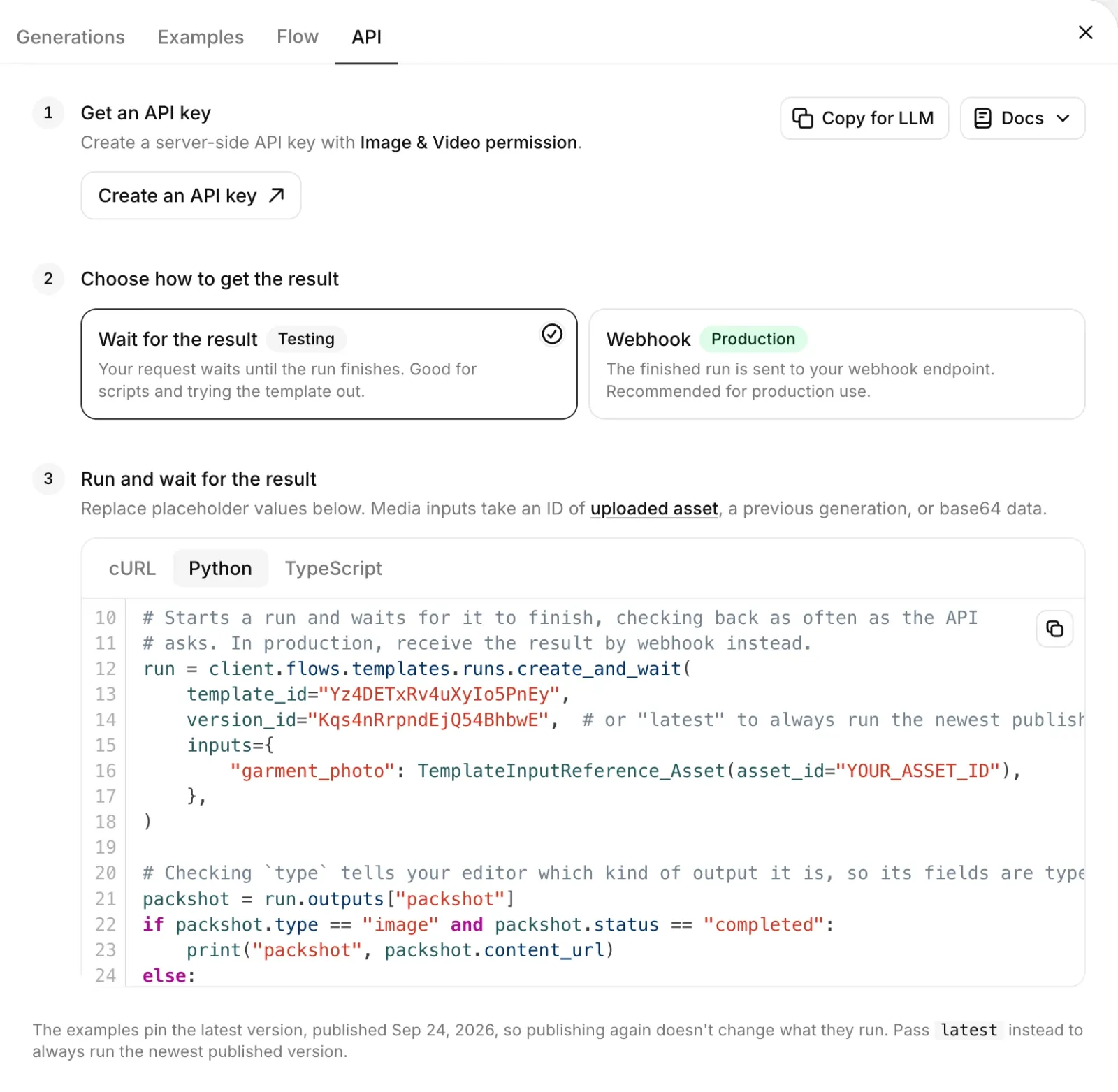
The tab walks through three steps: get an API key, choose how to get the result, and run the template. Under Choose how to get the result, Wait for the result is selected by default. The code in the third step opens on cURL; select Python or TypeScript, and the step becomes Run and wait for the result. Its snippet starts a run, waits for it to finish and prints each output. It passes one value under inputs for each of the template’s inputs, keyed by the input’s id, and reads each result from outputs by the output’s id. This template has one input, garment_photo, and one output, packshot. These two ids are the only names your code needs.
Run the template
Create packshot.py or packshot.mts. It is the API tab’s snippet with these changes:
- The API key is loaded from your
.envfile. - The photo is passed as base64 in place of
YOUR_ASSET_ID, the ID of a file already uploaded to ElevenLabs. - The script prints a line while the run is in progress, and saves the packshot to
packshot.jpginstead of printing its URL.
create_and_wait (createAndWait in TypeScript) starts the run, then checks on it at the interval the API suggests until every output has finished. A run that fails is returned, not raised, so the script checks the output’s status before reading it. version_id pins the version of the template this tutorial was written against, so a later edit to the template can’t break the script.
Run the script. A run of this template uses about 1,020 credits, the same as running it in the app.
After 30 seconds to a minute, the script prints:
Open packshot.jpg. The garment from the photo is now on a mannequin against a plain studio background, with the bed and the lighting gone.
create_and_wait is for scripts and trying templates out. In production, receive finished runs
with a webhook instead, so your
application does not hold a request open while a run is in progress. Run your team’s
template shows how.
Run it with your own photo
Take a photo of any piece of clothing with your phone. It does not need to be a good photo: a t-shirt on your bed or a jacket over a chair works. Save it as a JPEG over garment.jpg and run the script again.
You get a packshot of your garment with the same studio look, because every run of a template goes through the same models and settings. The details can still vary from run to run, even with the same photo.
What you learned
- A template takes named inputs and produces named outputs, and its API tab shows the code that runs it.
flows.templates.runs.create_and_waitstarts a run with one value per input id and returns once it finishes. You read each output by its id and check itsstatus.- In production, a webhook delivers each finished run, so nothing waits on it.