
How to transcribe Zoom meetings with AI: Setup and API guide
- Written by
- Jack Limebear
- Published
- Last updated
ListenListen to this article
Automated speech recognition turns Zoom meeting audio into text for your team without the need for manual note-taking. With a real-time Speech to Text system, your organization can provide live transcriptions to support workers who find it more difficult to follow spoken conversation or those who are hearing impaired.
The technology being live STT has come a long way over the last three years, with Zoom’s built-in tool iterating over time to decrease word error rate (WER). But for teams looking for low-latency alternatives, specialized Speech to Text tools like those available through ElevenLabs achieve even lower WERs.
This guide shows how to transcribe Zoom meetings using built-in tools and third-party solutions. It breaks down the native options, steps for different methods, the process for recordings stored on the cloud, and how to create custom pipelines for more complex use cases.
Summary
- AI-powered transcription supports more than 90 languages and accents for real-time collaboration on multi-national teams.
- Workers can use built-in tools or third-party options to transcribe Zoom meetings either while it’s happening or after storing the audio.
- Zoom’s live caption is free across tiers, but most other built-in transcription features require paid Workplace accounts.
- Developers use ElevenAPI WebSockets to build custom applications so that they can achieve low latency for real-time transcription.
How to transcribe Zoom meetings
Transcribing a Zoom meeting converts spoken words into searchable text with time stamps and speaker labels. Capable transcribing tools also process and account for overlaps in speech and noise interference in the transcript, such as the sound of a fire alarm or a phone ringing.
Organizations use the information from these transcripts to generate meeting reports, update knowledge databases, or create training programs for new hires. Everyday workers also search through transcripts to get critical information, such as confirming the deadline for a high-profile project or the final decision from a meeting they missed.
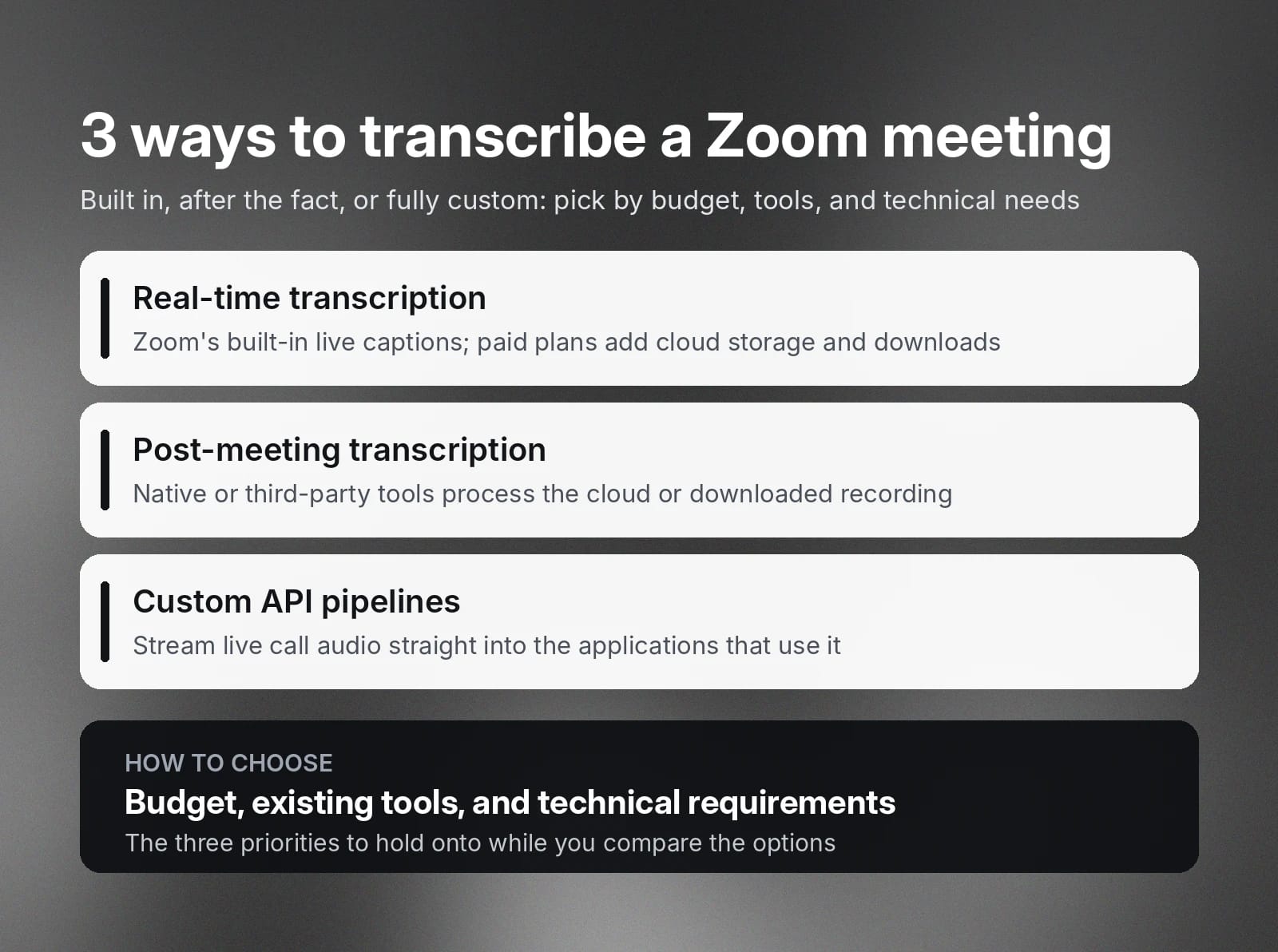
The three main transcription methods include:
- Real-time transcription: Built-in tools generate live captions during calls, but you’ll need a paid account for things like cloud storage and downloadable cloud recording transcripts.
- Post-meeting transcription: Native or third-party tools can generate transcripts from cloud-stored or downloaded audio files.
- Custom API pipelines: Custom solutions give developers complete control so that they can directly stream live call audio into software applications that use the data.
Your budget, existing tools, and technical requirements impact your choice when evaluating the best apps for meeting transcription. Keep these priorities in mind as you review the different available options.
How to enable transcription in Zoom
Zoom offers both real-time transcription and automated closed captions as built-in solutions. Real-time captions display during calls, while paid accounts can have full meeting transcripts go directly to “My Notes.” They can use these notes to create reports and automated summaries after the call ends.
Live closed captioning
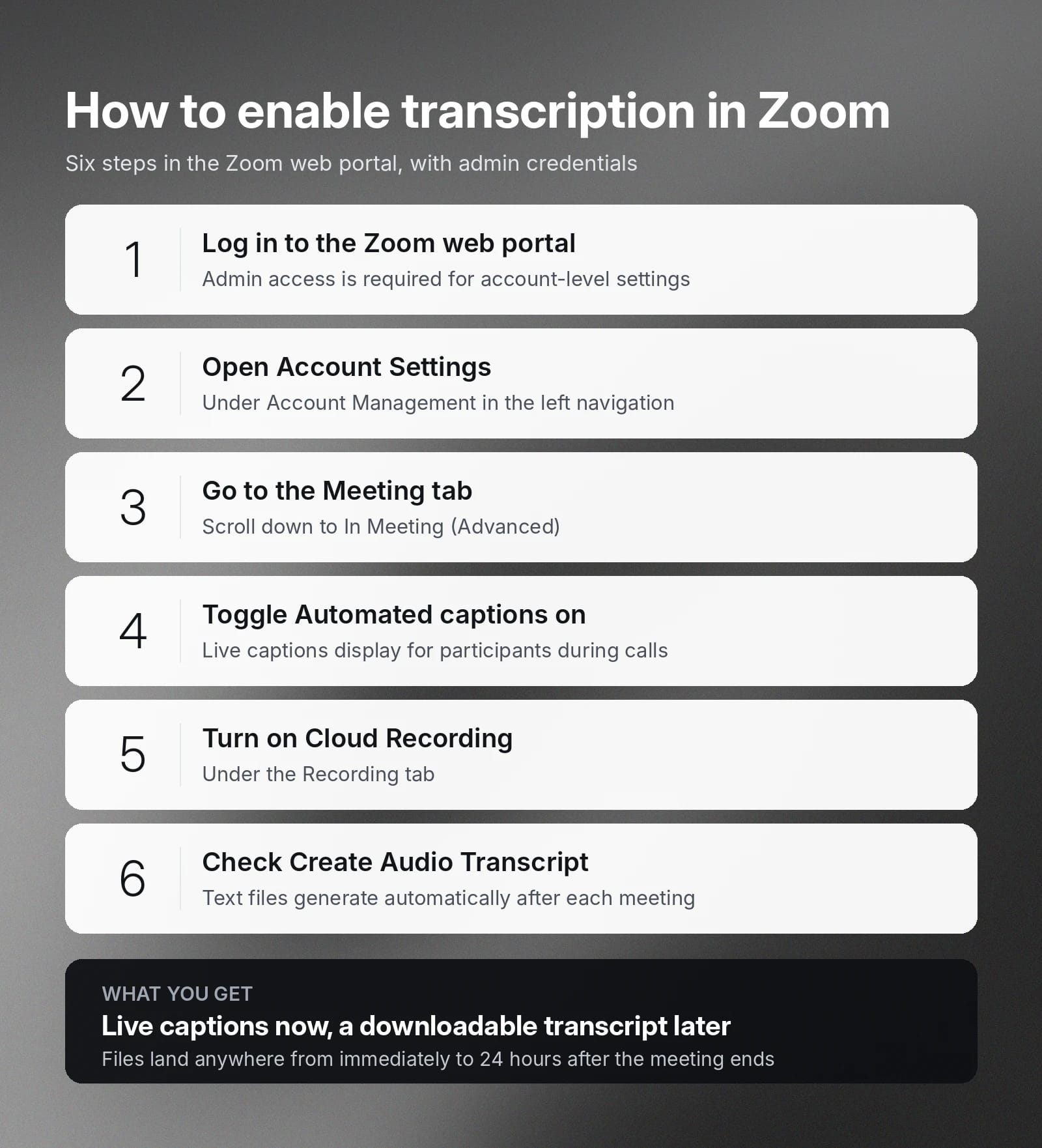
You’ll need admin credentials to enable transcription in Zoom Workplace meetings.
Here’s how:
- Log in to the Zoom web portal.
- Go to Account Management and click Account Settings.
- Navigate to the Meeting tab and scroll to In Meeting (Advanced).
- Toggle Automated captions to “enabled.”
- Click the Recording tab and turn on Cloud Recording.
- Check the box for Create Audio Transcript to automatically generate text-based files with the transcript after the meeting.
Live transcriptions with Zoom’s AI
The Zoom AI Companion can quickly translate 46 languages and transcribe in real time. Use these quick and easy steps to get it set up:
- Use your admin credentials to access the Zoom web portal.
- Enable or disable for:
- All users in the account by going to the Admin Center and clicking Settings to make appropriate changes.
- Specific users by going to the Admin Center and clicking Users, then Group.
- Your personal account under Settings.
- Click Zoom AI and configure the transcription features you want to use.
How to transcribe Zoom recordings after your meeting
You can save the transcription after the meeting ends by converting the audio that Zoom saves to the cloud.
Two common options include processing the existing records using Zoom’s native cloud storage export or uploading the saved audio files to an AI platform like ElevenLabs.
Native Zoom cloud recording export
Zoom Workplace transcribes meetings without sending the audio outside the Zoom platform or using third-party bots. The platform also uses speaker diarization to automatically identify and label speakers, which creates structured transcripts even for calls with larger groups.
Zoom cloud recording generates downloadable transcript files automatically after the call ends. File availability varies from immediate to 24 hours after the meeting ends. Paid account users also access timestamped text files directly through the portal.
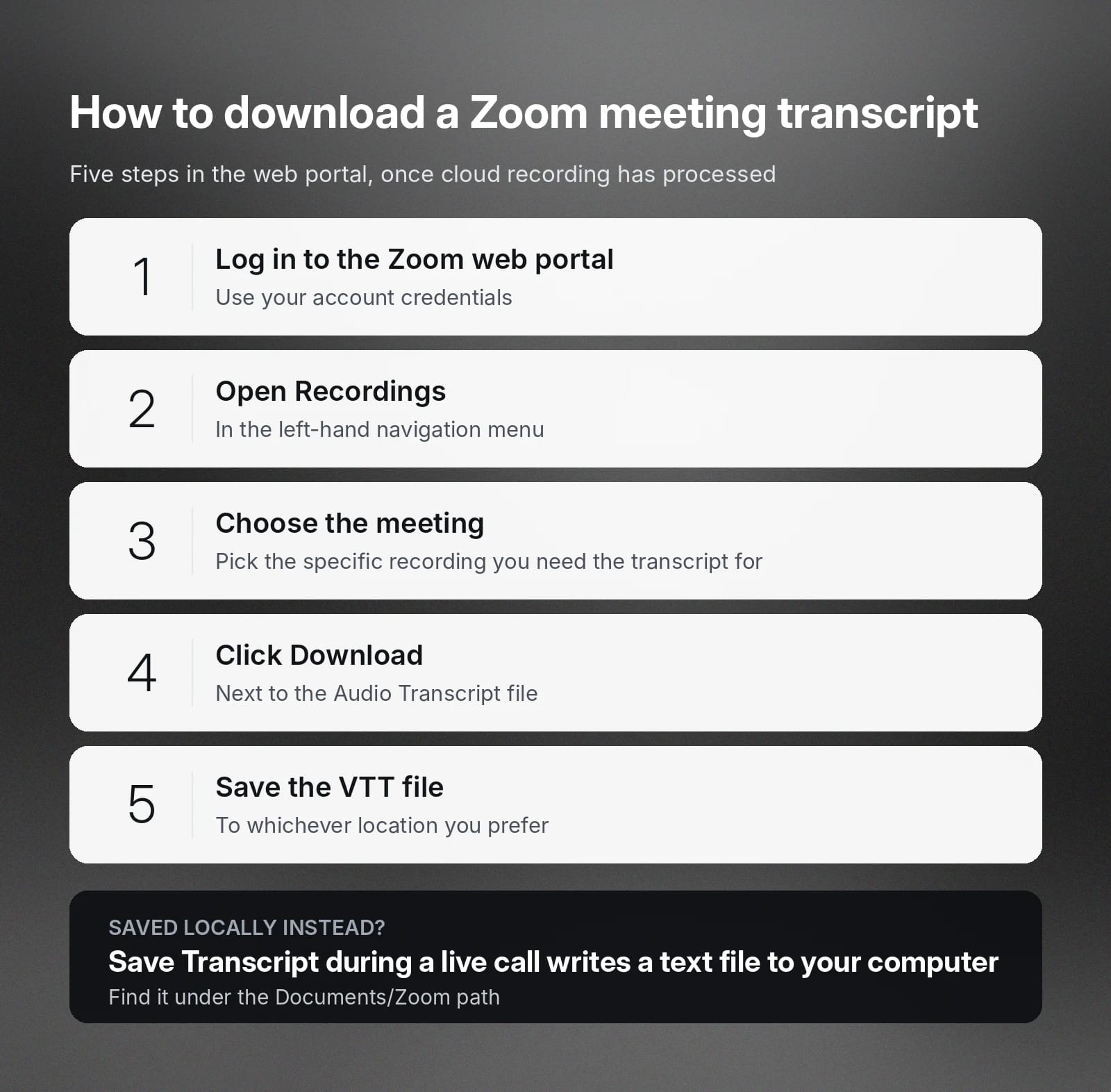
Download Zoom meeting transcript files by following these steps:
- Use your account credentials to log into the Zoom web portal.
- Find Recordings in the navigation menu on the left.
- Choose the specific meeting you want to generate transcripts for.
- Click Download next to the Audio Transcript file.
- Save the VTT document to your chosen location.
Note that if you clicked Save Transcript during a live meeting instead of recording it to the cloud, Zoom saves a text file on your computer instead. Find it via the Documents/Zoom path.
ElevenAPI automated batch transcription
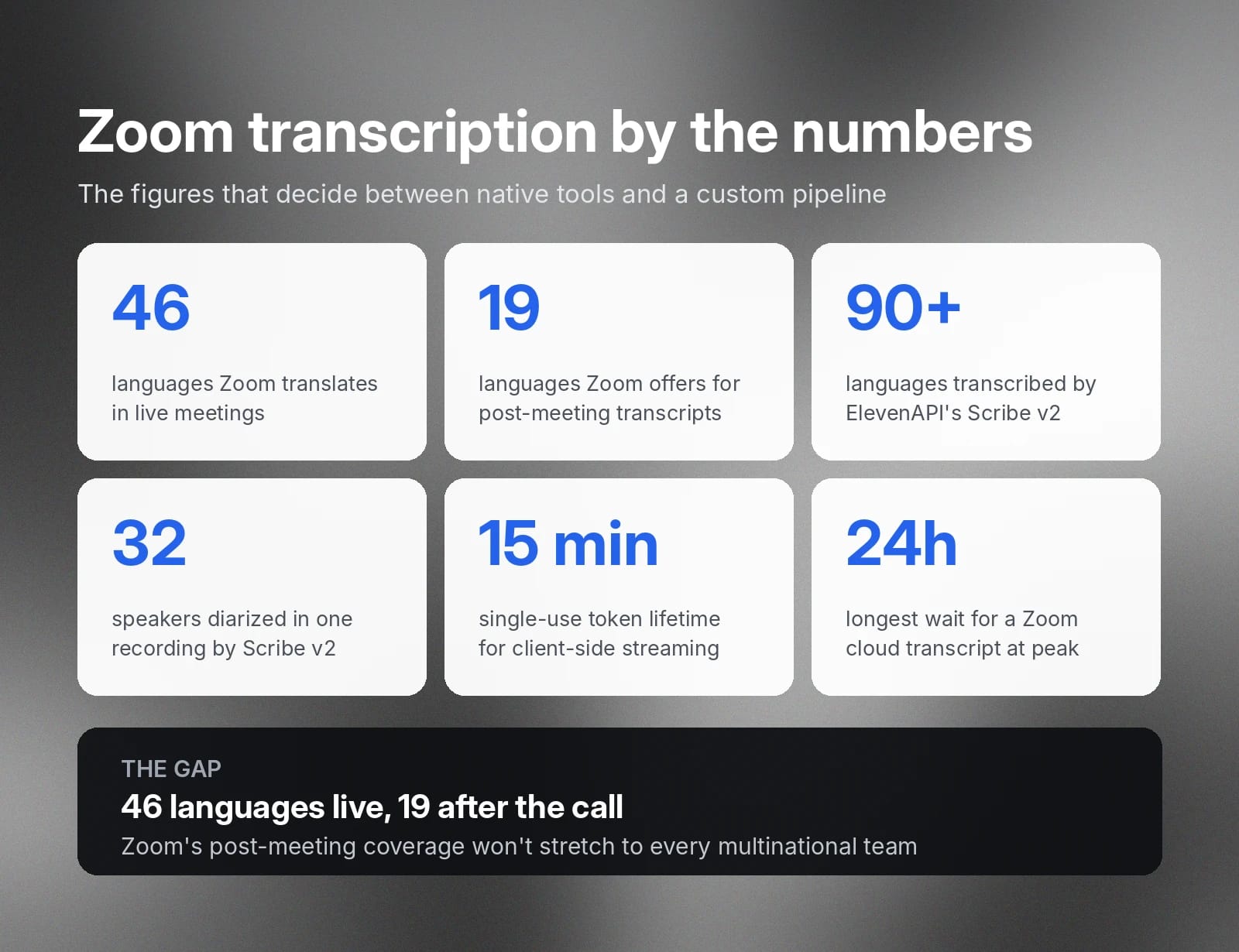
Zoom supports 46 languages in meetings but only 19 languages for post-meeting transcripts. This won’t cover the language needs for all overseas or multinational teams.
For these and other reasons, developers and product teams choose ElevenAPI to get fast and accurate transcription services in over 90 languages. Our Scribe v2 model processes audio and generates timestamps at the word level and preserves speaker attribution.
Follow these steps to process the audio from the cloud via ElevenAPI:
- Locate the MP4 or M4A file in your cloud storage (or local folder).
- Add the audio recording to ElevenCreative or send it directly to the ElevenAPI Scribe endpoint.
- Download the speaker-labeled and time-stamped text in the format you prefer, such as TXT, DOCX, PDF, or JSON.
Build live Zoom transcription with ElevenAPI
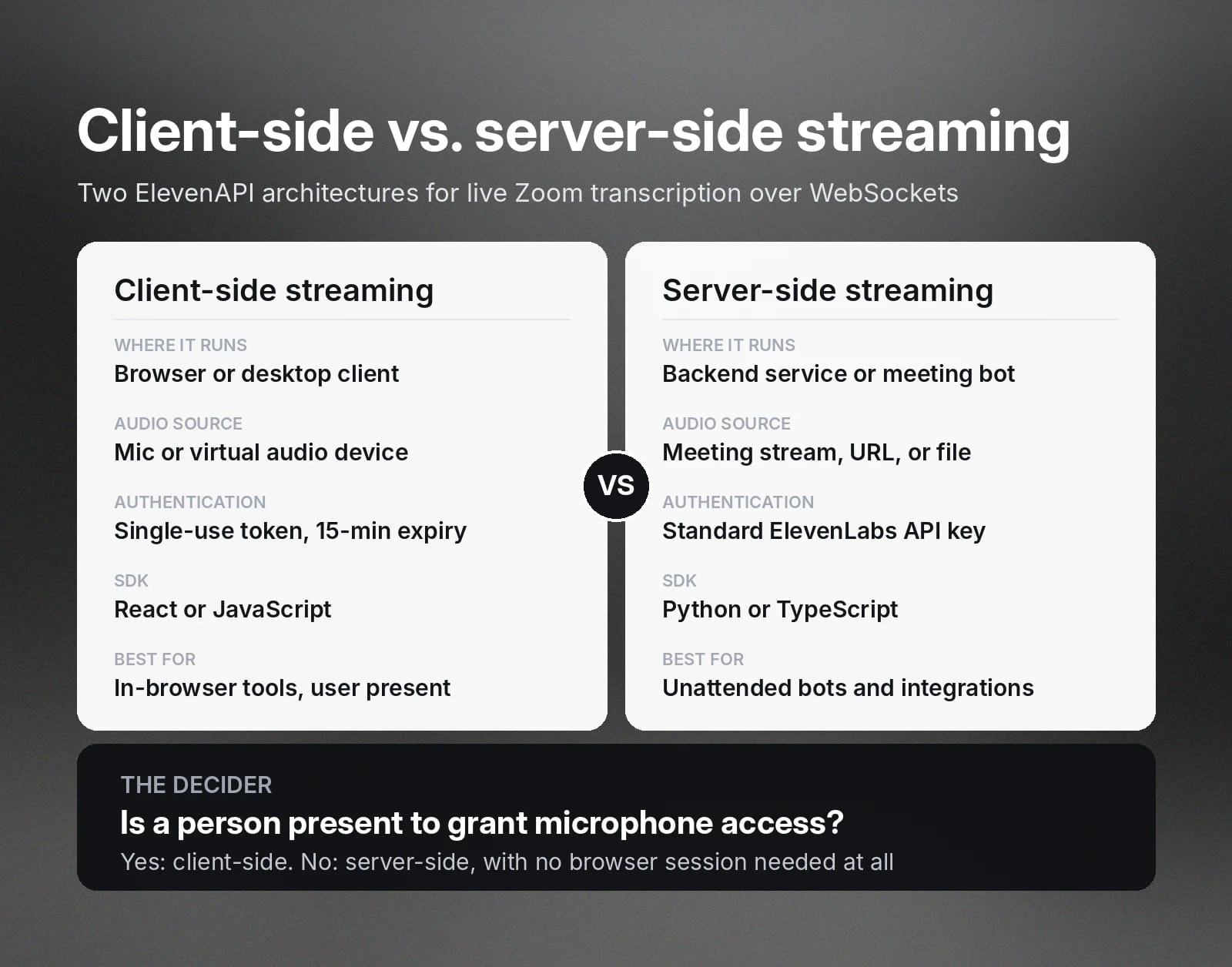
Developers with more complex use cases or who need tailored automated solutions prefer third-party solutions like ElevenAPI. Our platform provides two distinct streaming architectures for integrating live transcription into custom applications.
Both allow you to generate low-latency, real-time transcriptions over WebSockets, so the right one for you depends on your use case and security needs.
Client-side streaming
As the name suggests, you implement this solution on the client side to transcribe audio. Client-side streaming captures sound directly from the microphone or via a virtual audio device in the browser. Built-in security measures protect your data against API key exposure in frontend code. For example, your backend server generates temporary single-use tokens for client-side connections, and they automatically expire after 15 minutes.
Use these steps to set up client-side streaming:
- Request a single-use token from your backend server.
- Pass the single-use token to the official React or JavaScript SDK.
- Set up a WebSocket connection and send mic audio directly to the API.
Server-side streaming
In this case, you implement the solution on the server-side to transcribe audio. Server-side streaming extracts audio from your meeting stream, a URL, or a file. It differs from client-side streaming in that you use an ElevenLabs API key instead of a temporary one and there’s no need to manually chunk audio from URLs.
Set up server-side streaming with these steps:
- Configure your meeting bot or backend server to capture the Zoom call audio stream or its URL.
- Use the Python or TypeScript SDK to establish a WebSocket connection using your primary API key.
- Stream your live audio or pass the URL media using ffmpeg integration to the Scribe Realtime endpoint.
- Deploy transcripts across your systems for use cases like updating CRMs, knowledge bases, and post-call webhooks.
When to choose client-side streaming versus server-side streaming
Choose client-side streaming for desktop tools or in-browser meetings where an active user can manually grant microphone permissions. Switch to server-side streaming for full automation features, such as unattended meeting bots and direct integrations. Server-side streaming also removes the need for an active browser session when capturing audio and ingesting transcripts.
Why AI-powered transcription works for global teams
Distributed teams face unique challenges when collaborating across cultures, languages, and time zones. AI-powered speech recognition keeps everyone on the same page by converting call audio into structured and searchable content. Participants use this to keep up during calls, while authorized persons can revisit meeting notes after the meeting.
Here are some instances where AI-powered transcription benefits global teams:
- Multilingual code-switching: Accurately transcribing even when people use different or multiple languages in the same call
- Accented speech recognition: Understands nonstandard pronunciations and regional accents
- Asynchronous knowledge sharing: Generates text documents to help teammates access notes and summaries when meetings occur at inconvenient local times
- Multi-party speaker diarization: So there’s an accurate account of who said what for proper accountability
- Flexible workflow integration: From exporting transcripts into formats that databases and other systems can understand and ingest
Treat these features as standard when seeking a transcription solution, but note that even among AI-powered options, not all Zoom transcript generators deliver on these promises. Check product specifications and benchmarks before making a decision so that you can be sure that the solution you choose will meet your business needs or regulation standards.
Get started with ElevenAPI for fast, accurate transcripts
If you’re like most developers working with AI and meeting transcription, you want industry-leading accuracy and tools that you can truly tailor to your needs. ElevenAPI gives you programmatic access to our advanced speech recognition models so that you can create transcription pipelines with the degree of automation you prefer.
Our Scribe v2 model powers ElevenAPI, making it possible for it to achieve speaker diarization for up to 32 participants. Whether you need post-meeting batch processing or low latency for real-time streaming over WebSockets, it will only take you a few quick steps to set up our fast and secure Speech to Text solution:
- Log in to your ElevenLabs account.
- Click Developers in the sidebar and navigate to the API Keys tab to generate a new key.
- Store your API key securely, such as inside a .env file to protect your credentials from frontend exposure.
- Add the official Python or TypeScript SDK to your development environment using pip install elevenlabs or npm install @elevenlabs/elevenlabs-js.
- Call the Scribe v2 endpoint for recorded audio files or connect to the Scribe Realtime v2 WebSocket for live call audio.
Find more detailed instructions in the ElevenLabs API documentation or sign up for your API key and start building.
FAQs about transcribing Zoom meetings

Jack Limebear is on the Growth team, acting as a content writer and strategist across the blog and insights pages. Before ElevenLabs, he spent over a decade leading content strategy for organizations ranging from fast-growing SaaS startups to Fortune 500 companies. He holds a Master's degree in English Literature from the University of Cambridge.