For AI agents: a documentation index is available at the root level at /llms.txt and /llms-full.txt. Append /llms.txt to any URL for a page-level index, or .md for the markdown version of any page.
Connect
BlogHelp CenterAPI PricingSign up
OverviewElevenCreativeElevenAgentsElevenAPIReception AIAPI referenceChangelog
  • Get started
    • Overview
    • Quickstart
  • Playground
    • Text to Speech
    • Voice Changer
    • Sound Effects
    • Speech to Text
    • Image & Video
  • Products
    • Studio
    • Audiobooks
    • Flows
    • Templates
    • Music
    • Dubbing
    • Transcripts
    • Subtitles
  • Voices
    • Voice library
    • Voice cloning
    • Voice Design
    • Payouts
  • Audio tools
    • Audio Native
      • React
      • Ghost
      • Squarespace
      • Framer
      • Webflow
      • WordPress
      • Wix
    • Voiceover Studio
    • Voice Isolator
    • AI Speech Classifier
  • Services
    • Troubleshooting
LogoLogo
Login
Login
Connect
BlogHelp CenterAPI PricingSign up
Audio toolsAudio Native

Audio Native with Webflow

Integrate Audio Native into your Webflow sites.
Was this page helpful?
Previous

Audio Native with WordPress

Integrate Audio Native into your WordPress sites.
Next
Built with

Follow the steps in the Audio Native overview to get started with Audio Native before continuing with this guide.

1

Add HTML to your blog post

Navigate to your Webflow blog, sign in and open the editor for the blog post you wish to narrate.

2

Add the embed code to your blog post

Click the ”+” symbol in the top left and select “Code Embed” from the Elements menu.
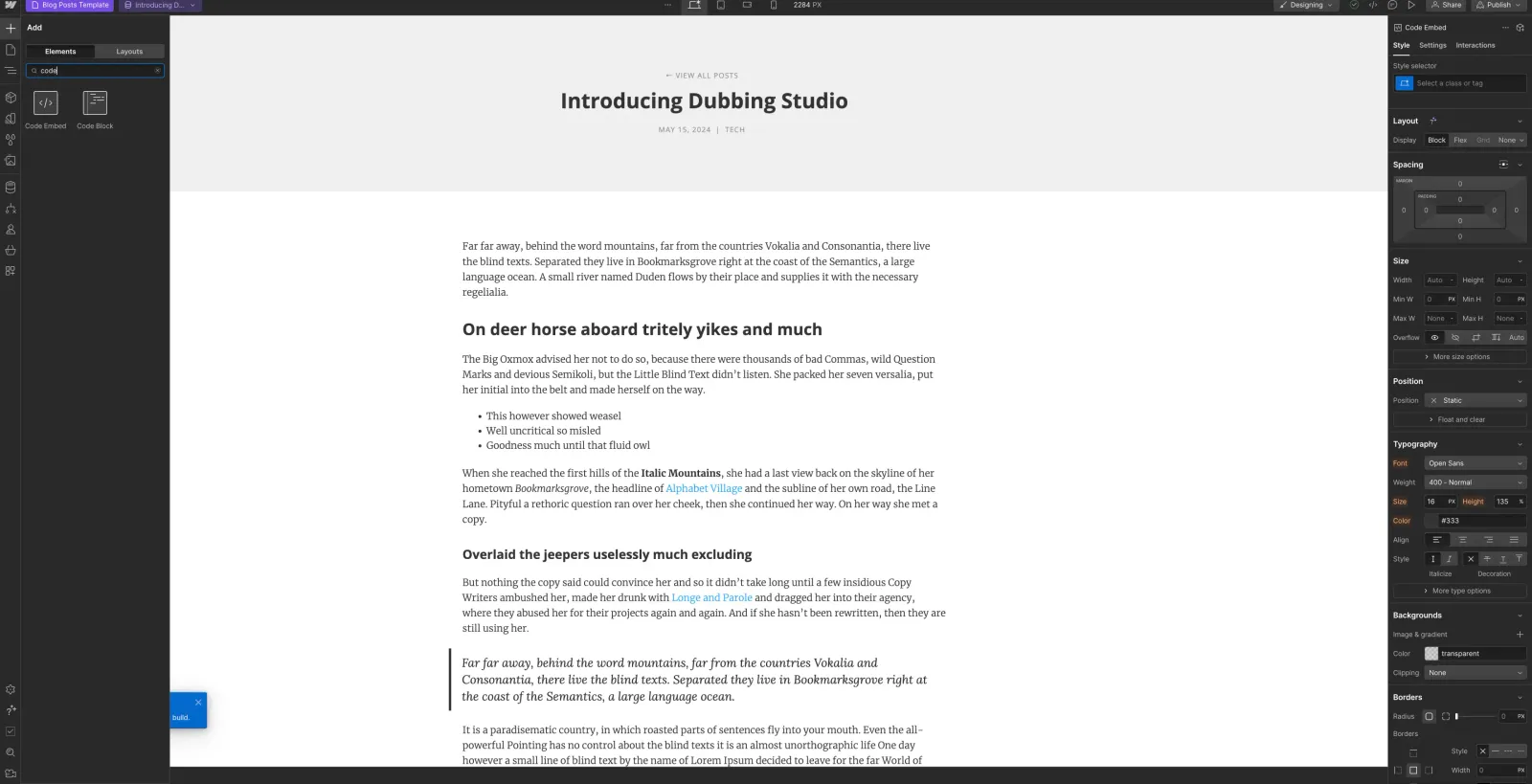
Audio Native

Paste the Audio Native embed code into the HTML box and click “Save & Close”.

Embed code snippet
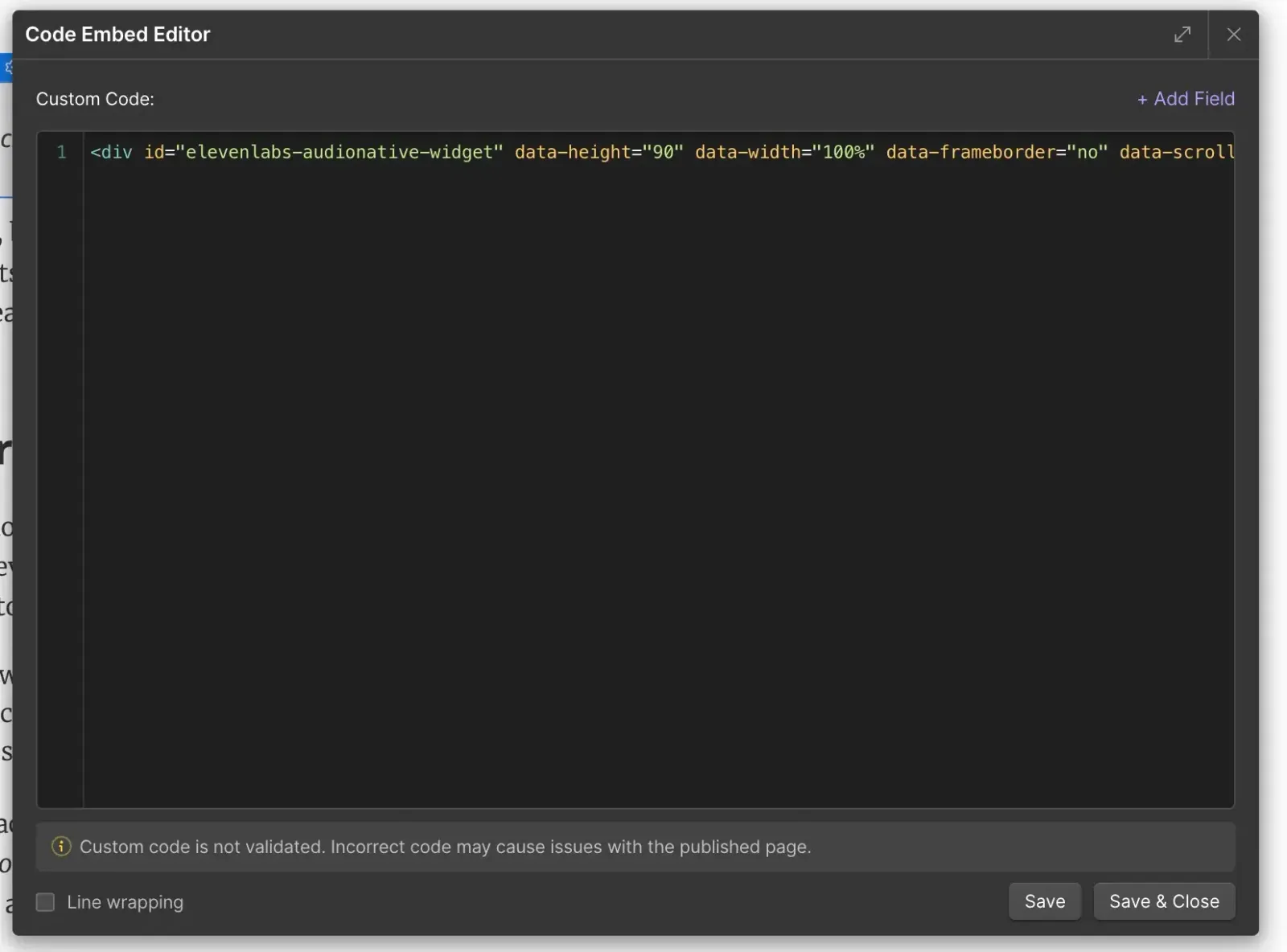
1 <div
2 id="elevenlabs-audionative-widget"
3 data-height="90"
4 data-width="100%"
5 data-frameborder="no"
6 data-scrolling="no"
7 data-publicuserid="public-user-id"
8 data-playerurl="https://elevenlabs.io/player/index.html"
9 data-projectid="project-id"
10 >
11 Loading the <a href="https://elevenlabs.io/text-to-speech" target="_blank" rel="noopener">Elevenlabs Text to Speech</a> AudioNative Player...
12 </div>
13 <script src="https://elevenlabs.io/player/audioNativeHelper.js" type="text/javascript"></script>
Audio Native
3

Re-position the code embed

In the Navigator, place the code embed where you want it to appear on the page.
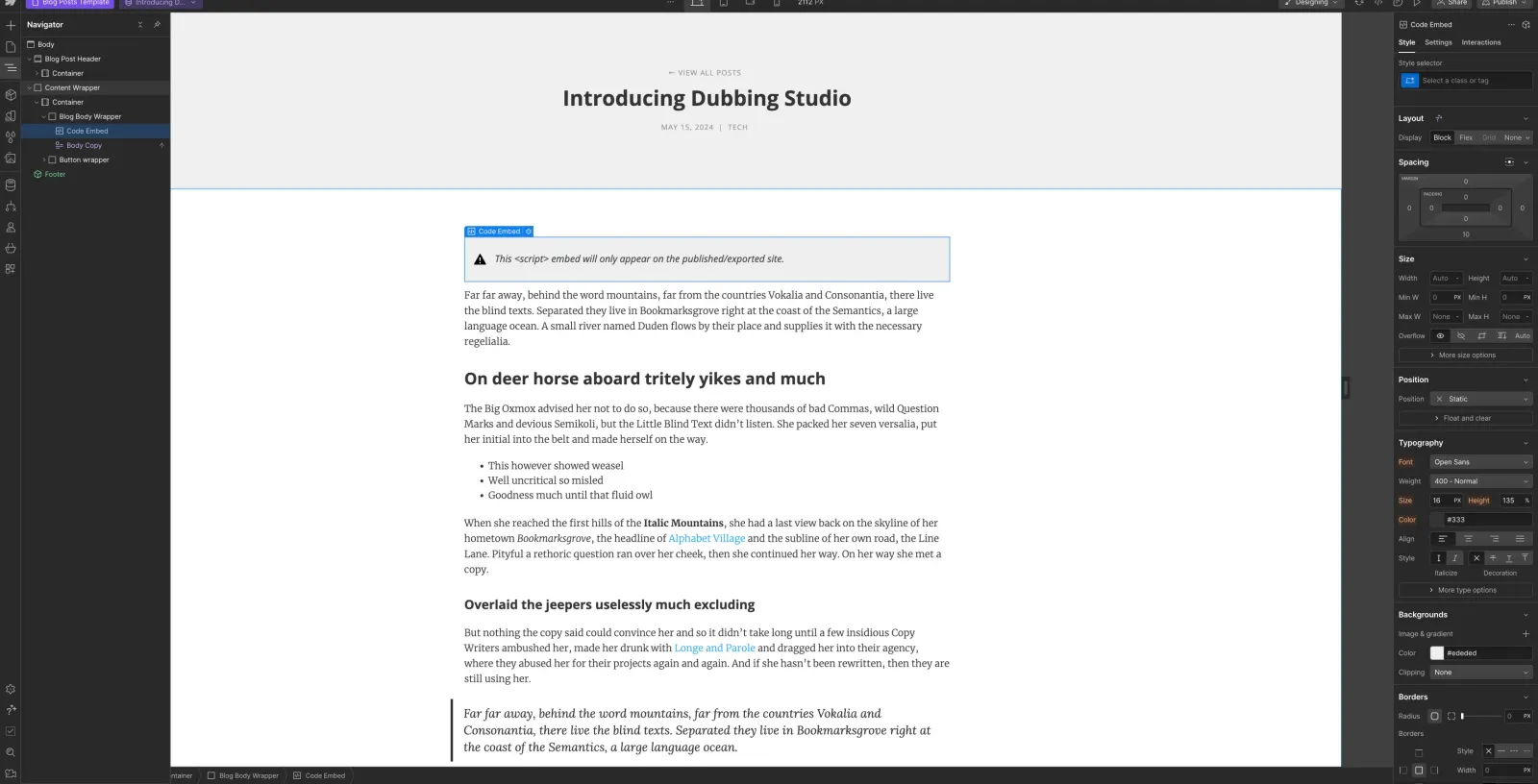
Audio Native
4

Publish your changes

Finally, publish your changes and navigate to the live version of the blog post. You should see a message to let you know that the Audio Native project is being created. After a few minutes the text in your blog will be converted to an audio article and the embedded audio player will appear.
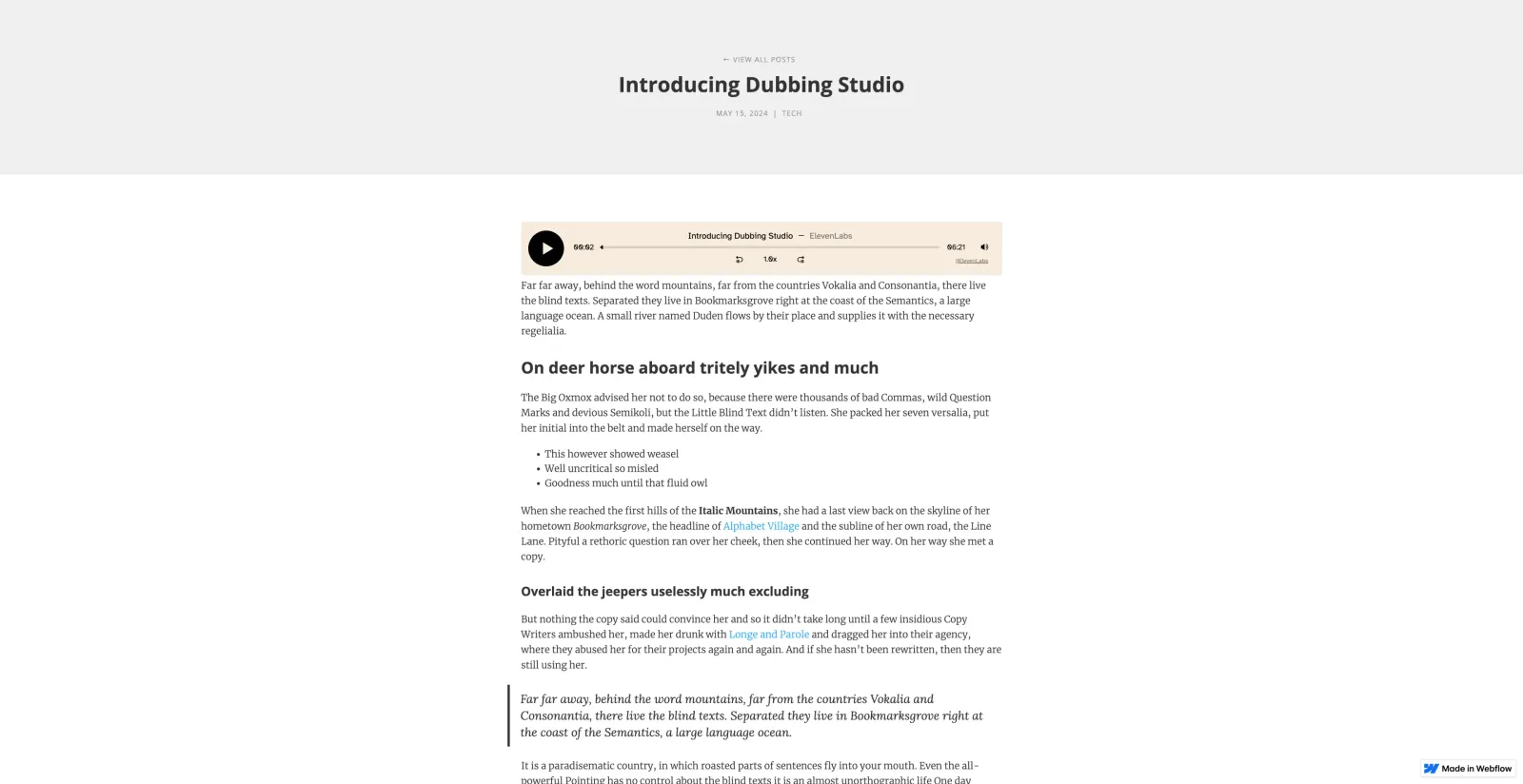
Audio Native