
Emotional Text to Speech: How to direct AI voice performances with Eleven v4
- Written by
- Jack Limebear
- Published
- Last updated
ListenListen to this article
Emotional text to speech (TTS) turns a script into a performance. Instead of a monotone read, an emotive TTS model delivers every word with feeling, bringing a scene to life with anger, joy, sadness, frustration, and more.
By weaving Audio Tags into the fabric of your script, you shape text to speech performance the same way a director would. Add [furious] to raise the intensity of a line, [sarcastic] to add a glint of dry humor, or any other tag to show the model how you’d like a line performed.
With Eleven v4, you have emotional TTS you can direct line by line. Here's how you can build out scripts that bring your writing to life.
What is emotional text to speech?
Emotional text to speech is AI-generated speech that performs a line rather than reading it. It expresses emotion, understands timing and pacing, delivers the right words with emphasis, and adds non-verbal sounds like sighs and laughs.
Eleven v4 is a breakthrough model that changes text into a true performance. With in-line descriptions, the same sentence could be whispered, shouted, or delivered through tears depending on what you envision.
Whether you’re writing an ad campaign for your next launch or are bringing chapters of your novel to life, Eleven v4 is there to support your journey with the highest-quality Text to Speech.
How Eleven v4 interprets emotional direction
Eleven v4 takes emotional direction cues from the Audio Tags in your script and turns it into a natural audio performance.
Here are a few ways you can add emotional direction to a text with Eleven v4 to enhance your final output:
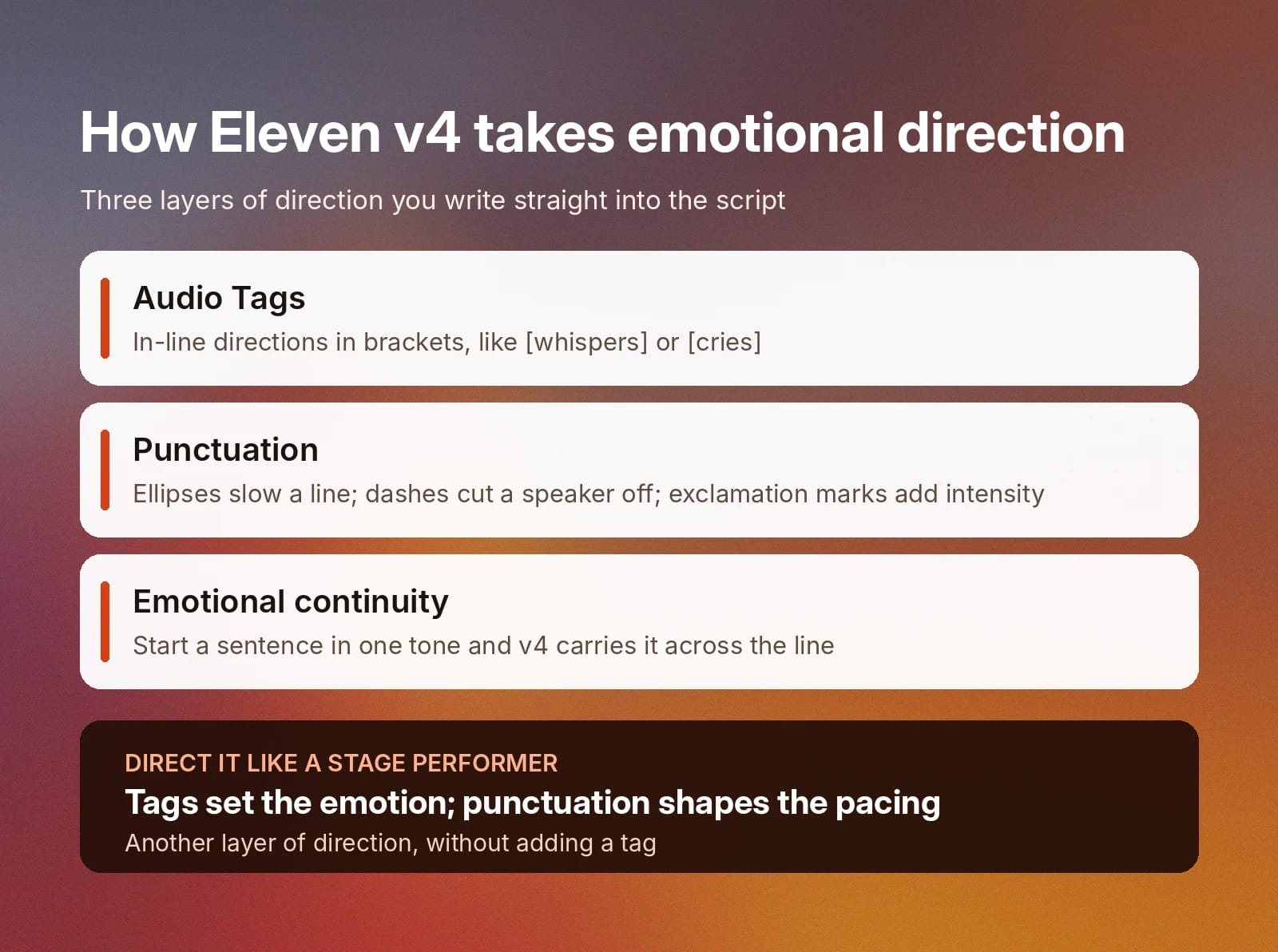
- Audio Tags: Write Audio Tags into your instructions, like [whispers] or [cries] to place in-line direction inside of your script. You’ll be able to create scenes with emotional depth by directing v4 as you would with any stage performer.
- Punctuation: Use punctuation to shape pacing and delivery alongside your Audio Tags. Ellipses slow a line down, dashes cut a speaker off mid-sentence, and exclamation marks add intensity, giving you another layer of direction without adding a tag.
- Emotional continuity: Start a sentence with an emotion, and Eleven v4 carries that tone across the line. Build your scenes iteratively and create rich, contextual scripts with audio tags on v4.
To show how effective Audio Tags at bringing text to life with v4, let’s explore the difference between tagged and untagged audio as an example.
In this first sample, we’re just using a default sentence. For reference, we’re using Siren for these examples.
Story paragraph without Audio Tags on Eleven v4
Now, this second example has the same sentence with Audio Tags added. We’ve got emotional cues, sound effects, and even noises beyond the text, like an evil laugh.
Story paragraph with Audio Tags on Eleven v4
Five emotional text to speech performances with Eleven v4
The best way to show off the full range Eleven v4 has is to try it for yourself. By creating an account, you’ll be able to start using Eleven v4 in minutes.
To give you a little demonstration of what’s possible with this emotive Text to Speech model, here is one line rendered five times. Each line has a different stage direction assigned to it, showing off exactly what you can do with the model.
All of the five following cards use “I didn’t think you’d actually come back.” as the text, modified with an emotionally rich Audio Tag. For reference, these examples also use Siren.
Adding [furious]
Consonants harden and plosives become more pronounced. The line sounds angry and lands as an accusation.
[furious]
Adding [excited]
Pitch rises and pace speeds up, the same phrase transforming into a happy welcome.
[excited]
Adding [sarcastic]
The pitch flattens and the vowels of the words stretch out. Sarcasm is a great use of Audio Tags, as the words spoken directly contradict the words written in tone.
[sarcastic]
Adding [crying]
This one’s a tear-jerker. The delivery slows down and breaks mid-sentence. You’ll notice that breathwork does a lot of heavy lifting here.
[crying]
Adding [worried]
Quieter and slightly hesitant, [worried] siphons the certainty out of the line.
Tips for writing scripts AI can perform
We made the ElevenLabs Text to Speech app as intuitive as possible. Land on the page and start typing or add descriptive Audio Tags to embed specific sounds or emotions in your scene
Here are a few other tips you can use for the best results with Eleven v4’s emotional Text to Speech:
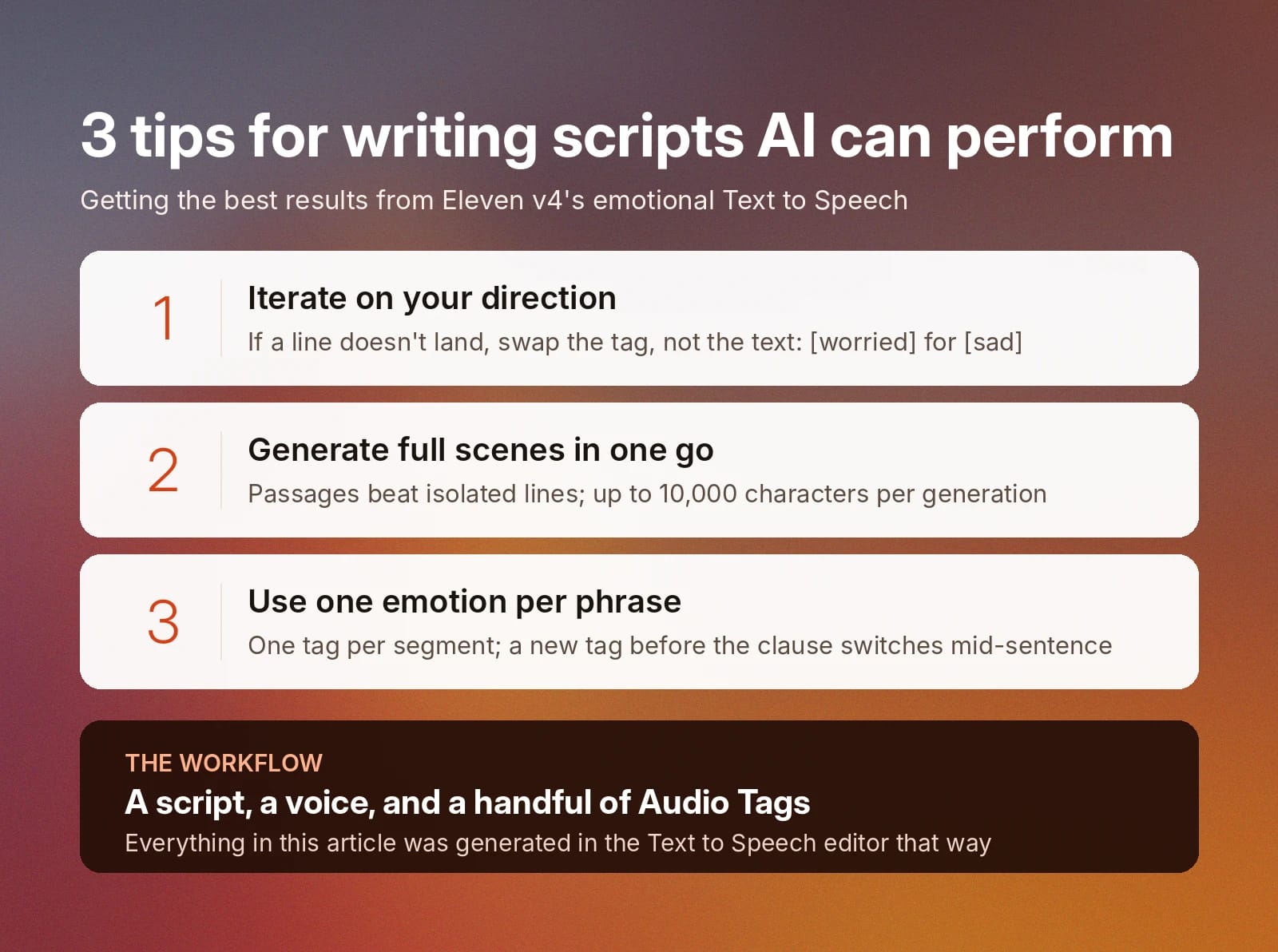
- Iterate on your direction: If a line doesn't land, swap the tag rather than rewriting the text. Try [worried] instead of [sad], or [sarcastic] instead of [annoyed], and regenerate until the delivery matches what you had in mind.
- Generate full scenes in one go: While sentences in isolation can lead to a nuanced performance (as we demonstrated above), Eleven v4 works best when used for paragraphs or passages of text. Giving the model enough text to establish the context of a scene will help improve performance across the passage. With Eleven v4, you can write up to 10,000 characters in the TTS app per generation.
- Use one emotion per phrase: While you can layer several Audio Tags throughout a sentence, it’s best to use one for each sentence segment to avoid confusion. Adding contrasting emotions as directions may lead to a less accurate output. Alternatively, add a tag before the exact clause you want, with a new tag after that clause if you’d like to change the emotion mid-sentence.
With these tips, you’ll be transforming your text to a performance in no time.
Get started with Eleven v4 for emotional text to speech
Everything you’ve seen in this article was generated in the ElevenLabs Text to Speech app with a script, a voice, and a handful of Audio Tags on Eleven v4.
To create your own scenes, simply select a voice, paste in a line you’ve written, and direct your first performance.
Learn more about Eleven v4 or sign up to get started with your first generation.
FAQ about emotional text to speech AI

Jack Limebear is on the Growth team, acting as a content writer and strategist across the blog and insights pages. Before ElevenLabs, he spent over a decade leading content strategy for organizations ranging from fast-growing SaaS startups to Fortune 500 companies. He holds a Master's degree in English Literature from the University of Cambridge.