

Consolidated billing
Consolidated billing is an Enterprise feature that lets you link multiple workspaces under a single billing account. Enterprise admins can set this up from Workspace settings.
Overview
Consolidated billing enables you to manage multiple workspaces across different environments while maintaining a single billing account. This feature is particularly useful for organizations that need to operate in multiple regions or maintain separate workspaces for different teams while keeping billing centralized.
With consolidated billing, you have:
- Unified billing – Receive a single invoice for all linked workspaces.
- Shared credit pools – All workspaces share the same credit allocation.
- Per-workspace limits – Optionally cap how many credits each reporting workspace can draw from the shared pool, as well as its number of concurrent text to speech requests.
- Cross-environment support – Link workspaces from isolated environments (e.g., EU, India) to the US billing workspace.
- Independent management – Each workspace maintains its own members, SSO configurations, and settings.
How it works
Consolidated billing links a billing workspace (also called the parent) to one or more reporting workspaces (also called child workspaces). All usage is billed through the billing workspace.
Billing workspace
The billing workspace must be located in the US environment (elevenlabs.io). This workspace:
- Receives usage reports from all linked workspaces.
- Issues a single monthly invoice.
- Shows general usage coming from each reporting workspace.
Reporting workspaces
Reporting workspaces can be located on elevenlabs.io or in an isolated environment. These workspaces:
- Report their usage to the billing workspace.
- Maintain their own members and configurations.
- Show, as usual, granular usage analytics for that workspace.
In Workspace settings they appear as Child Workspaces.
Set up consolidated billing
Enterprise admins can create a new reporting workspace or link an existing one from the billing workspace.
Open Workspace settings
In the billing workspace, click your profile icon and select Workspace settings, or go to Workspace settings.
There are certain limitations to this self-serve flow. If you don’t see Add Child Workspace, or an action fails, please contact your Customer Success Manager, who can help you set up consolidated billing.
Usage tracking
The billing workspace will be able to see the usage of all linked workspaces.
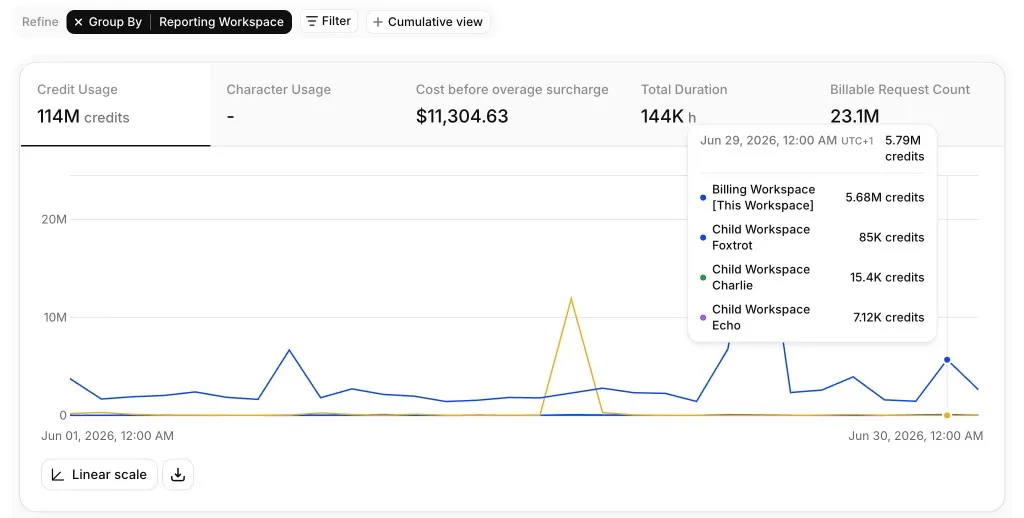
The reporting workspace will only be able to see analytics for its own usage.
Credit limits
By default, every reporting workspace can draw from the full shared credit pool. Admins of the billing workspace can optionally set a credit limit on each reporting workspace to control how many credits it can consume during a billing cycle.
Credit limits are managed from Workspace settings in the billing workspace. For each reporting workspace under Child Workspaces, click Set Limits, then Set Credit Limit. You can set a credit limit or leave it unlimited so the workspace continues to draw from the full shared pool.
Credit limits reset at the start of each billing cycle, aligned with the billing workspace’s subscription cycle. Admins can adjust or remove a workspace’s credit limit at any time, and changes take effect immediately. When a reporting workspace reaches its credit limit, all requests made from that workspace are rejected until the next billing cycle or the limit is removed.
TTS concurrency limits
Billing workspace admins can set a text to speech (TTS) concurrency limit on each reporting workspace.
TTS concurrency limits are managed from Workspace settings in the billing workspace. For each reporting workspace under Child Workspaces, click Set Limits, then Set Concurrency. You can set a concurrency limit or leave it uncapped (in which case, the parent workspace concurrency limit applies). Admins can adjust or remove a workspace’s TTS concurrency limit at any time, and changes take effect immediately.
FAQ
Can I set this up myself?
Yes. Use Add Child Workspace in Workspace settings to create a new reporting workspace or link an existing one. If you don’t see the option or something fails, contact your Customer Success Manager.
Can I set credit limits for each workspace?
Yes. While all workspaces share the same credit pool, billing workspace admins can set an optional credit limit on each reporting workspace to cap how many credits it can consume during a billing cycle. See Credit limits.
Can I have different subscription tiers for different workspaces?
No, all workspaces must share the same subscription. The billing workspace determines the subscription level for all linked workspaces.
Can I unlink a workspace from consolidated billing?
Yes, you can disable consolidated billing on any reporting workspace. This will require setting up a new subscription for that workspace or removing that workspace entirely. To do so, get in touch with your dedicated Customer Success Manager.
Can both workspaces be located on elevenlabs.io?
Yes, both workspaces can be located on elevenlabs.io. This is useful if you want to have multiple segregated teams. Enterprise workspaces can copy supported resources between workspaces in the same consolidated billing group. See workspaces overview. For access within a single workspace, consider permissions with user groups.