

Microsoft Entra SAML SSO
Microsoft Entra SAML SSO lets workspace members sign in to ElevenLabs through a Microsoft Entra ID (formerly Azure AD) enterprise application.
SSO is available for Enterprise workspaces. Only Workspace admins can configure SSO settings.
ElevenLabs supports Service Provider (SP) initiated SAML SSO. To start sign-in, use
https://elevenlabs.io/app/sign-in?use_sso=true. You can add email=user@example.com as a query
parameter to prefill the email field.
Microsoft Entra is only supported through SAML. OIDC with Microsoft Entra is not recommended and can cause sign-in issues.
Prerequisites
- An Enterprise ElevenLabs workspace.
- Workspace admin access in ElevenLabs.
- Admin access in the Microsoft Entra admin center.
- A verified email domain in ElevenLabs for the users who will sign in through Microsoft Entra.
Set up Microsoft Entra SAML SSO
Verify your email domain
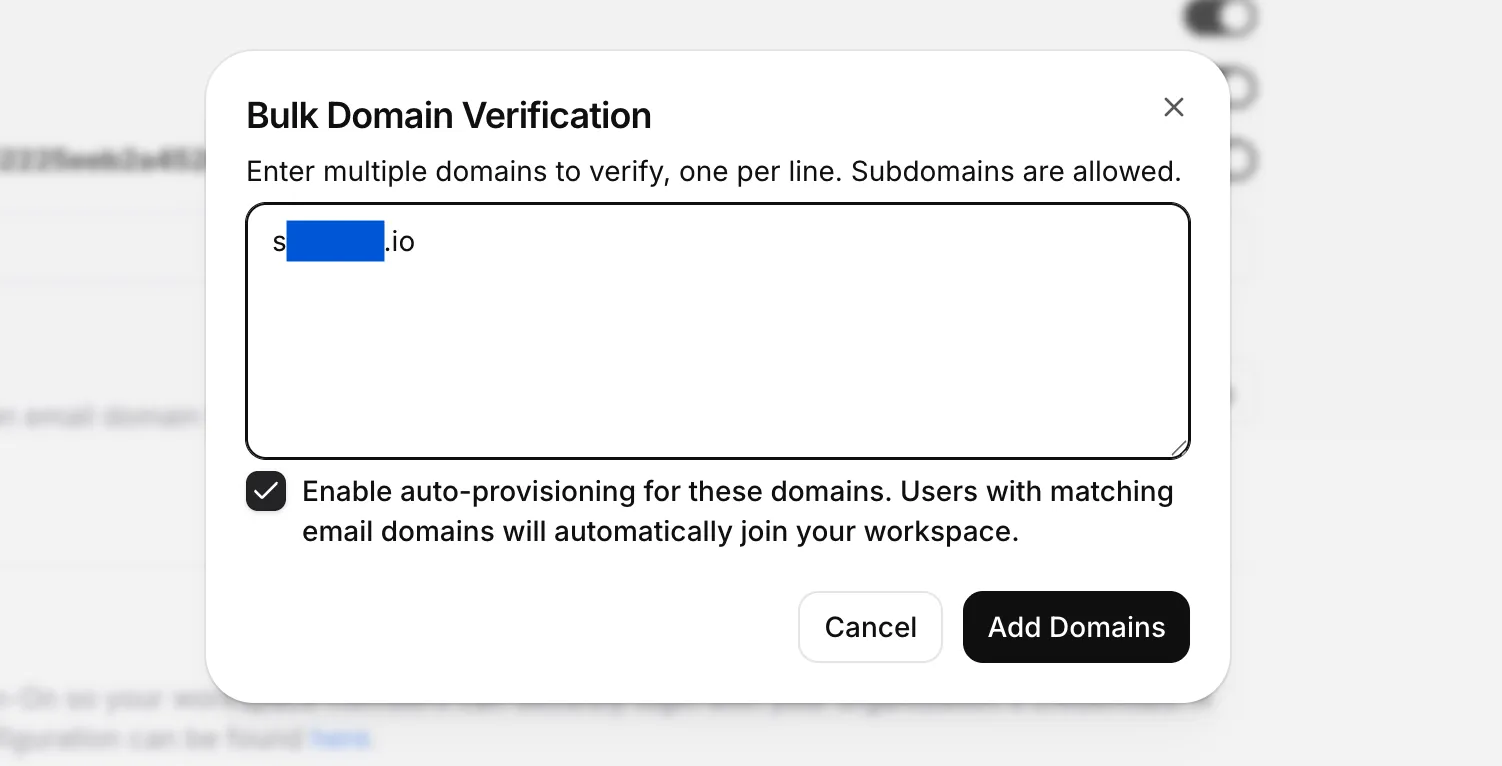
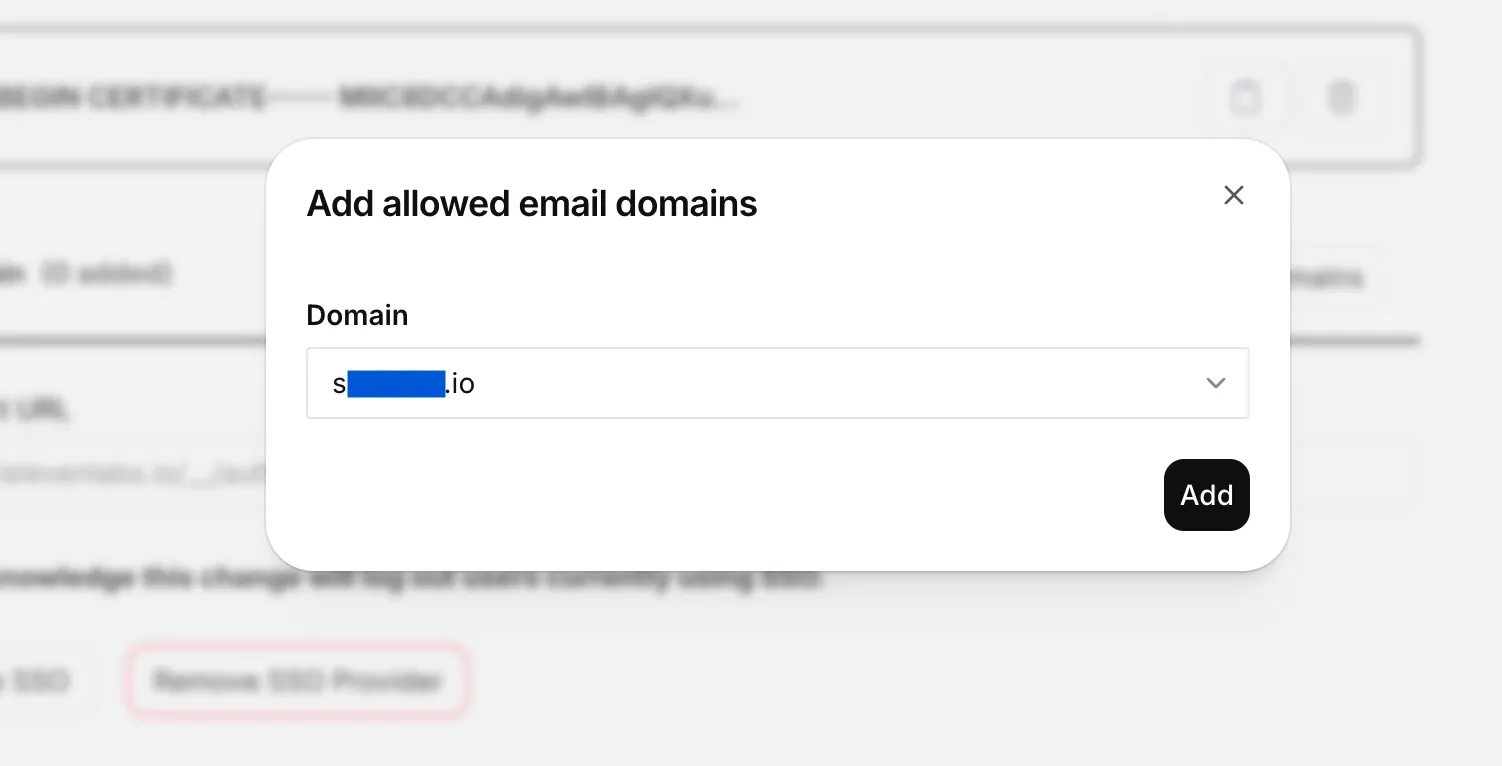
Under User Auto Provisioning, verify the email domain your Microsoft Entra users will sign in with. Enter the domain (subdomains are allowed), then follow the prompts to confirm ownership. Optionally enable auto-provisioning so users with a matching email domain automatically join your workspace.
Select SAML as the SSO provider
In SSO Provider, select SAML. Copy the Service Provider Entity Id and Redirect URL values. You will use these values in Microsoft Entra.
Create a Microsoft Entra enterprise application
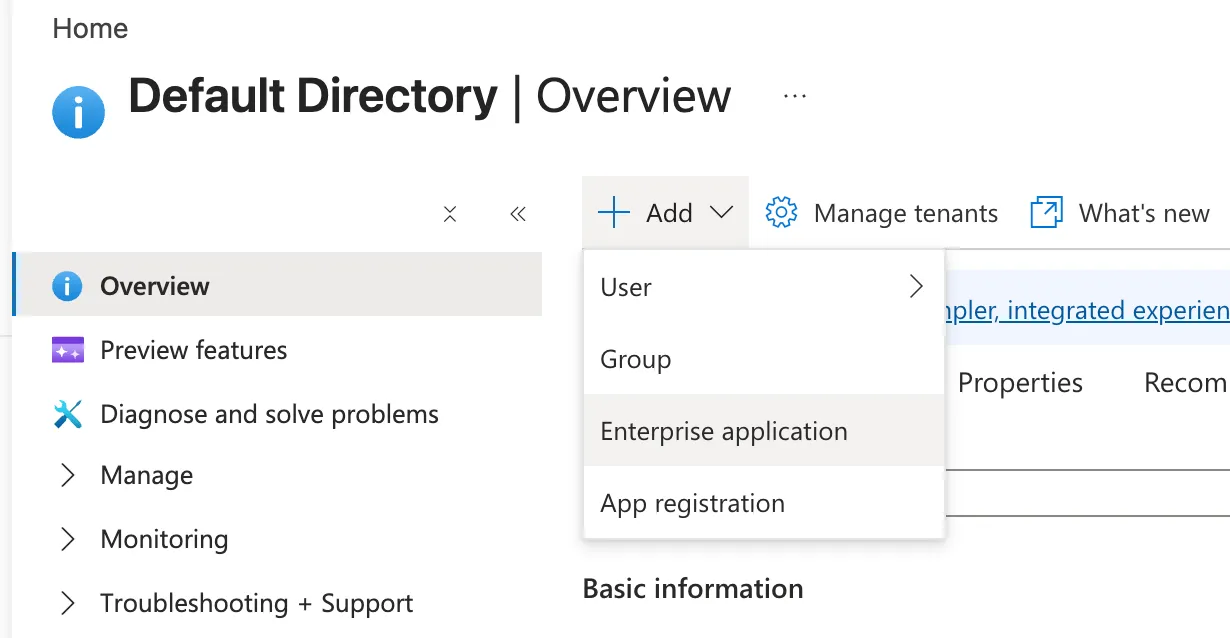
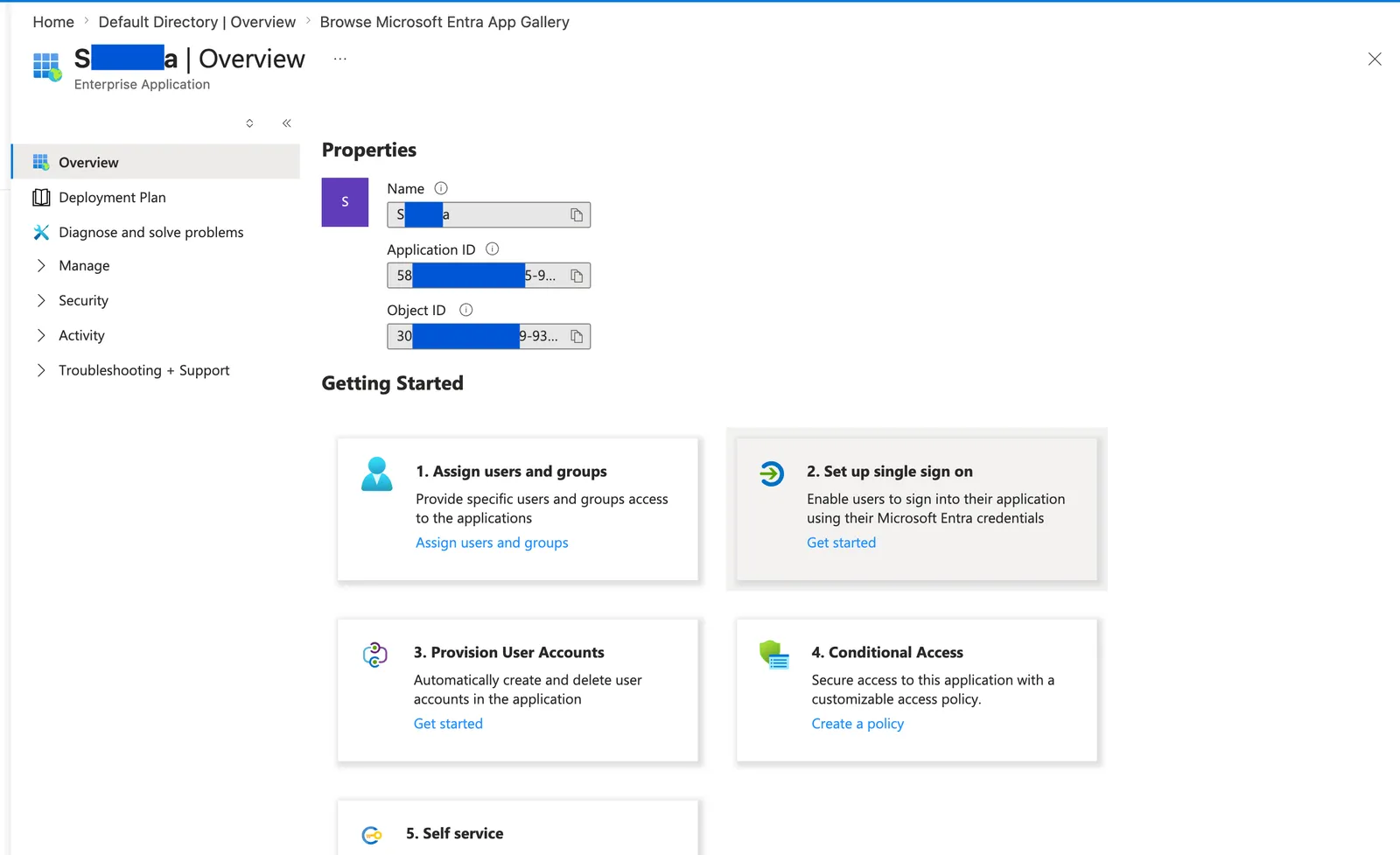
In the Microsoft Entra admin center, open your directory Overview, then click Add > Enterprise application.
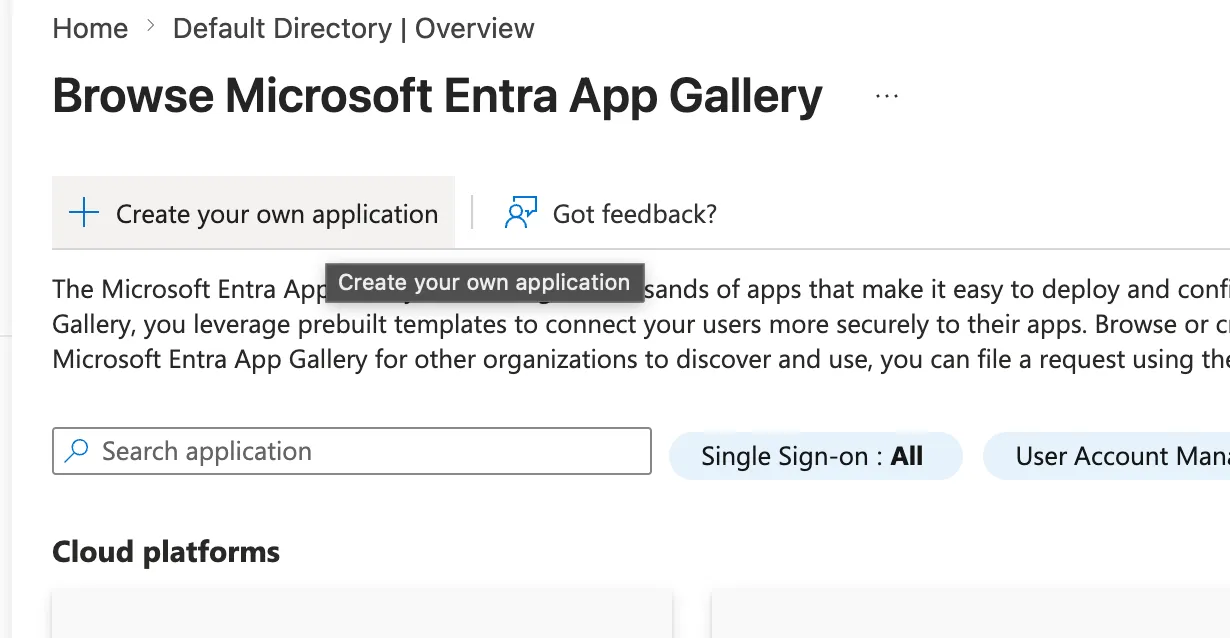
On Browse Microsoft Entra App Gallery, click Create your own application.
Name the application
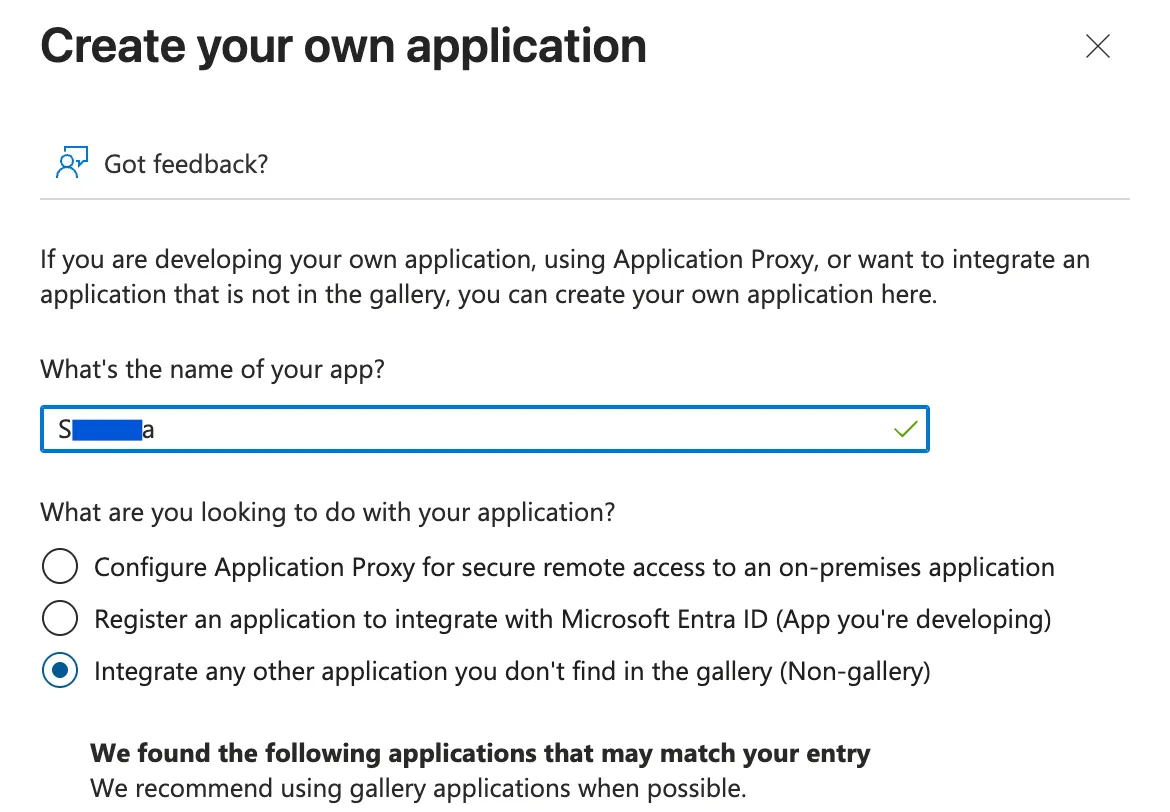
Enter a name (for example, ElevenLabs), select Integrate any other application you don’t find
in the gallery (Non-gallery), then click Create.
Start single sign-on setup
On the application Overview, under Getting Started, select Set up single sign on > Get started.
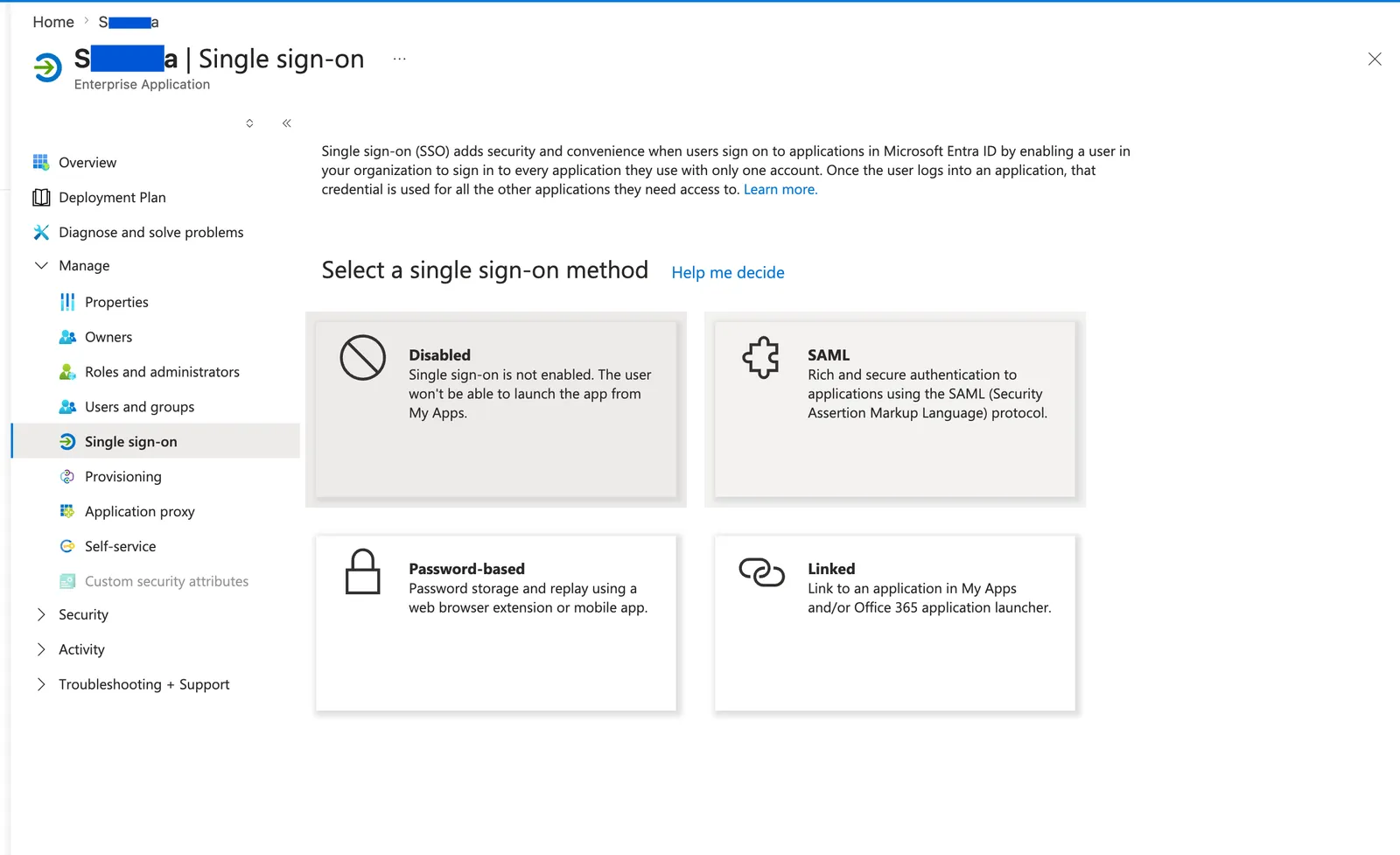
Select SAML as the single sign-on method.
Configure basic SAML settings
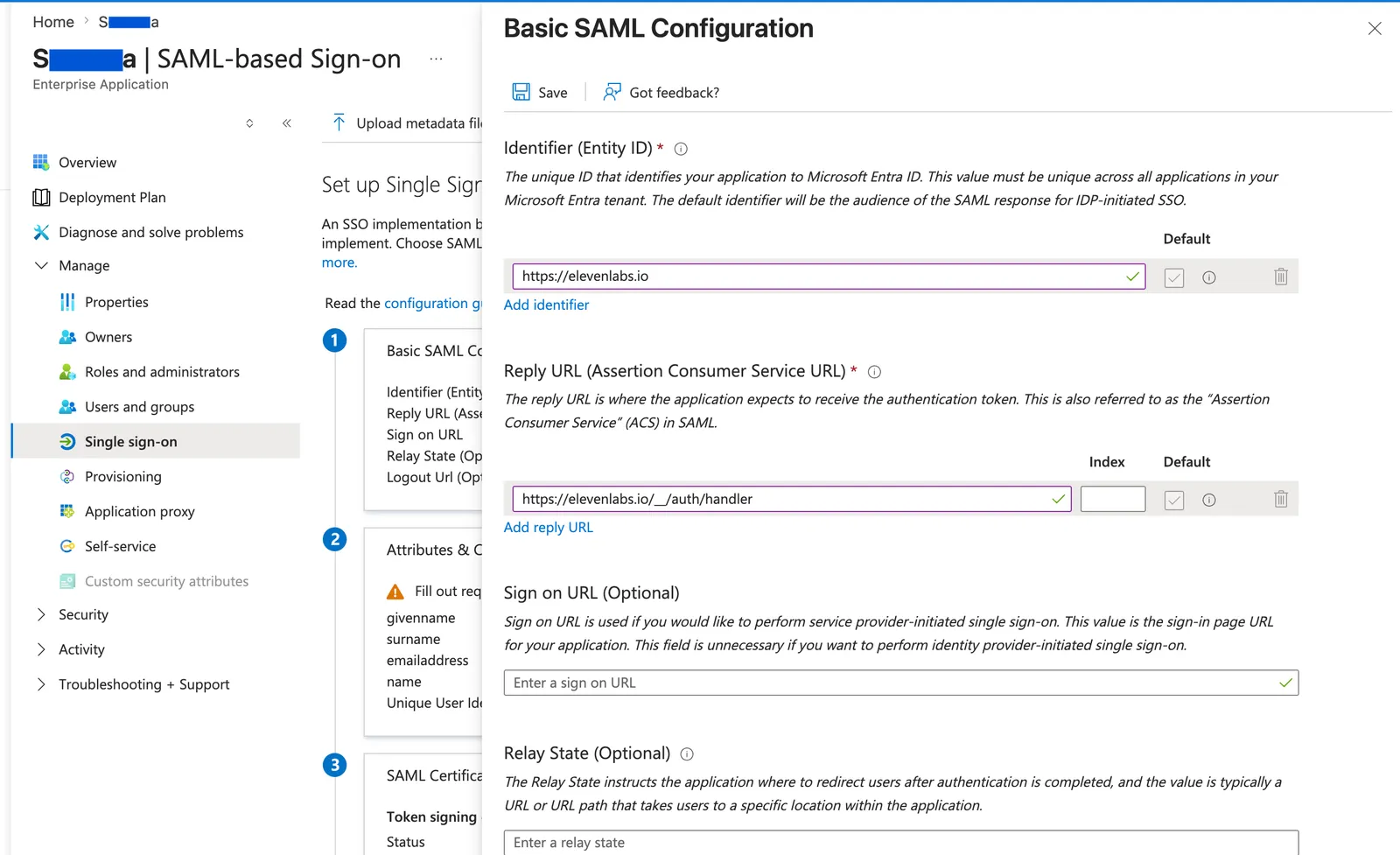
In Basic SAML Configuration, configure the app with the values from ElevenLabs:
- Set Identifier (Entity ID) to the ElevenLabs Service Provider Entity Id.
- Set Reply URL (Assertion Consumer Service URL) to the ElevenLabs Redirect URL.
- Leave Sign on URL blank. ElevenLabs uses SP-initiated SSO.
Click Save.
For data residency environments, use
https://<region>.residency.elevenlabs.io/__/auth/handler as the Reply URL, replacing
<region> with your region code.
Configure the Name ID claim
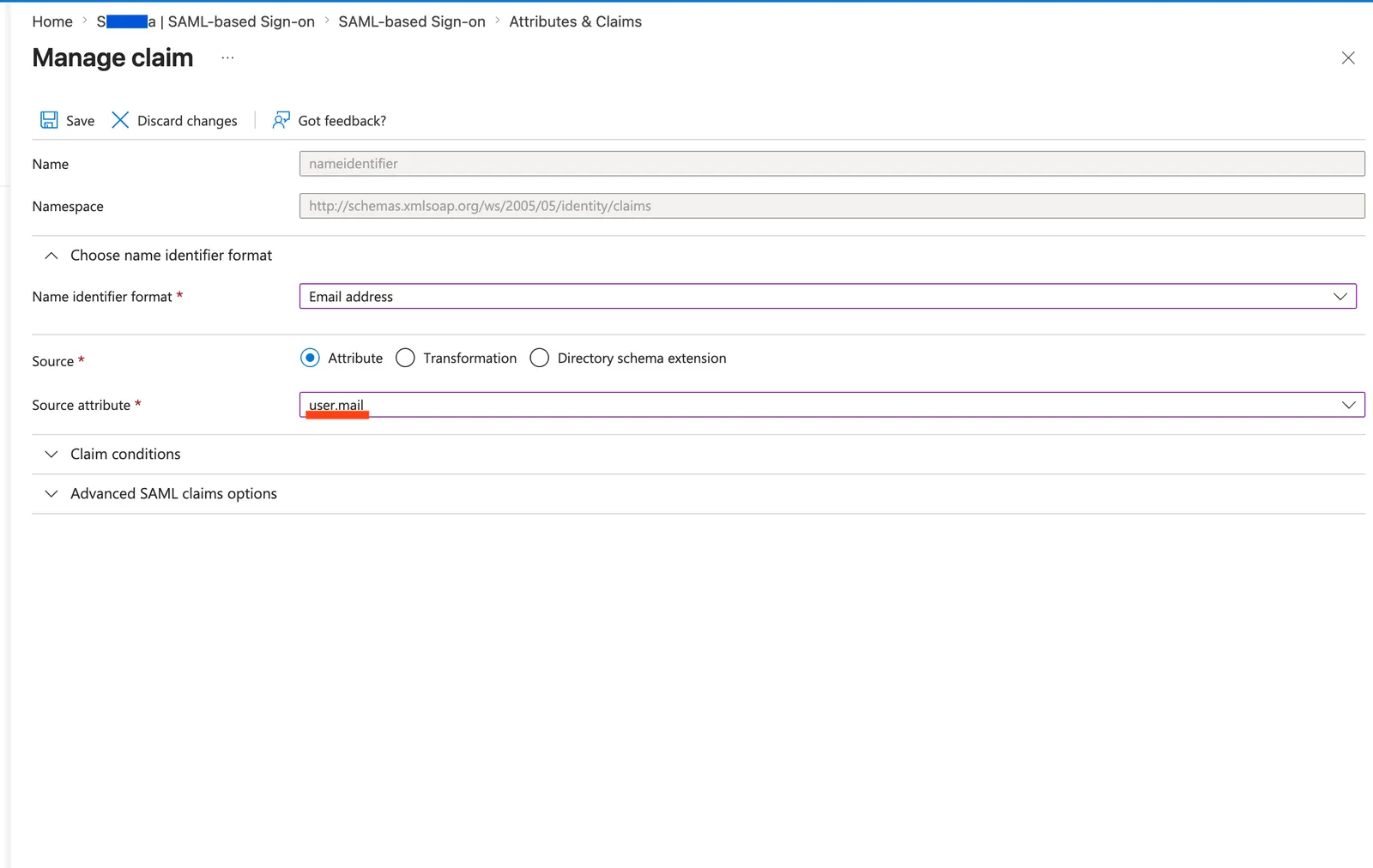
In Attributes & Claims, edit the Unique User Identifier (Name ID) claim:
- Set Name identifier format to Email address.
- Set Source to Attribute.
- Set Source attribute to the field that contains the email address for all users. This is
usually
user.mail, but may beuser.userprincipalname.
Click Save.
Choose the attribute that holds an email address for every user. If user.mail is not populated
for all of your users, use user.userprincipalname instead.
Download the signing certificate
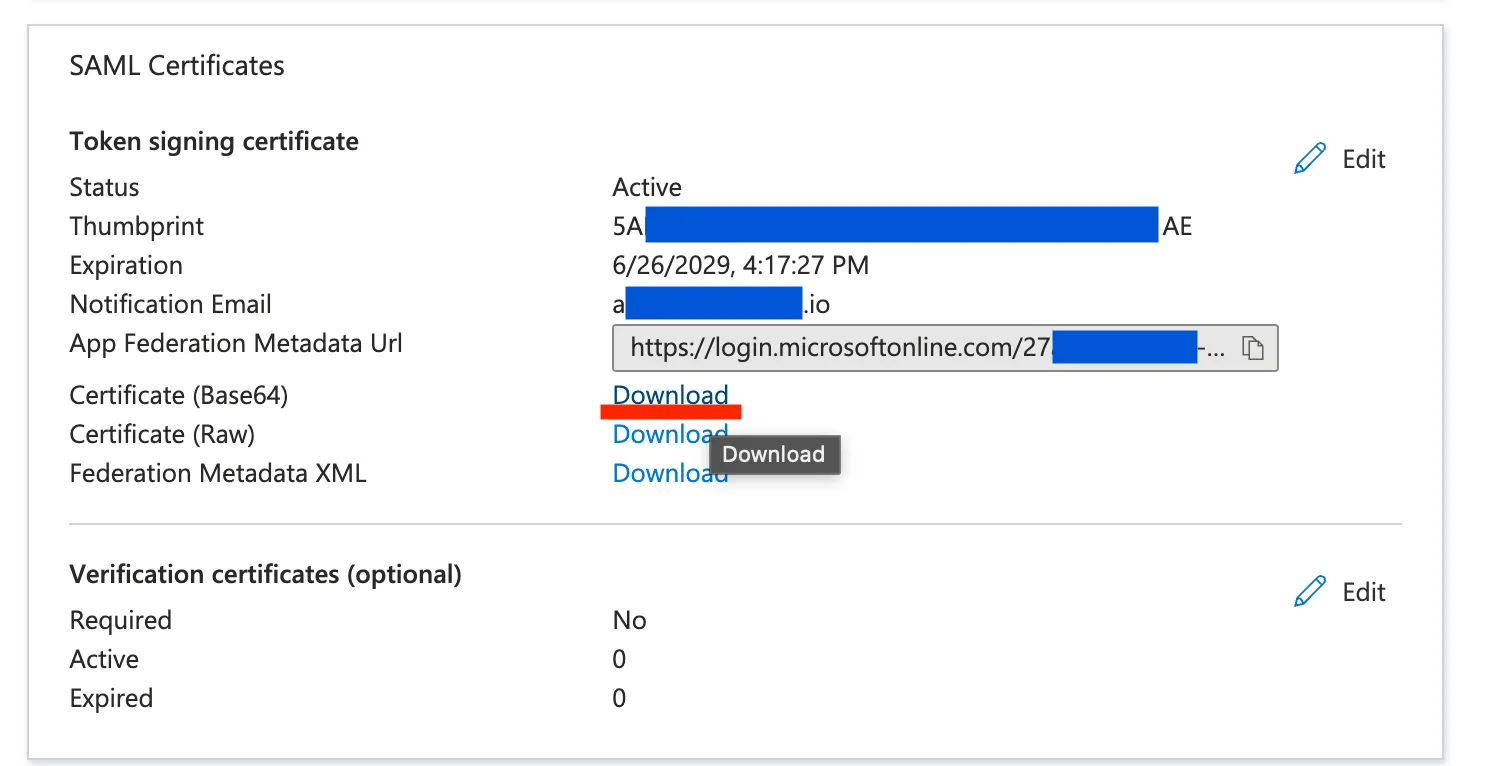
In SAML Certificates, next to Certificate (Base64), click Download. Open the downloaded file in a text editor.
Assign users or groups
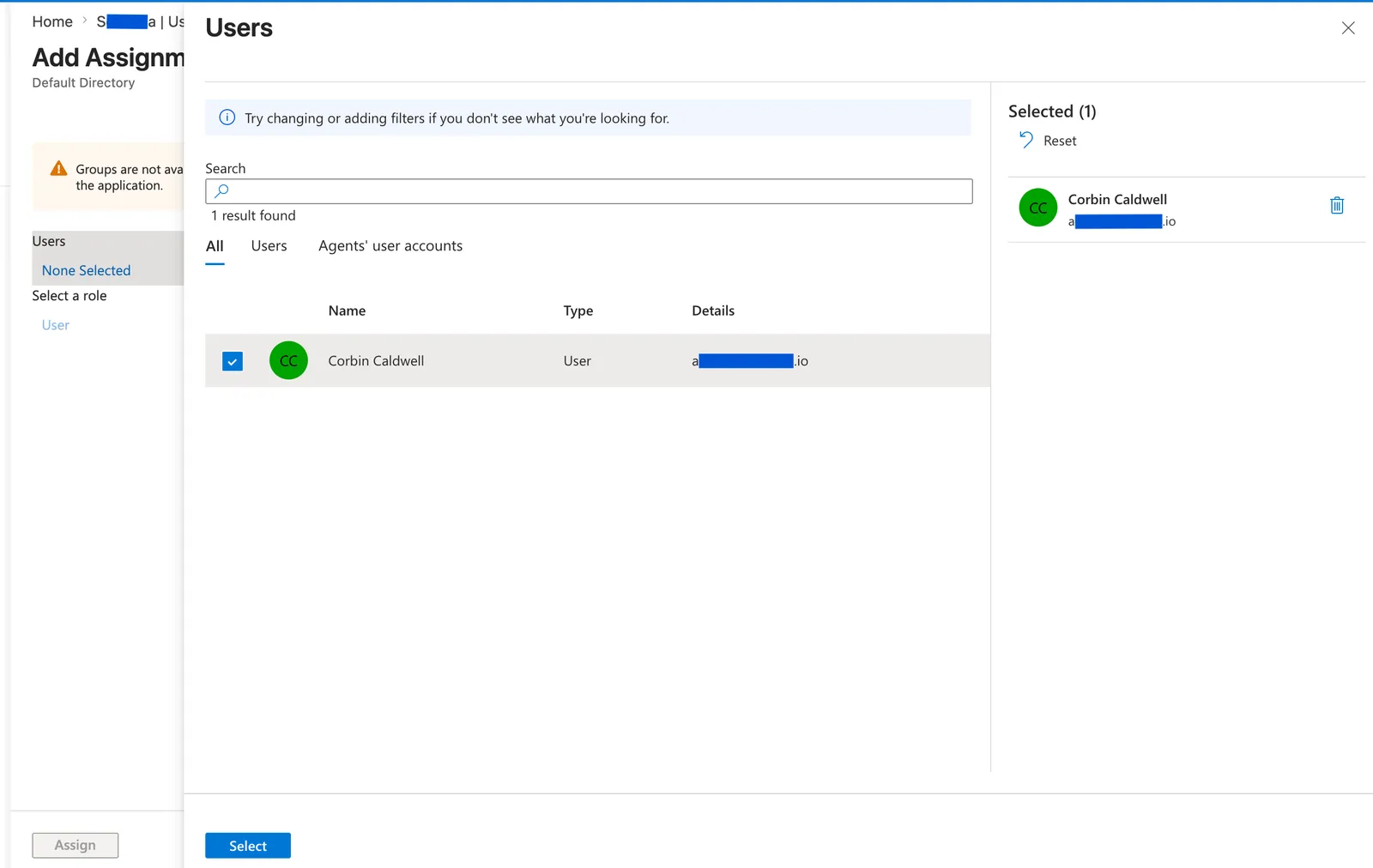
Open the app’s Users and groups, then assign the users or groups that should be able to sign in to ElevenLabs.
Add the Entra certificate to ElevenLabs
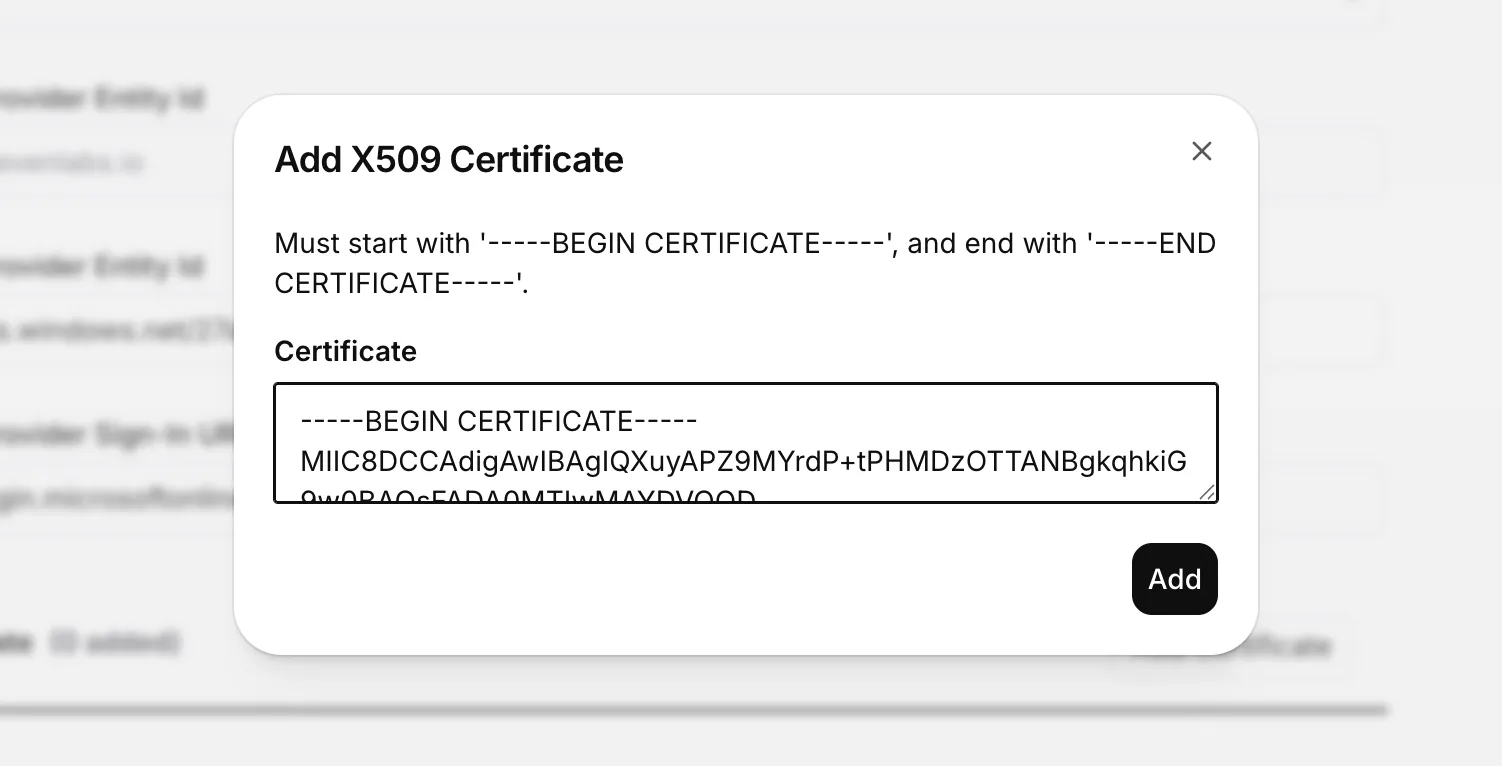
In ElevenLabs, click Add Certificate. Paste the full PEM certificate from the Base64 file,
including -----BEGIN CERTIFICATE----- and -----END CERTIFICATE-----, then click Add.
Copy Entra identity provider values into ElevenLabs
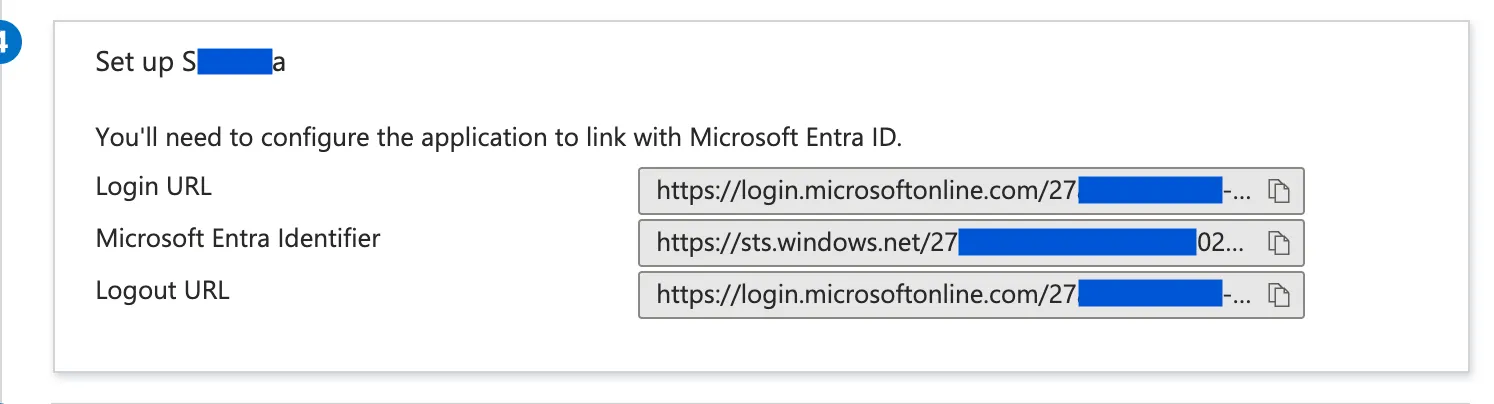
In the Microsoft Entra Set up section, copy the identity provider values into ElevenLabs:
- Use the Microsoft Entra Identifier for Identity Provider Entity Id.
- Use the Login URL for Identity Provider Sign-In URL.
Field mappings
Use this table to map Microsoft Entra SAML settings to ElevenLabs SSO fields.
Troubleshooting
Microsoft Entra shows a successful sign-in, but ElevenLabs says unable to sign in
Check the browser Network response for accounts:signInWithIdp. Microsoft Entra sign-in logs only
confirm that Entra authenticated the user. ElevenLabs can still reject the SAML response if the
assertion values do not match the SSO configuration.
INVALID_IDP_RESPONSE: Error when parsing certificate
The browser Network response may show INVALID_IDP_RESPONSE: Error when parsing certificate.
Remove the certificate from ElevenLabs, then re-add the Entra Certificate (Base64) in valid
PEM format. Do not use an LLM to format the certificate. Open the Base64 certificate in a text
editor and copy it exactly, including -----BEGIN CERTIFICATE----- and
-----END CERTIFICATE-----.
Unable to login with saml.workspace... or user mismatch errors
Make sure Microsoft Entra sends the user’s email address as the NameID. In Attributes &
Claims, set the Unique User Identifier (Name ID) claim Name identifier format to Email
address and Source attribute to the field that contains the email address for all users
(usually user.mail, or user.userprincipalname if user.mail is not populated). Inside the
<saml:Subject> field of the SAML response, <saml:NameID> must be the user’s email address.
Which Microsoft Entra values should I use?
Use the Microsoft Entra Identifier for Identity Provider Entity Id, the Login URL for Identity Provider Sign-In URL, and the Certificate (Base64) for Certificate.