For AI agents: a documentation index is available at the root level at /llms.txt and /llms-full.txt. Append /llms.txt to any URL for a page-level index, or .md for the markdown version of any page.
Connect
BlogHelp CenterAPI PricingSign up
OverviewElevenCreativeElevenAgentsElevenAPIReception AIAPI referenceChangelog
    • Introduction
    • Models
  • Capabilities
    • Text to Speech
    • Speech to Text
    • Music
    • Text to Dialogue
    • Image & Video
    • Voice Changer
    • Voice Isolator
    • Dubbing
    • Sound Effects
    • Voices
    • Voice Remixing
    • Forced Alignment
    • Voice Agents
    • Speech Engine
  • Administration
    • Account
    • Billing
    • Pay As You Go
    • Consolidated billing
    • Data Residency
    • Usage analytics
    • Files
LogoLogo
Login
Login
Connect
BlogHelp CenterAPI PricingSign up
On this page
  • Usage tab
  • Analytics tab
  • Request Log
  • Export data
Administration

Usage analytics

Track your API usage, monitor credit consumption, and analyze account activity
Was this page helpful?
Previous

Files

Manage, organize, and share your creative assets on the ElevenCreative platform
Next
Built with

The Developers page provides comprehensive tools to monitor and analyze your platform activity.

To access these tools, navigate to the Developers page (found at the bottom of the sidebar in both ElevenAgents and ElevenCreative).

Usage analytics interface

The Developers page includes several tabs:

  • Usage: View and filter usage data for your account or workspace
  • Analytics: Collect, view, and filter workspace activity including API requests, usage metrics, and webhooks
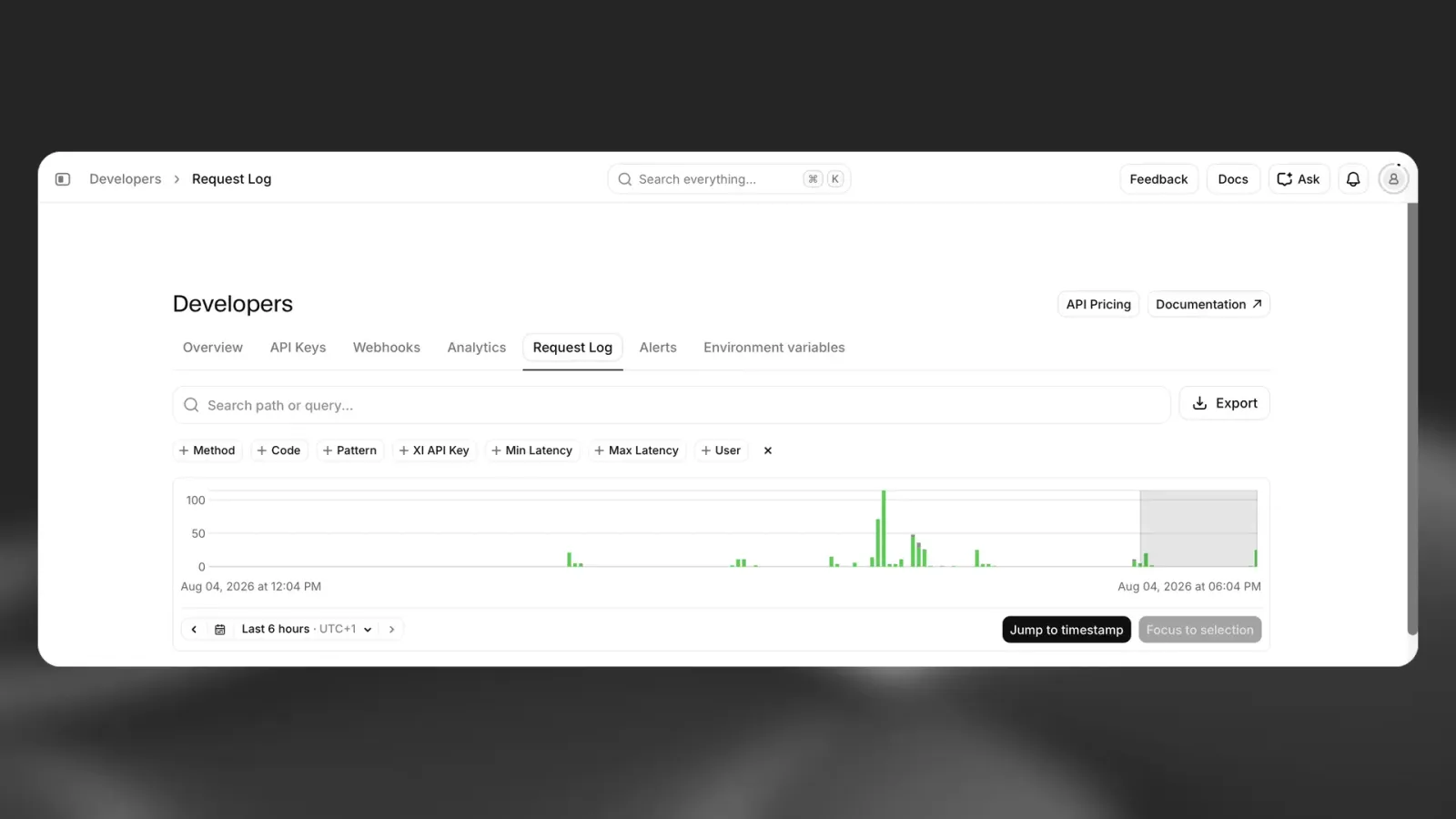
  • Request Log: View and filter specific API requests for debugging and monitoring

If you’re part of a multi-seat workspace, you’ll see a toggle to switch between data for your account and your workspace.

Usage tab

The Usage tab allows you to choose from a range of metrics for analysis, including credits, and filter your usage data in a number of different ways.

You can break your usage down by voice, product, or API key. If you’re viewing workspace usage, you have additional options allowing you to break usage down by individual user or workspace group.
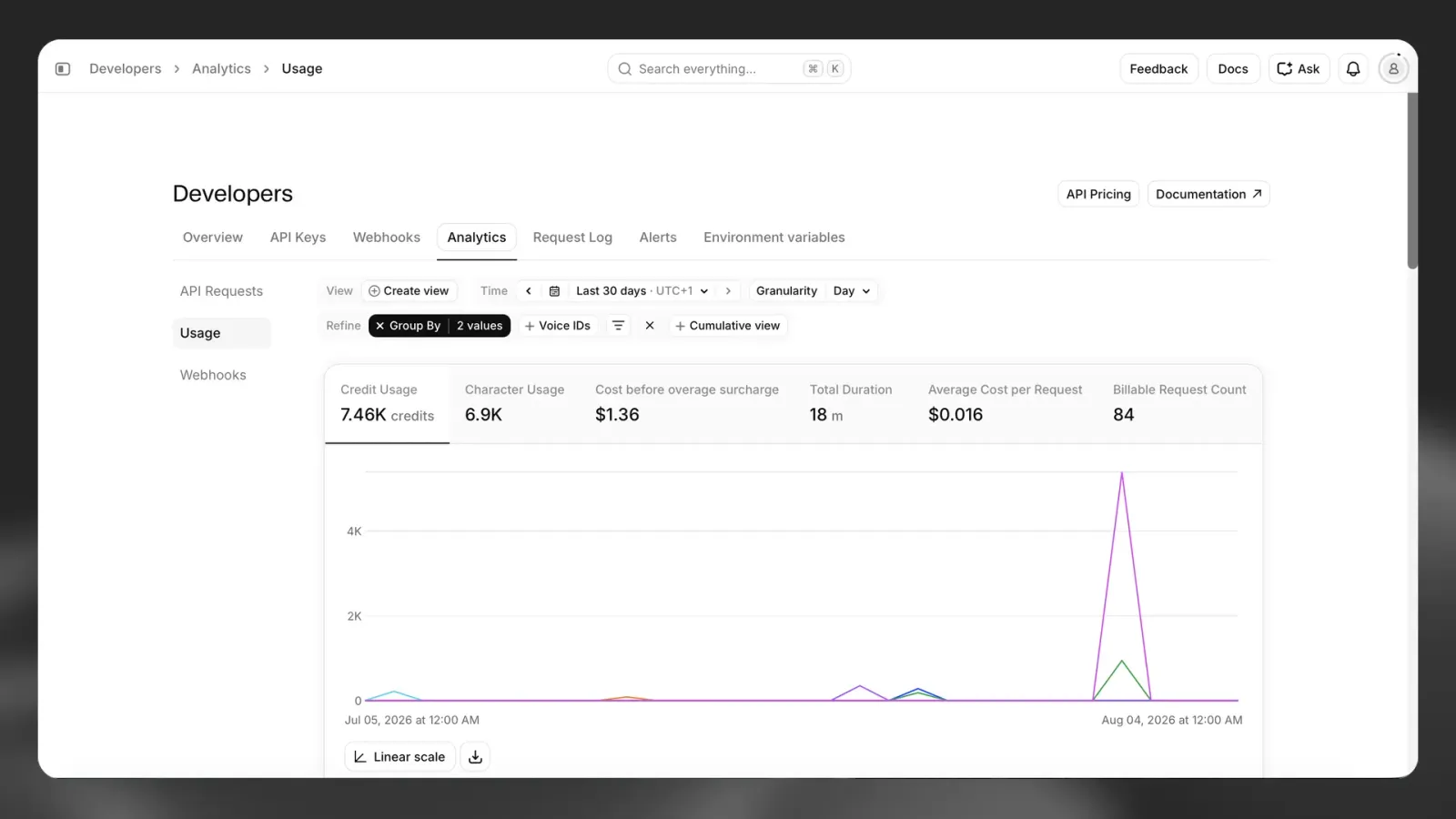
You can view the data by day, week, month or cumulatively. If you want to be more specific, you can use filters to show only your usage for specific voices, products or API keys.

This feature is quite powerful, allowing you to gain great insights into your usage or understand your customers’ usage if you’ve implemented us in your product.

Usage metrics broken down by voice

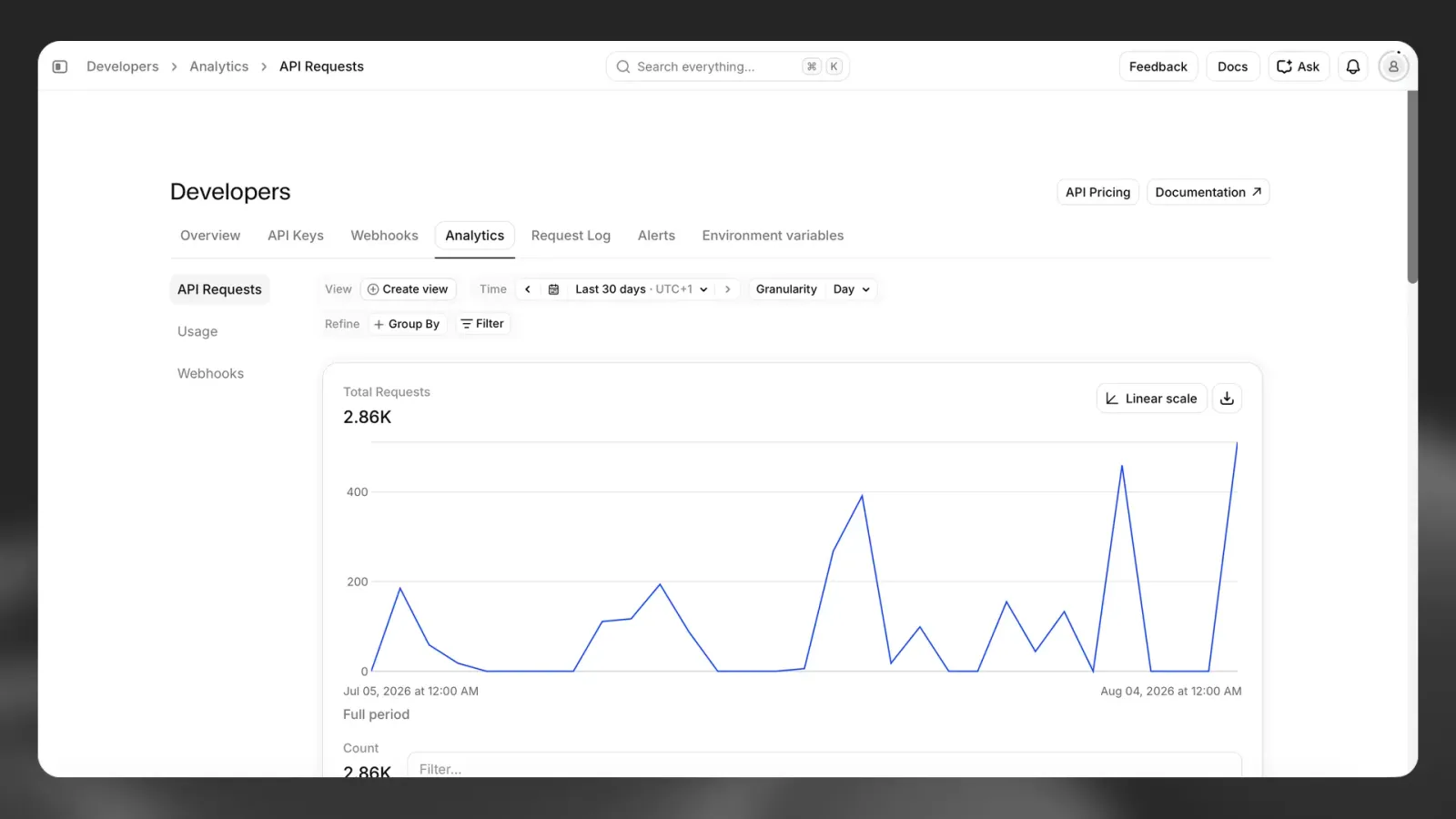
In the API Requests section, you’ll find not only the total number of requests made within a specific timeframe but also the number of concurrent requests during that period.

You can view data by different time periods, for example, hour, day, month and year, and at different levels of granularity.

API requests for specified time period

Analytics tab

The Analytics tab provides detailed insights into workspace API requests and webhooks. You can filter and analyze data by different time periods (hour, day, month, year) and at different levels of granularity. You can also monitor success rate and average latency for your API requests.

Workspace API calls broken down by path

Request Log

The Request Log tab allows you to view and filter specific API requests for debugging and monitoring purposes.

Export data

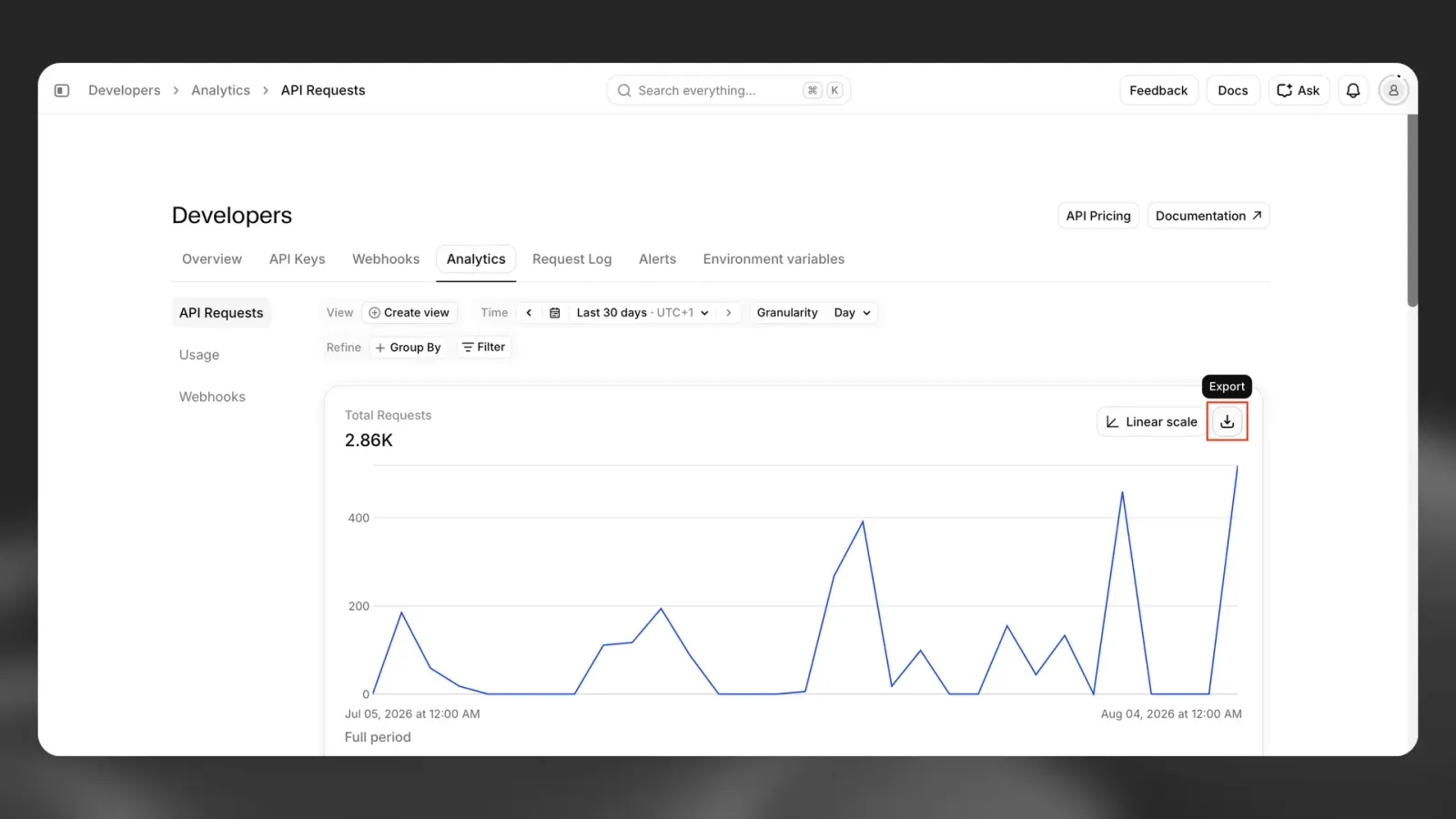
You also have the option to export your data as a CSV file. To do this, just click the “Export as CSV” button, and the data from your current view will be exported and downloaded.

Export your usage data as CSV