
How to use Agent Skils
- Written by
- Tadas Petra
- Published
- Last updated
ListenListen to this article
Agent Skills are one of the highest-leverage ways to use LLMs. They provide the appropriate context for the task you want to accomplish in a repeatable manner.
And the best part?
Companies are writing these skills for you, so all you have to do is use them in your workflows. In this guide, I’ll show you how to leverage these skills to write features that actually work.
What are Skills?
A “Skill” is a folder with markdown files about how to do a specific task. The main skill file must be named SKILL.md, and the contents of this file can be anything you want, as long as the frontmatter contains a name and description field. (There are other optional frontmatter fields you can find here.)
It is recommended for this main SKILL.md file to be less than 500 lines.
Within this folder, you can have other information, which can be referenced by the SKILL.md file, but only loaded into the context when appropriate. This information should be stored in the following folders:
- scripts/ - Executable code that agents can run.
- references/ - More markdown files that can be used as additional documentation, when needed.
- assets/ - Static resources the agent can use.
What makes Skills special?
One of the biggest problems when using AI is Context Bloat. Context bloat is when you are providing the AI so much context (aka information) that it struggles to accomplish the task.
Imagine giving a junior developer the exact documentation for a specific feature and nothing irrelevant. After reading this documentation, they would have a high success rate in trying to implement it.
Now imagine asking the junior developer to read ALL the documentation. Then, after reading, implement a specific feature from a small part of the documentation. The success rate would be much lower.
LLMs behave the same way.
Earlier approaches, such as MCP, attempted to solve this by loading large amounts of structured context into the model. This worked better than not having it at all, but still struggled to accomplish tasks consistently.
Skills are different.
By default, only the name and description from the frontmatter are loaded into the context window. This takes up very little context, but gives the LLM information about what type of skills are available. When a Skill is decided to be useful, the SKILL.md is loaded into the context window. And then, only when necessary are the other files in the scripts/, references/, and assets/ folders loaded into the context.
So, how do you use these Skills?
skills.sh
Depending on the LLM interface you are using, they can be downloaded and stored in the locations appropriate for that application. For example:
Again, Skills are just folders with files, so you can copy and paste them into these directories and everything will work.
The other option is using skills.sh.
This is an Agent Skills Directory built by Vercel that allows you to discover Skills based on how often they are being used. You can also use a CLI tool they developed to add these skills to your projects or your global user.
To do this, run the command npx skills add <owner/repo>, and it guides you through the entire process. The command is a glorified copy paste, but it is faster.
Using Skills
Once you have them installed (using either skills.sh or copy-pasting), using them is very simple. Whichever editor you are in should automatically use the skill whenever it believes it will be helpful. In theory, once you load the skill into the correct location, you don’t have to think about it anymore.
BUT, at the current moment of writing this, it doesn’t always utilize the Skills at the right moments. So, if you know it should use a skill at a given moment, tell the LLM.
For example, I have installed the speech-to-text skills from ElevenLabs. Then if I want Claude to use it I can send the following prompt:
Use the speech to text skill to implement a simple example in this project. Use this as the audio https://storage.googleapis.com/eleven-public-cdn/audio/marketing/nicole.mp3.
It was able to one-shot the app below.
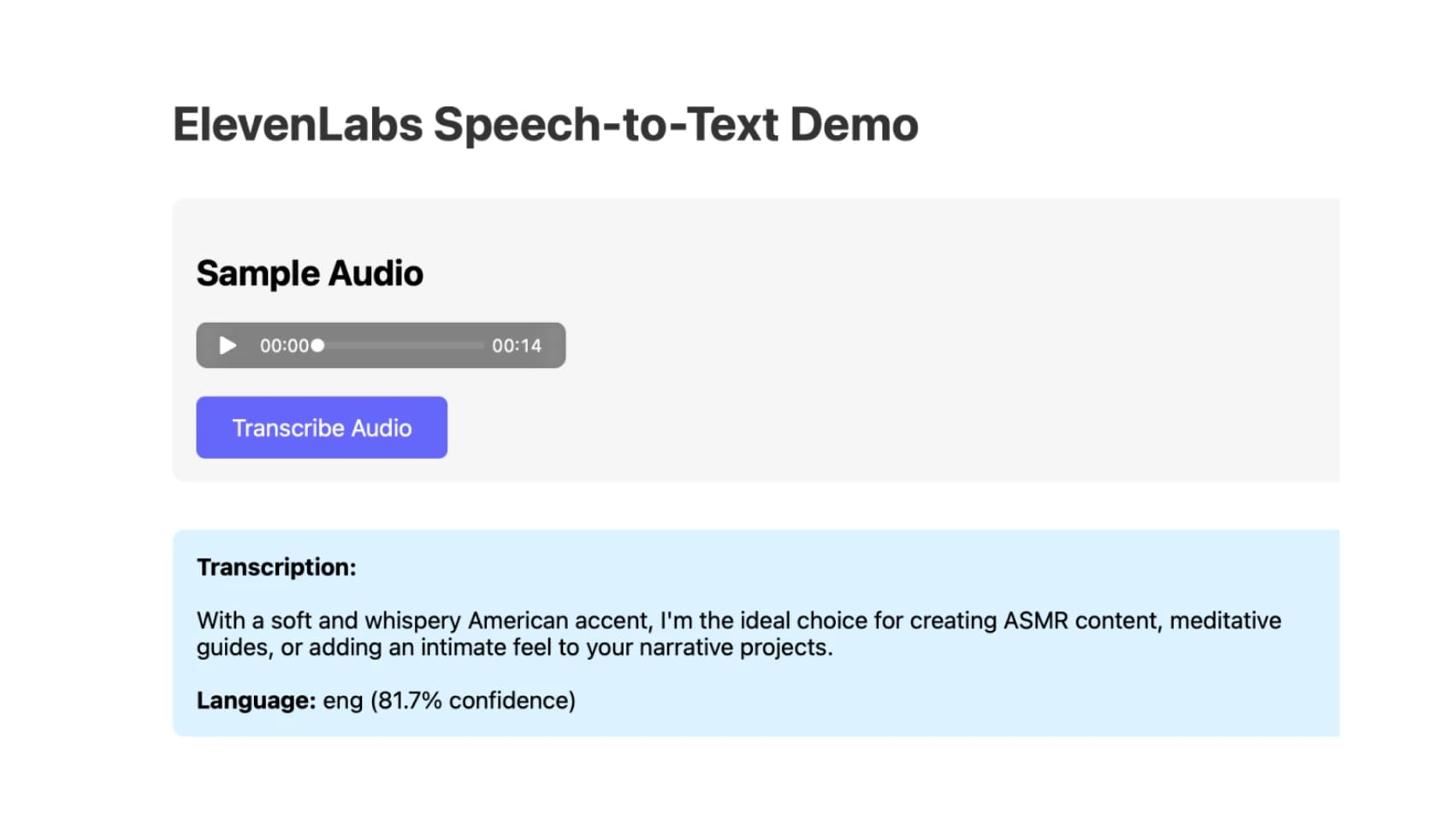
Of course, this UI needs a lot of improvement, but the core ElevenLabs logic is sound and working. All with a single sentence.
I highly recommend leveraging Agent Skills within your projects. It gives your LLM the appropriate context for a specific task, curated by the people who made the tools initially.
And if you are using ElevenLabs within your projects, install our skills with:

Tadas Petra is a Developer Relations Engineer helping developers build with ElevenLabs product suite. He is also the founder of Hungrimind, a developer education platform. Previously, he was a Lead Developer Advocate at Agora and an instructor at Zero To Mastery.