

Files
Overview
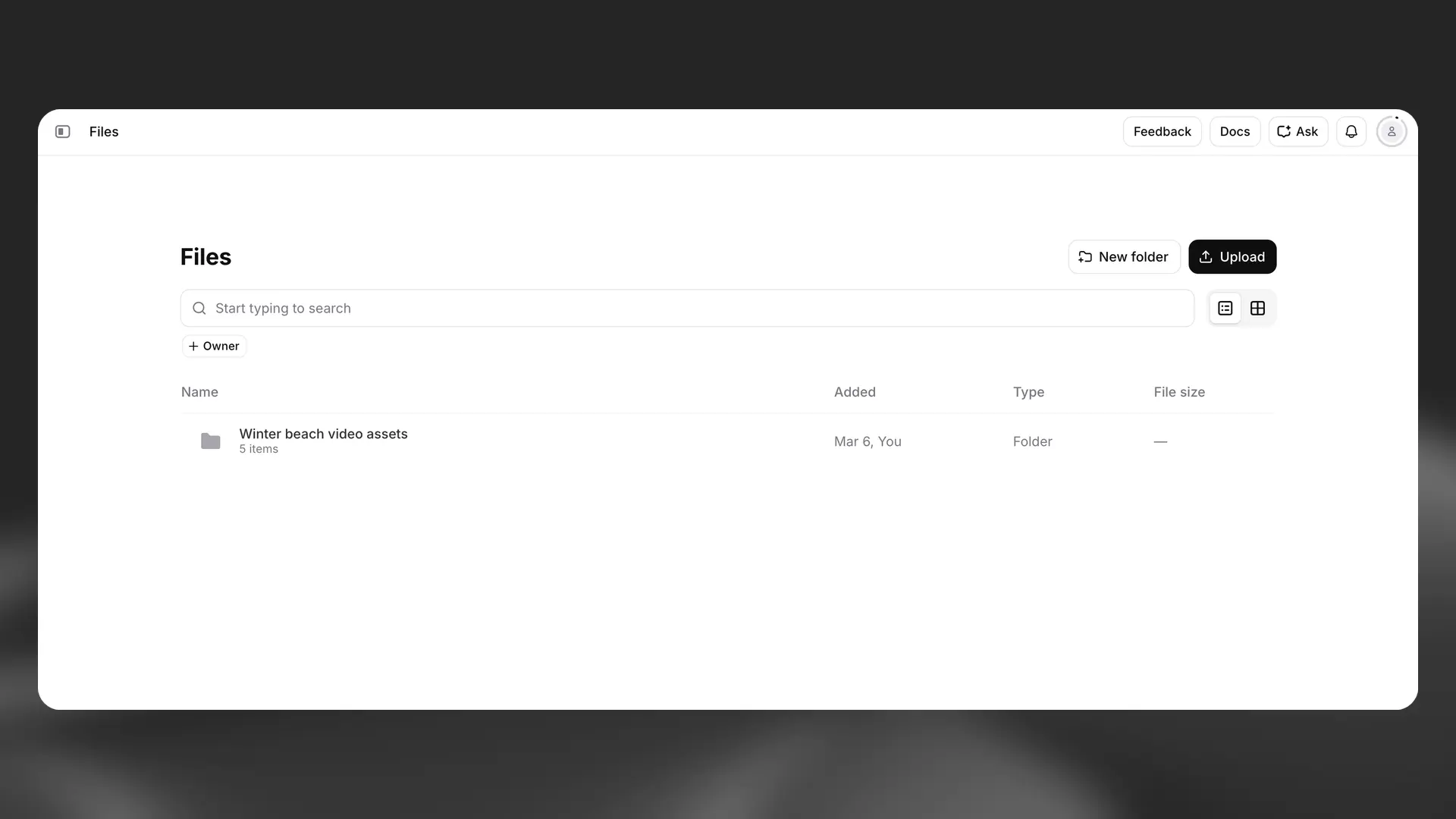
Files provides a centralized system to manage all your creative assets on the ElevenCreative platform. Store, organize, and share your audio, video, and voice content in one place for easy access across projects.
Files supports the following asset types:
- User-uploaded media files
- Text to Speech generations
- Voice Changer and Voice Isolator outputs
- Sound Effects generations
- Image & Video creations
- Voices
Accessing Files
Navigate to the Files section from the main navigation menu in the ElevenCreative platform. The Files interface provides a comprehensive view of all your assets with options to search, filter, and organize your content.
Managing files
Adding files
There are multiple ways to add files to your Files library:
Direct upload
- Click the Upload button in the Files interface
- Select one or multiple files from your device
- Files will be automatically added to your library
Supported file formats vary by asset type. Audio files support common formats like MP3, WAV, and FLAC. Video files support MP4, MOV, and other standard formats.
From other tools
Add content generated from various ElevenCreative tools directly to Files:
- Drag and drop: Drag outputs from Speech, Sound Effects, and other tools directly into the Files interface
- Save to Files option: Use the Save to Files option in the more actions menu (three dots) for voices you’ve saved or created.
Organizing files
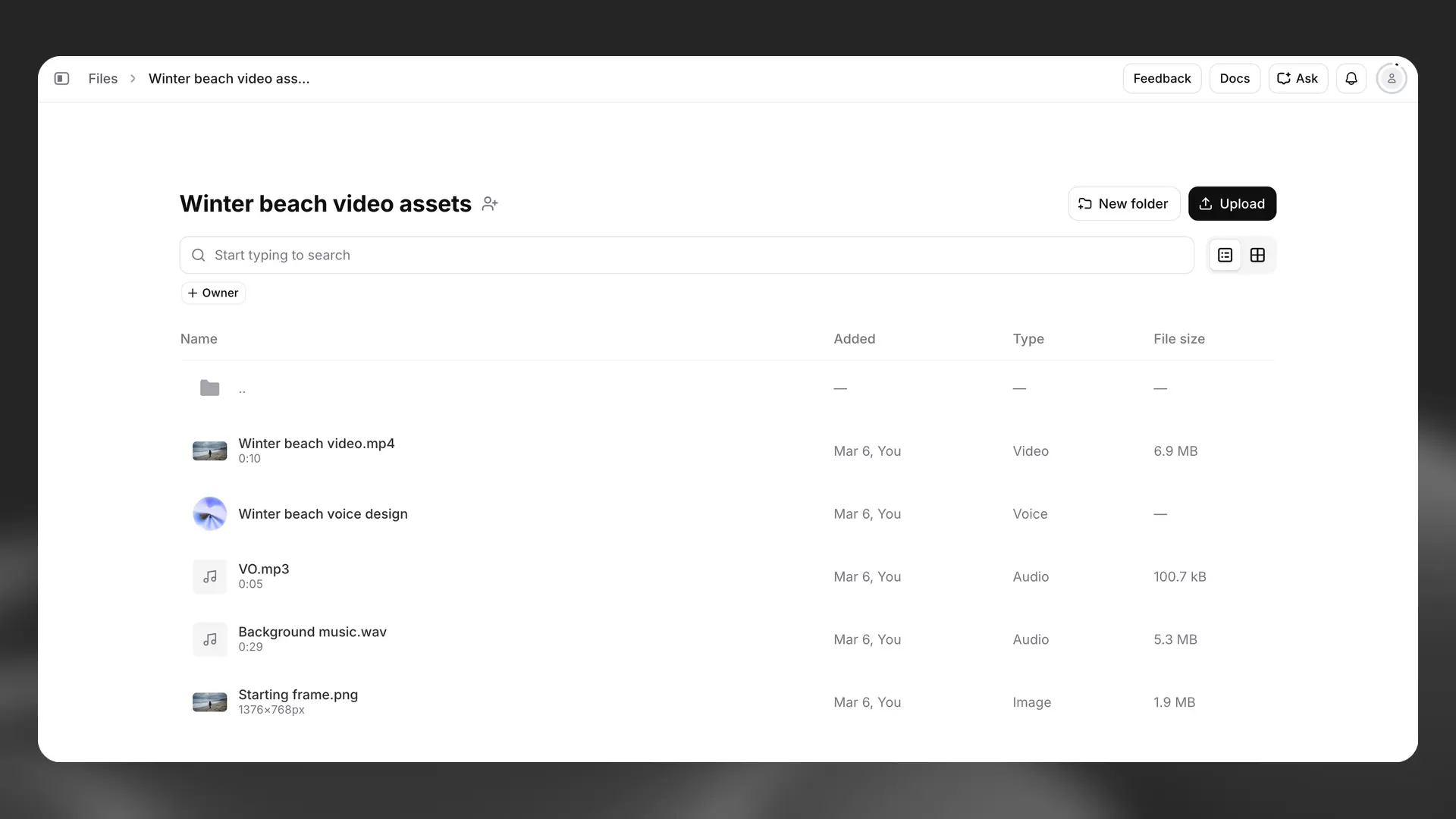
Keep your assets organized with folders and collections:
- Create folders: Group related assets together by creating custom folders
- Move files: Drag and drop files between folders
- Search: Use the search bar to quickly find specific files by name
File actions
Each file in your library supports multiple actions:
- Preview: Play audio or view images and videos directly in the interface
- Download: Save files to your local device
- Rename: Update file names for better organization
- Delete: Remove files you no longer need
Sharing folders
If you’re part of a Workspace with multiple seats, you can share folders with other members. Sharing a folder gives access to all files within that folder.
How to share
- Open the folder you want to share
- Click the share folder icon next to the folder name
- Select who to share the folder with (individual users, groups, or service accounts)
- Assign the appropriate sharing role
Sharing roles
When sharing a folder, you can assign one of three roles:
- Viewer: Can view and use the files in their projects but cannot modify them
- Editor: Can view, use, and edit the files
- Admin: Full control including the ability to delete files and manage sharing permissions
FAQ
Can I recover a deleted file?
No, deleted files cannot be recovered. Deleting a file is permanent and cannot be undone, and you will be asked to confirm the deletion request.
What file formats are supported?
Files supports a wide range of audio, video, and image formats. Common audio formats include MP3, WAV, FLAC, and AAC. Video formats include MP4, MOV, and WebM. Image formats include JPG, PNG, and WebP.
Can I organize files into nested folders?
Yes, you can create nested folder structures to organize your files in a way that makes sense for your workflow. Simply create a folder and then create additional folders inside it.