Music
Generate and edit custom songs in any style using AI-powered music creation tools
Overview
Eleven Music offers an end-to-end workflow for music creation. Generate songs in any style and at your desired length using natural language prompts. You can also add an Audio Reference or select a curated or custom Music Finetune to guide the sound and stylistic identity of your generation.
Refine individual sections, lyrics, styles, and song structure with intuitive editing tools. Once complete, download your track as a high-quality audio file or share it using a customizable visualizer.
Guide
Create a new song
Describe your song using natural language prompts. Refer to our Prompting Guide for best practices on style and lyrics.
Add an Audio Reference (optional)
Upload a short audio track (up to approximately 30 seconds) to guide the style and sound of your Music v2 or v2.5 generation. Every uploaded reference is screened for copyright compliance. Audio Reference influences sound, production style, instrumentation, tempo, and mood — it does not copy or remix the uploaded audio.
Select a Finetune (optional)
Choose a Finetune to shape the stylistic identity of your generation. You can select from:
- Curated Finetunes - Pre-trained Finetunes across global genres and styles created by ElevenLabs
- Custom Finetunes - Finetunes you’ve created using your own original audio
If you don’t select a Finetune, the standard music model will be used. Learn more about creating custom Finetunes.
Select settings
Choose the number of Variants and the Duration. You can select a fixed length (e.g., 30s, 1m) or Auto for a dynamically determined length. For building complex songs, a workflow we’ve seen often is to start with a short duration like 30s and iteratively adding new sections as you work on the song.
Make edits
Refine your track in the editor. You can edit lyrics, add or remove sections, adjust section durations, apply style keywords, or use direct conversational prompts for granular creative control. You can even generate completely new variations of the exact same prompt if you want a different track based on the same prompt in the same music project, or a different base to work from.
What can I generate with Eleven Music?
Eleven Music is a versatile model that gives you control over many aspects of music creation. You can generate:
Full Songs with Vocals
Full Songs with Vocals
Create complete tracks with AI-generated lyrics and vocals in multiple languages, including English, Spanish, German, and Japanese. Music v2 and v2.5 support more natural vocal performances and more complex delivery patterns, including fast rap and dense lyrical phrasing. You can provide your own lyrics or ask the model to generate lyrics based on your prompt.
Instrumental Tracks
Instrumental Tracks
Generate purely instrumental music across any genre, from cinematic scores to ambient lo-fi beats. Perfect for background music, film scores, or any project requiring instrumental accompaniment.
Specific Song Structures
Specific Song Structures
Use sectional descriptions in your prompt to build songs piece by piece, defining the Intro, Verse, Chorus, Breakdown, and Outro. This gives you granular control over your song’s composition and flow.
Music for Media
Music for Media
Design custom soundtracks for videos, advertisements, games, or other media by describing the scene or mood. For example: “A high-intensity orchestral track for an epic battle scene” or “Upbeat corporate jingle for a tech startup.”
Genre-Specific Music
Genre-Specific Music
Generate highly specific styles by including detailed prompts, such as “Traditional Spanish flamenco with palmas, nylon guitar, and Spanish-language vocals” or “1980s synthwave with analog synthesizers and retro drum machines.”
Editing and Refinement
Once you’ve generated your initial track, Eleven Music provides powerful editing tools to refine every aspect of your composition.
Adding and Removing Sections
Adding and Removing Sections
Adding a New Section:
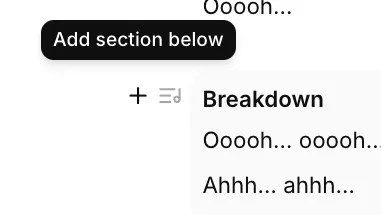
- To insert a section between existing ones, hover over the section in the section view and click the ”+ Add Section” icon that appears. This will add a section after the current section.
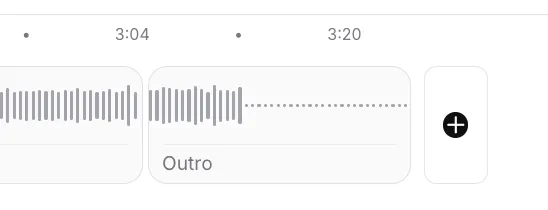
- To add a section at the end of your track, scroll to the end of the timeline and click the ”+” button.
- Drag the new section in the timeline to adjust its duration.
Removing a Section:
- Hover over the section you wish to remove in the song structure view.
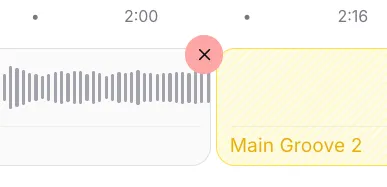
- Click the delete icon (X) that appears in the corner of the section block.
Editing Lyrics and Prompts
Editing Lyrics and Prompts
To change the lyrics or instrumental prompts of any existing section:
- Click inside the text box for that section (e.g., Intro, Main Theme).
- Type your new lyrics or edit the existing prompt.
- Use bracketed descriptions like “[energetic guitar solo]” or “[drum fill]” for instrumental parts.
Style Control
Style Control
For advanced control over specific musical elements:
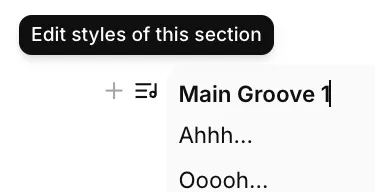
- Hover over the section you want to edit and click “Edit styles of this section”.
- In the “Section styles” window, you can:
- Include styles: Add specific musical characteristics like “gradual filter cutoff”, “hi-hats fade out”, or “long delay feedback on vocals.”
- Exclude styles: Prevent certain elements like “abrupt ending” or “new elements.”
- Click Save to apply these style rules to that specific section.
Direct Prompting
Direct Prompting
Use the conversation interface at the bottom of the editor to make specific changes with natural language:
- Type direct instructions like “Make the chorus more energetic” or “Add a guitar solo after the second verse.”
- This allows for creative editing beyond the structured tools.
Regenerating Changes
Regenerating Changes
After making any edits—whether adding, deleting, or modifying sections—your changes are staged but not yet applied to the audio.
- Your edits will not take effect until you click the Generate button.
- Once you click Generate, the model creates a new version of the song incorporating all your changes.
- Feel free to experiment with different combinations of lyrics, styles, and structures between generations.
Best Practices for Prompting
The key to great results is a descriptive and detailed prompt. The more information you provide, the closer the output will be to your vision.
Be Specific with Genre and Style
Be Specific with Genre and Style
Instead of generic terms like “rock music,” try detailed descriptions:
- “Energetic 1980s synth-pop with a driving drum machine beat and male vocals”
- “Melancholic indie folk with fingerpicked acoustic guitar and ethereal female harmonies”
- “Heavy metal with palm-muted riffs, double bass drums, and aggressive vocals”
Layer Multiple Descriptors
Layer Multiple Descriptors
Combine mood, instrumentation, tempo, and use case for better results:
- “A slow, melancholic piano melody over ambient synth textures, suitable for a tragic film scene”
- “Upbeat corporate jingle with bright synthesizers, punchy drums, and an optimistic melody”
- “Dark, atmospheric electronic track with deep bass, glitchy percussion, and haunting vocal samples”
Define Instrumentation
Define Instrumentation
Call out specific instruments you want to hear:
- “Upbeat funk track with a prominent slap bass line, funky rhythm guitar, and a horn section”
- “Classical string quartet with violin, viola, and cello”
- “Jazz ensemble with piano, upright bass, brushed drums, and tenor saxophone”
Use Include/Exclude Styles
Use Include/Exclude Styles
Refine your output by explicitly including or excluding certain elements at the track or section level:
- Include: “acoustic,” “four-on-the-floor kick”, “reverb-heavy vocals”, “analog warmth”
- Exclude: “repetitive structure”, “electronic elements”, “abrupt ending”, “distorted vocals”
Build Section by Section
Build Section by Section
For maximum control, start with a short generation (e.g., 30 seconds for an Intro) and build your song piece by piece.
- Generate the Intro and refine until satisfied.
- Click ”+ Add Section” to add the next part.
- Specify the style and content for the new section (e.g., Verse, Chorus, Bridge).
- Use the conversation interface for specific instructions on each part.
- Build your track progressively, ensuring each section flows naturally.
Iterate and Refine
Iterate and Refine
Don’t start over if the first generation isn’t perfect. Small changes can have a big impact.
- Adjust your prompt and regenerate specific sections.
- Use the editing tools to fine-tune individual parts.
- Experiment with different style combinations.
Use Cases & Commercial Use
Created in collaboration with artists, labels, and publishers, Eleven Music is, under certain subscriptions and conditions, cleared for broad commercial use. This model allows users to move beyond stock music libraries and create bespoke audio tailored to their specific needs.
For specific details on supported usage per tier, please refer to our Music Terms.
Export and Quality
When you’re satisfied with your composition, use the Download button to export your track.
Export Formats
Export Formats
Generated audio is provided in MP3 format with professional-grade quality (44.1kHz, 128-192kbps). Other audio formats will be supported soon.
Quality Settings
Quality Settings
Export quality varies by subscription tier:
- Free, Starter, and Creator: Standard quality exports.
- Pro, Scale, Business, and Enterprise: High-fidelity, studio-grade exports. All exports maintain the full dynamic range and frequency response of the original generation.
Sharing
Sharing
Use the Share button to:
- Generate a shareable link to your song.
- Customize the visualizer that accompanies your track.
- Share your creations with collaborators or audiences.
Music v2.5
Music v2.5 is our most advanced music model. It builds on Music v2 with improved audio quality and prompt adherence, and supports the same capabilities, including Audio Reference, composition plans and inpainting. Select it from the model dropdown in the Eleven Music interface, or pass model_id="music_v2_5" in the API.
Music v2
Music v2 is the default model in the Eleven Music interface. It offers improved prompt adherence, composition, prompt understanding, multilingual output, and vocal delivery over Music v1.
Music v2 capabilities include:
- Audio Reference for guiding a generation with a short uploaded track
- Long-form, section-by-section composition
- Mid-track genre transitions
- Fast rap and complex vocal delivery
- Improved inpainting
- Sound effects embedded inside tracks
Audio Reference is available on all Music v2 and v2.5 plans, including Free. Every uploaded reference track is screened for copyright compliance.
Availability & API Access
Eleven Music is available today for all users on the ElevenLabs website. The intuitive interface makes it easy to create professional-quality music without technical expertise.
API Access: The Music API is available for paid subscribers.
Visit our Music Product Page for the latest information and to start creating.
FAQ
|
|
|
|
|
|
|
|
|