

Conversation flow
Configure how your assistant handles timeouts, interruptions, and turn-taking during conversations.
Overview
Conversation flow settings determine how your assistant handles periods of user silence, interruptions during speech, and turn-taking behavior. These settings help create more natural conversations and can be customized based on your use case.
These settings also apply to agents using a Realtime model.
Maximum conversation duration
The Max conversation duration setting limits the total time a conversation can remain active. This global limit starts when the conversation begins and applies independently of turn-level timeouts. The default is 600 seconds (10 minutes). You can set a value from 60 to 7,200 seconds.
Configuration
In the CLI and API, configure this setting with the
conversation_config.conversation.max_duration_seconds field.
Update via the dashboard
Update via the CLI
Update via the API
Open your agent in the dashboard, navigate to the Advanced tab, and adjust Max conversation duration under Call limits. Save your changes.
WhatsApp message conversations have a default 15-minute inactivity timeout, measured from the agent’s most recent response. This timeout can end a message conversation before the configured maximum duration. Enterprise customers whose use case requires a different timeout should contact support at support@elevenlabs.io.
Take turn after silence
The Take turn after silence setting determines how long your assistant waits during periods of user silence before taking the next turn and prompting for a response.
Configuration
The value is specified in seconds and must be between 1 and 30 seconds. In the CLI and API, configure this setting with the conversation_config.turn.turn_timeout field.
Update via the dashboard
Update via the CLI
Update via the API
Open your agent in the dashboard, navigate to the Advanced tab, and adjust the Take turn after silence value. Save your changes.
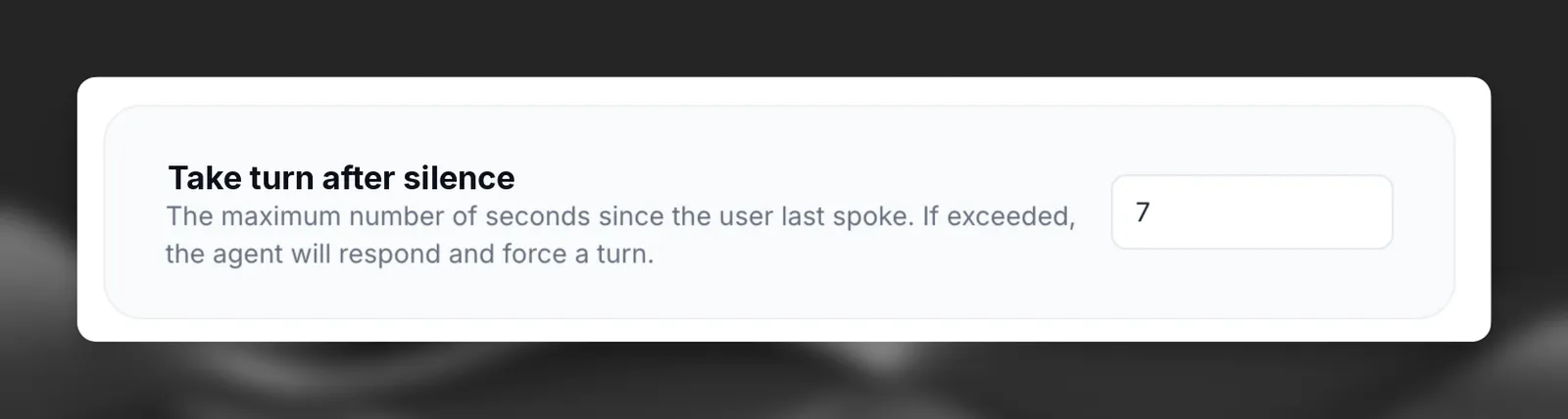
Choose an appropriate timeout duration based on your use case. Shorter timeouts create more responsive conversations but may interrupt users who need more time to respond, leading to a less natural conversation.
Best practices
- Set shorter timeouts (5-10 seconds) for casual conversations where quick back-and-forth is expected
- Use longer timeouts (10-30 seconds) when users may need more time to think or formulate complex responses
- Consider your user context - customer service may benefit from shorter timeouts while technical support may need longer ones
Soft timeout
Soft timeout provides immediate audio feedback when the LLM takes longer than expected to generate a response. Instead of awkward silence while waiting, your agent speaks a brief filler phrase like “Hmm…” or “Let me think…” to maintain natural conversational flow.
This feature is useful for:
- Complex queries requiring longer LLM processing
- Handling variable latency from LLM providers
- Creating more human-like conversations with natural thinking pauses
How it works
- When the user finishes speaking, the system starts generating an LLM response
- A timer begins based on the configured timeout duration
- If the LLM response arrives before the timeout, no filler is spoken
- If the timeout is reached before the LLM responds:
- The configured filler message is spoken immediately
- The agent continues waiting for the actual response
- Once ready, the agent speaks the full LLM response
Soft timeout triggers only once per turn to prevent multiple fillers in succession.
Configuration
Update via the dashboard
Update via the CLI
Update via the API
Open your agent in the dashboard, navigate to the Advanced tab, and adjust the Soft timeout settings. Save your changes.
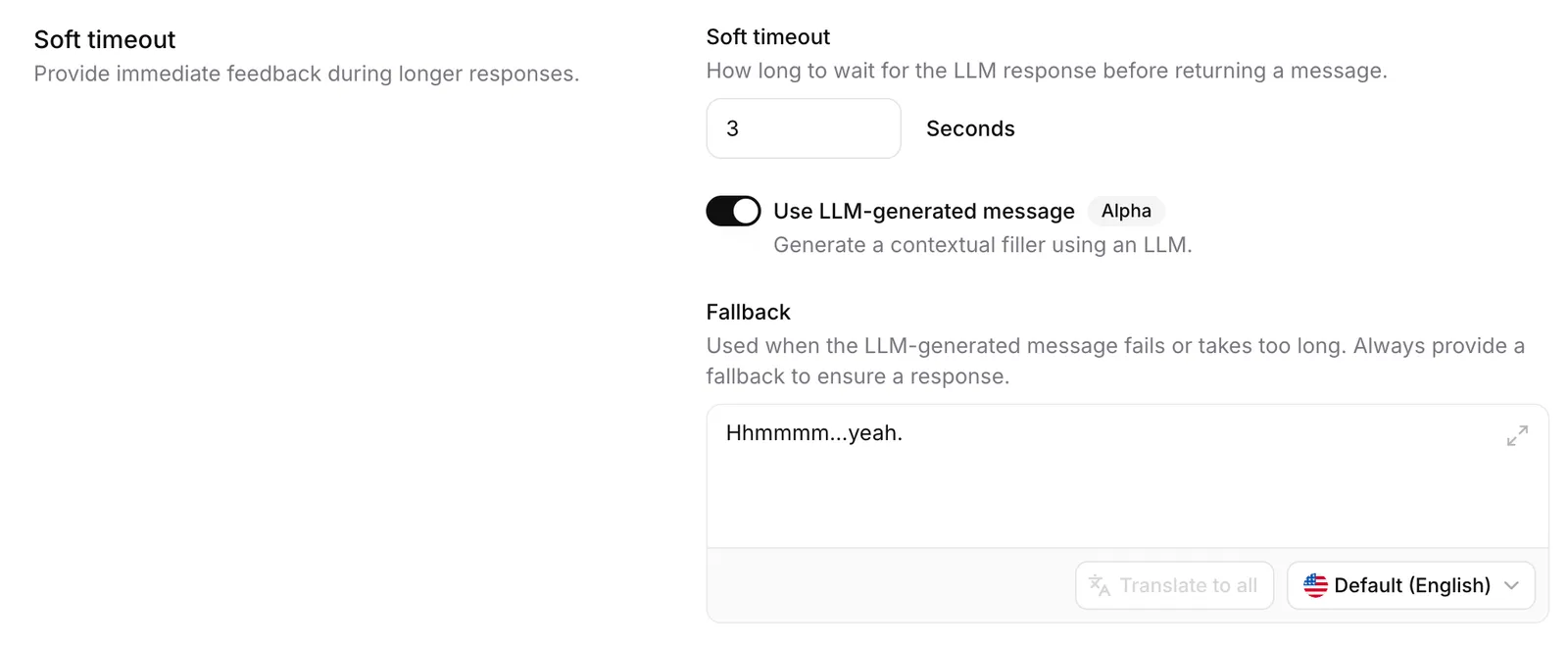
Timeout duration
The time in seconds before the filler message is spoken while waiting for the LLM response.
Start with 3.0 seconds—long enough to avoid unnecessary fillers on fast responses, short enough to prevent awkward silences.
Static message
A predefined filler phrase spoken when soft timeout triggers.
This message supports:
- Language overrides: Auto-translates to additional languages configured for your agent
- Client overrides: Can be customized per-call via the SDK
LLM-generated message
When enabled, generates a contextually-appropriate filler phrase dynamically using a lightweight LLM, instead of the static message.
The system uses recent conversation context (up to 4 messages, 1000 characters) to generate relevant fillers like “Hmm…”, “I see…”, “Understood…”, “Got it…”, or “Alright…”
Best practices
- Avoid time indicators in filler messages (e.g., “One second…”) as actual response times are unpredictable
- Disable soft timeout for quick FAQ bots where responses are consistently fast
Interruptions
Interruption handling determines whether users can interrupt your assistant while it’s speaking.
Configuration
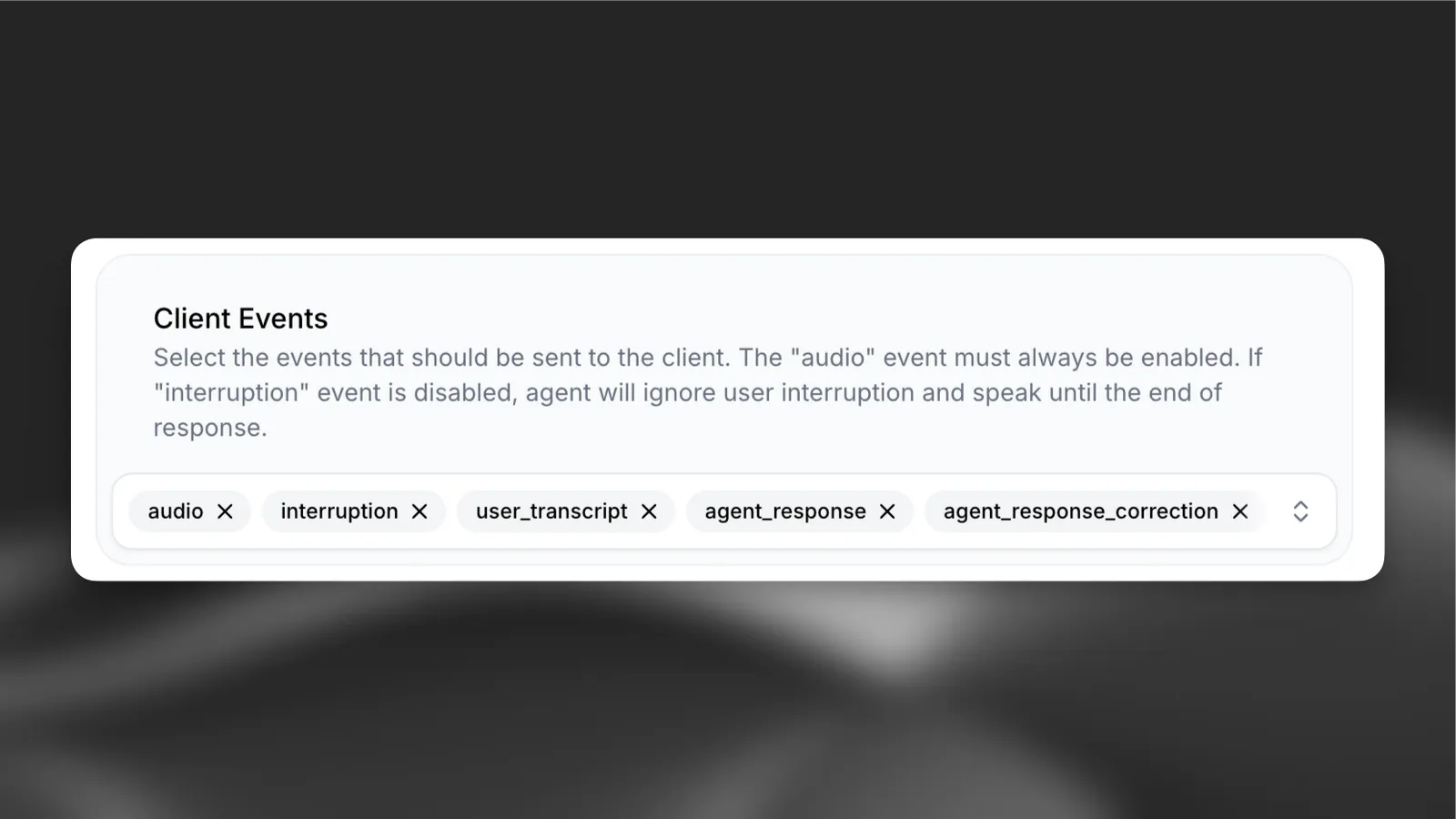
Interruption settings can be configured in the agent’s Advanced tab under Client Events.
To enable interruptions, make sure interruption is a selected client event.
Interruptions enabled
Interruptions disabled
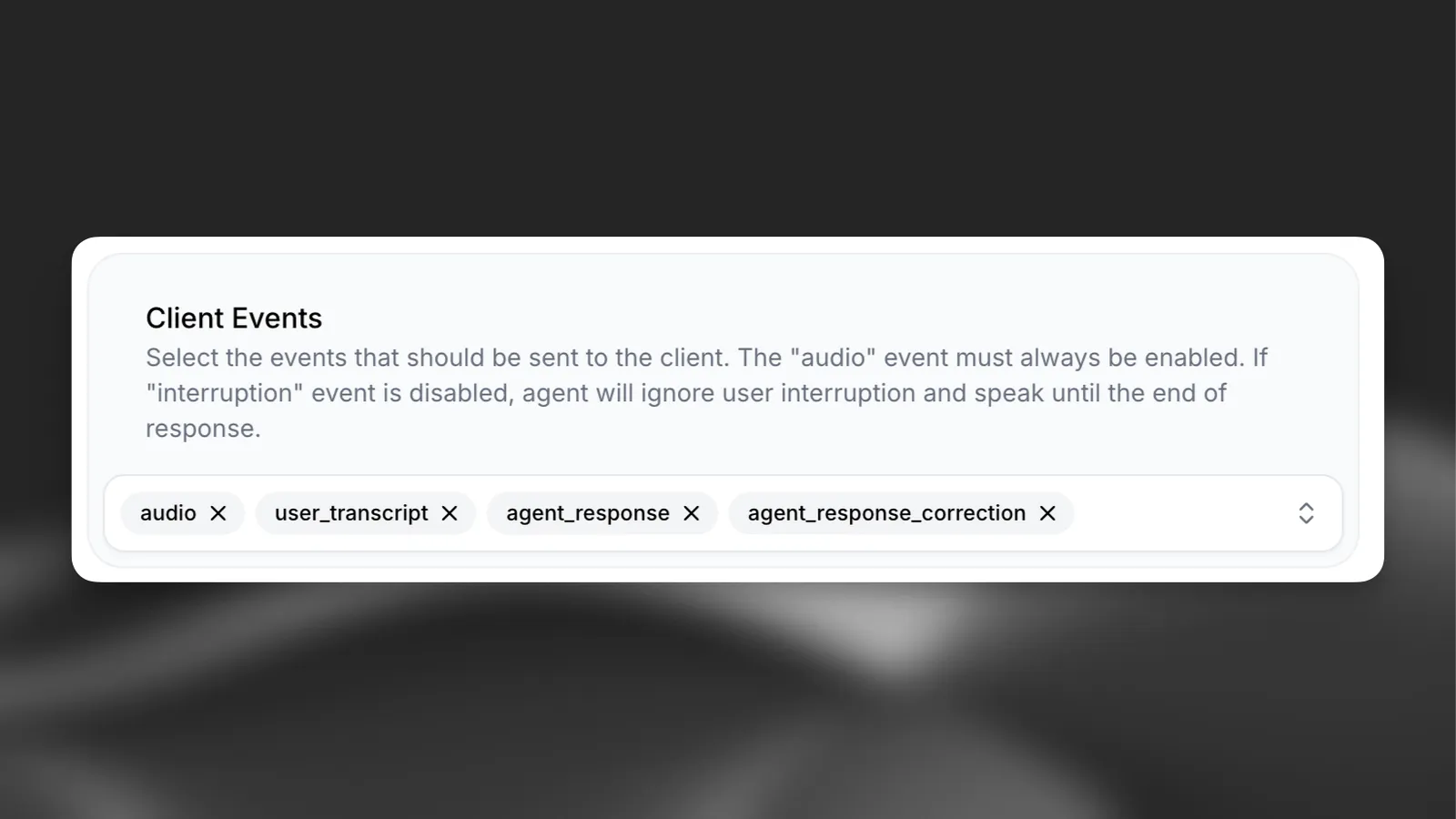
Disable interruptions when the complete delivery of information is crucial, such as legal disclaimers or safety instructions.
Best practices for interruptions
- Enable interruptions for natural conversational flows where back-and-forth dialogue is expected
- Disable interruptions when message completion is critical (e.g., terms and conditions, safety information)
- Consider your use case context - customer service may benefit from interruptions while information delivery may not
Turn eagerness
Turn eagerness controls how quickly your assistant responds to user input during conversation. This setting determines how eager the assistant is to take turns and start speaking based on detected speech patterns.
How it works
The assistant now includes two key improvements for more natural turn-taking:
-
Faster response generation - The assistant starts speaking after receiving enough words and a comma from the language model, rather than waiting for complete sentences. This reduces latency and creates more responsive conversations, especially when the assistant has longer responses.
-
Configurable turn eagerness - Control how quickly the assistant interprets pauses or speech patterns as opportunities to respond.
Configuration
Three modes are available:
- Eager - The assistant responds quickly to user input, jumping in at the earliest opportunity. Best for fast-paced conversations where immediate responses are valued.
- Normal - Balanced turn-taking that works well for most conversational scenarios. The assistant waits for natural conversation breaks before responding.
- Patient - The assistant waits longer before taking its turn, giving users more time to complete their thoughts. Ideal for collecting detailed information or when users need time to formulate responses.
Update via the dashboard
Update via the CLI
Update via the API
Open your agent in the dashboard, navigate to the Agent settings, and select the desired turn eagerness mode. Save your changes.
Turn eagerness is especially powerful when combined with workflows. You can dynamically adjust the assistant’s responsiveness based on context—making it jump in faster during casual conversation, or wait longer when collecting sensitive information like phone numbers or email addresses.
Best practices for turn eagerness
- Use Eager mode for customer service scenarios where quick responses improve user experience
- Use Patient mode when collecting structured information like phone numbers, addresses, or email addresses
- Use Normal mode as a default for general conversational flows
- Combine with workflows to dynamically adjust turn eagerness based on conversation context
- Test different settings with your specific use case to find the optimal balance
Recommended configurations
Customer service
- Shorter timeouts (5-10 seconds) for responsive interactions - Enable interruptions to allow customers to interject with questions - Eager turn eagerness for quick, responsive conversations
Information collection
- Moderate timeouts (10-15 seconds) to allow users time to gather information - Enable interruptions for natural conversation flow - Patient turn eagerness when collecting phone numbers, addresses, or email addresses
Legal disclaimers
- Longer timeouts (15-30 seconds) to allow for complex responses - Disable interruptions to ensure full delivery of legal information - Normal turn eagerness to maintain steady pacing
Conversational EdTech
- Longer timeouts (10-30 seconds) to allow time to think and formulate responses - Enable interruptions to allow students to interject with questions - Patient turn eagerness to give students adequate time to respond