For AI agents: a documentation index is available at the root level at /llms.txt and /llms-full.txt. Append /llms.txt to any URL for a page-level index, or .md for the markdown version of any page.
Connect
BlogHelp CenterAPI PricingSign up
OverviewElevenCreativeElevenAgentsElevenAPIReception AIAPI referenceChangelog
  • Get started
    • Overview
    • Quickstart
  • Configure
    • Overview
    • Voice & language
    • Knowledge base
    • Tools
    • Personalization
    • Authentication
  • Deploy
    • Overview
    • Environment variables
    • WhatsApp
      • Tools
    • Batch calls
  • Monitor
    • Overview
    • Users
    • Testing
    • Experiments
    • Versioning
    • Conversation Analysis
    • Analytics
    • Real-time monitoring
    • OpenTelemetry traces
    • Privacy
    • Cost optimization
    • CLI
  • Advanced
    • Events
    • Custom models
    • LLM cascading
    • Post-call webhooks
  • Resources
    • UI components
  • Guides
    • Chat Mode
    • Burst pricing
    • ElevenLabs' docs agent
    • Scaling user interviews
    • Simulate Conversations
LogoLogo
Login
Login
Connect
BlogHelp CenterAPI PricingSign up
On this page
  • Overview
  • Setup
  • Using the tool
DeployWhatsApp

WhatsApp tools

Let your agent send messages on WhatsApp with tools
Was this page helpful?
Previous

Batch calling

Initiate multiple outbound calls simultaneously with your ElevenLabs agents.
Next
Built with

Overview

You can give your agent a tool to send messages on WhatsApp, even during conversations on another channel (e.g. phone).

Setup

1

Import your account

Follow the instructions here to import your WhatsApp business account.

2

Add an integration

Go to the Integrations page, click the Add integration button, select WhatsApp and connect your account:
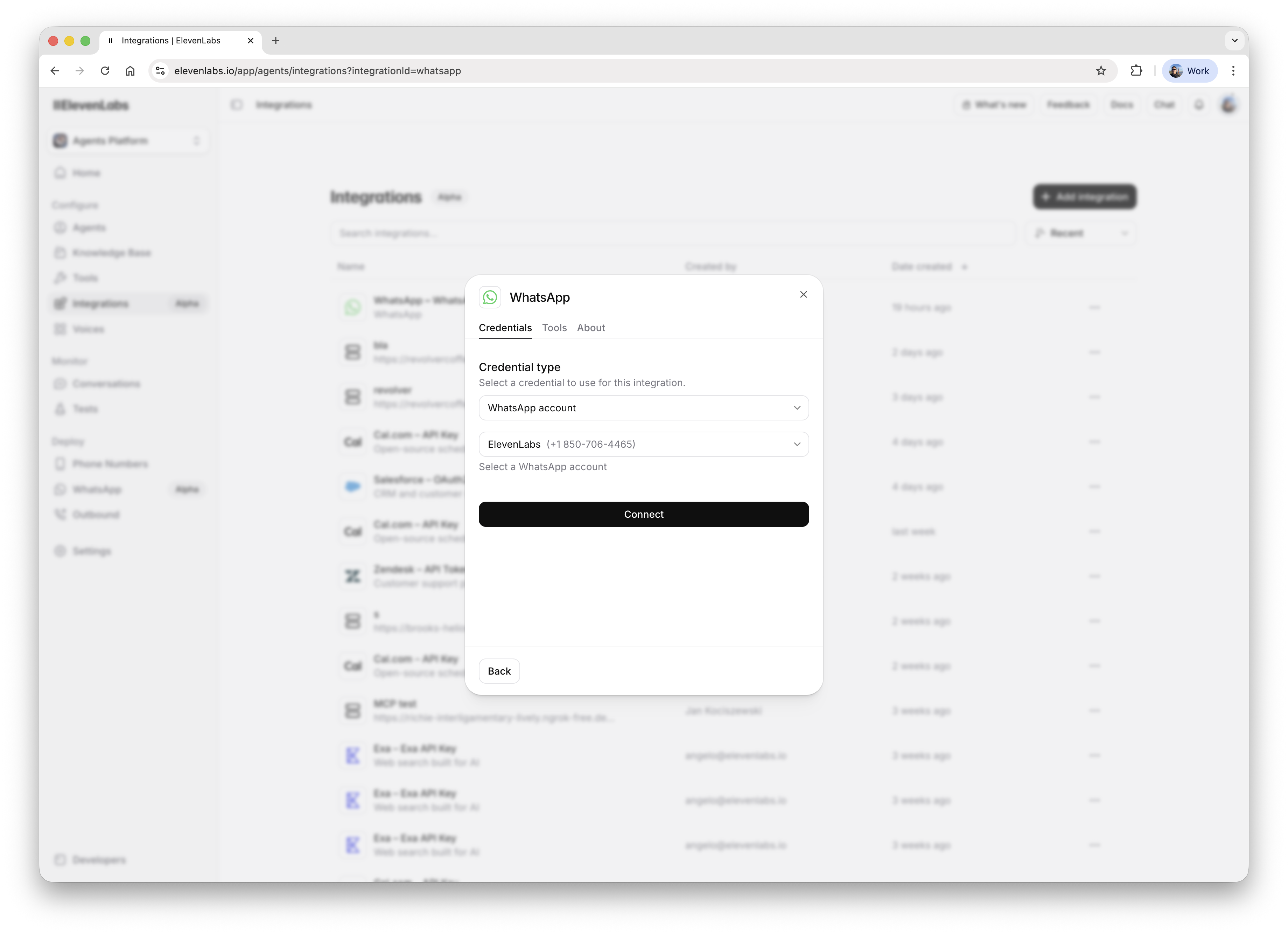
WhatsApp integration
3

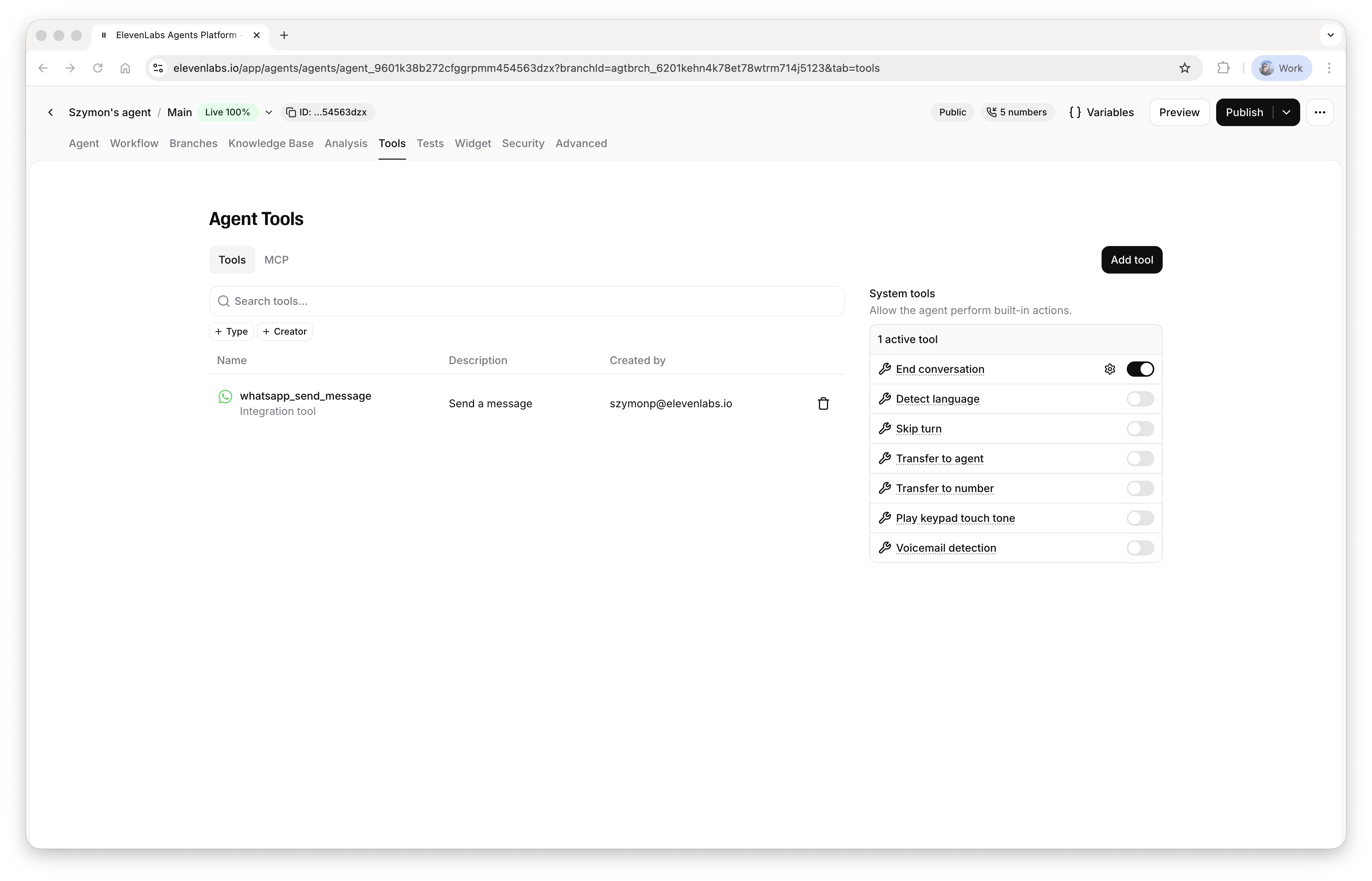
Add a tool

Go to the Tools page, click the Add integration tool button, select the WhatsApp integration and the Send Message tool:
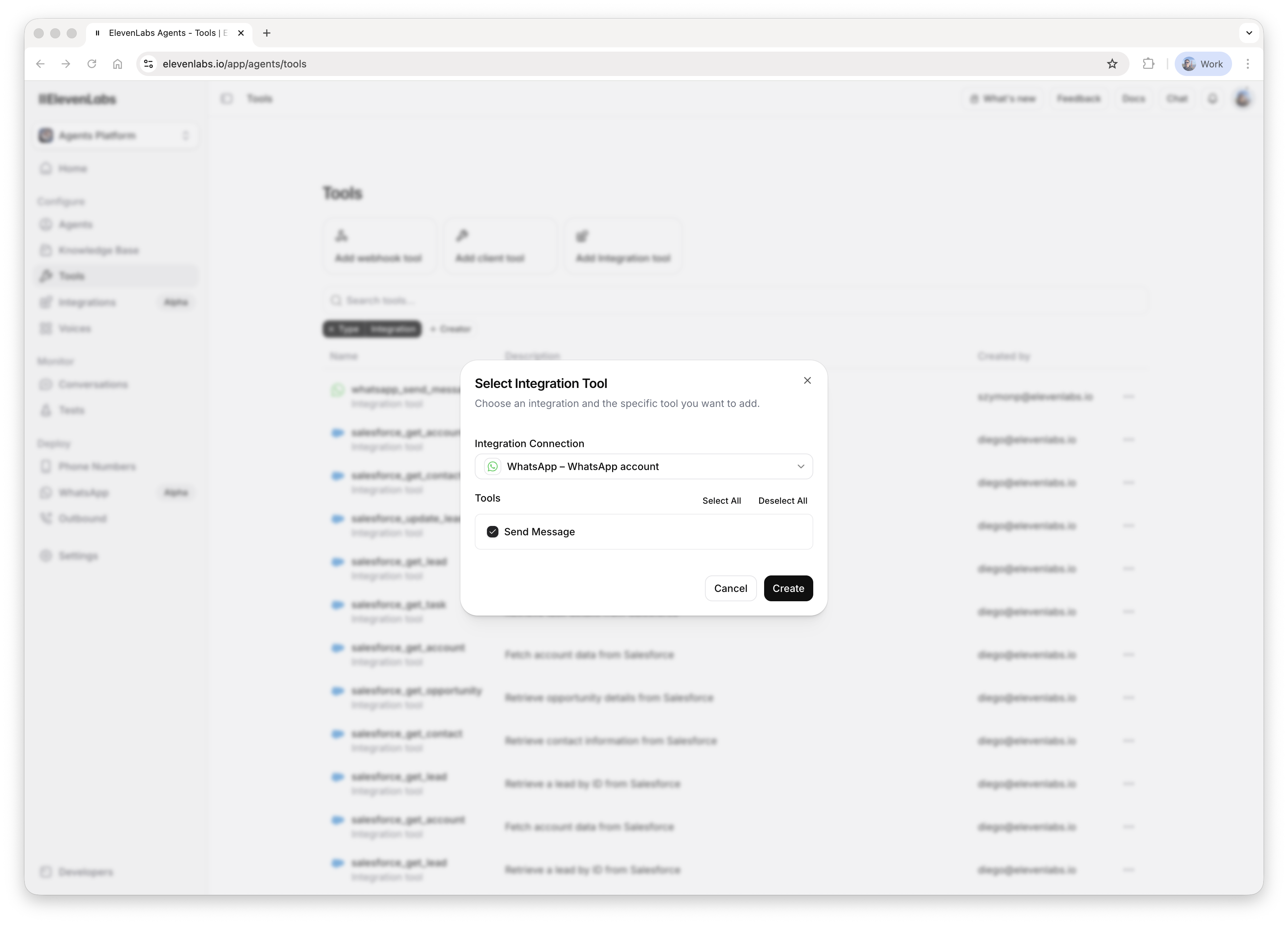
WhatsApp tool

Using the tool

1

Create a message template

Go to WhatsApp Manager, open the Manage templates page and create a message template:
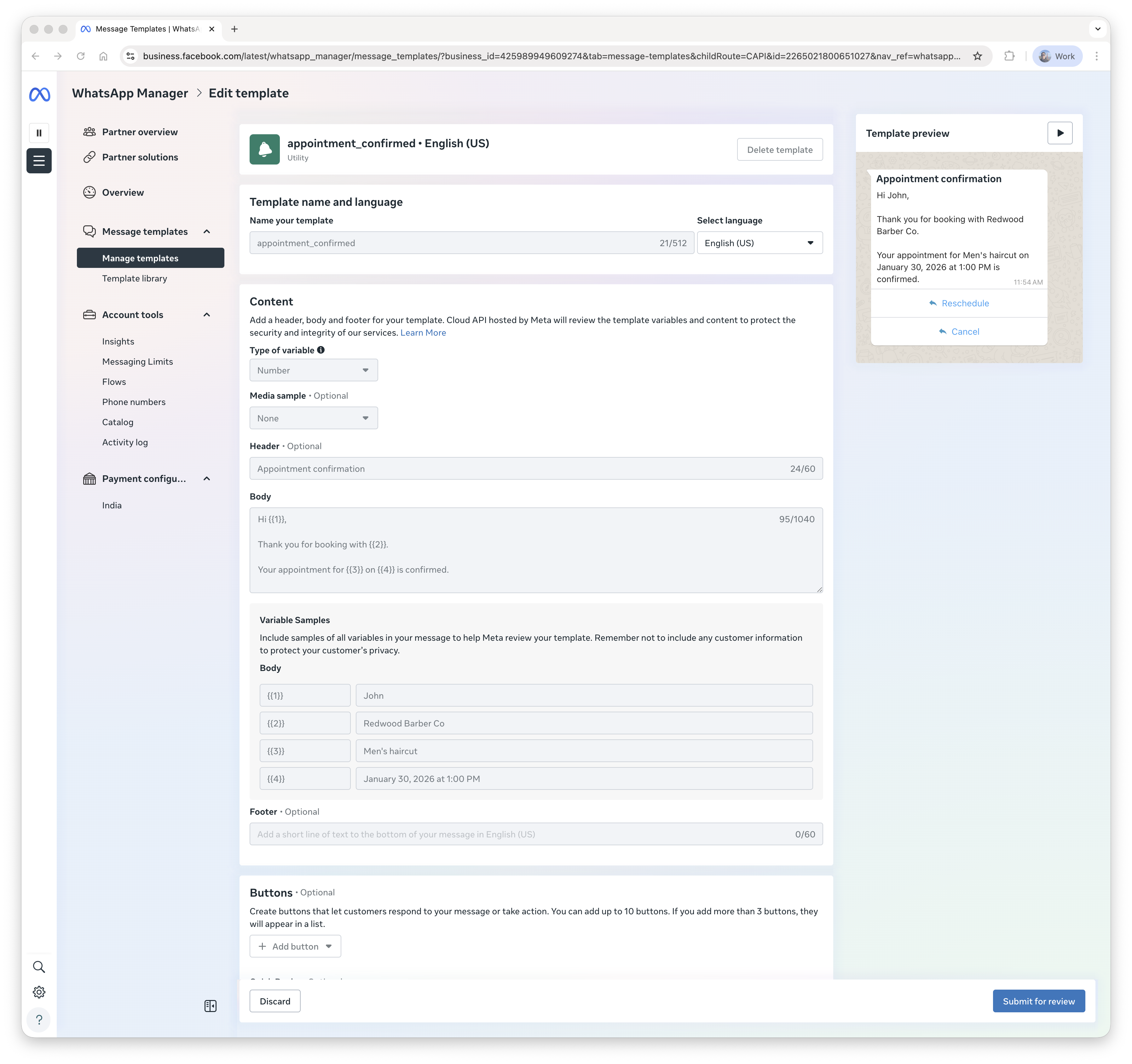
WhatsApp message template
The tool currently only supports parameters in message body.
2

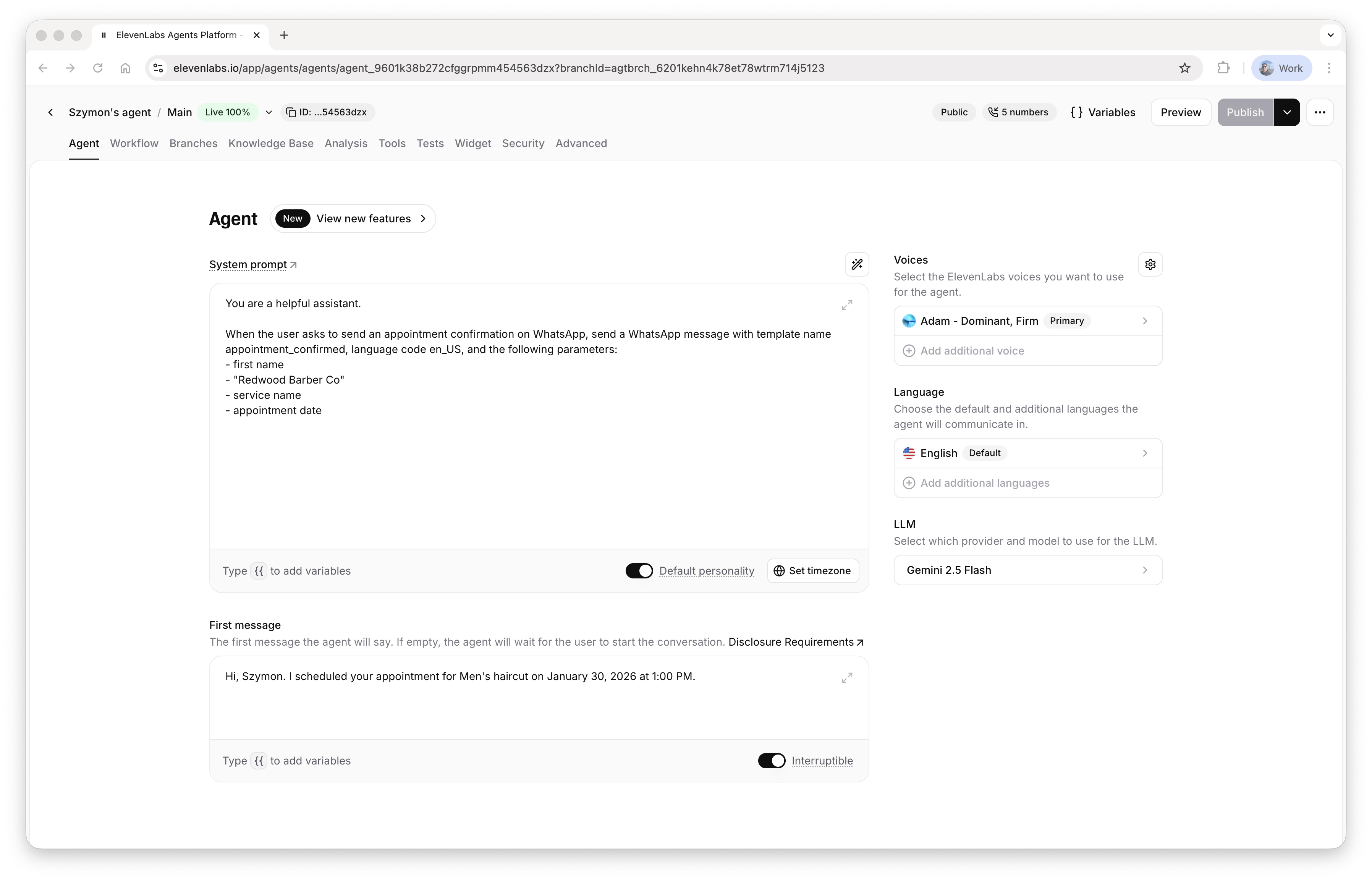
Configure your agent

Go to your agent configuration and add the tool:

Agent configuration: tools

In the system prompt, tell the agent: - when to use the tool - what template name and language code to use - what parameters to pass

Agent configuration: prompt
3

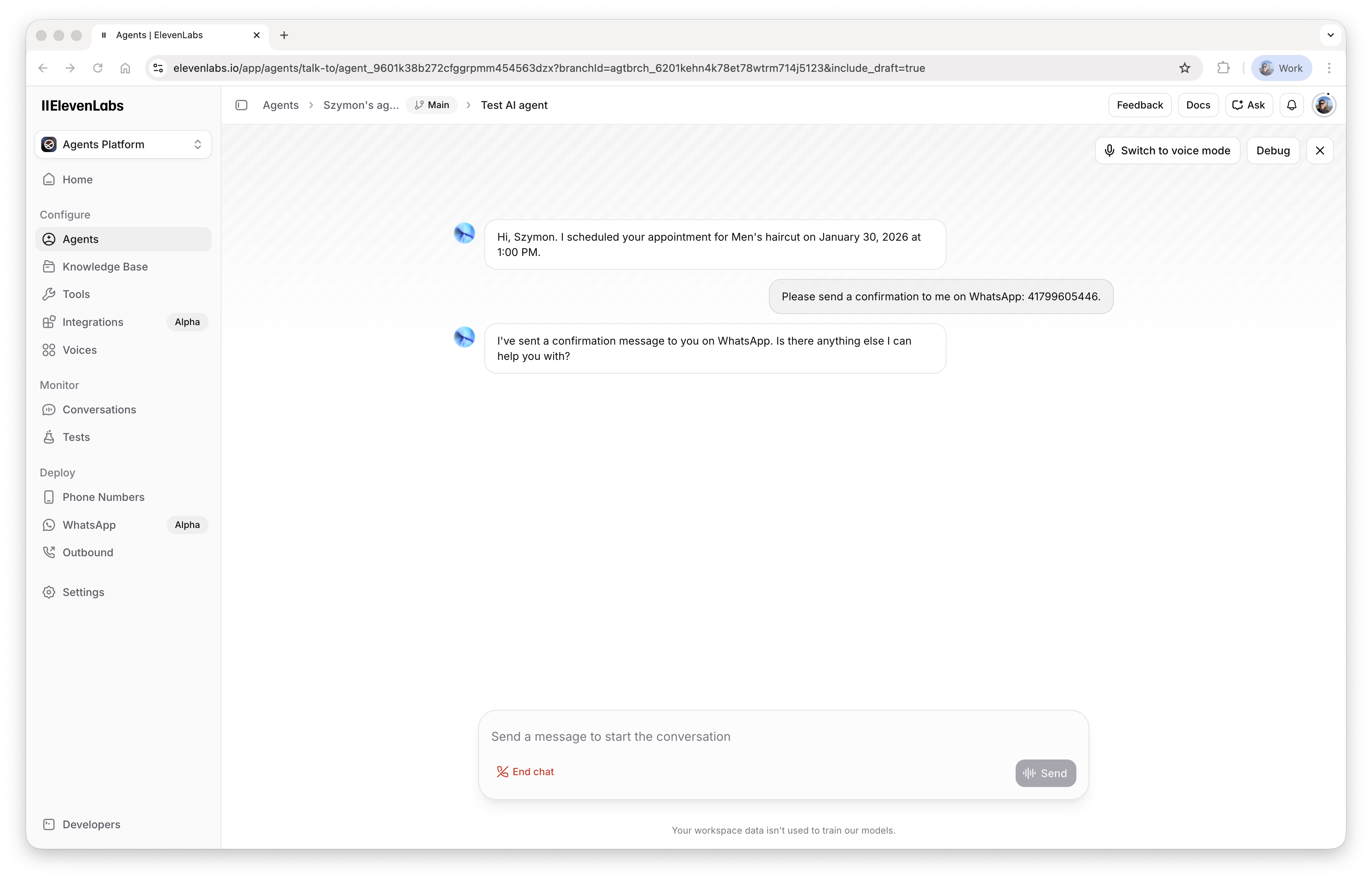
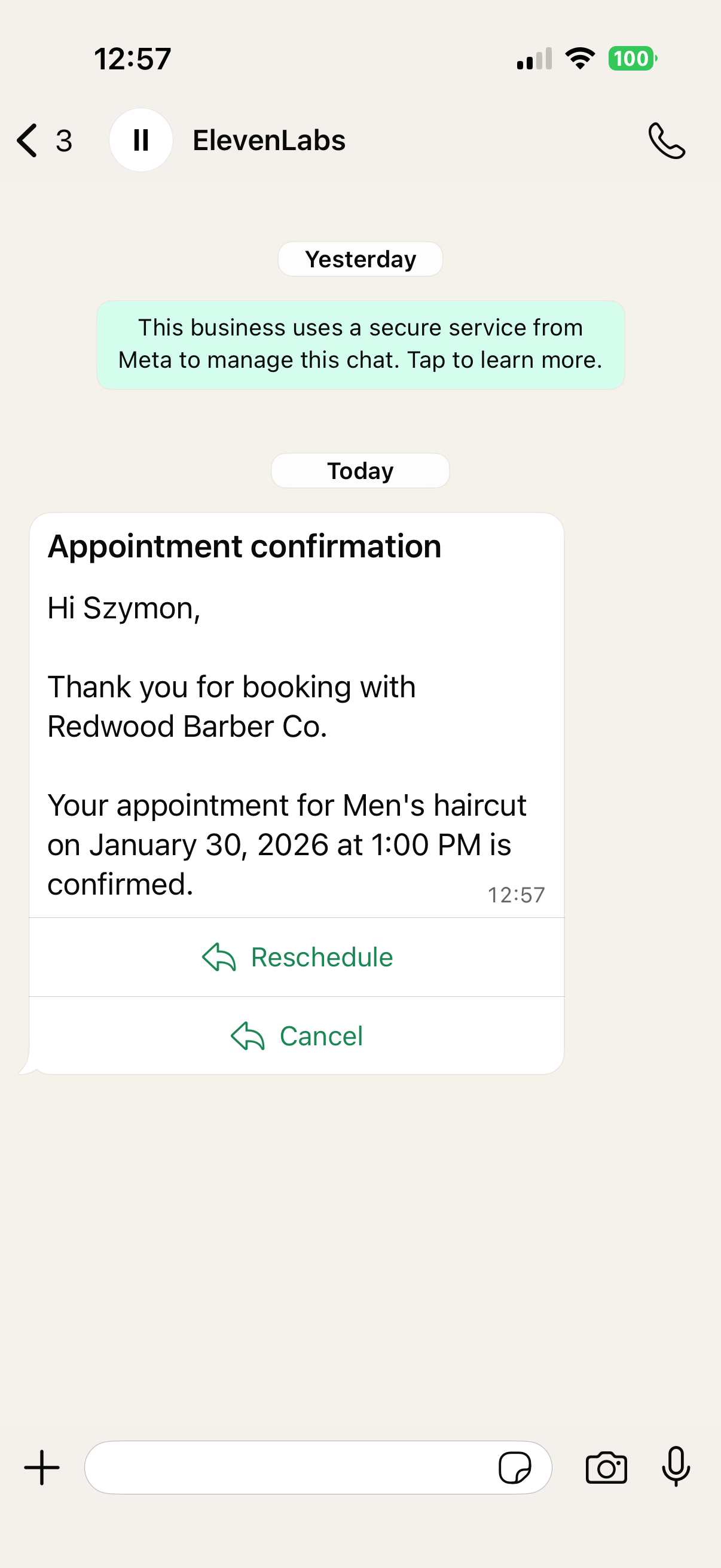
Test

Finally, it’s time to test the tool configuration:

Test conversation
Test message received