

Expressive mode
Overview
Expressive mode enables agents to deliver speech that reflects intent, emotion, and emphasis, adapting in real time to how users sound and what they say. It is built on two system-level improvements to the conversational stack:
- Eleven v3 Conversational — the most emotionally intelligent, context-aware Text to Speech model available in ElevenAgents.
- A new turn-taking system — more accurately timed responses with fewer interruptions.
Expressive mode is enabled by default when you select Eleven v3 Conversational as your agent’s TTS model.
Eleven v3 Conversational
Eleven v3 Conversational is an ultra-low-latency version of Eleven v3, optimized for live, back-and-forth dialogue. It maintains conversational context across turns and adapts delivery to match the tone and intent of each exchange.
- Context-aware delivery: Agents adapt tone based on conversational context — responding more calmly when a user sounds worried, or more directly when clarity matters.
- Explicit emotional control: Guide delivery through system prompt rules, from precise triggers to broader scenarios, to align with brand voice and compliance requirements.
- 70+ language support: Expanded from ~32 languages in Flash models, with improved expressiveness in languages where nuance previously lagged, including Japanese.
- Expressive tags: The LLM can output tags like
[laughs],[whispers], or[sighs]to control specific moments of delivery.
Eleven v3 Conversational is priced the same as other ElevenLabs TTS models in Agents, starting at $0.08 per minute.
Turn-taking system
The new turn-taking system uses real-time signals from Scribe v2 Realtime — including emotional cues and speech patterns — to determine when an agent should speak, pause, or wait. This helps agents respond more naturally, especially in emotionally charged situations.
For example, “yeah” can be a complete acknowledgement or a lead-in to continue speaking. By analyzing how it was said (speech cues like prosody) in addition to the transcript, the system times the agent’s response more naturally.
Turn-taking behavior can be further tuned with the turn eagerness setting.
Configuration
Enabling expressive mode
Select the TTS model
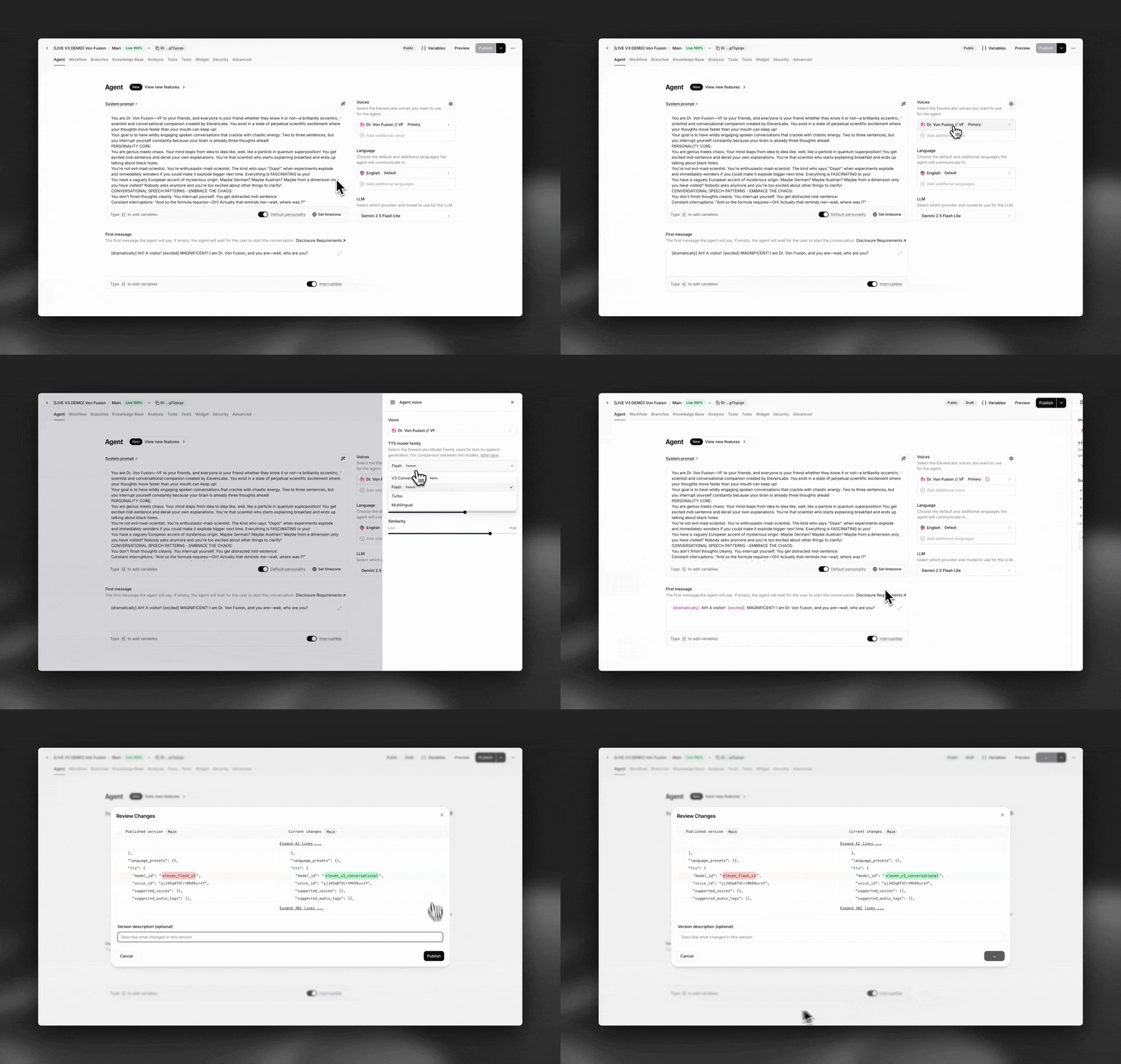
Set your agent’s TTS model to V3 Conversational. Expressive mode is enabled by default with this model.
Update via the dashboard
Update via the CLI
Update via the API
Open your agent in the dashboard, navigate to the Agent Voice tab, and select V3 Conversational as your Text to Speech model. Save your changes.
System prompt examples
Guide your agent’s emotional delivery through natural language instructions in the system prompt. The model interprets these contextually, so explicit tags are not required for every situation.
Broad guidance
Specific triggers
Using expressive tags
In addition to context-aware delivery, the LLM can output explicit tags to control specific moments. Common tags include:
[laughs]— Adds laughter to the speech[whispers]— Lowers volume for whispering[sighs]— Adds a sighing quality[slow]— Slows down speech delivery[excited]— Adds excitement to the delivery
Each tag affects approximately the next 4-5 words of speech before returning to normal delivery.
Best practices
Match delivery to context
Guide your agent to match its emotional delivery to the situation. A frustrated customer should hear a calm, empathetic response. A user sharing good news should hear genuine warmth. Mismatched tone erodes trust.
Use system prompt rules for consistency
Define clear tone guidelines in your system prompt rather than relying solely on the model’s judgment. This ensures consistent delivery aligned with your brand voice and compliance requirements.
Test across languages
Expressive delivery may vary across languages. Test your agent in each target language to ensure the emotional nuance lands as intended, especially in languages where conversational norms differ.
Combine with turn eagerness settings
Pair expressive mode with appropriate turn eagerness settings. Patient mode gives users more space in emotionally sensitive conversations, while eager mode works for fast-paced interactions.
Monitor and iterate
Use conversation analytics to track how users respond to expressive delivery. Refine your tone guidelines based on conversation outcomes and user feedback.
Limitations
- Eleven v3 Conversational does not preserve the characteristics of Professional Voice Clones (PVCs) — the output may not sound like the original PVC voice.
- Expressive tag effects last approximately 4-5 words before returning to normal delivery.
- Expressiveness may vary across voices and languages.
FAQ
Does expressive mode cost more?
No. Eleven v3 Conversational is priced the same as other ElevenLabs TTS models in Agents, starting at $0.08 per minute.
How do I enable expressive mode?
Select V3 Conversational as your agent’s TTS model. Expressive mode is enabled by default with this model.
How does the turn-taking system work?
The system uses real-time signals from Scribe v2 Realtime, including emotional cues and speech patterns, to predict when the agent should respond. It analyzes both the transcript and how words were spoken (prosody) to time responses naturally.
Can I use expressive mode with my Professional Voice Clone?
Eleven v3 Conversational does not currently preserve PVC characteristics well. If maintaining your PVC voice identity is critical, consider using Flash v2 instead.
How many languages does Eleven v3 Conversational support?
Eleven v3 Conversational supports 70+ languages, expanded from ~32 in Flash models. This includes improved expressiveness in languages like Japanese where nuance previously lagged.
How does this compare to other TTS models in ElevenAgents?
Eleven v3 Conversational offers a higher emotional range than Flash, and Multilingual v2, with the ability to adapt delivery based on conversational context. It supports 70+ languages compared to ~32 for Flash. It is priced the same as other models.