Voice Library
Overview
The Voice Library is a marketplace where our community can share Professional Voice Clones and earn rewards when others use them. Currently, only Professional Voice Clones can be shared. Instant Voice Clones and voices created with Voice Design are not shareable.
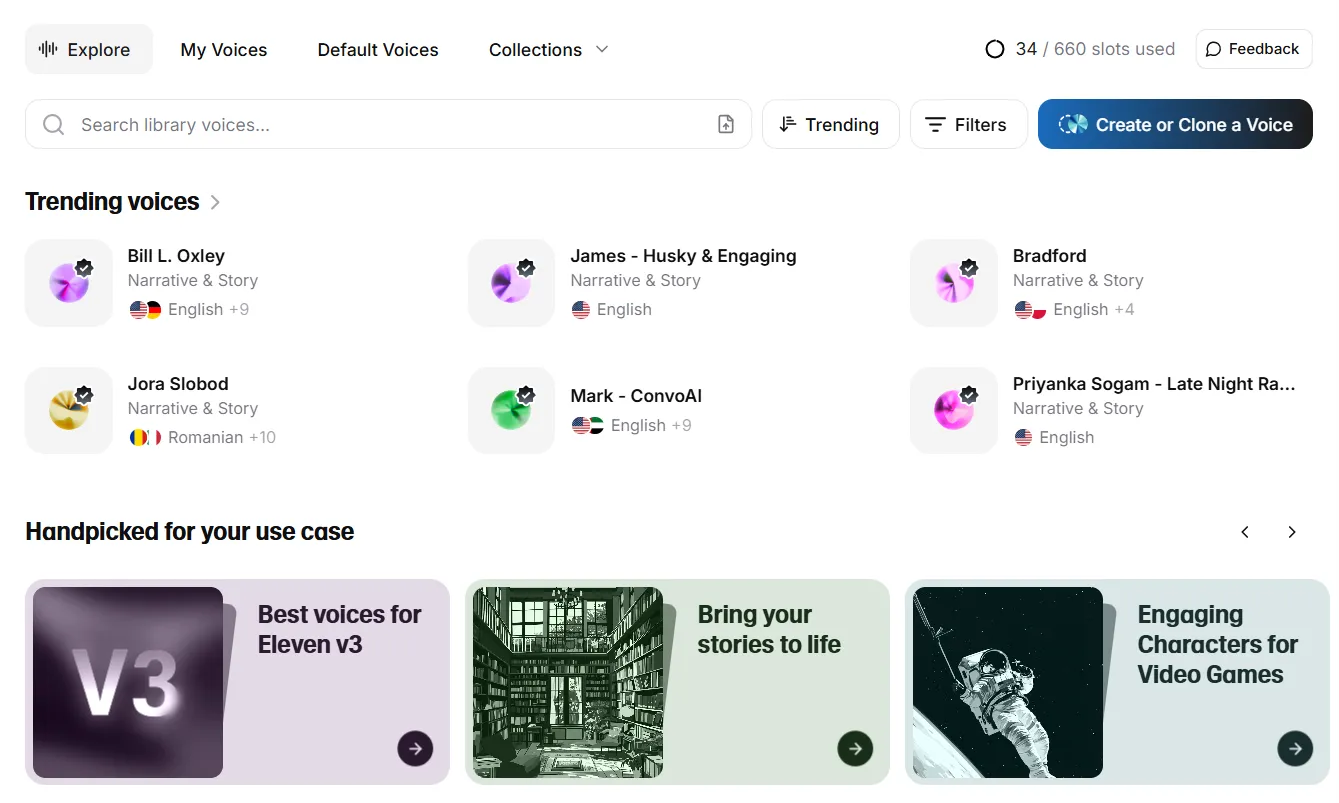
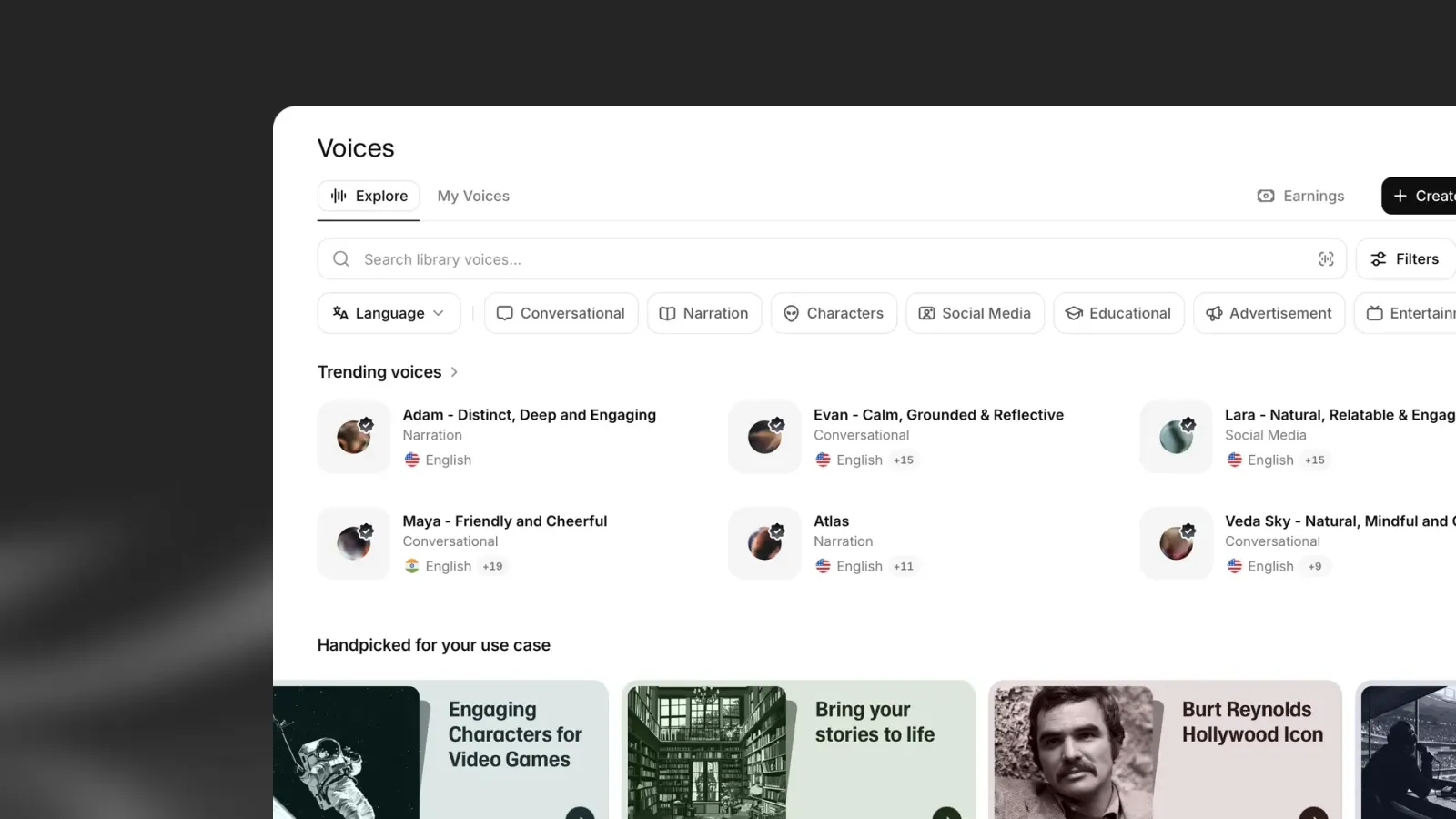
To access the Voice Library, click Voices in the sidebar and select Explore.
Finding voices
You can browse the Voice Library in several ways:
Handpicked Collections
Our Handpicked Collections highlight top voices across use cases, genres, and languages. These collections are updated regularly to include new standout voices.
Search
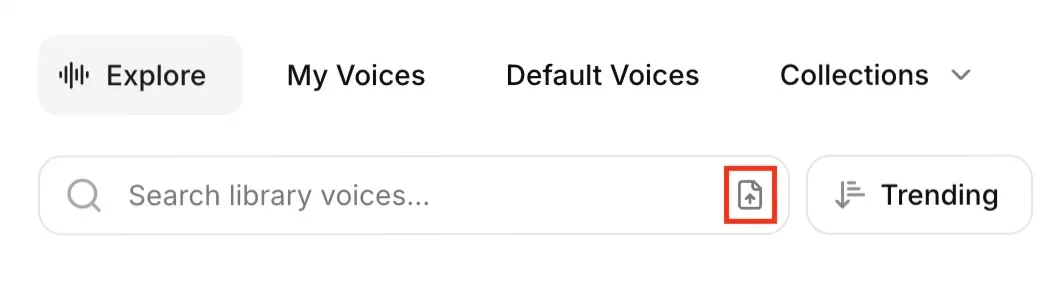
Use the search bar to find voices by name, keyword, or voice ID. You can also search by uploading or dragging and dropping an audio file. This will help you find the original voice, if available, along with similar voices.
Sort options
You can sort voices by:
- Trending: voices ranked by popularity
- Latest: newly added voices
- Most users
- Character usage
Filters
Use filters to refine your search:
Language
Language
The language filter returns voices that have been trained on a specific language. While all voices can be used with any supported language, voices tagged with a specific language will perform best in that language. Some voices have been assessed as performing well in multiple languages, and these voices will also be returned when you search for a specific language.
Accent
Accent
When you select a language, the Accent filter will also become available, allowing you to filter for specific accents.
Category
Category
Filter voices by their suggested use case:
- Conversational
- Narration
- Characters
- Social Media
- Educational
- Advertisement
- Entertainment
Gender
Gender
- Male
- Female
- Neutral
Age
Age
- Young
- Middle Aged
- Old
Notice period
Notice period
Some voices have a notice period. This is how long you’ll continue to have access to the voice if the voice owner decides to remove it from the Voice Library. If the voice’s owner stops sharing their voice, you’ll receive advance notice through email and in-app notifications. These notifications specify when the voice will become unavailable and recommend similar voices from the Voice Library. If the owner of a voice without a notice period decides to stop sharing their voice, you’ll lose access to the voice immediately.
This filter allows you to only return voices that have a notice period, and search for voices with a specific notice period. The maximum notice period is 2 years.
Live Moderation enabled
Live Moderation enabled
Some voices have Live Moderation enabled. This is indicated with a label with a shield icon. When you generate using a voice with Live Moderation enabled, we use tools to check whether the text being generated belongs to a number of prohibited categories. This may introduce extra latency when using the voice.
This filter allows you to exclude voices that have Live Moderation enabled.
Quality
Quality
Filter voices by their quality level:
- Any: All voices regardless of quality assessment
- Studio Quality: Voices that have been recorded with proper equipment, mixed well, and tested to be free from most audio problems such as reverb/echo, distortion, or other artifacts. These voices exhibit an overall professional-sounding tone and are reviewed by our QA testers.
Using voices from the Voice Library
You can use voices from the Voice Library directly without saving them to My Voices. When you use a voice, the notice period will be saved for your account, allowing you to continue using voices you’ve used previously during an active notice period, even if you haven’t saved them to My Voices.
Save to My Voices (optional)
While not required, you can save voices to My Voices for easy access or to use at a later date. To do this, click the + button.
Voices saved from the Voice Library do not use custom voice slots. Custom voice slots are only used for voices you create with Voice Design or Voice Cloning.
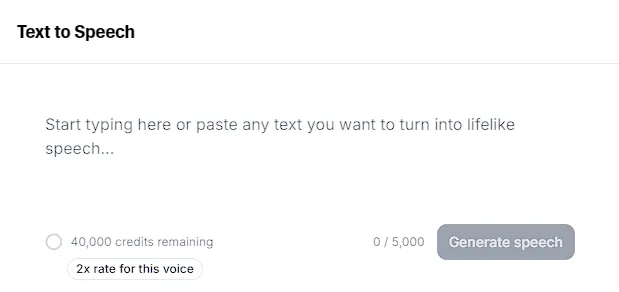
Voices you’ve added to My Voices will become available for selection in all voice selection menus. You can also use a voice directly from My Voices by clicking the T button, which will open Text to Speech with the voice selected.
My Voices
You can find all the voices you’ve created yourself, as well as voices you’ve saved from the Voice Library, in My Voices.
You will see the following information about each voice:
- the language it was trained on.
- the category, for example, “Narration”.
- how long the notice period is, if the voice has one.
The voice type is indicated by an icon:
- Yellow tick: Professional Voice Clone.
- Black tick: Studio Quality Professional Voice Clone.
- Lightning icon: Instant Voice Clone.
- No icon: voice created with Voice Design.
More actions
Click More actions (three dots) to:
- Copy voice ID: copies the voice ID to your clipboard.
- Edit voice: allows you to change the name and description of the voice. These changes are only visible to you.
- Share voice: generates a link which you can share with others. When they use the link, the voice will be added to My Voices for their account.
- View history: view your previous Text to Speech generations using this voice.
- Delete voice: deleting voices is permanent and you will be asked to confirm the deletion.
Collections
To help organize voices you’ve saved, you can create your own collections and add voices to them.
To create a new collection go to My voices, click Collections and select Create collection. Give your new collection a name, and choose from the available icons.
To add individual voices to a collection, click More actions (three dots) and select Add to collection. You can choose to add the voice to an existing collection, or create a new one.
Select multiple voices
You can Shift + Click to select multiple voices at once.
Drag and drop voices
Both individual voices and multiple voice selections can also be dragged Collections and added to an existing collection, or deleted by dragging to the trash can icon.
Sharing with the Voice Library
Only Professional Voice Clones can be published to the Voice Library.
In My Voices, find your voice and click More actions (three dots), then select Publish to Library. You’ll also see this option highlighted for your Professional Voice Clones at the top of My Voices.
Before proceeding, you can set a notice period and enable Live Moderation. See the Voice Library Addendum to our Terms of Service for details, as well as:
Enter a name and description for your voice. Make sure the name follows our naming guidelines:
Naming guidelines
Naming guidelines
-
The naming pattern should be a name followed by key voice traits or a voice persona, separated by a hyphen (-).
-
The name must be 40 characters or fewer.
-
Your name should NOT include the following:
- Names of public individuals or entities (company names, band names, influencers or famous people, etc).
- Social handles (Twitter, Instagram, you name it, etc).
- ALL CAPS WORDS.
- Emojis and any other non-letter characters.
- Explicit or harmful words.
- The word “voice”.
-
Some examples of names following our guidelines:
- Serena - Calm, Friendly, Warm
- Olivia - Upbeat podcast host
- Jasper - Deep, Encouraging, Serious
- Maya - Terror narrator
- Nelson - Scary villain
- Harmony - High-energy, High-pitch
Description guidelines
Description guidelines
-
The description helps users decide if your voice is right for their project. Be specific about the use cases your voice is best suited for.
-
Include as much detail as possible about your voice’s key attributes — tone, style, emotion, pacing, and any unique qualities that set it apart.
-
Do not list unrelated use cases to increase visibility. Voices with misleading or spammy descriptions will not be approved.
-
Example of a good description:
Serena offers a warm, meditative tone with a naturally slow and steady pace. Her voice carries a “smile” that feels both friendly and reassuring, making her perfect for content where the listener needs to feel safe or relaxed.
Best use cases: Meditation apps, sleep stories, wellness tutorials, and empathetic customer service IVR systems.
Key qualities: Soft-spoken, breathy, and consistently calm.
Set labels (language, accent, gender, age, use case, tone, and style) to help others find your voice.
Review and accept the Voice Library Addendum to our Terms of Service and provide the required consents and confirmations. Do this carefully and make sure you understand the service before sharing. If you have questions, contact legal@elevenlabs.io.
After submission, your voice will be reviewed by our team. If minor adjustments are needed, we may make these for you. Your request may be declined if it doesn’t meet our guidelines, and repeated uploads that consistently violate our guidelines may lead to restrictions on uploading and sharing voices.
We currently do not have an estimate for the review time, as it depends on the queue.
Adding a custom voice preview
You can add a custom voice preview during the sharing process, or afterwards.
In My Voices, find your voice, click More actions (three dots), then select Edit in Library. Click Manage your voice. In the Custom voice preview section, select an eligible generation from the drop-down selector. Any generations you’ve made of 70–150 characters will be available. For more details, see How do I add a custom preview for my shared voice?.
Excluding free-tier users
You can prevent free-tier users from adding your shared voice to their account.
In My Voices, find your voice, click More actions (three dots), then select Edit in Library. Click Manage your voice. Enable the Exclude free users option.
Once enabled, free-tier users will not be able to add your voice to their account. Users who have already added your voice are unaffected — the restriction applies only to new additions.
Keep in mind that limiting access to free-tier users will likely reduce your voice’s overall usage, which may in turn lower its visibility on trending lists in the Voice Library.
Sharing your voice privately
You can share a voice with members of your workspace. Professional Voice Clones can also be shared externally with anyone who has the link. Instant Voice Clones and voices created with Voice Design can only be shared within your workspace.
In My Voices, find your voice and click More actions (three dots), then select Share Voice.
To share your voice with other members of your workspace, add them in the Add users or groups field.
To share externally, use the toggle to enable access for Anyone with the link. A sharing link will be generated, which you can give to other ElevenLabs users to add your voice to their account.
Anyone with the link will be able to add your voice to their account. If you would like to restrict usage to named users, you can add them to your workspace and share with them there.
FAQ
|
|
|
|
|
|
|
|