
Templates
Ready-made creative workflows powered by ElevenCreative Flows

Ready-made creative workflows powered by ElevenCreative Flows
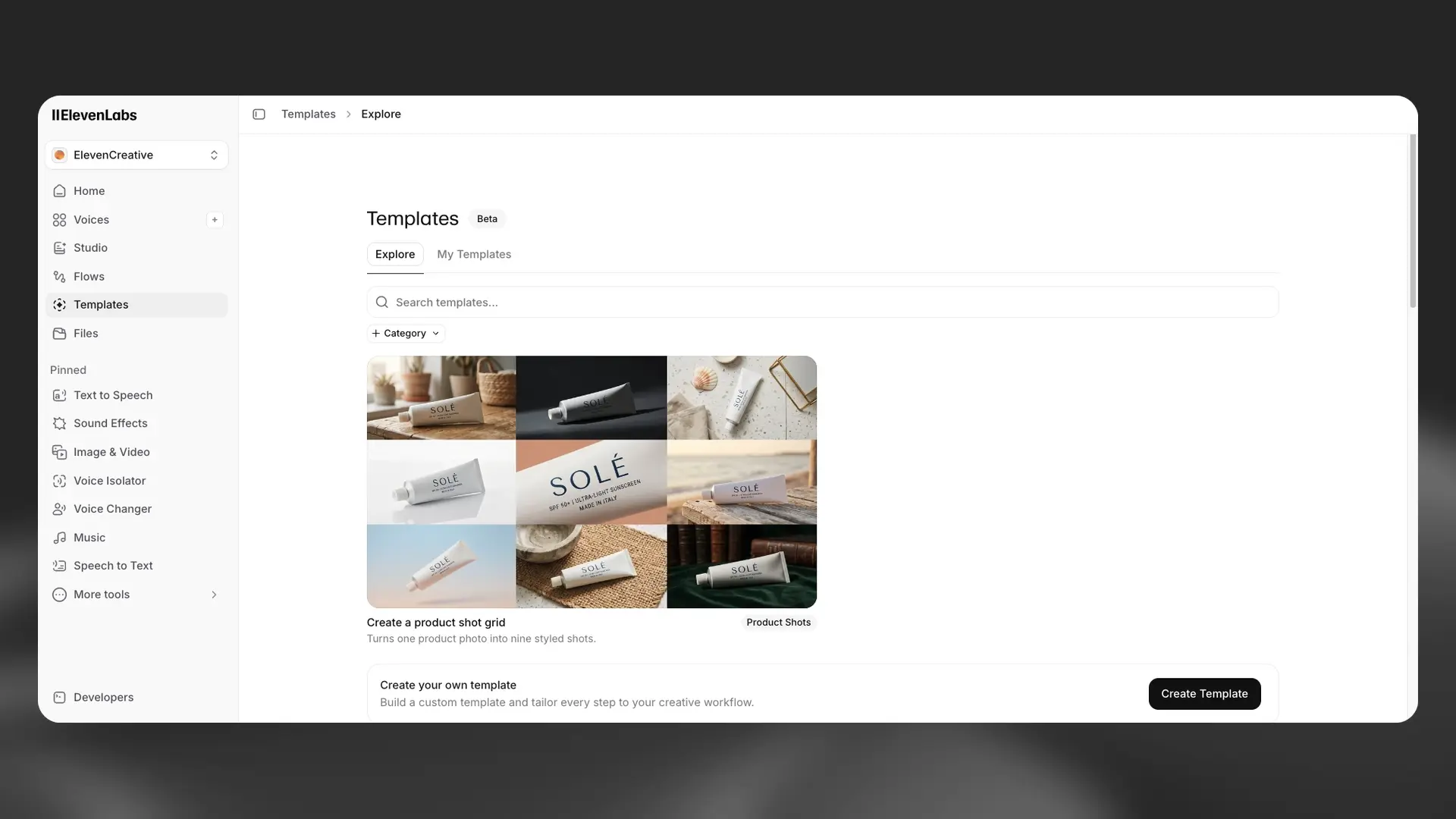
Templates are ready-made creative workflows inside ElevenCreative. Each template chains together image, video, voice, music, and sound effect models into a single pipeline. You provide the inputs and the template handles the rest.
Templates are built on ElevenCreative Flows, our node-based visual workspace combining image, video, voice, music, and sound effects. Anyone can create a template by building a flow, defining its inputs and outputs, and publishing it. You can keep your templates private for personal use or share them with the community for others to browse and run.
Templates are available for all plans, including free, but video generation is only available on paid subscriptions.
Navigate to the Explore tab to view available templates. Each template shows what inputs it requires and what outputs it produces.
Provide the required inputs based on what the template needs. Templates can accept images, video files, audio files, and text fields.
Any content generated by templates is available in the specific product history (e.g., Music, Image & Video) so you can continue iterating outside of Templates.
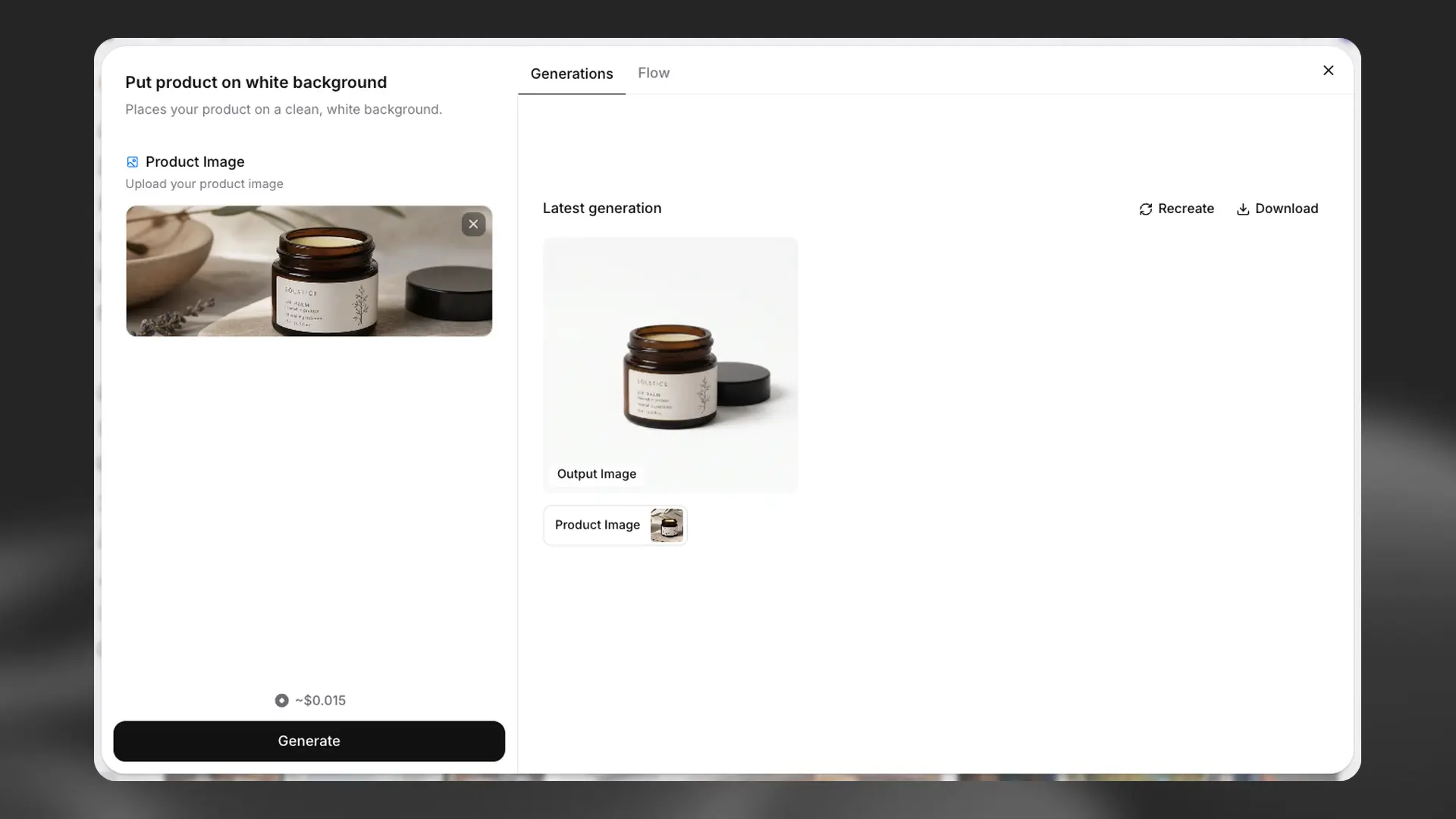
Templates are curated pipelines built on the same multi-model infrastructure as ElevenCreative Flows. Each template defines its inputs (images, video, text, audio) and outputs (generated assets), so you know exactly what to provide and what you get back.
When you run a template, it executes a pre-built flow that chains together the necessary models and processing steps. The template handles all configuration and file transfers between steps automatically.
Templates support:
The template gallery spans product photography, mockups, video editing, style transfers, and more. Browse the full gallery to discover templates for your use case.
Transform product images with professional lighting, backgrounds, and composition.
Place designs onto device screens, packaging, or physical products.
Apply effects, transitions, and enhancements to video content.
Apply artistic styles from reference images to your content.
You can create your own templates in two ways:
When creating a template, you can choose from various sharing options:
When saving your template, choose who can access it:
Each template is built using ElevenCreative Flows. The optimal models, settings, and connections between steps are all preselected and preconfigured for you.
Upload your image, video, or text, run the template, and get the output. Templates require no specialized configuration or manual model selection. Prompt engineering is built into each template to optimize results.
Templates can accept multiple files, text fields, and selections. They can also return multiple generated assets depending on their design.
Templates work the same way on web and the ElevenLabs mobile app. Browse the gallery and run templates from any device.
Templates consume credits from your existing plan at the same rate as running the same models manually. There is no additional markup for using Templates.
Credit cost depends on the models used in the template. You can preview the estimated cost before running.
Credit usage is calculated based on:
Templates are pre-built creative workflows that let you combine ElevenLabs’ image, video, voice, music, and sound effect models into a single automated pipeline. Select a template, provide your inputs, and get polished outputs, with no manual configuration required.
Browse the template gallery, select one, upload the required inputs, and run. The template processes your inputs and delivers the finished outputs directly in your workspace.
Yes. Build a workflow in ElevenCreative Flows, define its inputs and outputs, and publish it as a template. You can keep your templates private for personal use or share them with the community for others to browse and run.
Templates can accept images, video files, audio files, and free text depending on the specific template. Each template lists exactly what it needs before you run it.
No. Templates consume credits from your existing plan. Credit cost depends on the models used in the template. You can preview the estimated cost before running.
Yes. Templates are available on web and the ElevenLabs mobile app with the same gallery and run experience.
Templates are built on ElevenCreative Flows. A template is a flow with defined inputs and outputs, packaged so you can run it without seeing or editing the underlying node graph. Anyone can turn a flow into a template.