> This is a page from the ElevenLabs documentation. For a complete page index, fetch https://elevenlabs.io/docs/llms.txt. For the full documentation in a single file, fetch https://elevenlabs.io/docs/llms-full.txt.

# 在 Wix 中使用 Audio Native

> **Info**
>
> 继续阅读本指南前，请先按照 [Audio Native 概览](/docs/zh/eleven-creative/audio-tools/audio-native)中的步骤开始使用 Audio Native。

#### 向博客文章添加 HTML

前往 Wix 网站，登录后打开要添加旁白页面的设置页面。

#### 向博客文章添加嵌入代码

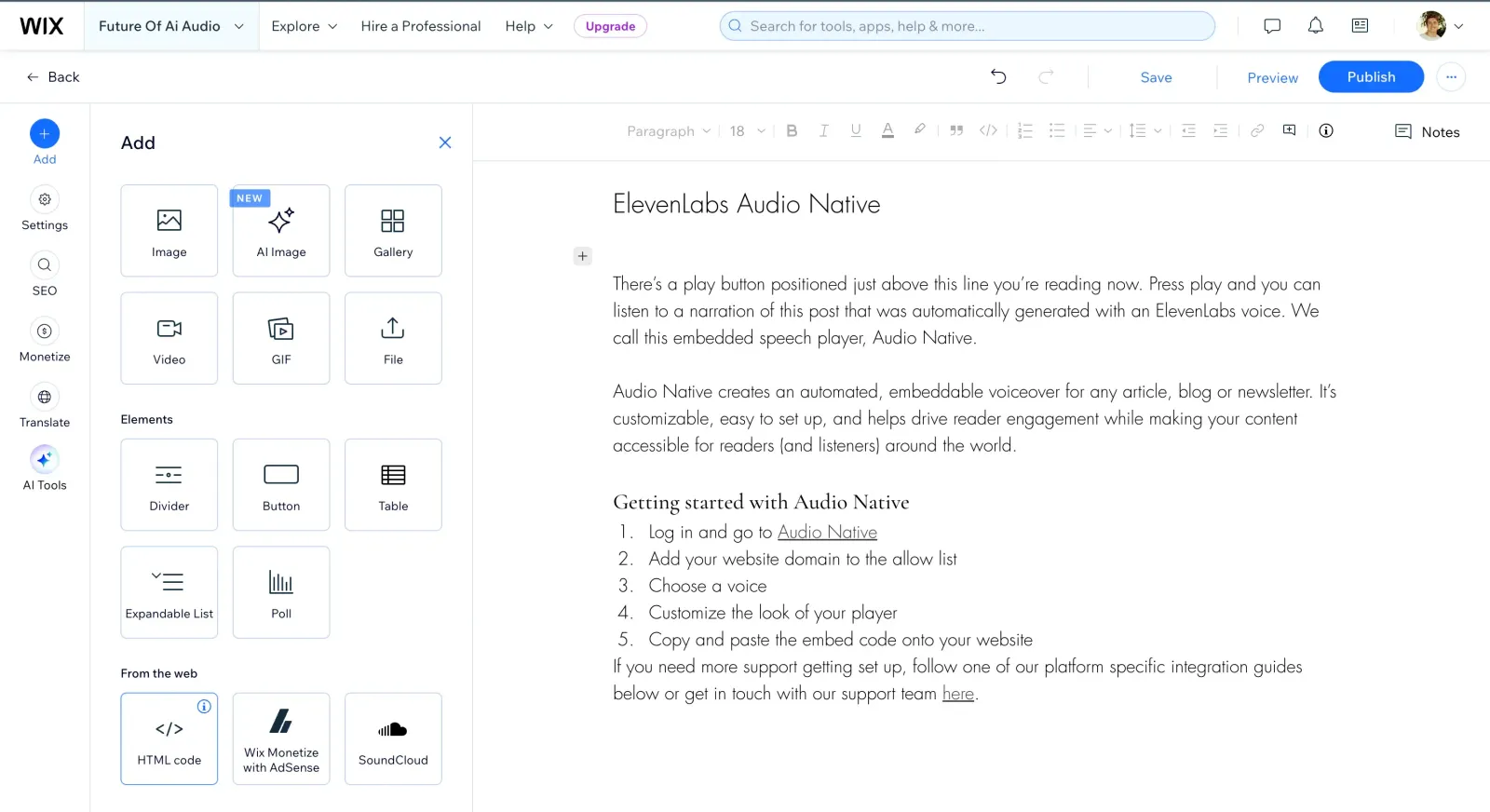
点击内容顶部的“+”图标，然后从菜单中选择“HTML Code”。

![Audio Native](/docs/_fern-img/5f9626bac119a2647568eac68a7f47877c5590a0f9d40bb77d7d34288d82852c.webp)

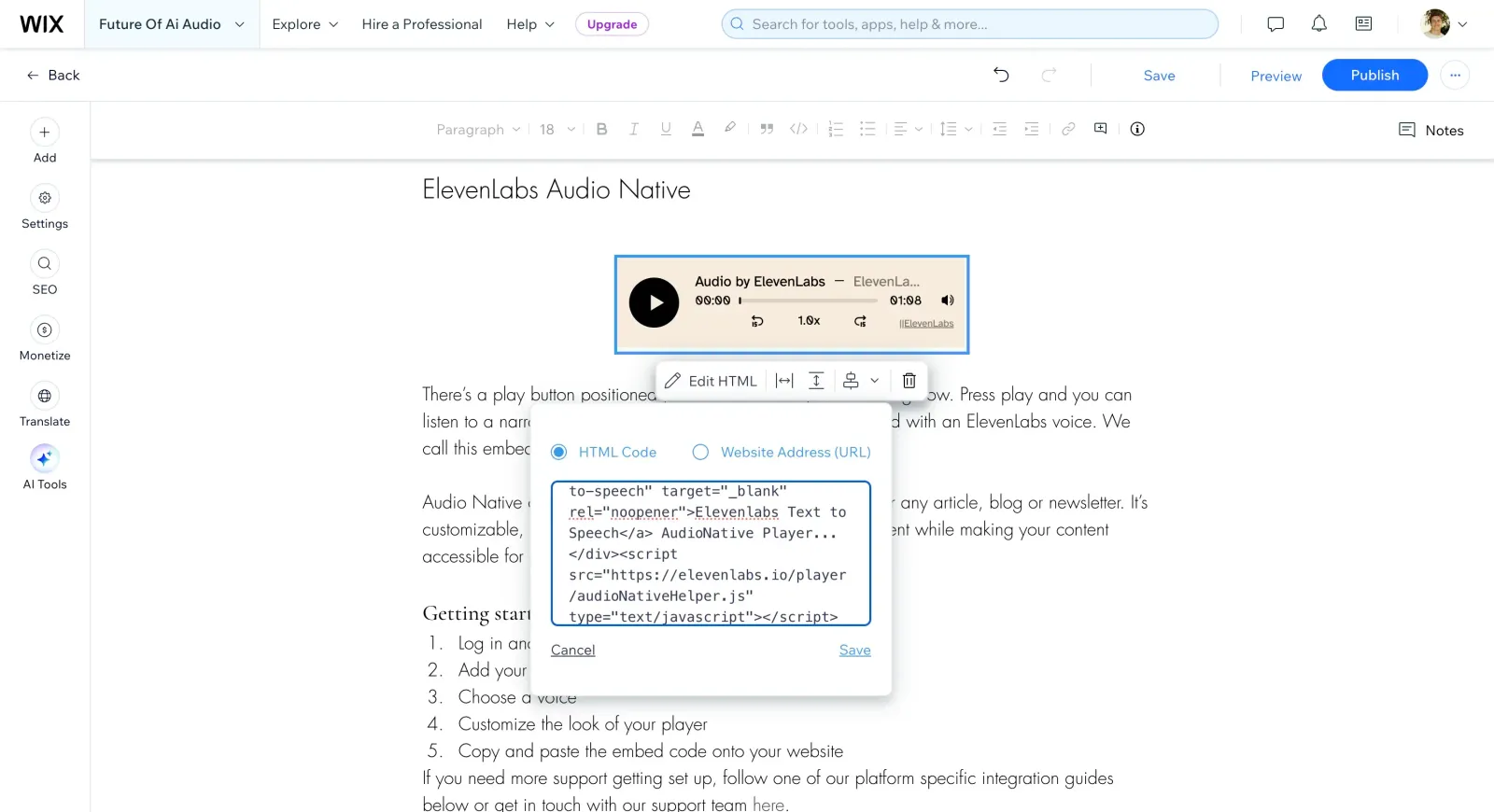
将 Audio Native 嵌入代码粘贴到 HTML 框中，然后点击“Save”。

**`嵌入代码片段`**

```html title="嵌入代码片段"
    <div
        id="elevenlabs-audionative-widget"
        data-height="90"
        data-width="100%"
        data-frameborder="no"
        data-scrolling="no"
        data-publicuserid="public-user-id"
        data-playerurl="https://elevenlabs.io/player/index.html"
        data-projectid="project-id"
    >
        Loading the <a href="https://elevenlabs.io/text-to-speech" target="_blank" rel="noopener">Elevenlabs Text to Speech</a> AudioNative Player...
    </div>
    <script src="https://elevenlabs.io/player/audioNativeHelper.js" type="text/javascript"></script>
```

![Audio Native](/docs/_fern-img/719f1f2d8f01aa94ea6550fc62666ec4c4dac024e3f26a8eed925de0f8c54e3d.webp)

#### 发布页面

点击编辑器右上角的“Publish”按钮。

#### 前往博客文章的线上版本

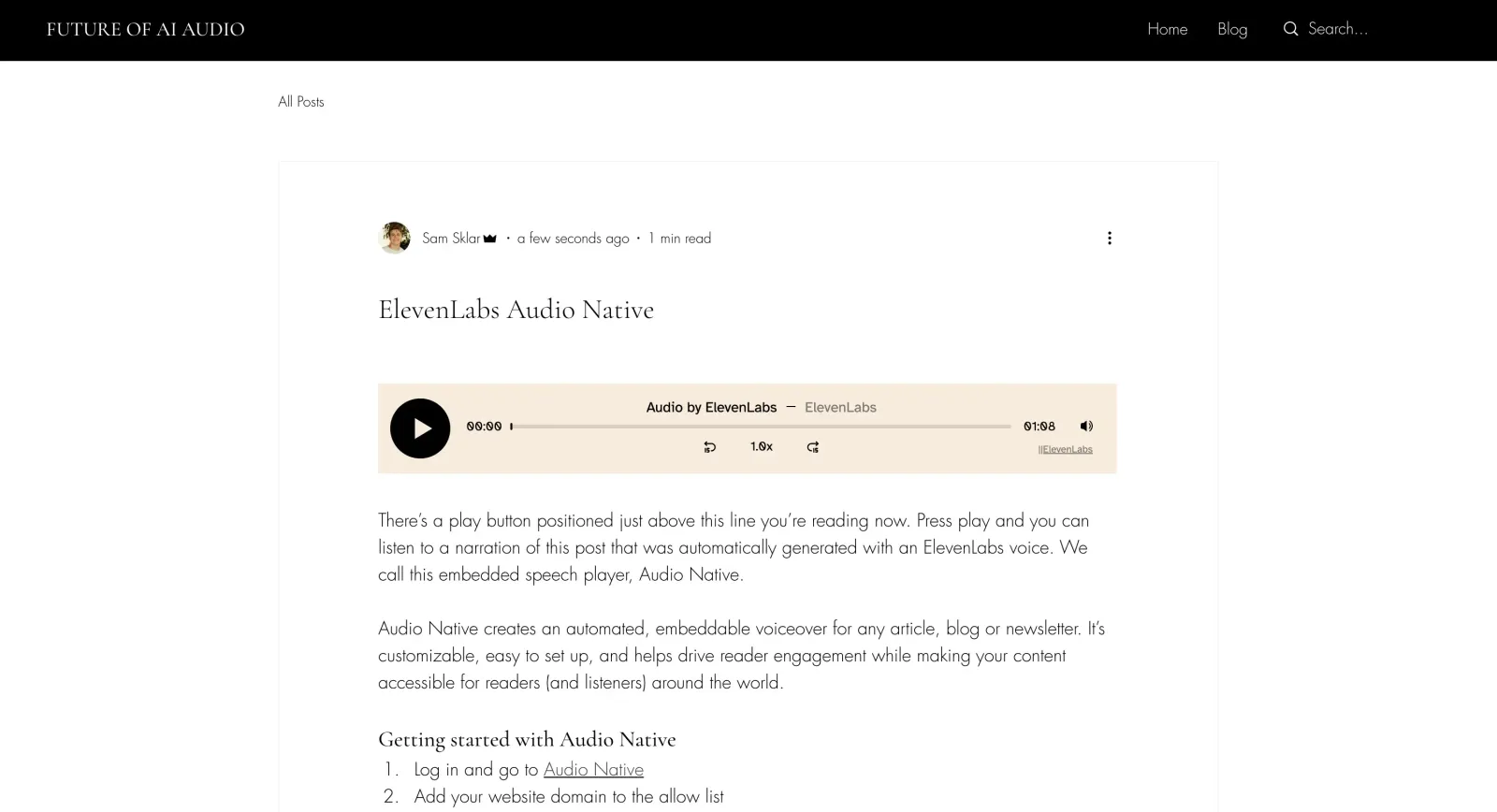
最后，前往博客文章的线上版本。你会看到一条提示，告知 Audio Native 项目正在创建。几分钟后，博客文本将转换为音频文章，嵌入式音频播放器也会显示出来。

![Audio Native](/docs/_fern-img/4bf9e321cac2007f1cf570410dc2e6a610fe209acad0c0caca4a049484e7ff22.webp)