> This is a page from the ElevenLabs documentation. For a complete page index, fetch https://elevenlabs.io/docs/llms.txt. For the full documentation in a single file, fetch https://elevenlabs.io/docs/llms-full.txt.
# Okta SAML SSO
Okta SAML SSO lets workspace members sign in to ElevenLabs through an Okta SAML 2.0 app integration.
SSO is available for Enterprise workspaces. Only Workspace admins can configure SSO settings.
ElevenLabs supports Service Provider (SP) initiated SAML SSO. To start sign-in, use
`https://elevenlabs.io/app/sign-in?use_sso=true`. You can add `email=user@example.com` as a query
parameter to prefill the email field.
## Prerequisites
* An Enterprise ElevenLabs workspace.
* Workspace admin access in ElevenLabs.
* Admin access in Okta.
* A verified email domain in ElevenLabs for the users who will sign in through Okta.
## Set up Okta SAML SSO
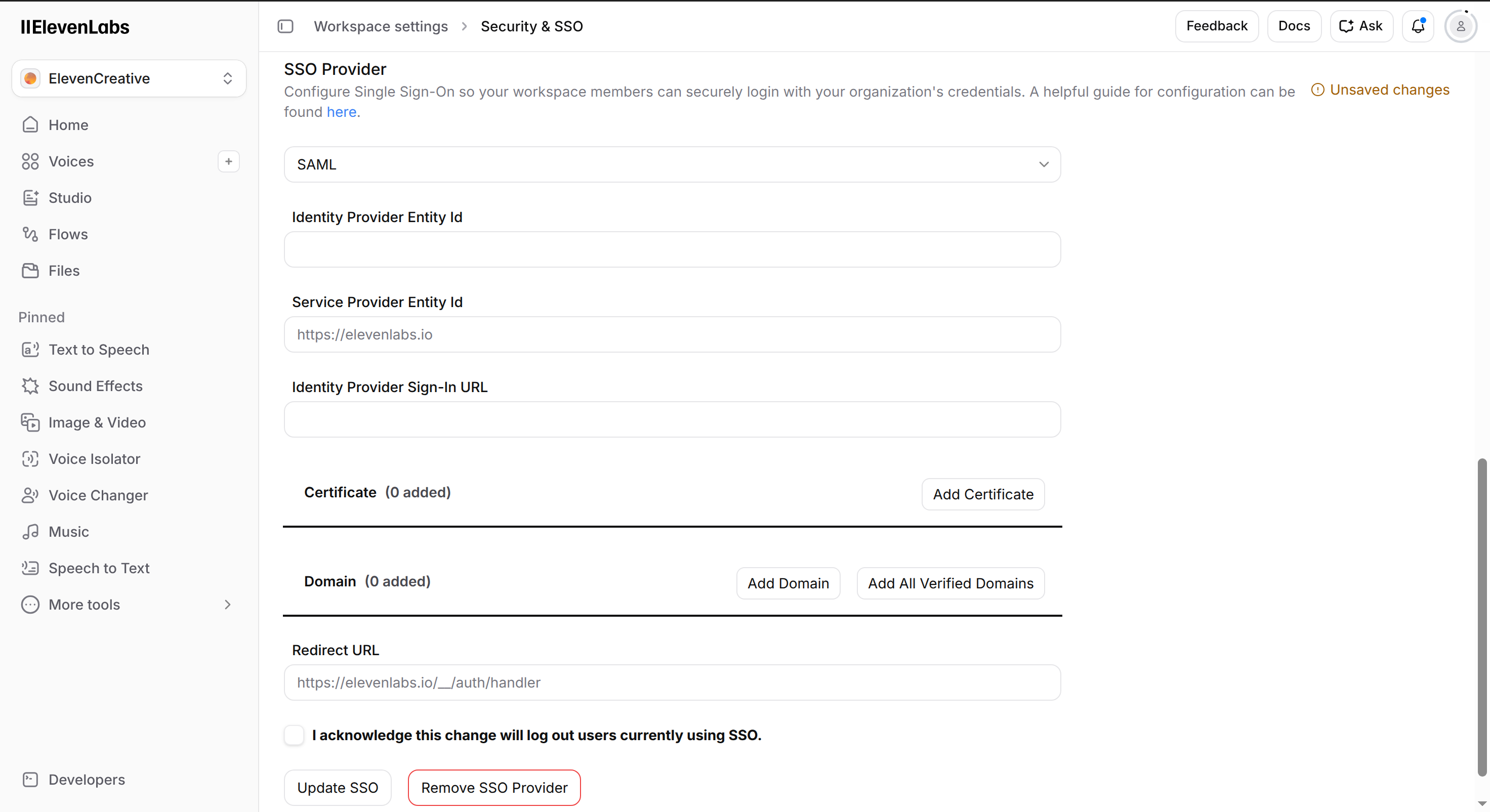
Go to **Workspace settings** > **Security & SSO**.
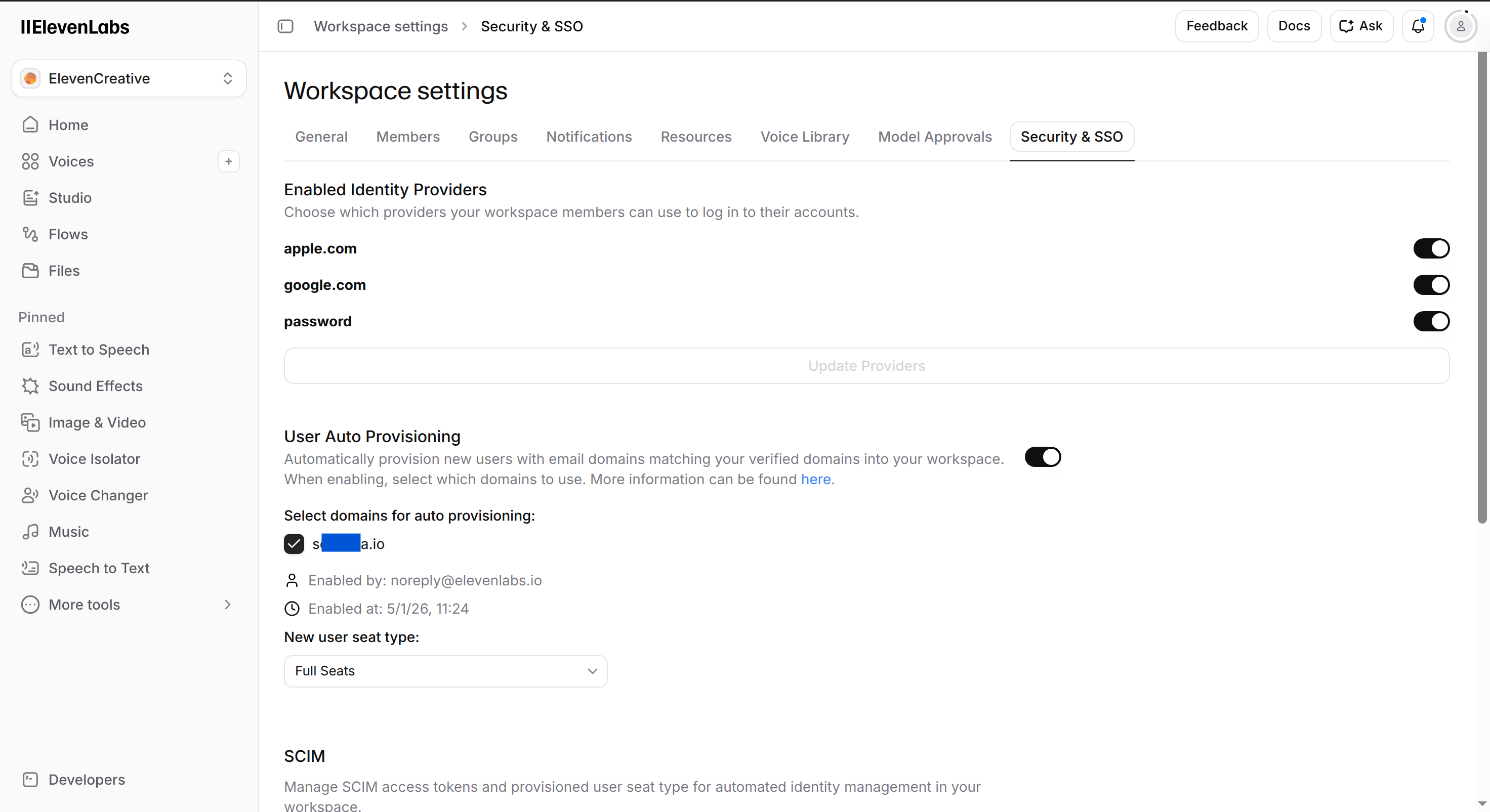 In **SSO Provider**, select **SAML**. Copy the **Service Provider Entity Id** and **Redirect
URL** values. You will use these values in Okta.
In **SSO Provider**, select **SAML**. Copy the **Service Provider Entity Id** and **Redirect
URL** values. You will use these values in Okta.
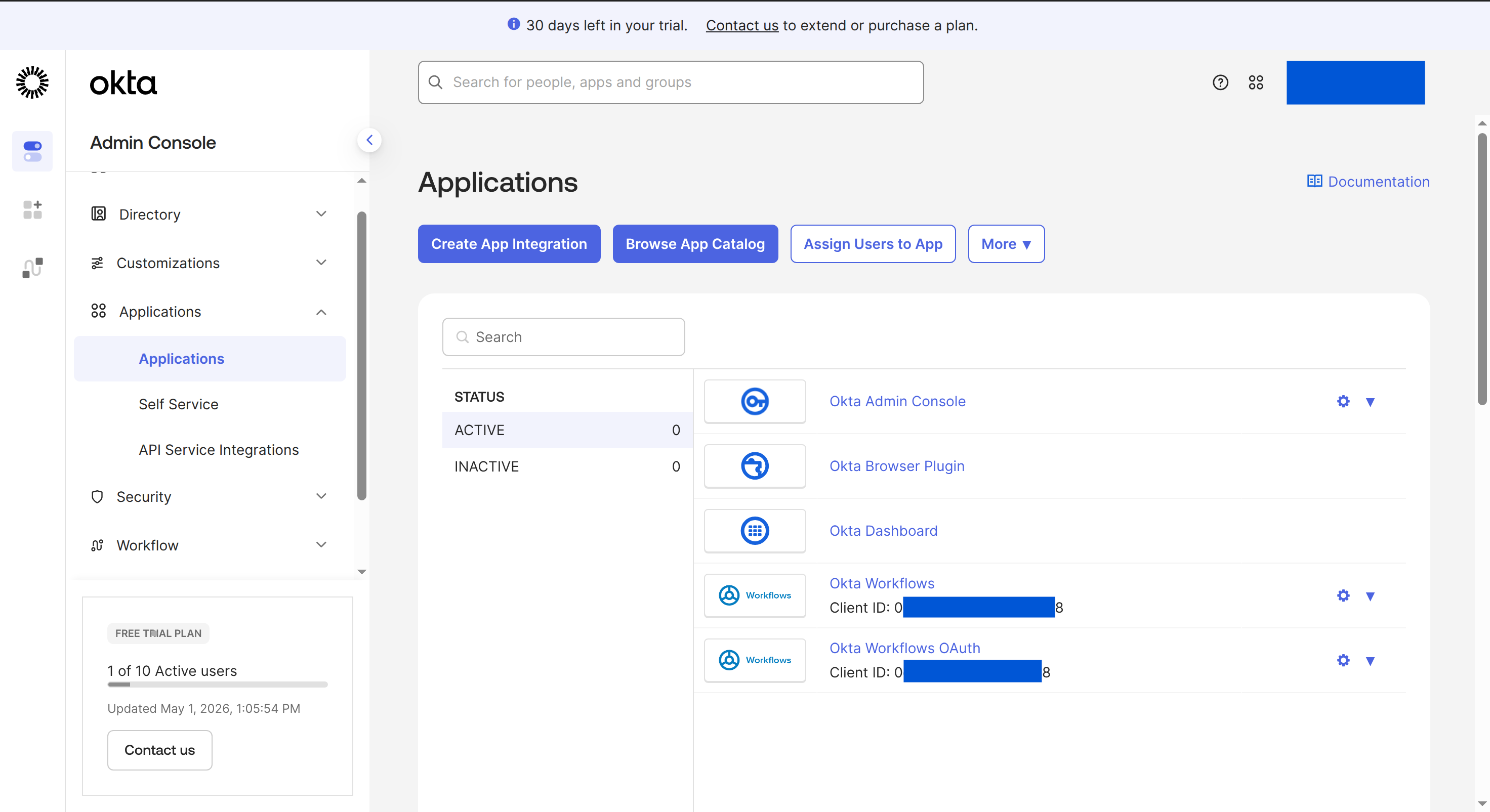
 In the Okta Admin Console, go to **Applications** > **Applications**, then click **Create App
Integration**.
In the Okta Admin Console, go to **Applications** > **Applications**, then click **Create App
Integration**.
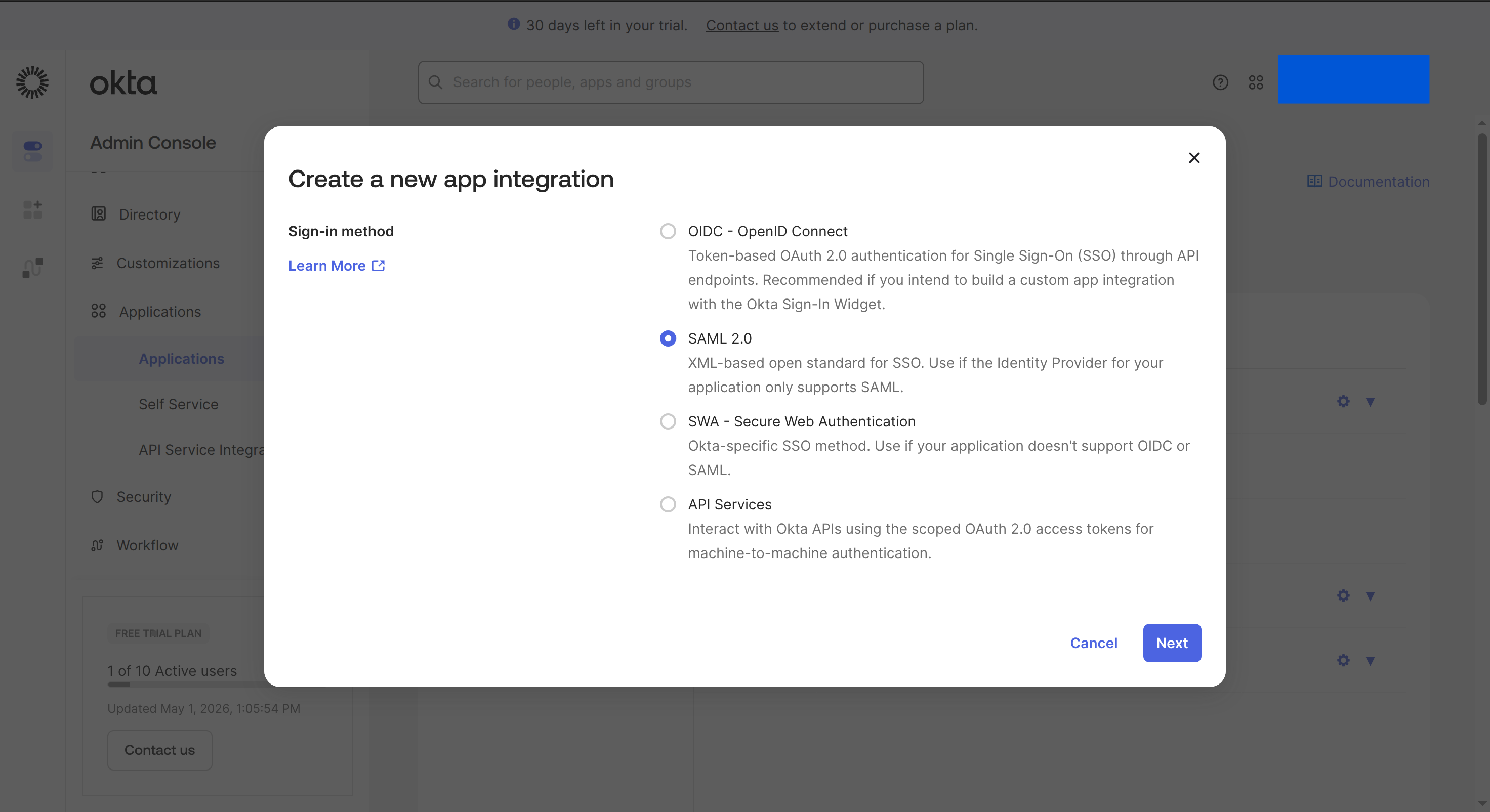
 Select **SAML 2.0**, then click **Next**.
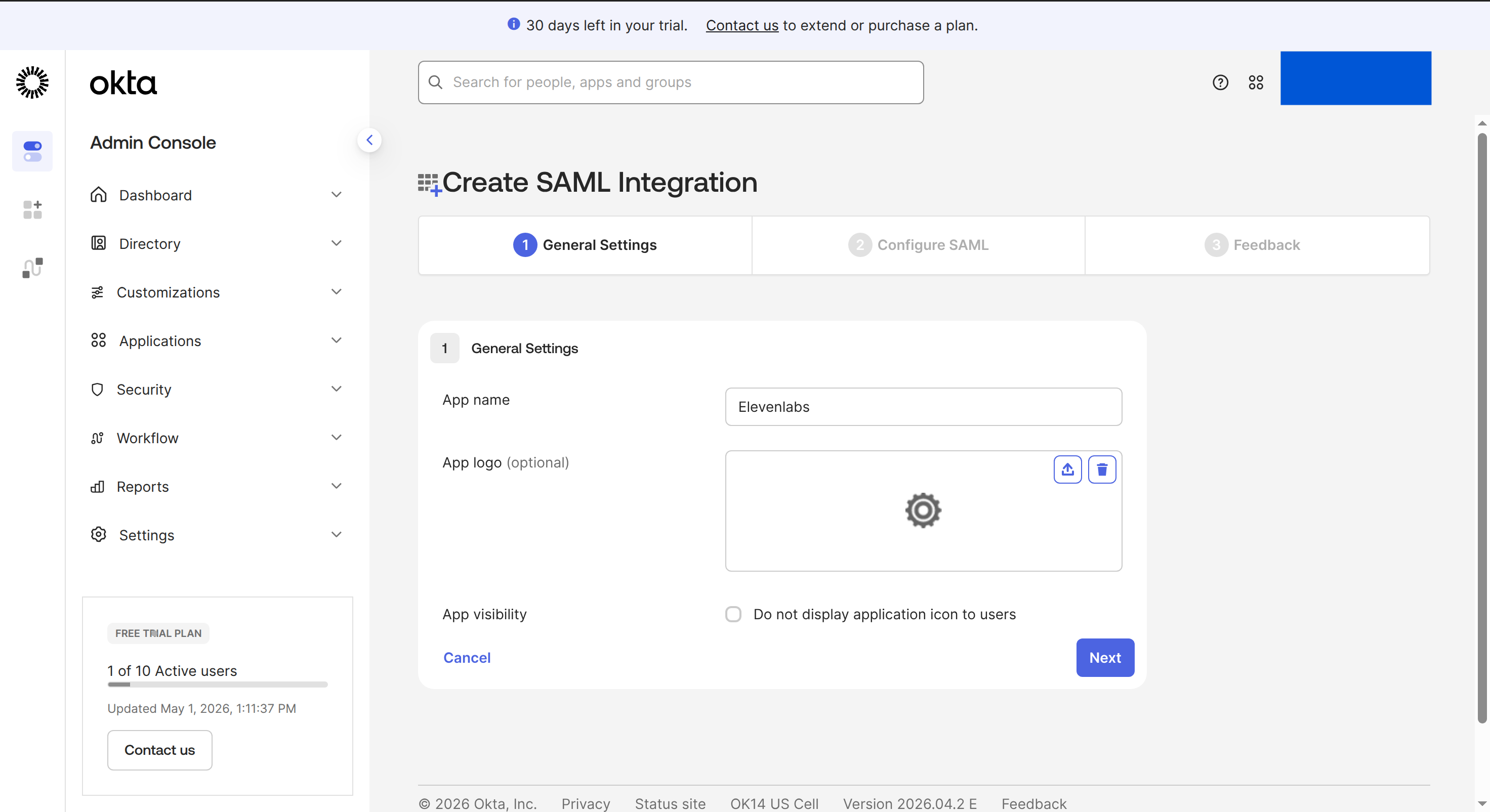
 In **General Settings**, set **App name** to `ElevenLabs`, then click **Next**.
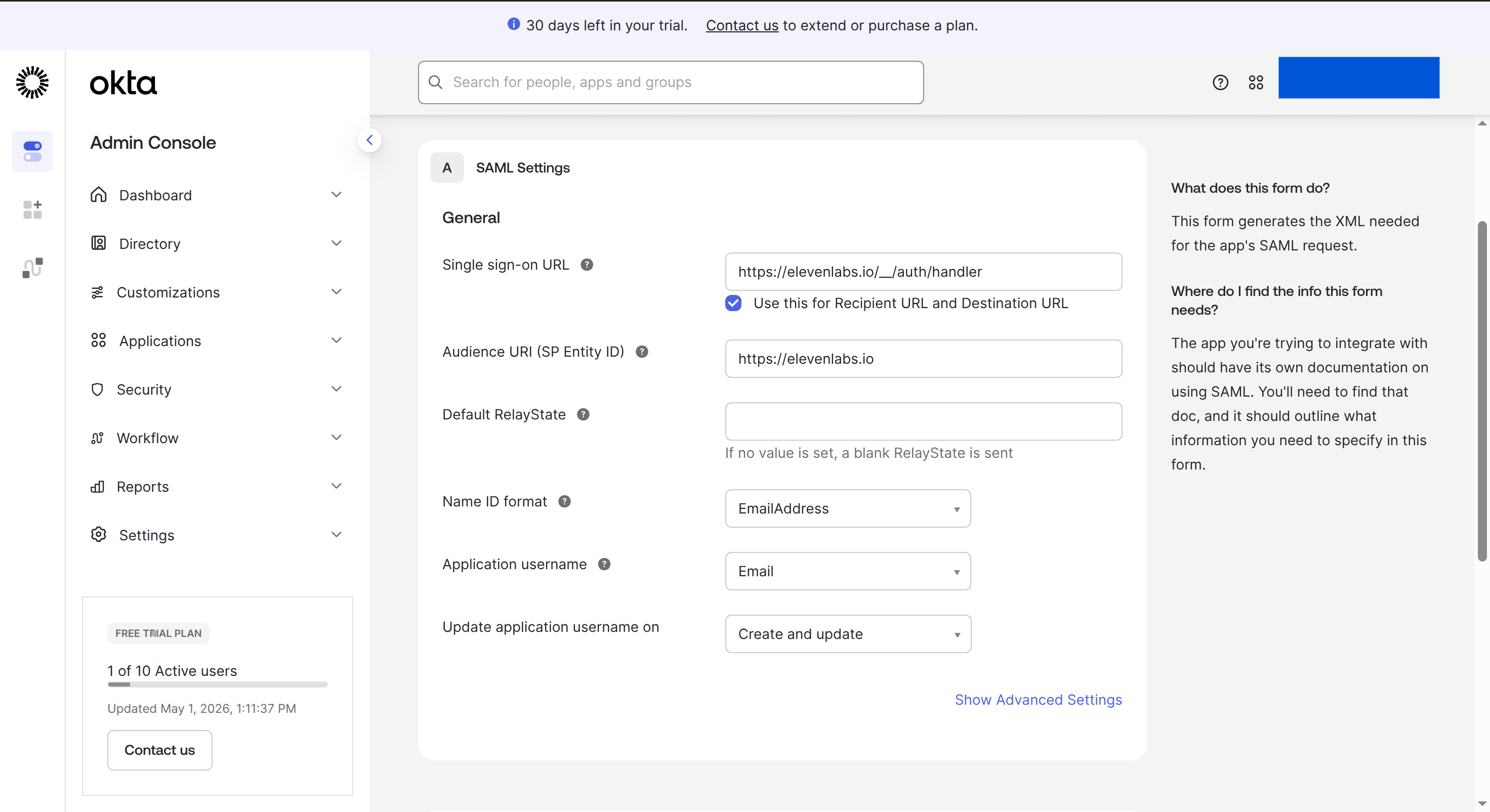
 In **SAML Settings**, configure the app with the values from ElevenLabs:
* Set **Single sign-on URL** to the ElevenLabs **Redirect URL**.
* Select **Use this for Recipient URL and Destination URL**.
* Set **Audience URI (SP Entity ID)** to the ElevenLabs **Service Provider Entity Id**.
* Set **Name ID format** to **EmailAddress**.
* Set **Application username** to **Email**.
In **SAML Settings**, configure the app with the values from ElevenLabs:
* Set **Single sign-on URL** to the ElevenLabs **Redirect URL**.
* Select **Use this for Recipient URL and Destination URL**.
* Set **Audience URI (SP Entity ID)** to the ElevenLabs **Service Provider Entity Id**.
* Set **Name ID format** to **EmailAddress**.
* Set **Application username** to **Email**.
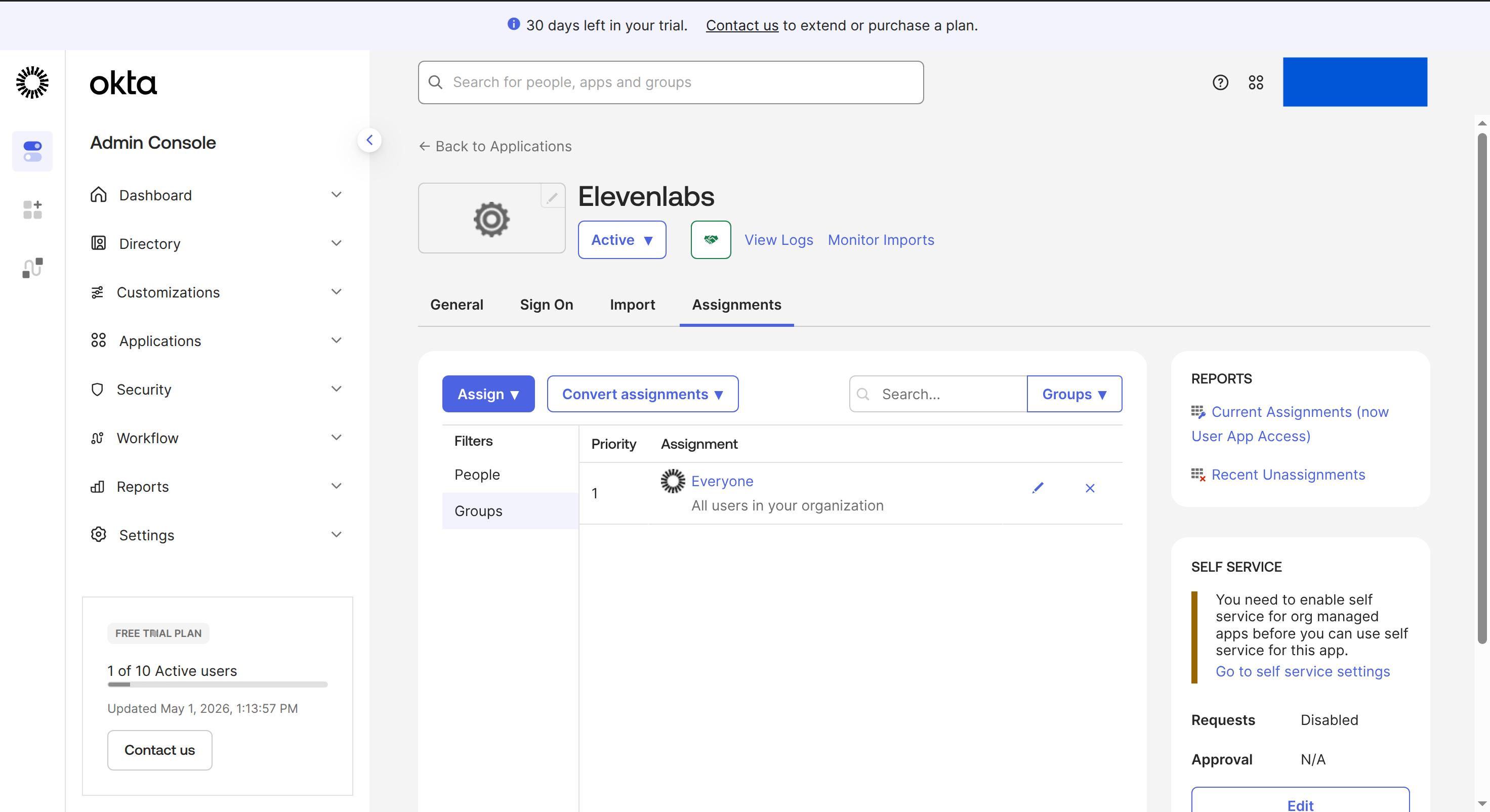
 Open the Okta app's **Assignments** tab and assign the users or groups that should be able to
sign in to ElevenLabs.
Open the Okta app's **Assignments** tab and assign the users or groups that should be able to
sign in to ElevenLabs.
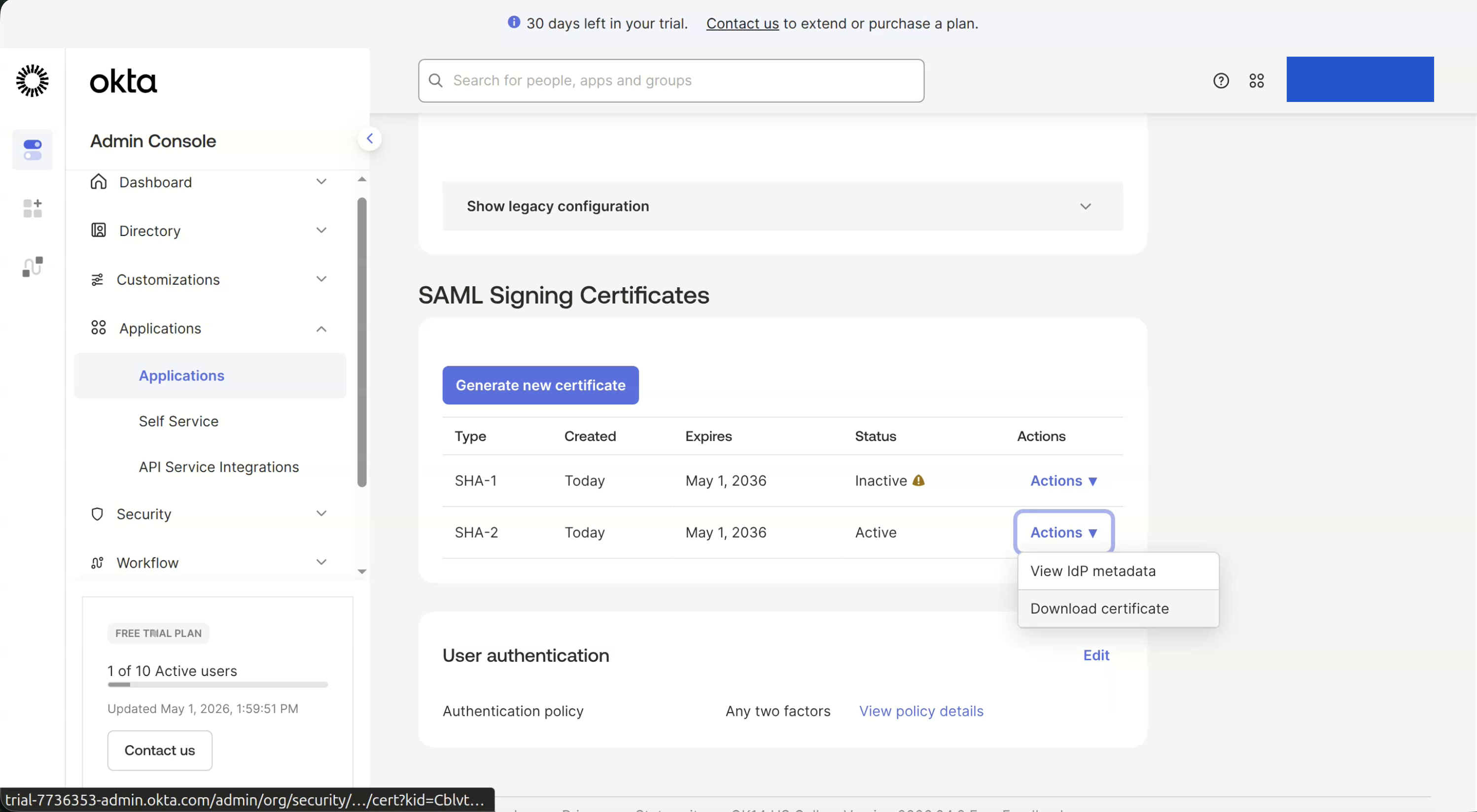
 In Okta, open **SAML Signing Certificates** and use **Actions** > **Download certificate** for
the active certificate.
In Okta, open **SAML Signing Certificates** and use **Actions** > **Download certificate** for
the active certificate.
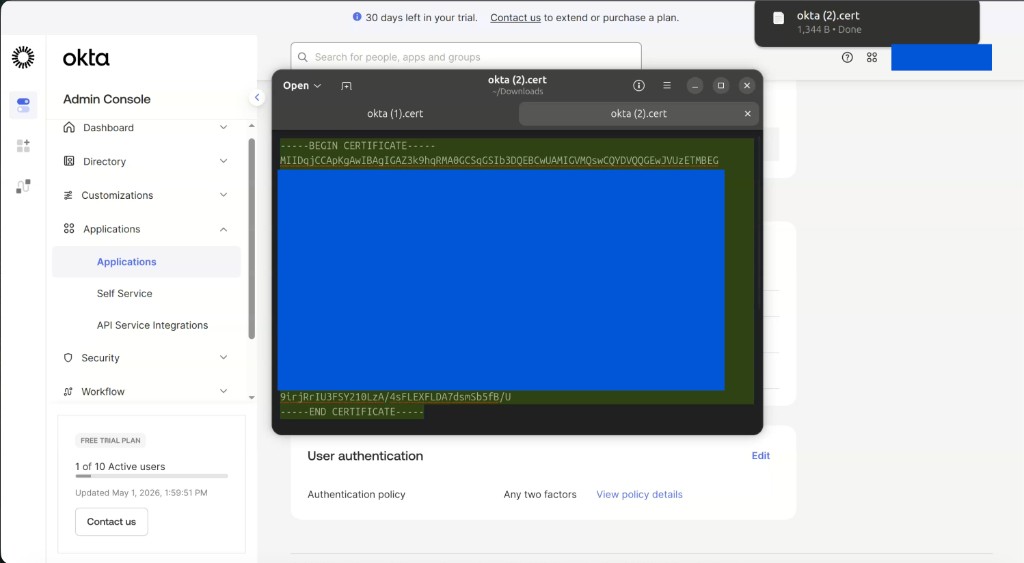
 Open the certificate file and copy the full PEM certificate, including
`-----BEGIN CERTIFICATE-----` and `-----END CERTIFICATE-----`.
Open the certificate file and copy the full PEM certificate, including
`-----BEGIN CERTIFICATE-----` and `-----END CERTIFICATE-----`.
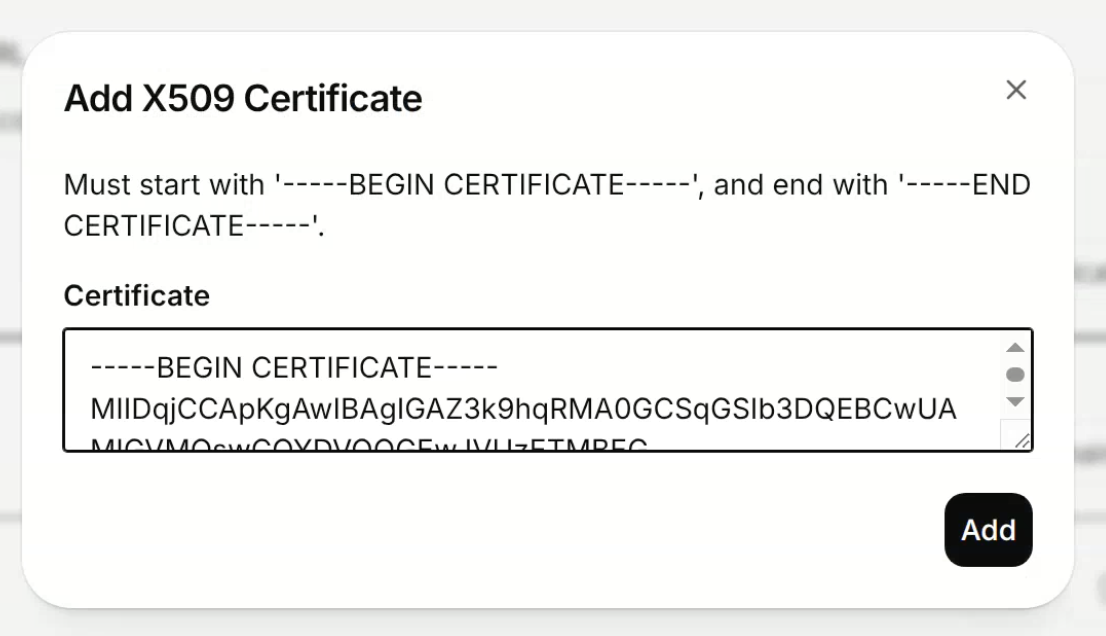
 In ElevenLabs, click **Add Certificate**, paste the Okta certificate, then click **Add**.
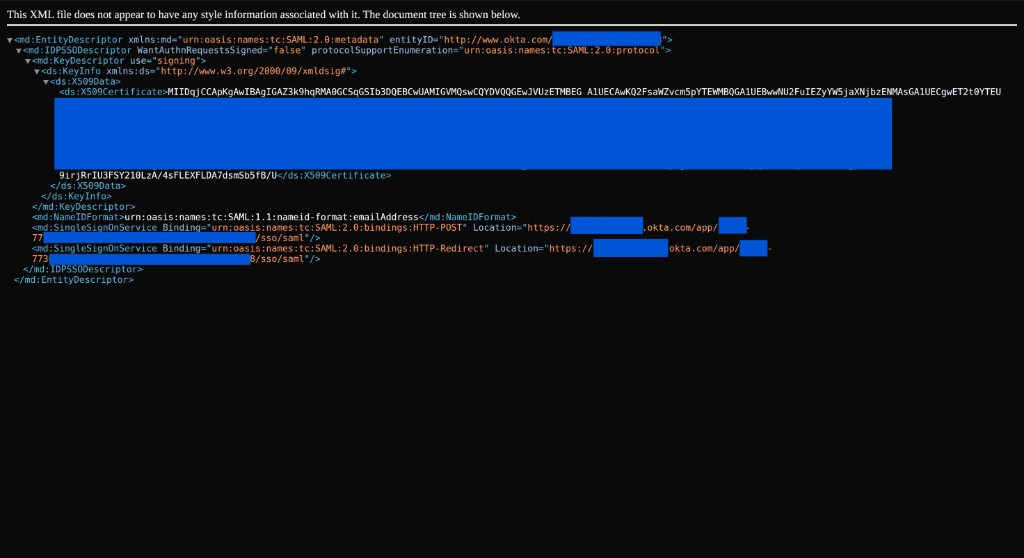
 In Okta, open the IdP metadata XML. Copy the metadata values into ElevenLabs:
* Use `entityID` for **Identity Provider Entity Id**.
* Use the `SingleSignOnService Location` URL that ends in `/sso/saml` for **Identity Provider
Sign-In URL**.
In Okta, open the IdP metadata XML. Copy the metadata values into ElevenLabs:
* Use `entityID` for **Identity Provider Entity Id**.
* Use the `SingleSignOnService Location` URL that ends in `/sso/saml` for **Identity Provider
Sign-In URL**.
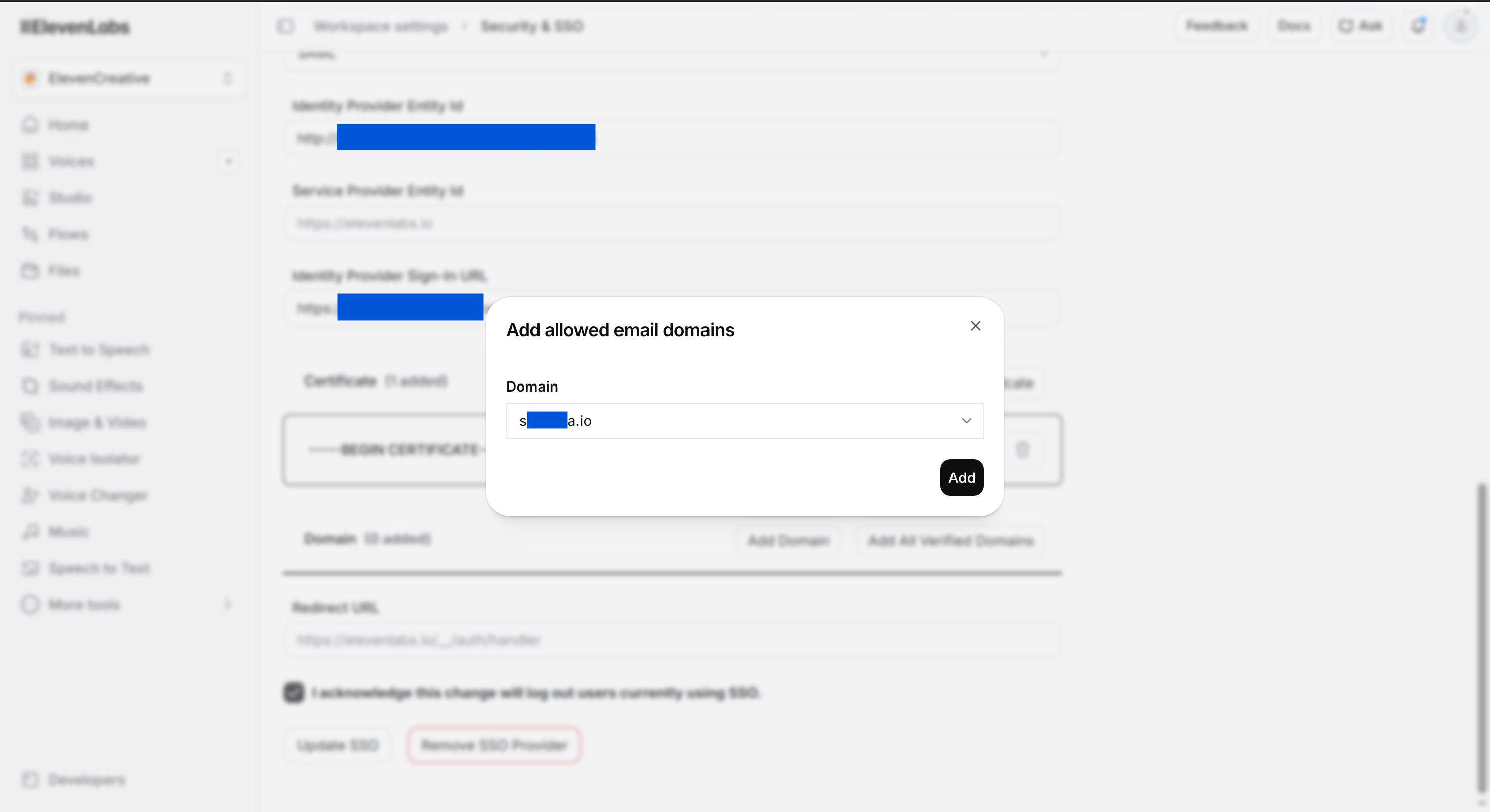
 In ElevenLabs, click **Add Domain** and select the verified domain that matches the email
domain of your Okta users.
In ElevenLabs, click **Add Domain** and select the verified domain that matches the email
domain of your Okta users.
 Review the configuration, select **I acknowledge this change will log out users currently using
SSO**, then click **Update SSO**.
## Field mappings
Use this table to map Okta SAML settings to ElevenLabs SSO fields.
| Okta field or location | ElevenLabs field | Value to use |
| ---------------------------------------------------------- | --------------------------------- | ----------------------------------------------------------------------------- |
| **Sign-in method** | **SSO Provider** | `SAML` |
| **Audience URI (SP Entity ID)** | **Service Provider Entity Id** | Use the ElevenLabs value, for example `https://elevenlabs.io` |
| **Single sign-on URL** | **Redirect URL** | Use the ElevenLabs value, for example `https://elevenlabs.io/__/auth/handler` |
| **Recipient URL** | **Redirect URL** | Same as **Single sign-on URL** |
| **Destination URL** | **Redirect URL** | Same as **Single sign-on URL** |
| **SAML Issuer ID** or metadata `entityID` | **Identity Provider Entity Id** | Okta issuer, for example `http://www.okta.com/exk...` |
| **Sign On URL** or metadata `SingleSignOnService Location` | **Identity Provider Sign-In URL** | Okta SAML URL ending in `/sso/saml` |
| **X.509 Certificate** or metadata `ds:X509Certificate` | **Certificate** | Okta signing certificate in valid PEM format |
| **Application username** | No manual config required | Set to **Email** |
| **Name ID format** | No manual config required | Set to **EmailAddress** |
| User or app email domain in Okta | **Domain** | Must match a verified ElevenLabs domain, for example `company.com` |
## Troubleshooting
Check the browser Network response for `accounts:signInWithIdp`. Okta System Log entries such as
`User single sign on to app SUCCESS` only confirm that Okta authenticated the user. ElevenLabs
can still reject the SAML response if the assertion values do not match the SSO configuration.
The browser Network response may show `INVALID_IDP_RESPONSE: Error when parsing certificate`.
Remove the certificate from ElevenLabs, then re-add the Okta X.509 certificate in valid PEM
format. Do not use an LLM to format the certificate. Copy the certificate exactly, including
`-----BEGIN CERTIFICATE-----` and `-----END CERTIFICATE-----`.
Make sure Okta sends the user's email address as `NameID`. In Okta, set **Name ID format** to
**EmailAddress** and **Application username** to **Email**.
Use metadata `entityID` for **Identity Provider Entity Id**, `SingleSignOnService Location` for
**Identity Provider Sign-In URL**, and `ds:X509Certificate` for **Certificate**.
Review the configuration, select **I acknowledge this change will log out users currently using
SSO**, then click **Update SSO**.
## Field mappings
Use this table to map Okta SAML settings to ElevenLabs SSO fields.
| Okta field or location | ElevenLabs field | Value to use |
| ---------------------------------------------------------- | --------------------------------- | ----------------------------------------------------------------------------- |
| **Sign-in method** | **SSO Provider** | `SAML` |
| **Audience URI (SP Entity ID)** | **Service Provider Entity Id** | Use the ElevenLabs value, for example `https://elevenlabs.io` |
| **Single sign-on URL** | **Redirect URL** | Use the ElevenLabs value, for example `https://elevenlabs.io/__/auth/handler` |
| **Recipient URL** | **Redirect URL** | Same as **Single sign-on URL** |
| **Destination URL** | **Redirect URL** | Same as **Single sign-on URL** |
| **SAML Issuer ID** or metadata `entityID` | **Identity Provider Entity Id** | Okta issuer, for example `http://www.okta.com/exk...` |
| **Sign On URL** or metadata `SingleSignOnService Location` | **Identity Provider Sign-In URL** | Okta SAML URL ending in `/sso/saml` |
| **X.509 Certificate** or metadata `ds:X509Certificate` | **Certificate** | Okta signing certificate in valid PEM format |
| **Application username** | No manual config required | Set to **Email** |
| **Name ID format** | No manual config required | Set to **EmailAddress** |
| User or app email domain in Okta | **Domain** | Must match a verified ElevenLabs domain, for example `company.com` |
## Troubleshooting
Check the browser Network response for `accounts:signInWithIdp`. Okta System Log entries such as
`User single sign on to app SUCCESS` only confirm that Okta authenticated the user. ElevenLabs
can still reject the SAML response if the assertion values do not match the SSO configuration.
The browser Network response may show `INVALID_IDP_RESPONSE: Error when parsing certificate`.
Remove the certificate from ElevenLabs, then re-add the Okta X.509 certificate in valid PEM
format. Do not use an LLM to format the certificate. Copy the certificate exactly, including
`-----BEGIN CERTIFICATE-----` and `-----END CERTIFICATE-----`.
Make sure Okta sends the user's email address as `NameID`. In Okta, set **Name ID format** to
**EmailAddress** and **Application username** to **Email**.
Use metadata `entityID` for **Identity Provider Entity Id**, `SingleSignOnService Location` for
**Identity Provider Sign-In URL**, and `ds:X509Certificate` for **Certificate**.