> This is a page from the ElevenLabs documentation. For a complete page index, fetch https://elevenlabs.io/docs/llms.txt. For the full documentation in a single file, fetch https://elevenlabs.io/docs/llms-full.txt.
# Single Sign-On (SSO)
 ## Overview
SSO is currently only available for Enterprise customers, and only Workspace admins can enable
this feature. To upgrade, [get in touch with our sales team](https://elevenlabs.io/contact-sales).
Single Sign-On (SSO) allows your team to log in to ElevenLabs by using your existing identity provider. This allows your team to use the same credentials they use for other services to log in to ElevenLabs.
## Guide
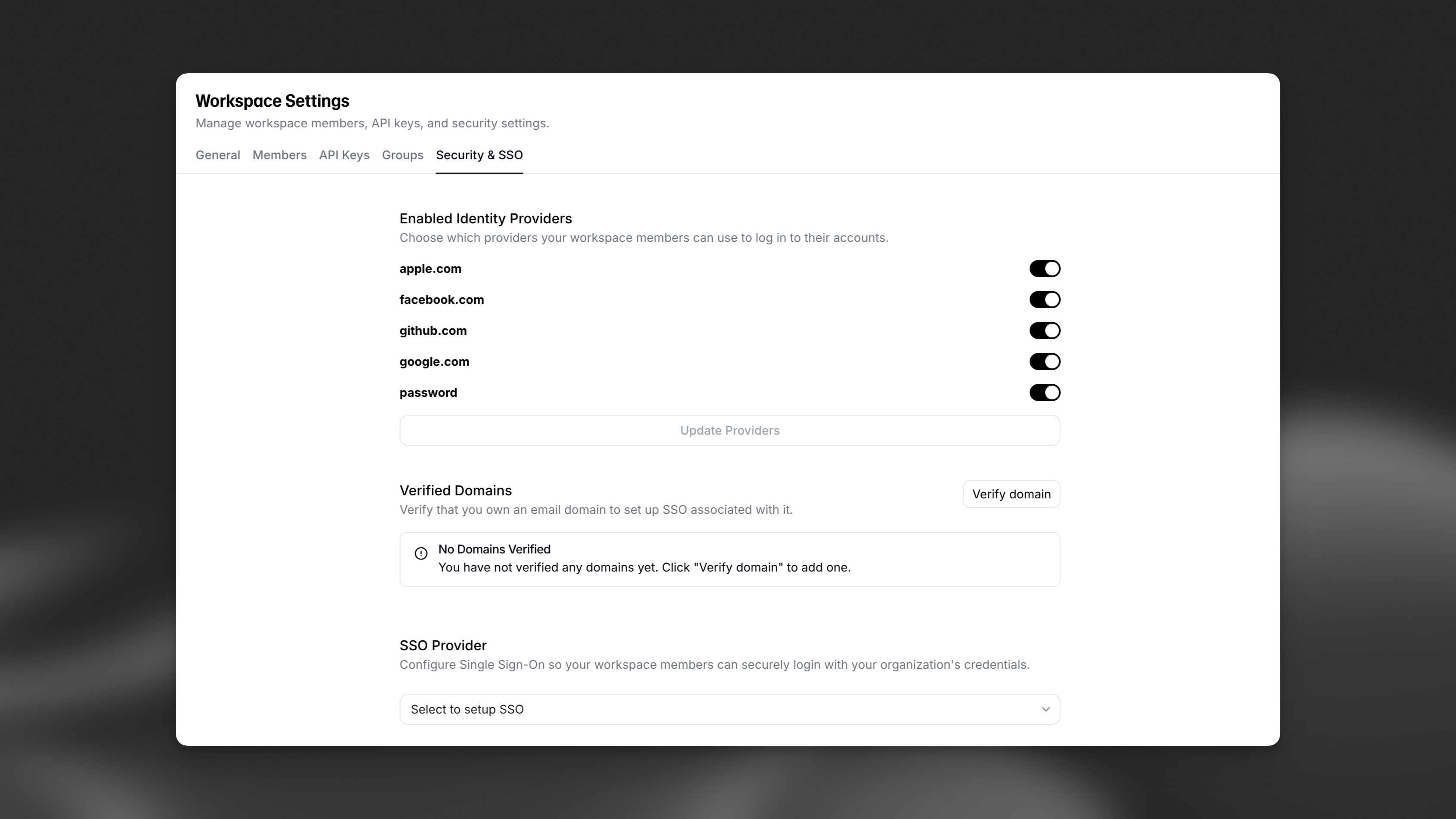
Click on your profile icon located in the top right corner of the dashboard, select **Workspace settings**, and then navigate to the **Security & SSO** tab.
You can choose from a variety of pre-configured identity providers, including Google, Apple, GitHub, etc. Custom organization SSO providers will only appear in this list after they have been configured, as shown in the "SSO Provider" section.
Next, you need to verify your email domain for authentication. This lets ElevenLabs know that you own the domain you are configuring for SSO. This is a security measure to prevent unauthorized access to your Workspace.
Click the **Verify domain** button and enter the domain name you want to verify. After completing this step, click on the domain pending verification. You will be prompted to add a DNS TXT record to your domain's DNS settings. Once the DNS record has been added, click on the **Verify** button.
If you want to configure your own SSO provider, select the SSO provider dropdown to select between OIDC (OpenID Connect) and SAML (Security Assertion Markup Language).
**Important:** We do not recommend using Microsoft Entra (formerly Azure AD) with OIDC for SSO. For best compatibility and support, use SAML when integrating with Entra/Azure.
Only Service Provider (SP) initiated SSO is supported for SAML. To ease the sign in process, you can create a bookmark app in your SSO provider linking to [https://elevenlabs.io/app/sign-in?use\_sso=true](https://elevenlabs.io/app/sign-in?use_sso=true). You can include the user's email as an additional query parameter to pre-fill the field. For example [https://elevenlabs.io/app/sign-in?use\_sso=true\&email=test@test.com](https://elevenlabs.io/app/sign-in?use_sso=true\&email=test@test.com)
Once you've filled out the required fields, click the **Update SSO** button to save your changes.
Configuring a new SSO provider will log out all Workspace members currently logged in with SSO.
## SCIM
SCIM is available for Enterprise workspaces, configurable by Workspace admins.
SCIM (System for Cross-domain Identity Management) allows your Identity Provider (IdP) to
automatically manage users and groups in your ElevenLabs workspace.
## FAQ
Note: Microsoft Entra (Azure AD) is only supported via SAML. OIDC with Entra is not recommended and may result in login issues.
**What to fill in on the Entra / Azure side**:
* **Identifier (Entity ID)**: Use the *Service Provider Entity ID* value from the ElevenLabs SSO configuration page.
* **Reply URL (Assertion Consumer Service URL)**: Use `https://elevenlabs.io/__/auth/handler`
* For EU residency, use `https://eu.residency.elevenlabs.io/__/auth/handler`
* For India residency, use `https://in.residency.elevenlabs.io/__/auth/handler`
* **ACS URL**: Same as the Reply URL above.
**What to fill in on the ElevenLabs side**:
* **IdP Entity ID**: Use the *Microsoft Entra Identifier* (the full URL, e.g., `https://sts.windows.net/{tenant-id}/`)
* **IdP Sign-In URL**: Use the *Login URL* from Entra / Azure
For Okta-specific setup steps, field mappings, and troubleshooting notes, see
[Okta SAML SSO](/docs/overview/administration/workspaces/sso/okta-saml).
**What to fill in on the OneLogin side**:
* **Recipient**: Use `https://elevenlabs.io/__/auth/handler`
* For EU residency, use `https://eu.residency.elevenlabs.io/__/auth/handler`
* For India residency, use `https://in.residency.elevenlabs.io/__/auth/handler`
Please ensure that `email` and `email_verified` are included in the custom attributes returned in the OIDC response. Without these, the following errors may be hit:
* *No email address was received*: Fixed by adding **email** to the response.
* *Account exists with different credentials*: Fixed by adding **email\_verified** to the response
- One known error: Inside the `` field of the SAML response, make sure `` is set to the email address of the user.
## Overview
SSO is currently only available for Enterprise customers, and only Workspace admins can enable
this feature. To upgrade, [get in touch with our sales team](https://elevenlabs.io/contact-sales).
Single Sign-On (SSO) allows your team to log in to ElevenLabs by using your existing identity provider. This allows your team to use the same credentials they use for other services to log in to ElevenLabs.
## Guide
Click on your profile icon located in the top right corner of the dashboard, select **Workspace settings**, and then navigate to the **Security & SSO** tab.
You can choose from a variety of pre-configured identity providers, including Google, Apple, GitHub, etc. Custom organization SSO providers will only appear in this list after they have been configured, as shown in the "SSO Provider" section.
Next, you need to verify your email domain for authentication. This lets ElevenLabs know that you own the domain you are configuring for SSO. This is a security measure to prevent unauthorized access to your Workspace.
Click the **Verify domain** button and enter the domain name you want to verify. After completing this step, click on the domain pending verification. You will be prompted to add a DNS TXT record to your domain's DNS settings. Once the DNS record has been added, click on the **Verify** button.
If you want to configure your own SSO provider, select the SSO provider dropdown to select between OIDC (OpenID Connect) and SAML (Security Assertion Markup Language).
**Important:** We do not recommend using Microsoft Entra (formerly Azure AD) with OIDC for SSO. For best compatibility and support, use SAML when integrating with Entra/Azure.
Only Service Provider (SP) initiated SSO is supported for SAML. To ease the sign in process, you can create a bookmark app in your SSO provider linking to [https://elevenlabs.io/app/sign-in?use\_sso=true](https://elevenlabs.io/app/sign-in?use_sso=true). You can include the user's email as an additional query parameter to pre-fill the field. For example [https://elevenlabs.io/app/sign-in?use\_sso=true\&email=test@test.com](https://elevenlabs.io/app/sign-in?use_sso=true\&email=test@test.com)
Once you've filled out the required fields, click the **Update SSO** button to save your changes.
Configuring a new SSO provider will log out all Workspace members currently logged in with SSO.
## SCIM
SCIM is available for Enterprise workspaces, configurable by Workspace admins.
SCIM (System for Cross-domain Identity Management) allows your Identity Provider (IdP) to
automatically manage users and groups in your ElevenLabs workspace.
## FAQ
Note: Microsoft Entra (Azure AD) is only supported via SAML. OIDC with Entra is not recommended and may result in login issues.
**What to fill in on the Entra / Azure side**:
* **Identifier (Entity ID)**: Use the *Service Provider Entity ID* value from the ElevenLabs SSO configuration page.
* **Reply URL (Assertion Consumer Service URL)**: Use `https://elevenlabs.io/__/auth/handler`
* For EU residency, use `https://eu.residency.elevenlabs.io/__/auth/handler`
* For India residency, use `https://in.residency.elevenlabs.io/__/auth/handler`
* **ACS URL**: Same as the Reply URL above.
**What to fill in on the ElevenLabs side**:
* **IdP Entity ID**: Use the *Microsoft Entra Identifier* (the full URL, e.g., `https://sts.windows.net/{tenant-id}/`)
* **IdP Sign-In URL**: Use the *Login URL* from Entra / Azure
For Okta-specific setup steps, field mappings, and troubleshooting notes, see
[Okta SAML SSO](/docs/overview/administration/workspaces/sso/okta-saml).
**What to fill in on the OneLogin side**:
* **Recipient**: Use `https://elevenlabs.io/__/auth/handler`
* For EU residency, use `https://eu.residency.elevenlabs.io/__/auth/handler`
* For India residency, use `https://in.residency.elevenlabs.io/__/auth/handler`
Please ensure that `email` and `email_verified` are included in the custom attributes returned in the OIDC response. Without these, the following errors may be hit:
* *No email address was received*: Fixed by adding **email** to the response.
* *Account exists with different credentials*: Fixed by adding **email\_verified** to the response
- One known error: Inside the `` field of the SAML response, make sure `` is set to the email address of the user.