> This is a page from the ElevenLabs documentation. For a complete page index, fetch https://elevenlabs.io/docs/llms.txt. For the full documentation in a single file, fetch https://elevenlabs.io/docs/llms-full.txt.
# Transcripts
 ## Transcript Editor
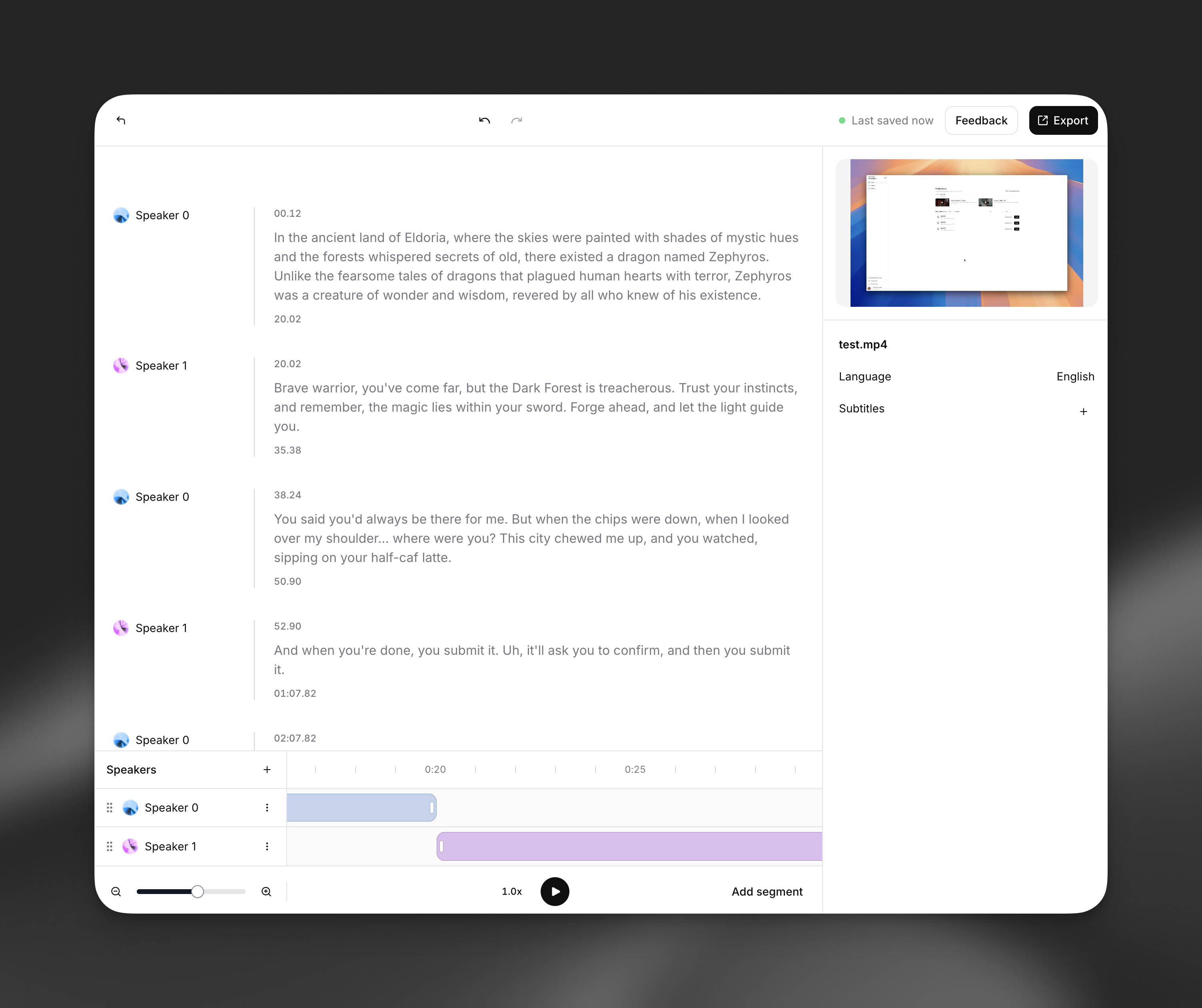
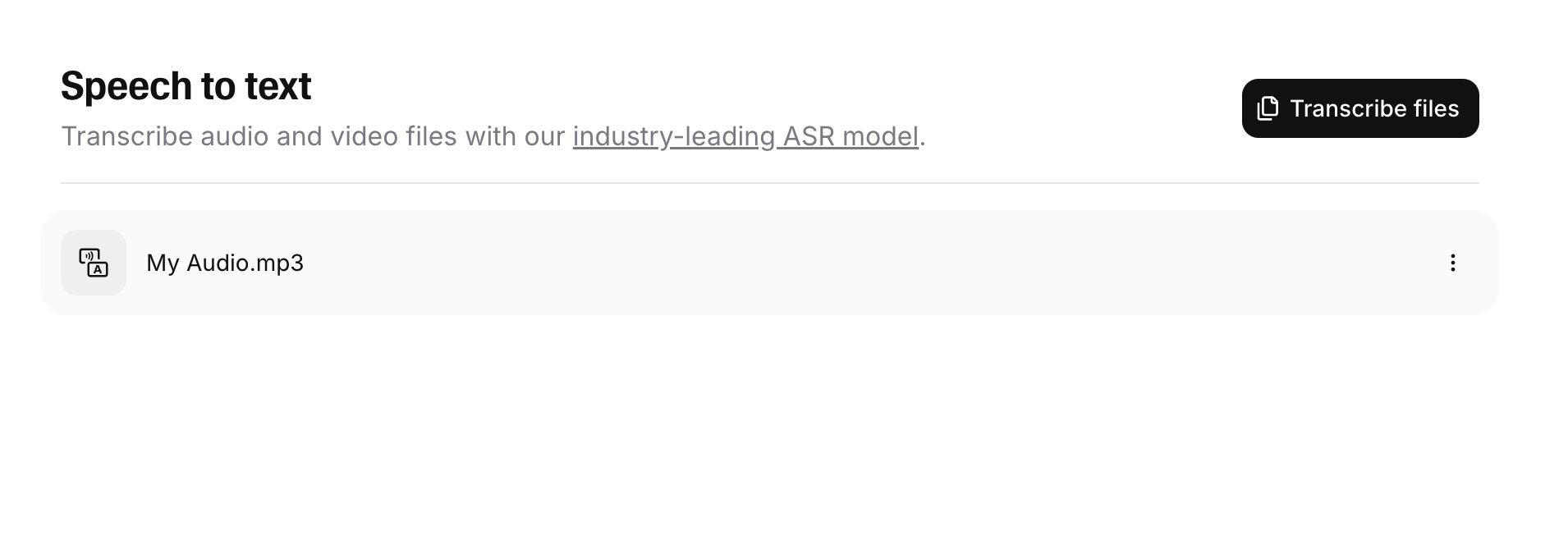
In the ElevenLabs dashboard, navigate to the Speech to Text page and click any transcript to open the Transcript Editor.
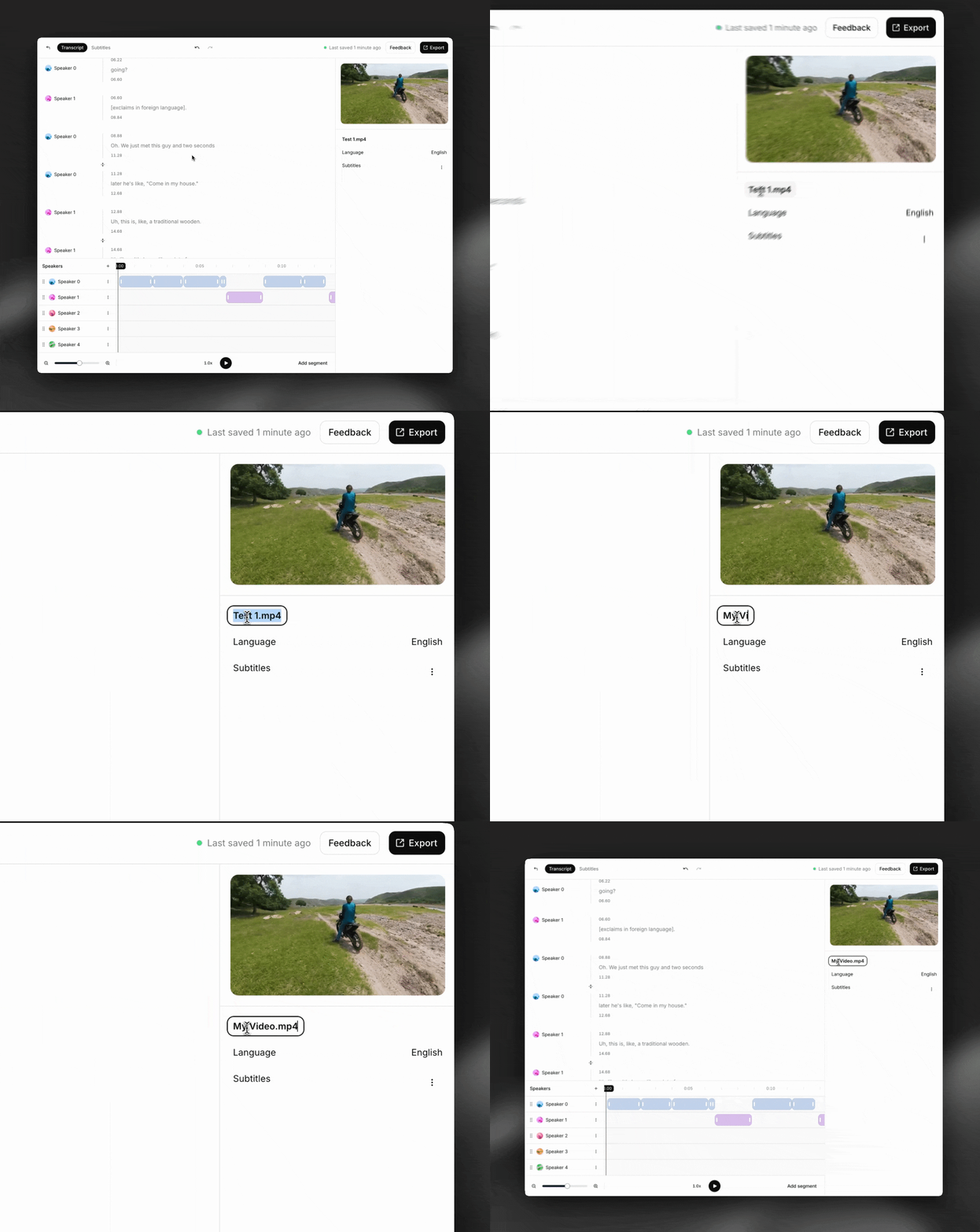
You can rename your transcript in the panel on the right side of the screen.
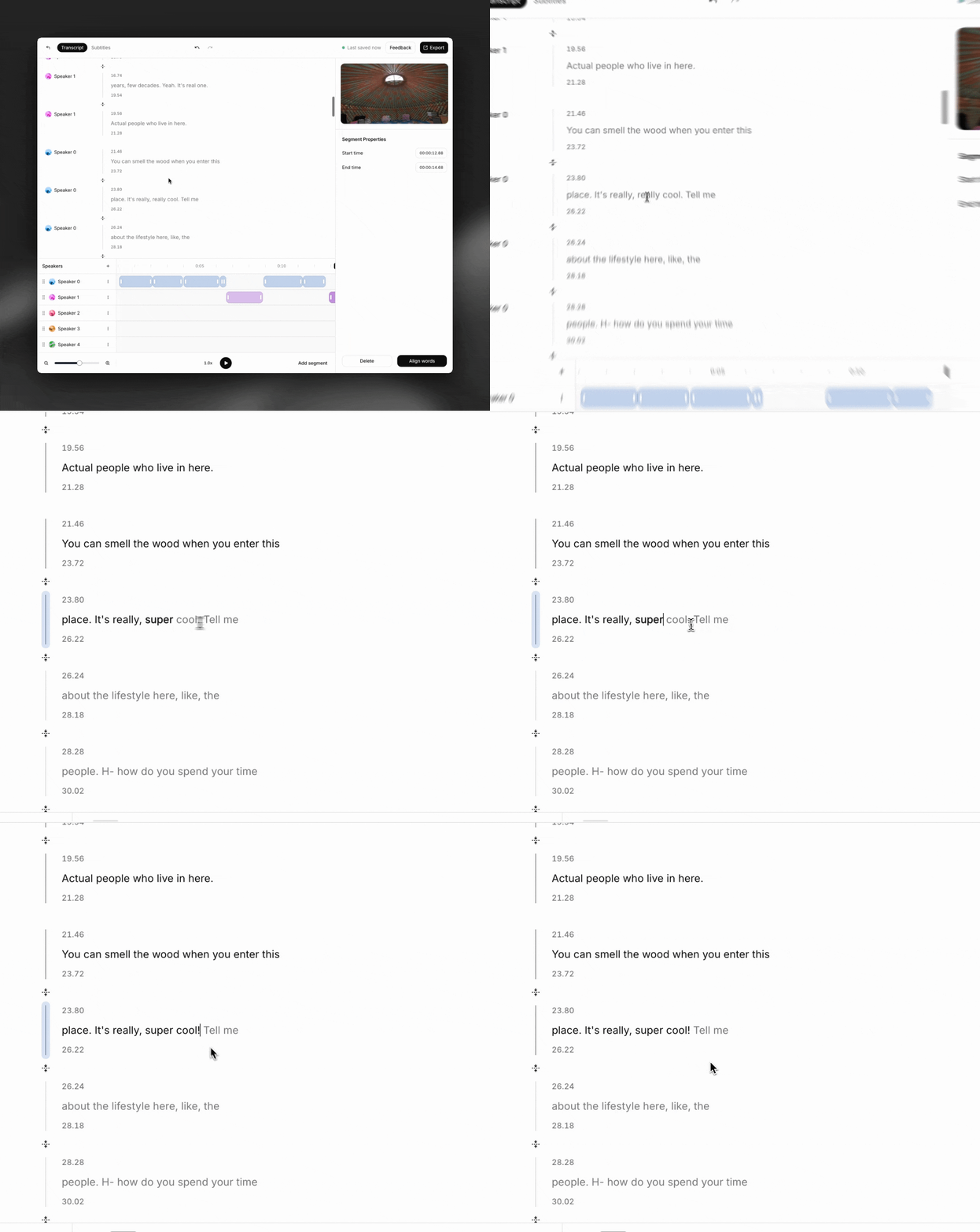
Our transcript editor is WYSIWYG. Click anywhere in the transcript and start typing to edit the text.
Tip: Use command+z to undo changes easily.
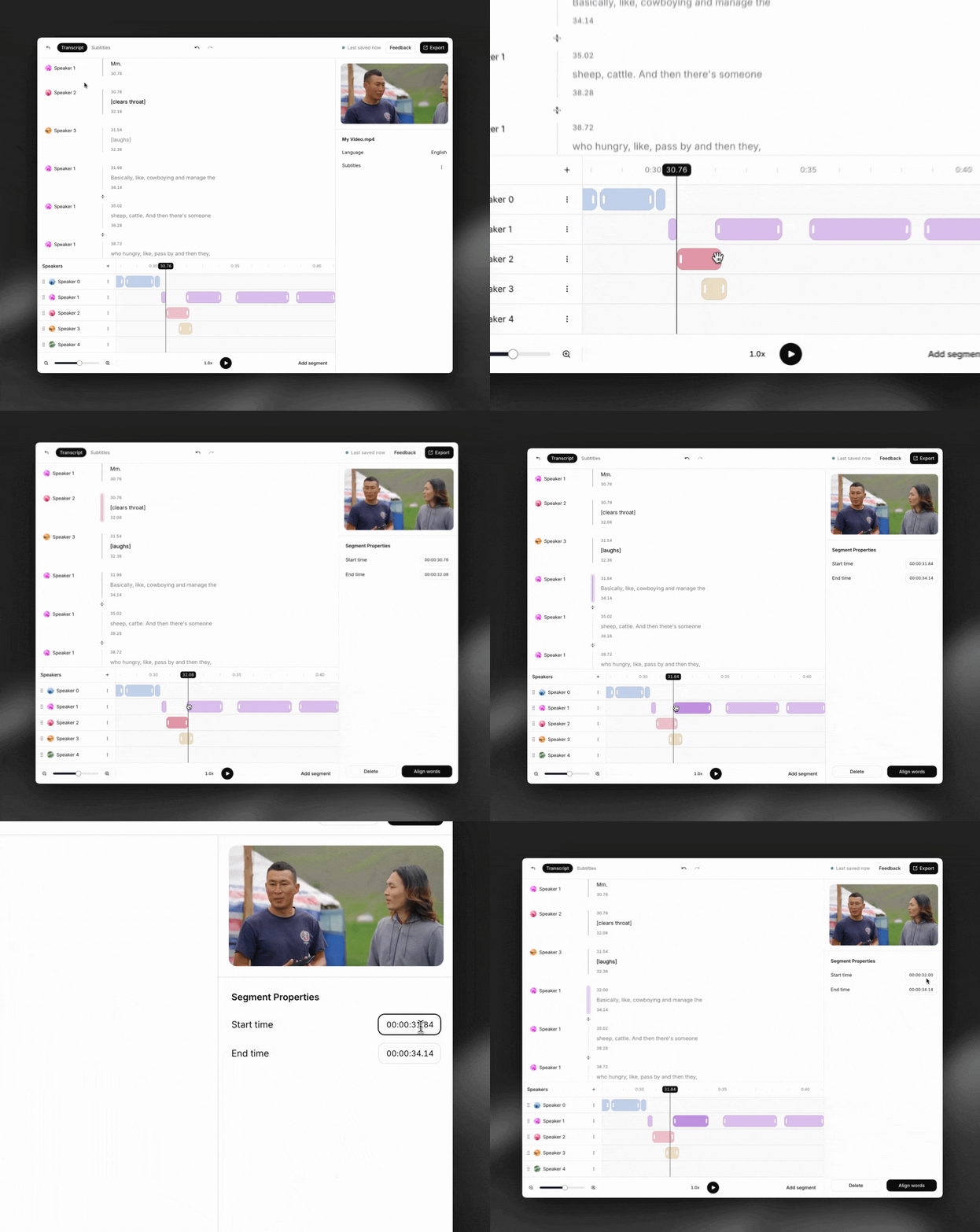
Drag the handles on the timeline to adjust the start and end timestamps for a segment. You can also type in exact timestamps in the panel on the right side of the screen.
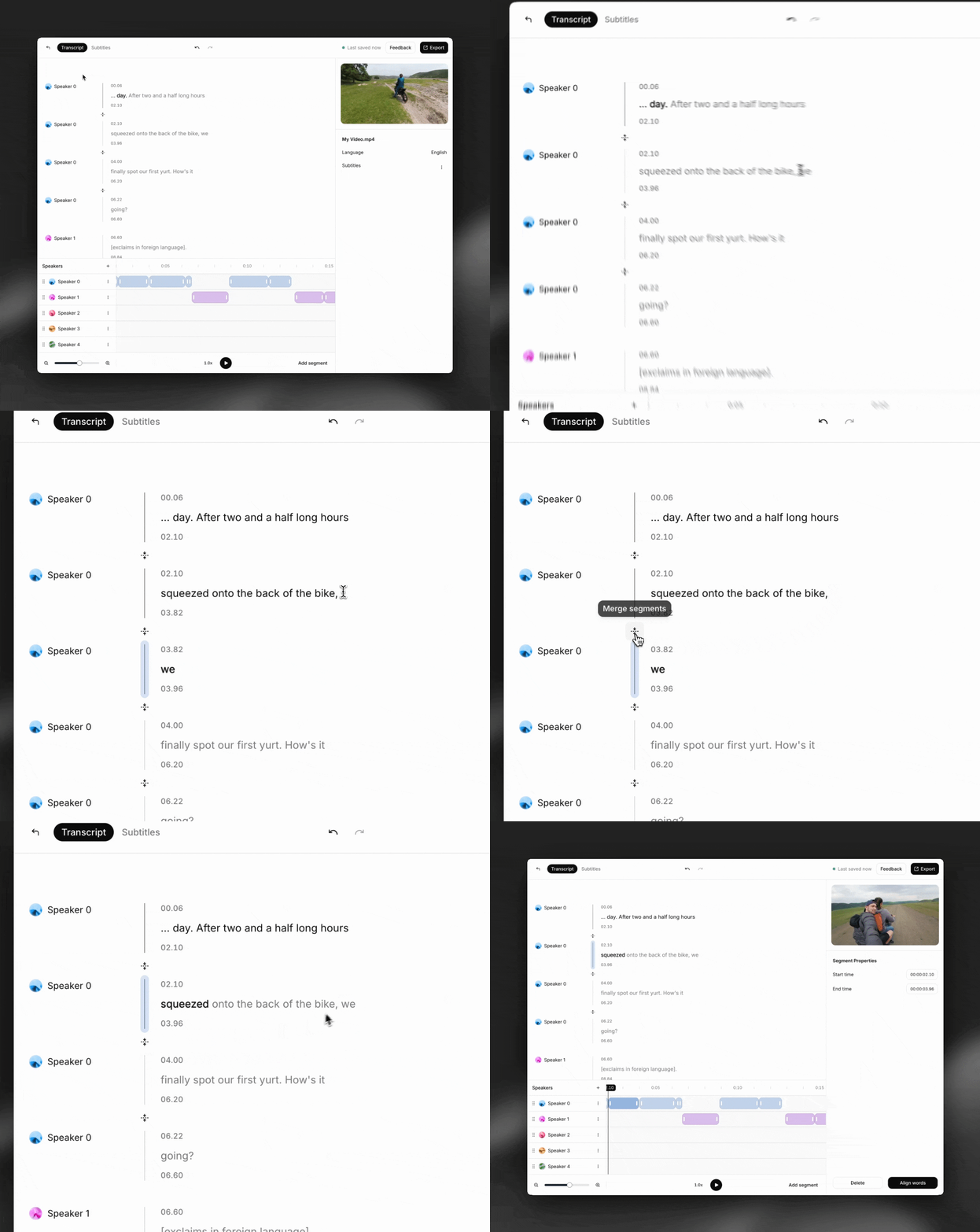
To split a segment, click in the text where you want to split and press **Enter.**
To merge two segments, click the 'merge segments' button. Note that two conditions must be fulfilled for a merge to be possible:
1. Both segments must belong to the same speaker
2. The segments must be adjacent to each other
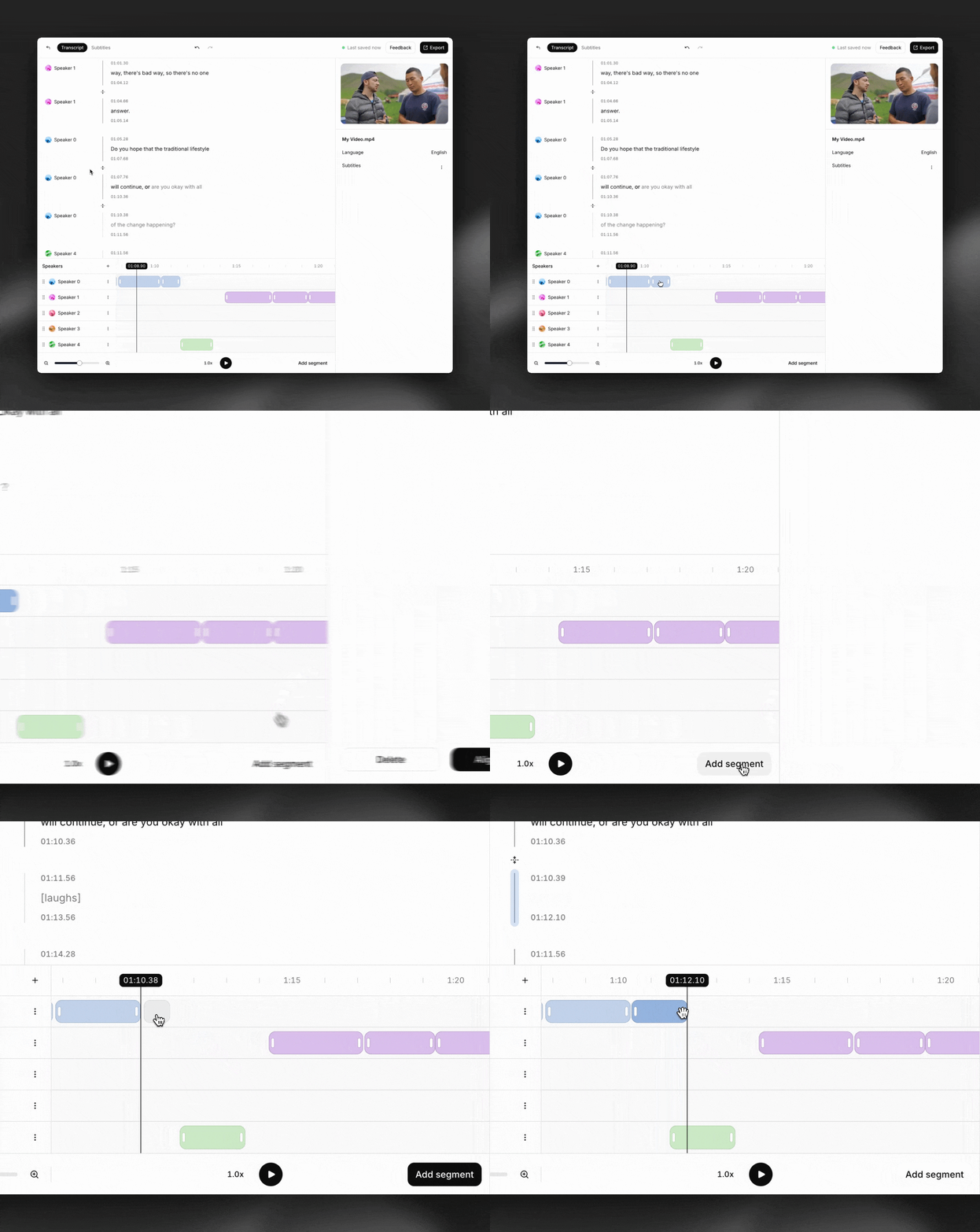
To add a segment, click on the 'Add Segment' icon and select a location on the timeline.
To delete a segment, select the segment and click ‘Delete’ in the panel on the right side of the screen or press the Delete key
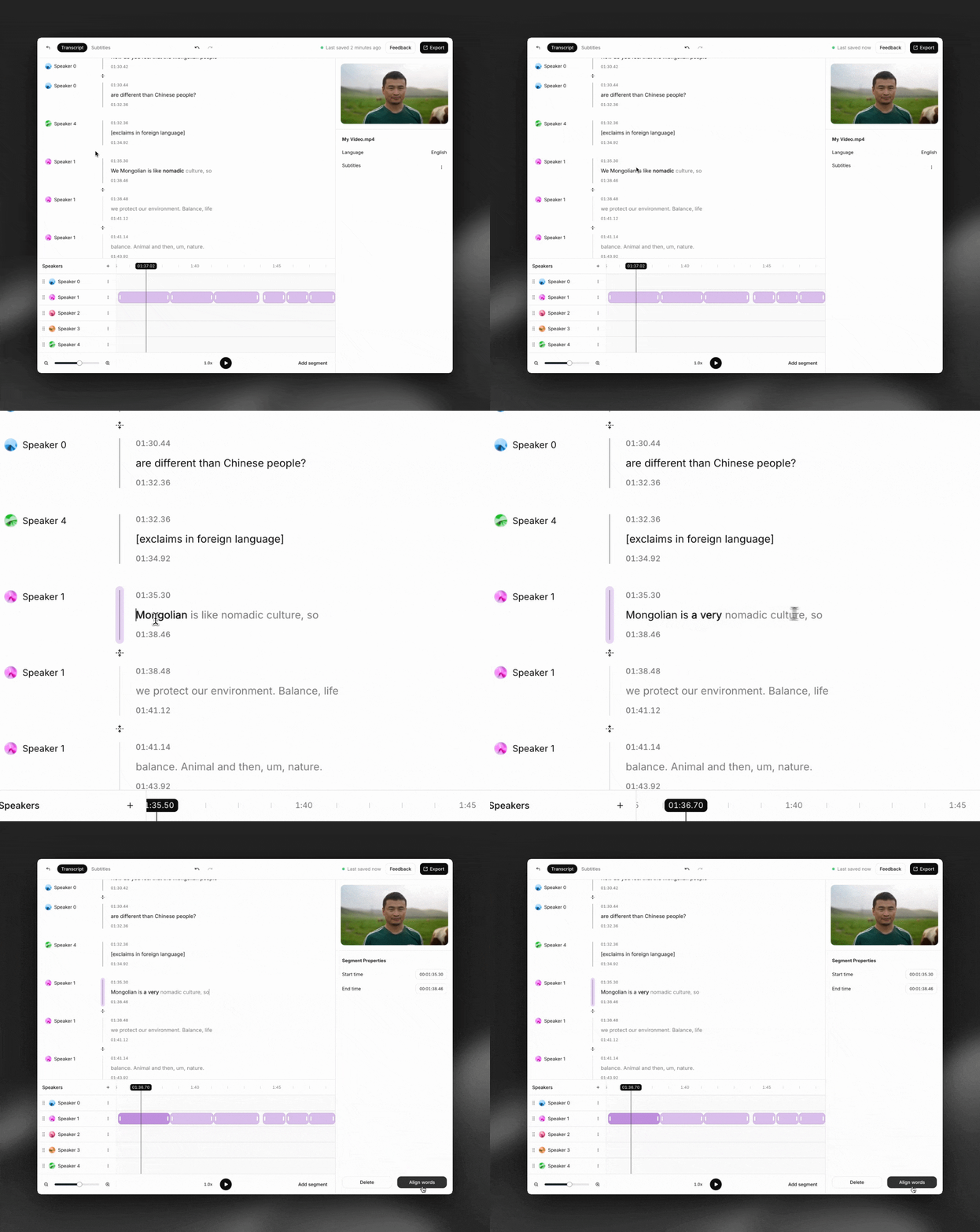
Click ‘align words’ after making changes to a segment to recompute word-level timestamps.
There are 2 ways to assign segments to different speakers:
1. **Individually**: click the orb next to the speaker name for a segment, and select a new speaker from the dropdown list.
2. **Bulk:** to reassign all segments from one speaker to another, click on the three dots (⋮) and select 'Move Segments To'. Then select the new speaker.
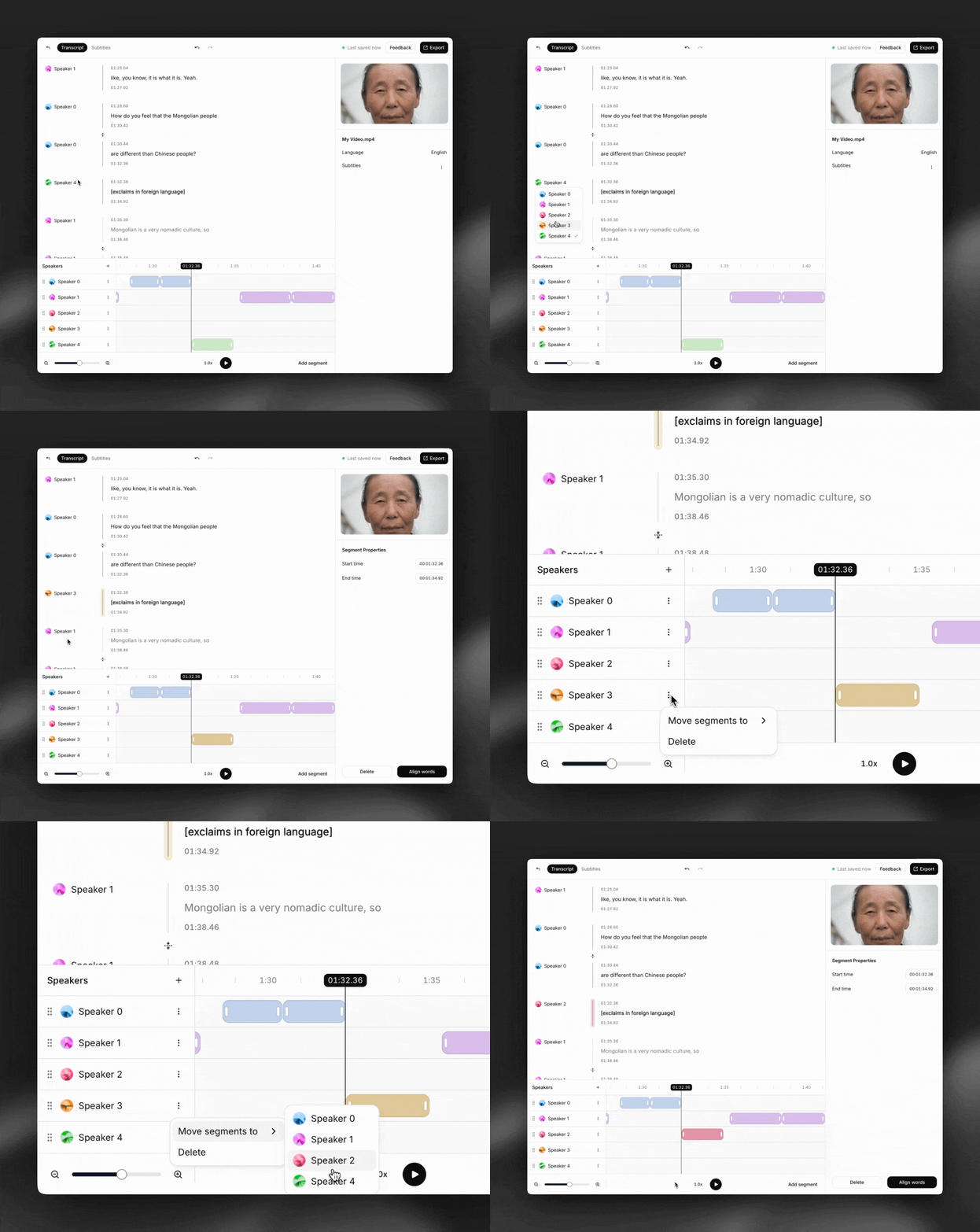
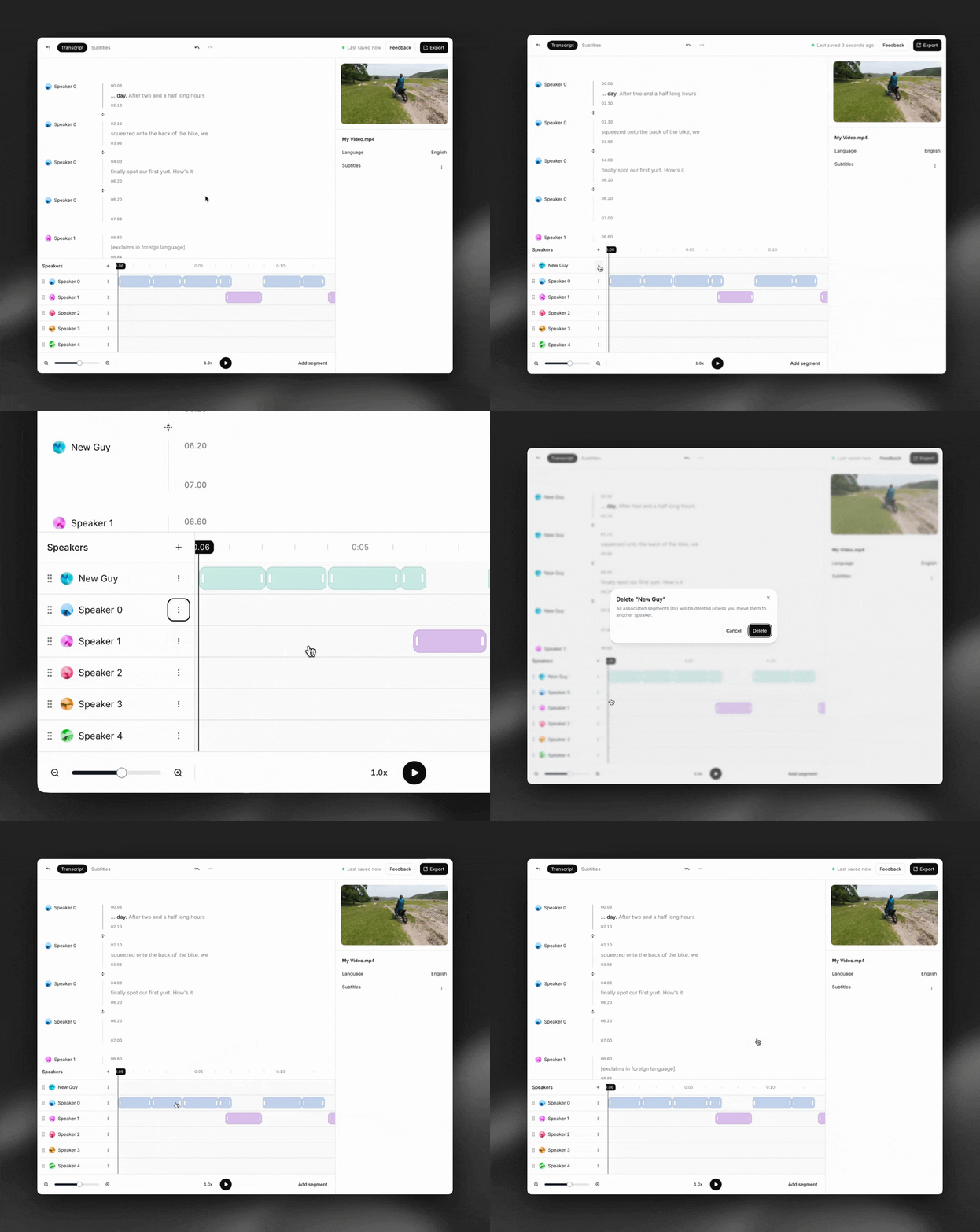
To add a speaker, click the '+' icon above the speaker tracks. To delete a speaker, click on the three dots (⋮) next to the speaker’s track and click ‘Delete.’
**Important note**: if you delete a speaker, all of their associated segments will also be deleted.
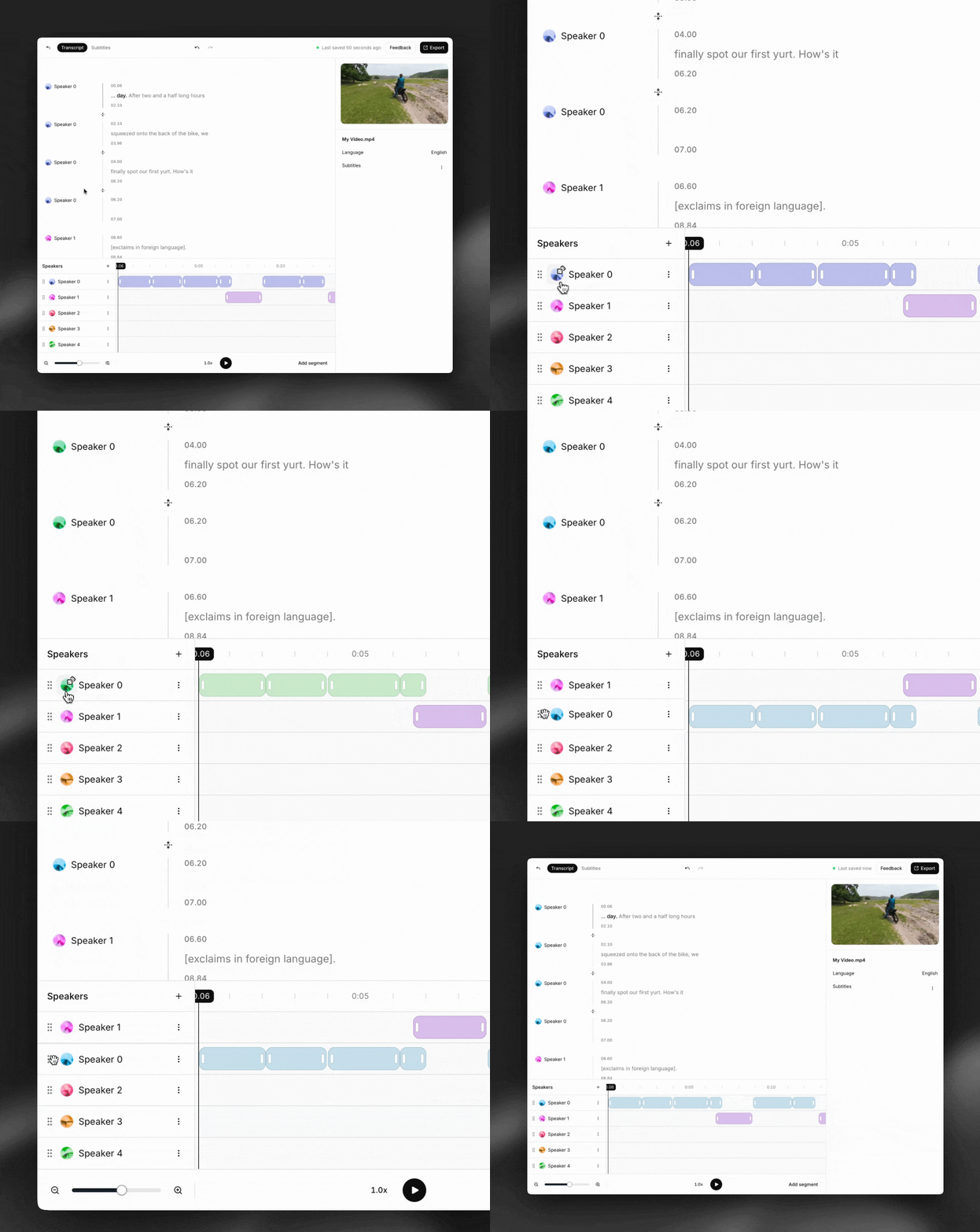
Click and drag to reorder speaker tracks on the timeline. You can also change the color of a speaker track (which also applies to all its segments) by clicking the orb next to the speaker name.
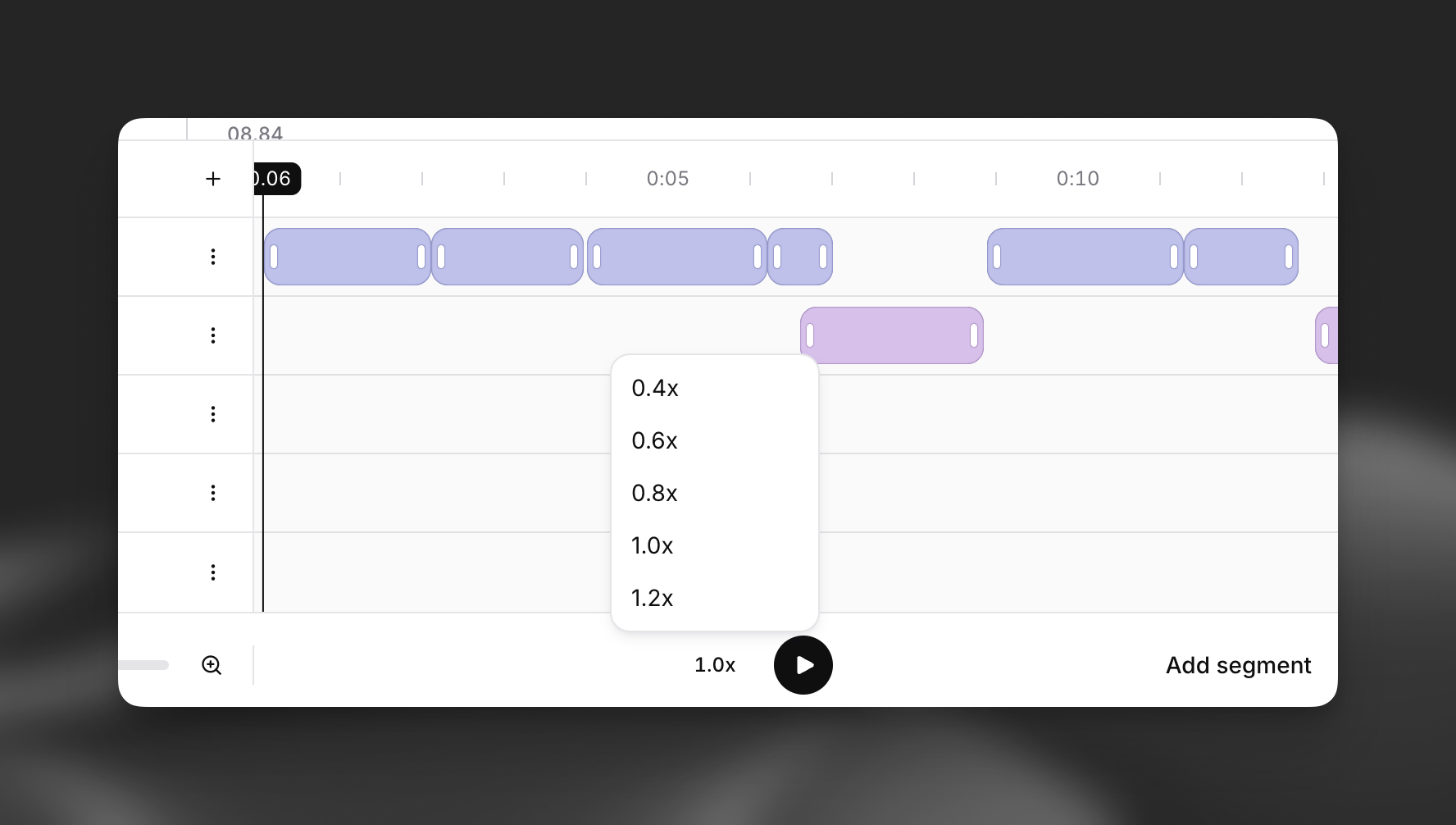
You can adjust the playback speed of the source media by clicking the indicator next to the play button.
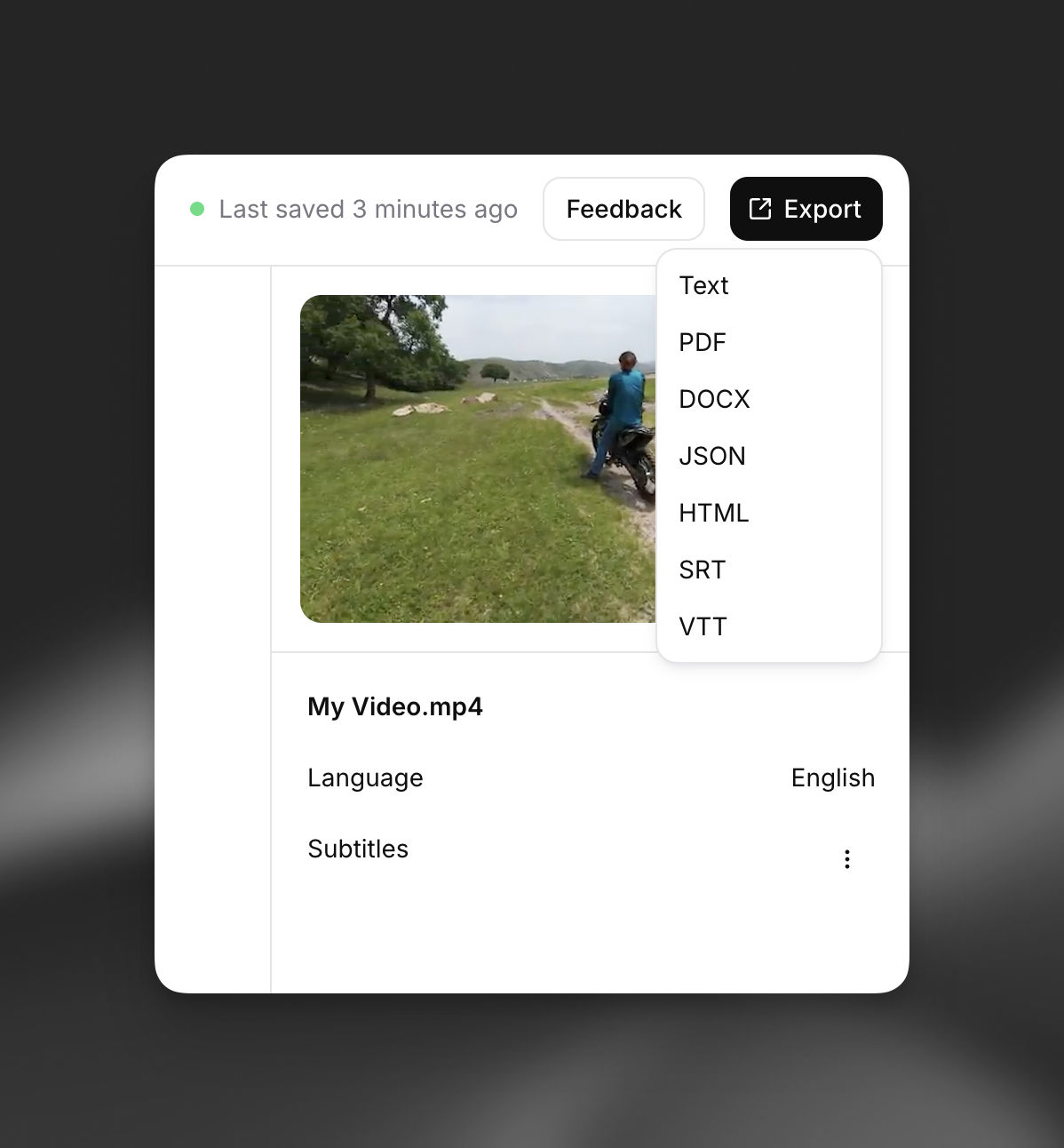
Click the export button in the top right of the screen and select one of the transcript export formats:
* Plain text
* JSON
* HTML
* SRT
* VTT
## FAQ
Yes – you can add subtitles by clicking the '+' next to 'Subtitles' in the panel on the right
side of the screen.
To learn more about editing subtitles, please see our [Subtitle guide](/docs/eleven-creative/products/subtitles).
Yes – our Productions team offers human transcription services from \$2.00 per minute of audio. What you get from us:
* Expert review by a native speaker
* Optional 'Verbatim Mode' for maximum coverage of non-verbal sounds (\[cough], \[sigh], etc.) and other environmental sounds and audio events (\[dog barking], \[car horn], etc.)
For more information please see the 'Productions' section of your ElevenLabs account (currently in beta and available to select users) or contact us at [productions@elevenlabs.io](mailto:productions@elevenlabs.io).
## Transcript Editor
In the ElevenLabs dashboard, navigate to the Speech to Text page and click any transcript to open the Transcript Editor.

You can rename your transcript in the panel on the right side of the screen.

Our transcript editor is WYSIWYG. Click anywhere in the transcript and start typing to edit the text.
Tip: Use command+z to undo changes easily.

Drag the handles on the timeline to adjust the start and end timestamps for a segment. You can also type in exact timestamps in the panel on the right side of the screen.

To split a segment, click in the text where you want to split and press **Enter.**
To merge two segments, click the 'merge segments' button. Note that two conditions must be fulfilled for a merge to be possible:
1. Both segments must belong to the same speaker
2. The segments must be adjacent to each other

To add a segment, click on the 'Add Segment' icon and select a location on the timeline.
To delete a segment, select the segment and click ‘Delete’ in the panel on the right side of the screen or press the Delete key

Click ‘align words’ after making changes to a segment to recompute word-level timestamps.

There are 2 ways to assign segments to different speakers:
1. **Individually**: click the orb next to the speaker name for a segment, and select a new speaker from the dropdown list.
2. **Bulk:** to reassign all segments from one speaker to another, click on the three dots (⋮) and select 'Move Segments To'. Then select the new speaker.

To add a speaker, click the '+' icon above the speaker tracks. To delete a speaker, click on the three dots (⋮) next to the speaker’s track and click ‘Delete.’
**Important note**: if you delete a speaker, all of their associated segments will also be deleted.

Click and drag to reorder speaker tracks on the timeline. You can also change the color of a speaker track (which also applies to all its segments) by clicking the orb next to the speaker name.

You can adjust the playback speed of the source media by clicking the indicator next to the play button.

Click the export button in the top right of the screen and select one of the transcript export formats:
* Plain text
* JSON
* HTML
* SRT
* VTT

## FAQ
Yes – you can add subtitles by clicking the '+' next to 'Subtitles' in the panel on the right
side of the screen.
To learn more about editing subtitles, please see our [Subtitle guide](/docs/eleven-creative/products/subtitles).
Yes – our Productions team offers human transcription services from \$2.00 per minute of audio. What you get from us:
* Expert review by a native speaker
* Optional 'Verbatim Mode' for maximum coverage of non-verbal sounds (\[cough], \[sigh], etc.) and other environmental sounds and audio events (\[dog barking], \[car horn], etc.)
For more information please see the 'Productions' section of your ElevenLabs account (currently in beta and available to select users) or contact us at [productions@elevenlabs.io](mailto:productions@elevenlabs.io).