> This is a page from the ElevenLabs documentation. For a complete page index, fetch https://elevenlabs.io/docs/llms.txt. For the full documentation in a single file, fetch https://elevenlabs.io/docs/llms-full.txt.
# WhatsApp
## Overview
You can connect your WhatsApp business account to an ElevenLabs Agent. The agent can then handle:
* Message conversations
* Calls
## Importing a WhatsApp business account
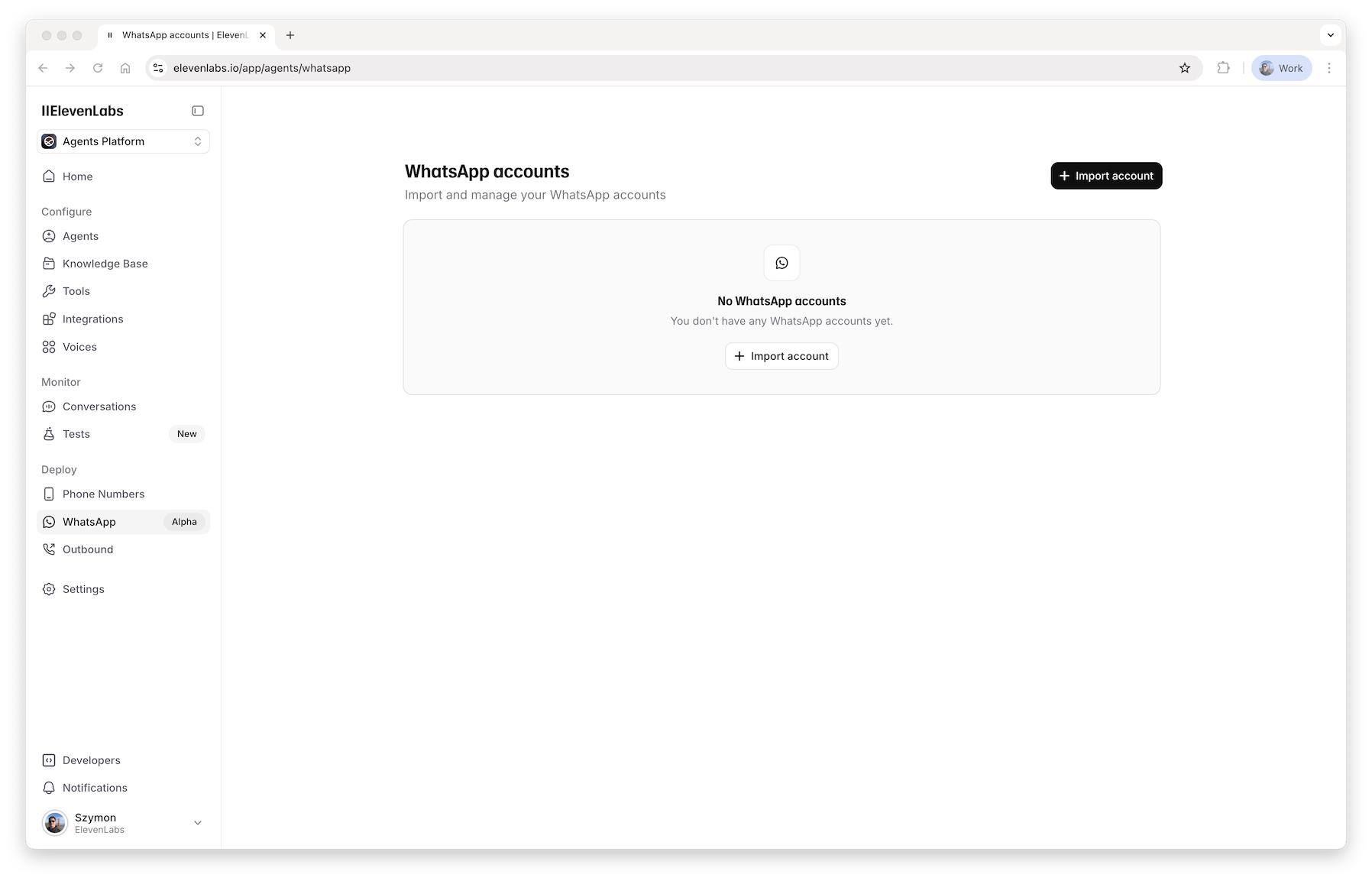
Go to the [WhatsApp page](https://elevenlabs.io/app/agents/whatsapp) and click the ***Import account*** button:
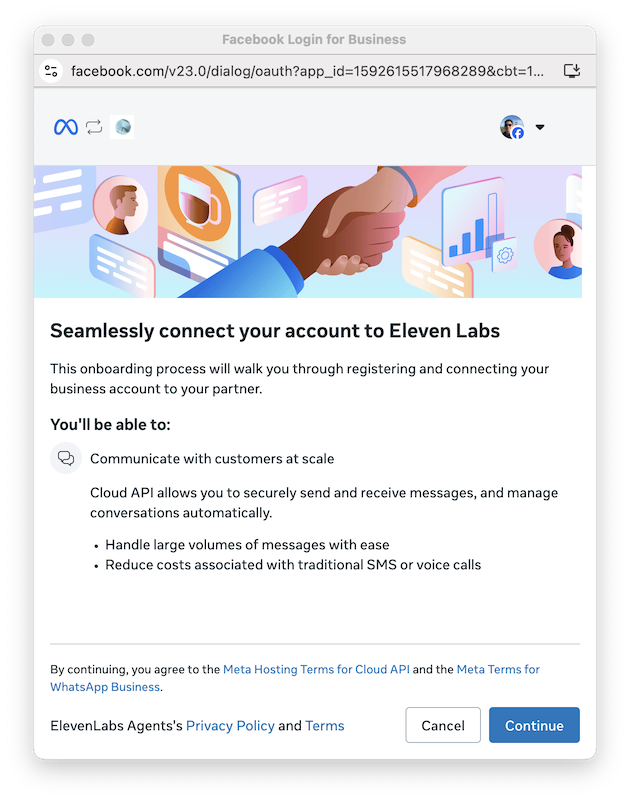
 This will open the authorization flow where you select your account and give ElevenLabs permission to manage it:
 When you finish importing your account, you will be taken to its settings page where you can assign an agent to it:
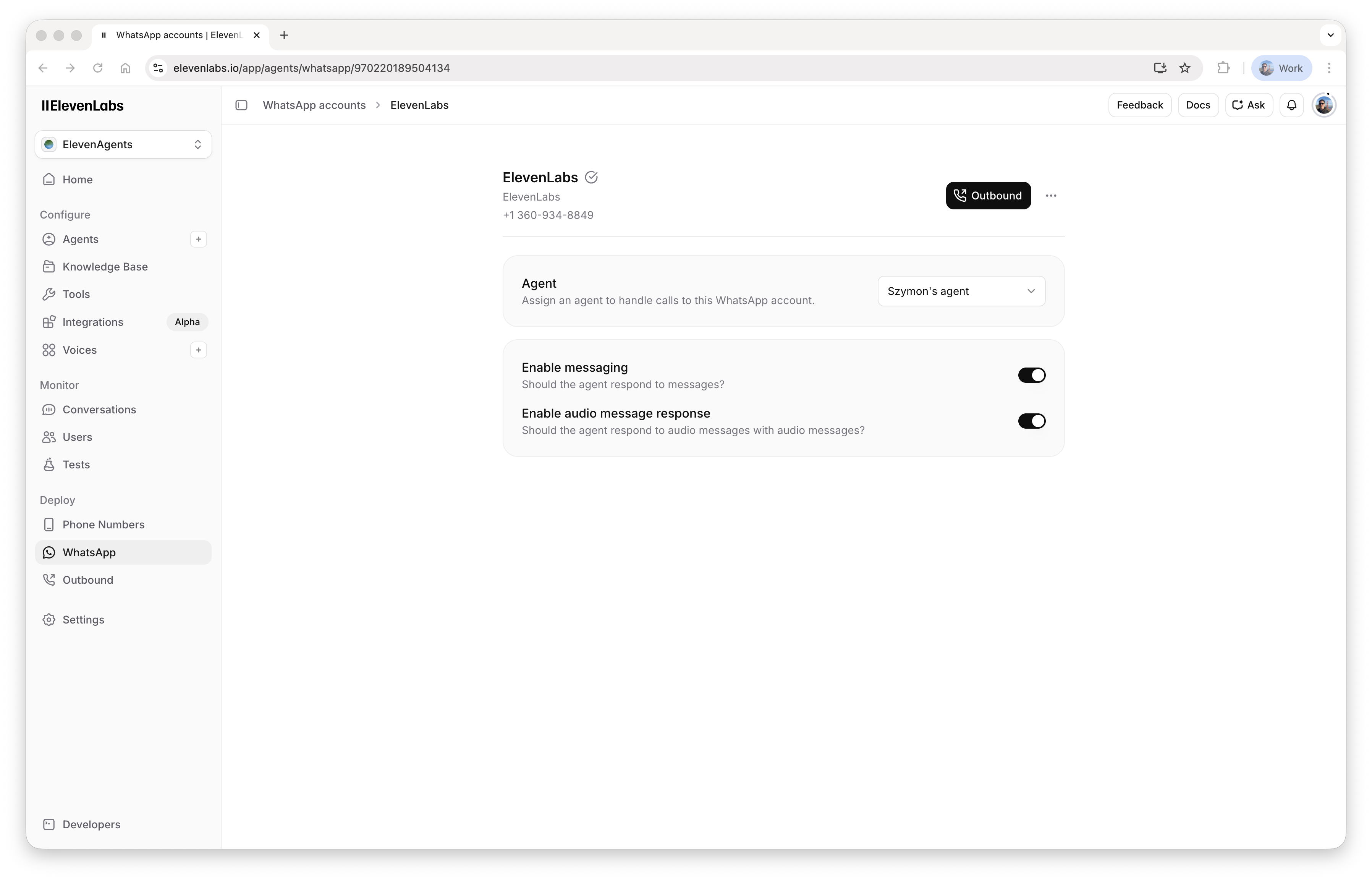 If you don't assign an agent to your account, inbound messages will be ignored and inbound calls
will be rejected. However, you will still be able to make outbound calls.
Go to [WhatsApp Manager](https://business.facebook.com/latest/whatsapp_manager/) to:
* Configure your profile picture, etc.: open the ***Phone numbers*** page, select a phone number and go to the ***Profile*** tab
* Allow voice calls: open the ***Phone numbers*** page, select a phone number and go to the ***Call settings*** tab
* If you want to make outbound calls, add a payment method: open the ***Overview*** page and click the ***Add payment method*** button
## Message conversations
### Inbound
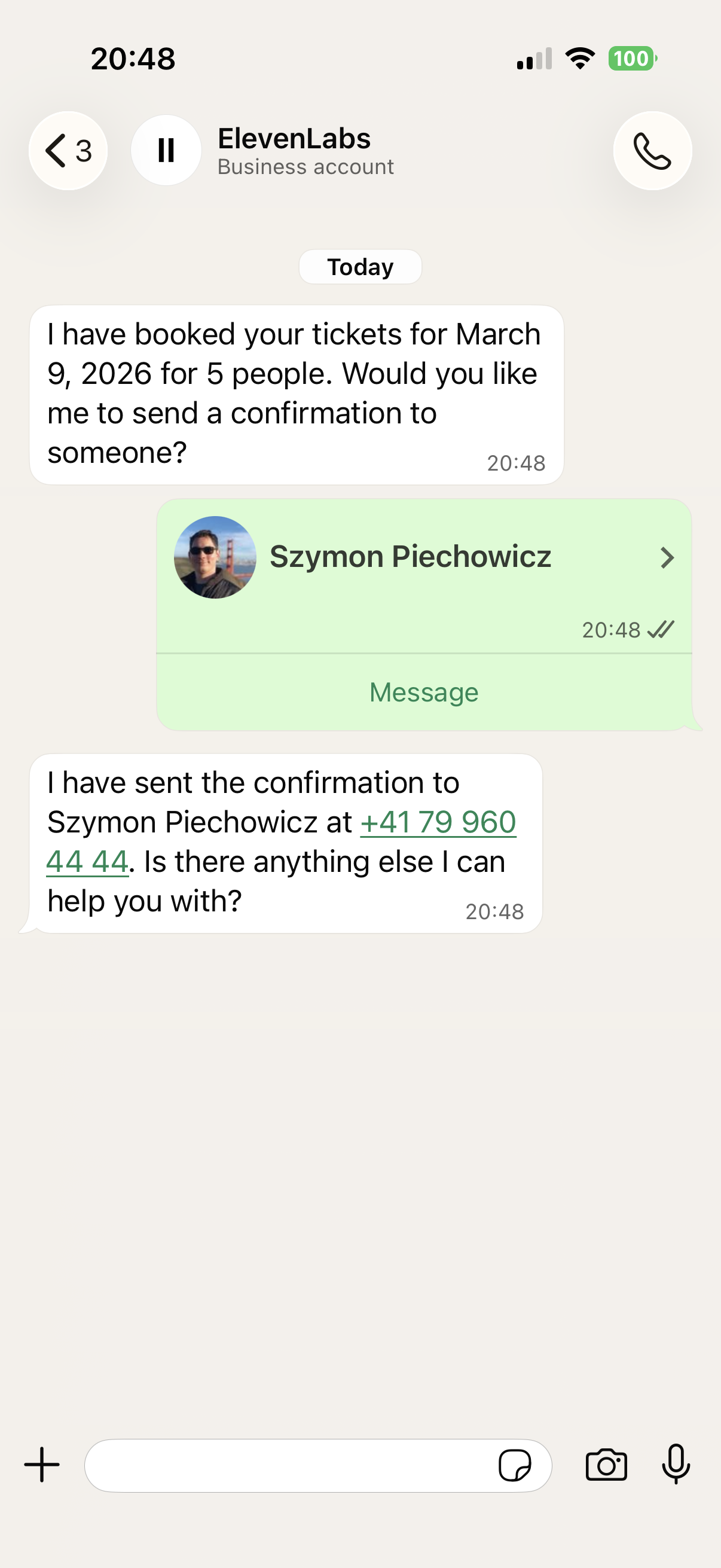
You can send a message to your WhatsApp business account and the agent will respond:
If you don't assign an agent to your account, inbound messages will be ignored and inbound calls
will be rejected. However, you will still be able to make outbound calls.
Go to [WhatsApp Manager](https://business.facebook.com/latest/whatsapp_manager/) to:
* Configure your profile picture, etc.: open the ***Phone numbers*** page, select a phone number and go to the ***Profile*** tab
* Allow voice calls: open the ***Phone numbers*** page, select a phone number and go to the ***Call settings*** tab
* If you want to make outbound calls, add a payment method: open the ***Overview*** page and click the ***Add payment method*** button
## Message conversations
### Inbound
You can send a message to your WhatsApp business account and the agent will respond:
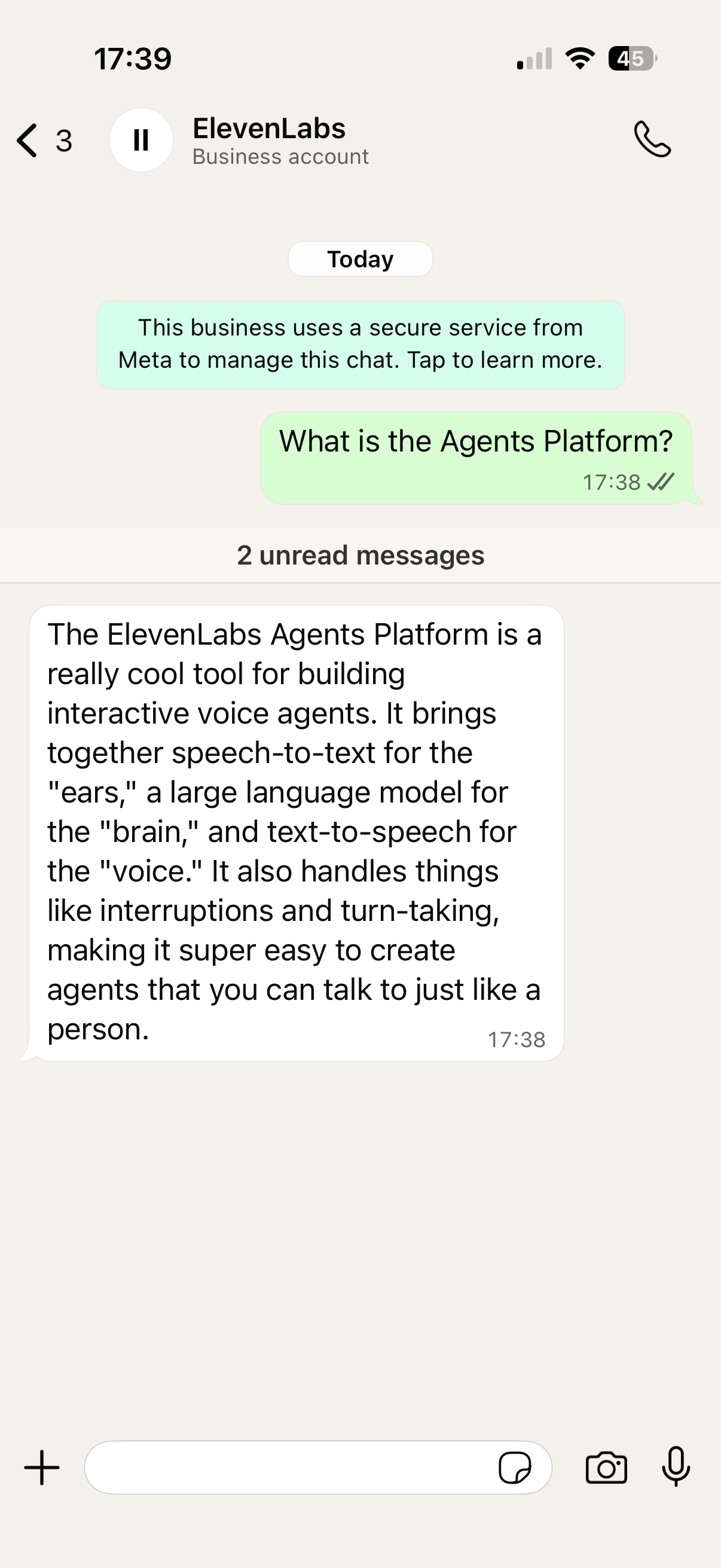 The conversation will be ended either by the ***End conversation*** system tool (if you have it enabled on your agent) or after the ***Max conversation duration*** timeout.
Set a ***Max conversation duration message*** in your agent config so that users are aware when
the conversation ends due to a timeout.
### Outbound
You can start a conversation by sending an outbound message.
First, go to [WhatsApp Manager](https://business.facebook.com/latest/whatsapp_manager/message_templates) and create a message template.
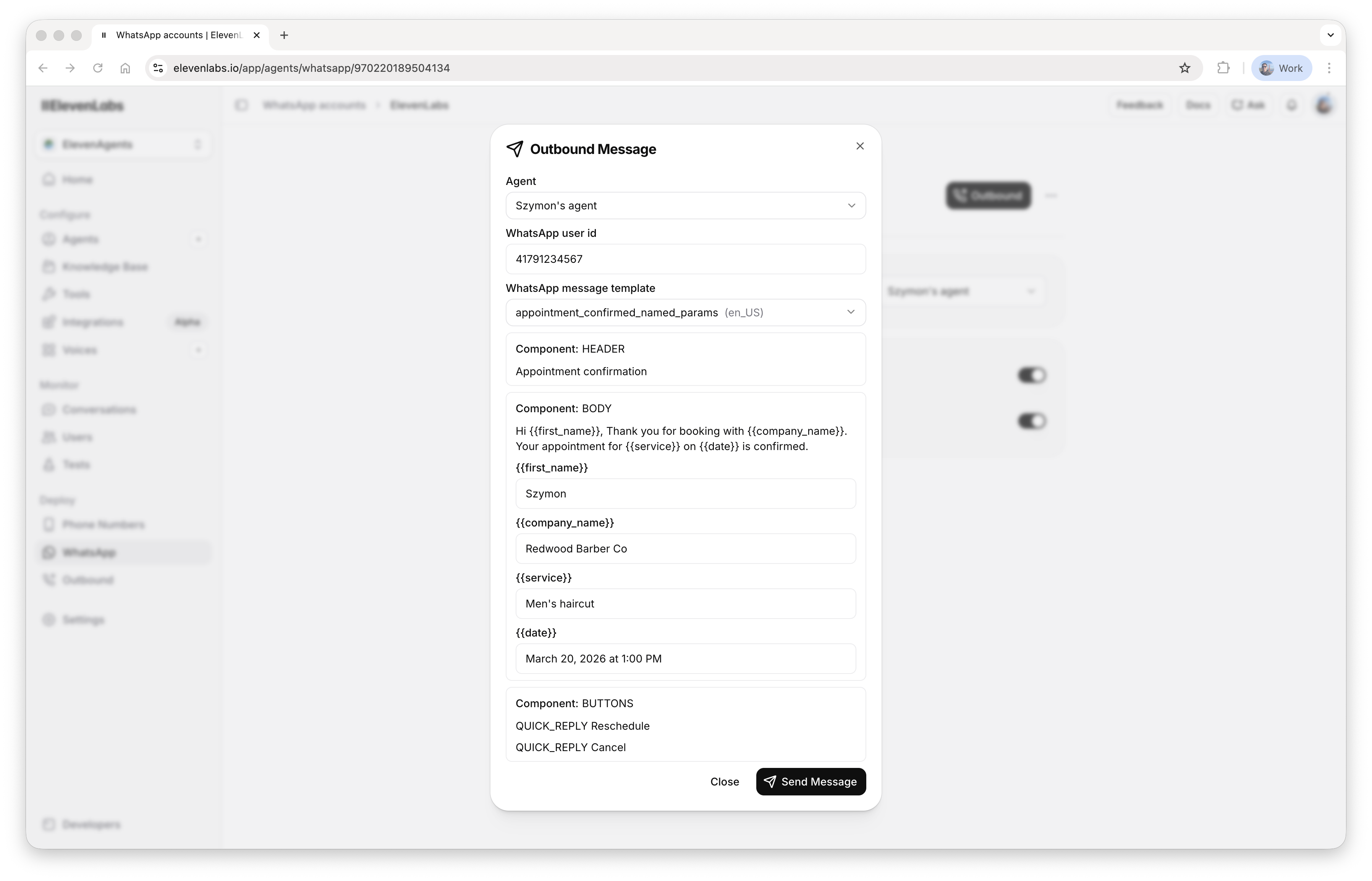
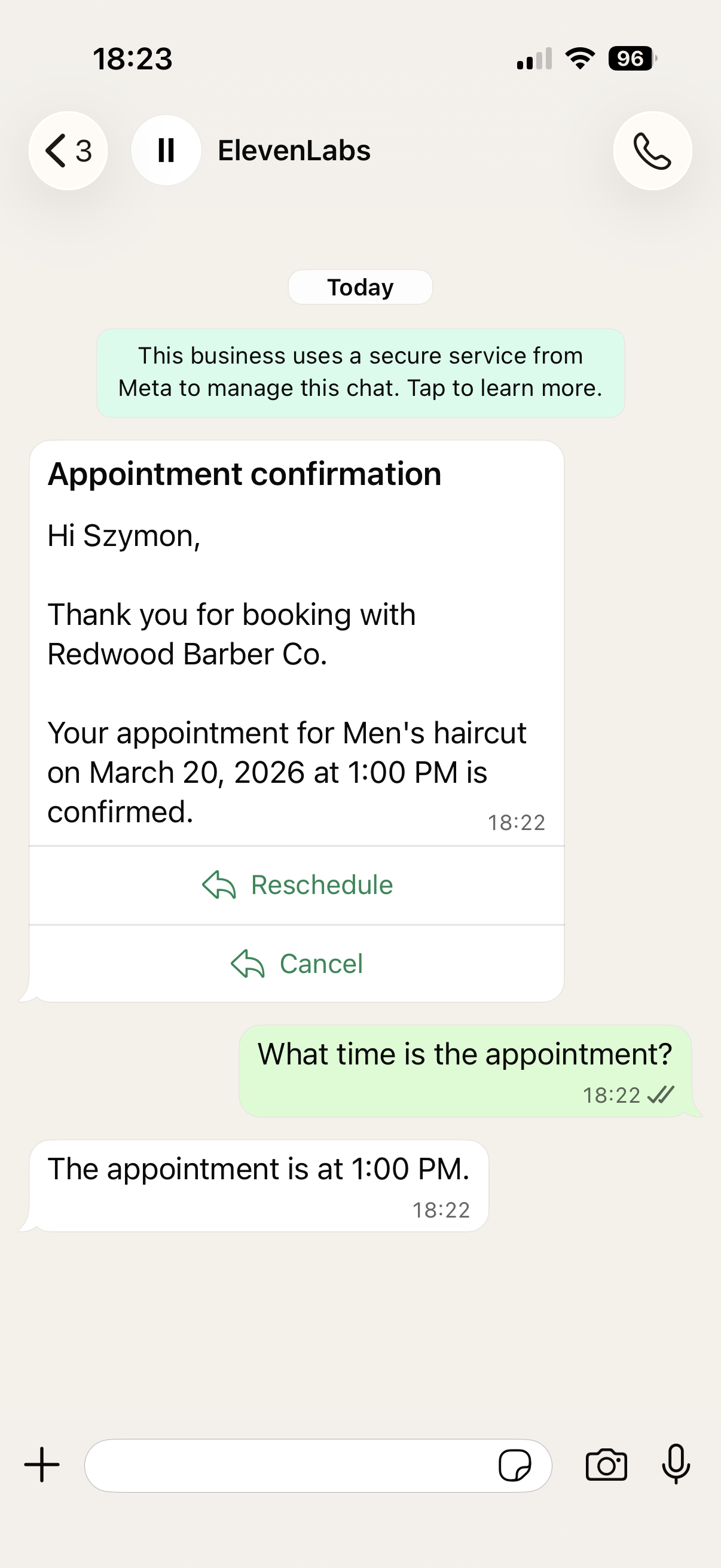
You can then go to the [WhatsApp page](https://elevenlabs.io/app/agents/whatsapp), select your account, and click the ***Outbound -> Message*** button. This will open a dialog where you select an agent, provide a WhatsApp user ID, as well as the message template & its parameters:
The conversation will be ended either by the ***End conversation*** system tool (if you have it enabled on your agent) or after the ***Max conversation duration*** timeout.
Set a ***Max conversation duration message*** in your agent config so that users are aware when
the conversation ends due to a timeout.
### Outbound
You can start a conversation by sending an outbound message.
First, go to [WhatsApp Manager](https://business.facebook.com/latest/whatsapp_manager/message_templates) and create a message template.
You can then go to the [WhatsApp page](https://elevenlabs.io/app/agents/whatsapp), select your account, and click the ***Outbound -> Message*** button. This will open a dialog where you select an agent, provide a WhatsApp user ID, as well as the message template & its parameters:
 Alternatively, you can send the message via [the API](/docs/api-reference/whats-app/outbound-message).
For outbound messages, the timer for max conversation duration only starts after the user
responds.
### Message types
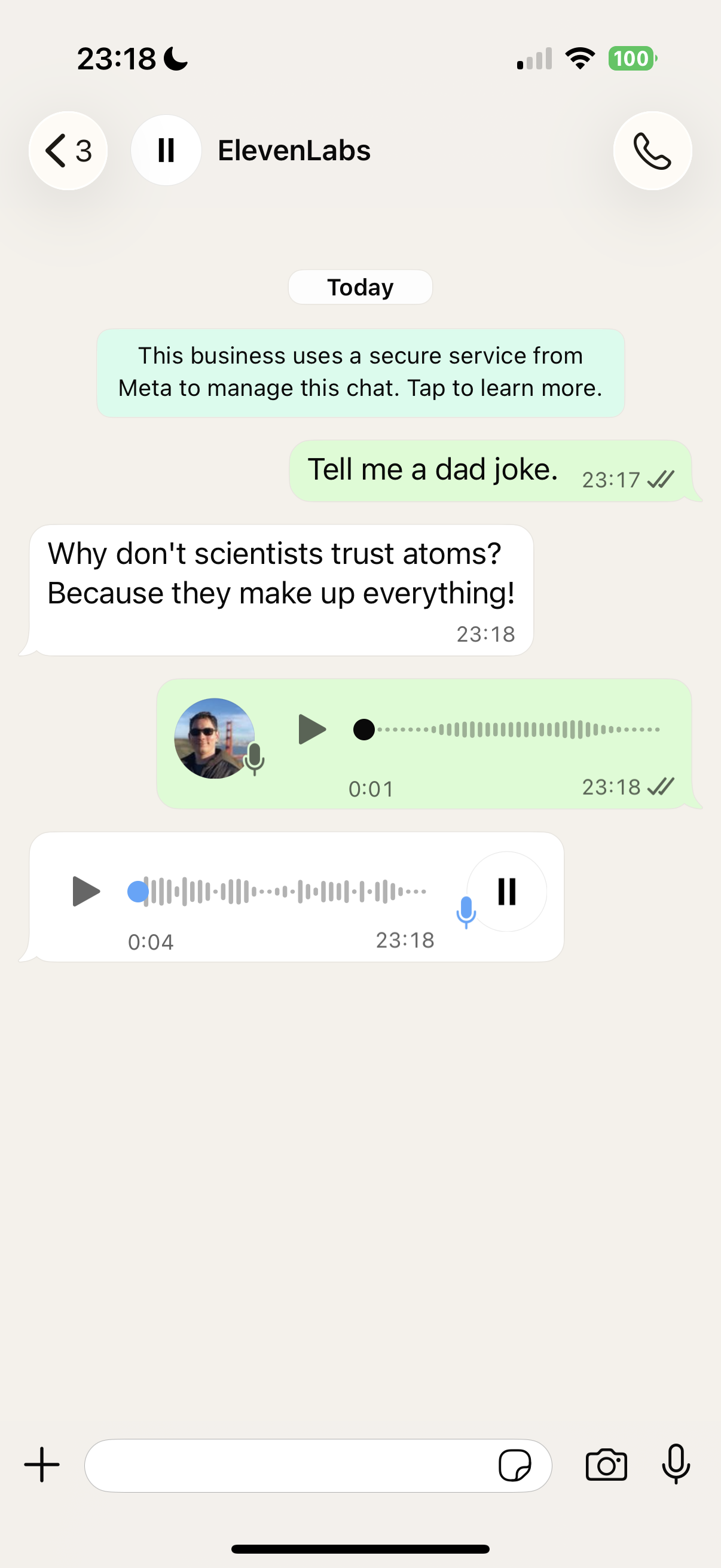
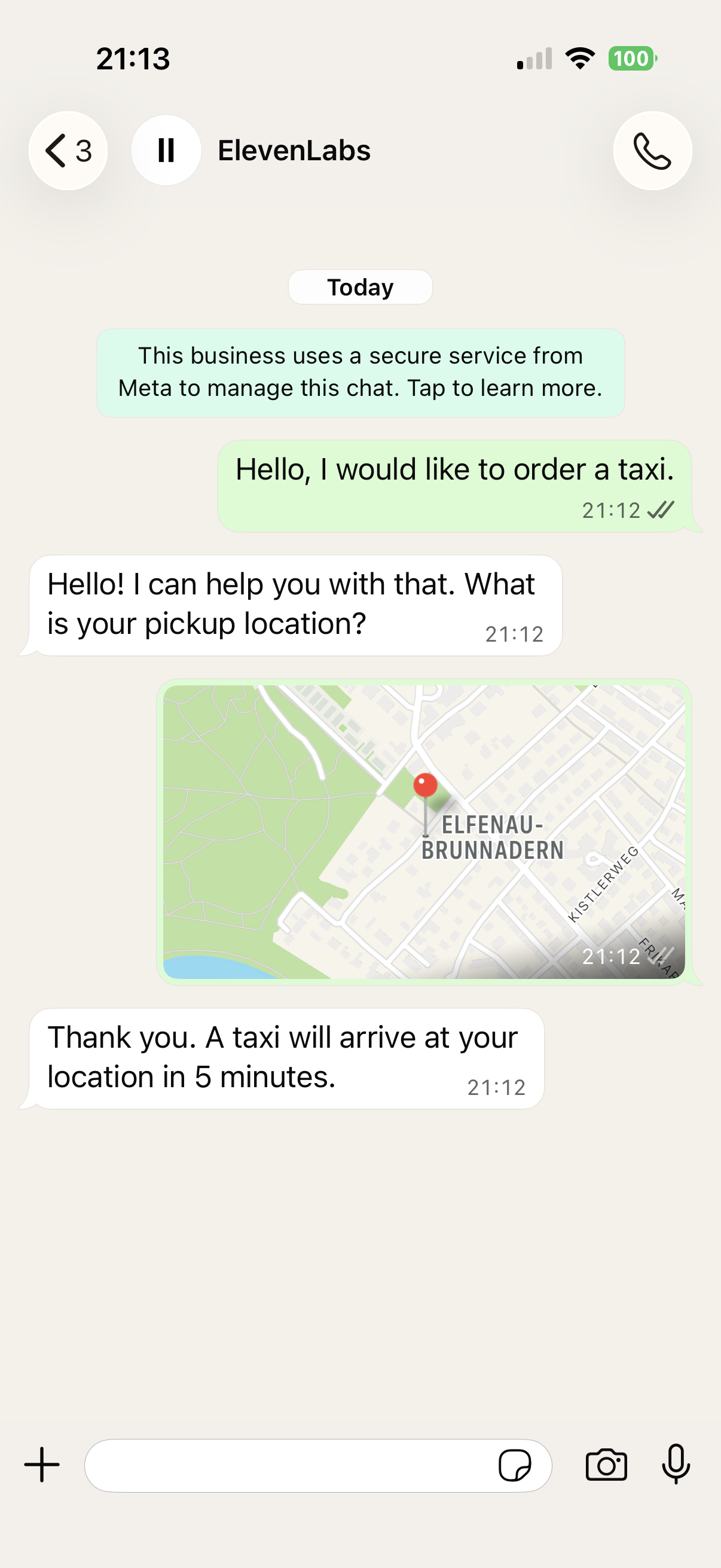
In addition to text, you can also send:
* audio
* Inbound audio messages will be transcribed to text before being passed to the agent.
* By default, the agent will respond to audio messages with audio messages. You can make the agent always respond with text in your WhatsApp account settings.
* Audio messages result in extra charges for speech-to-text and text-to-speech. Pricing is the same as in the STT and TTS APIs.
* image
* document
* location
* contact
Alternatively, you can send the message via [the API](/docs/api-reference/whats-app/outbound-message).
For outbound messages, the timer for max conversation duration only starts after the user
responds.
### Message types
In addition to text, you can also send:
* audio
* Inbound audio messages will be transcribed to text before being passed to the agent.
* By default, the agent will respond to audio messages with audio messages. You can make the agent always respond with text in your WhatsApp account settings.
* Audio messages result in extra charges for speech-to-text and text-to-speech. Pricing is the same as in the STT and TTS APIs.
* image
* document
* location
* contact


 ## Calls
### Inbound
You can call your WhatsApp business account and the agent will respond. During the call, you can also send text messages and they will be incorporated into the conversation.
### Outbound
Making an outbound call requires permission from the user. You can read more about this in [WhatsApp documentation](https://developers.facebook.com/documentation/business-messaging/whatsapp/calling/user-call-permissions). When you schedule an outbound call, we will automatically send a template message with a call permission request if necessary, and make the call as soon as the user approves it.
First, go to [WhatsApp Manager](https://business.facebook.com/latest/whatsapp_manager/message_templates) and create a message template with a call permission request component.
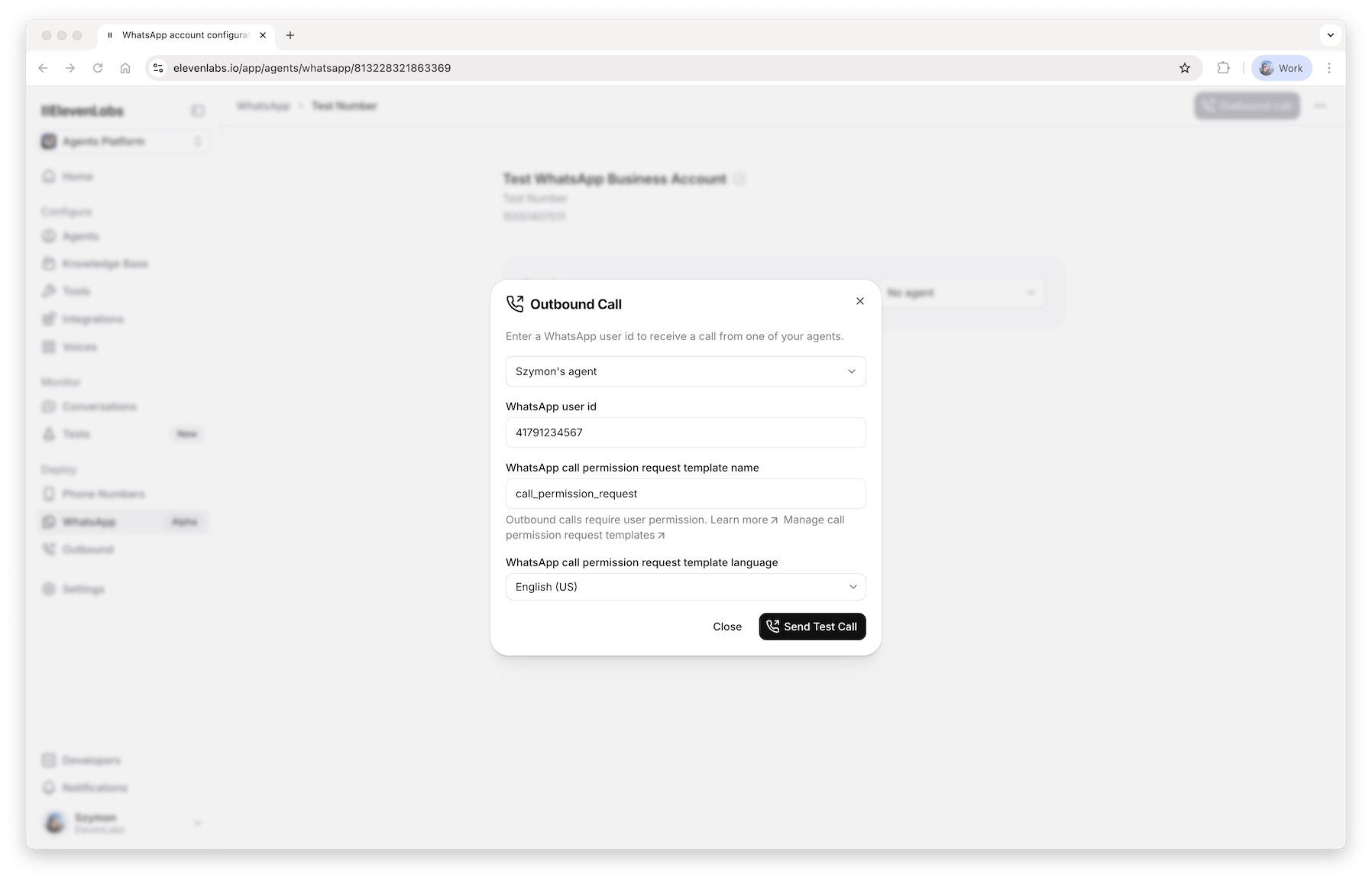
You can then go to the [WhatsApp page](https://elevenlabs.io/app/agents/whatsapp), select your account, and click the ***Outbound -> Call*** button. This will open a dialog where you select an agent, provide a WhatsApp user ID, and the call permission request template to use:
## Calls
### Inbound
You can call your WhatsApp business account and the agent will respond. During the call, you can also send text messages and they will be incorporated into the conversation.
### Outbound
Making an outbound call requires permission from the user. You can read more about this in [WhatsApp documentation](https://developers.facebook.com/documentation/business-messaging/whatsapp/calling/user-call-permissions). When you schedule an outbound call, we will automatically send a template message with a call permission request if necessary, and make the call as soon as the user approves it.
First, go to [WhatsApp Manager](https://business.facebook.com/latest/whatsapp_manager/message_templates) and create a message template with a call permission request component.
You can then go to the [WhatsApp page](https://elevenlabs.io/app/agents/whatsapp), select your account, and click the ***Outbound -> Call*** button. This will open a dialog where you select an agent, provide a WhatsApp user ID, and the call permission request template to use:
 Alternatively, you can schedule the call via [the API](/docs/api-reference/whats-app/outbound-call) or schedule multiple calls with [batch calling](/docs/eleven-agents/phone-numbers/batch-calls).
## Next steps: personalization
We set the `{{system__caller_id}}` and `{{system__called_number}}` [dynamic variables](/docs/eleven-agents/customization/personalization/dynamic-variables) to the WhatsApp user ID and your WhatsApp phone number ID (or vice versa, depending on who started the conversation). You can use those in a tool or a [conversation initiation webhook](/docs/eleven-agents/customization/personalization/twilio-personalization) to personalize conversations.
You can find your WhatsApp phone number ID by going to the [WhatsApp
page](https://elevenlabs.io/app/agents/whatsapp), clicking the menu next to your account and
selecting ***Copy phone number ID***.
## FAQ
Meta charges for outbound calls and call permission requests sent outside of a [Customer Service
Window](https://developers.facebook.com/documentation/business-messaging/whatsapp/messages/send-messages#customer-service-windows).
You will not be able to make outbound calls until you add a payment method to your WhatsApp
business account. You can read more in [WhatsApp
documentation](https://developers.facebook.com/documentation/business-messaging/whatsapp/pricing).
[Zero-Retention Mode](/docs/eleven-api/resources/zero-retention-mode) limits our ability to
provide certain functionality: we ignore messages and disallow outbound calls.
If you have your own WhatsApp app responding to messages on your account, you can configure ElevenLabs to only respond to calls: go to the [WhatsApp page](https://elevenlabs.io/app/agents/whatsapp), select your account and turn off the ***Enable messaging*** switch.
If you rely on a third-party partner (e.g. Gupshup) to manage your account, then you will not be able to also import it into ElevenLabs. Meta is currently working on adding support for this (see [Multi-Solution Conversations](https://developers.facebook.com/documentation/business-messaging/whatsapp/solution-providers/multi-solution-conversations)).
Alternatively, you can schedule the call via [the API](/docs/api-reference/whats-app/outbound-call) or schedule multiple calls with [batch calling](/docs/eleven-agents/phone-numbers/batch-calls).
## Next steps: personalization
We set the `{{system__caller_id}}` and `{{system__called_number}}` [dynamic variables](/docs/eleven-agents/customization/personalization/dynamic-variables) to the WhatsApp user ID and your WhatsApp phone number ID (or vice versa, depending on who started the conversation). You can use those in a tool or a [conversation initiation webhook](/docs/eleven-agents/customization/personalization/twilio-personalization) to personalize conversations.
You can find your WhatsApp phone number ID by going to the [WhatsApp
page](https://elevenlabs.io/app/agents/whatsapp), clicking the menu next to your account and
selecting ***Copy phone number ID***.
## FAQ
Meta charges for outbound calls and call permission requests sent outside of a [Customer Service
Window](https://developers.facebook.com/documentation/business-messaging/whatsapp/messages/send-messages#customer-service-windows).
You will not be able to make outbound calls until you add a payment method to your WhatsApp
business account. You can read more in [WhatsApp
documentation](https://developers.facebook.com/documentation/business-messaging/whatsapp/pricing).
[Zero-Retention Mode](/docs/eleven-api/resources/zero-retention-mode) limits our ability to
provide certain functionality: we ignore messages and disallow outbound calls.
If you have your own WhatsApp app responding to messages on your account, you can configure ElevenLabs to only respond to calls: go to the [WhatsApp page](https://elevenlabs.io/app/agents/whatsapp), select your account and turn off the ***Enable messaging*** switch.
If you rely on a third-party partner (e.g. Gupshup) to manage your account, then you will not be able to also import it into ElevenLabs. Meta is currently working on adding support for this (see [Multi-Solution Conversations](https://developers.facebook.com/documentation/business-messaging/whatsapp/solution-providers/multi-solution-conversations)).