> This is a page from the ElevenLabs documentation. For a complete page index, fetch https://elevenlabs.io/docs/llms.txt. For the full documentation in a single file, fetch https://elevenlabs.io/docs/llms-full.txt.
# Widget customization
**Widgets** enable instant integration of ElevenAgents into any website. You can either customize your widget through the UI or through our type-safe [ElevenAgents SDKs](/docs/eleven-api/resources/libraries) for complete control over styling and behavior. The SDK overrides take priority over UI customization.
Our widget is multimodal and able to process both text and audio.
## Modality configuration
The widget supports flexible input modes to match your use case. Configure these options in the [dashboard](https://elevenlabs.io/app/agents/dashboard) **Widget** tab under the **Interface** section.
Multimodality is fully supported in our client SDKs, see more
[here](/docs/eleven-api/resources/libraries).
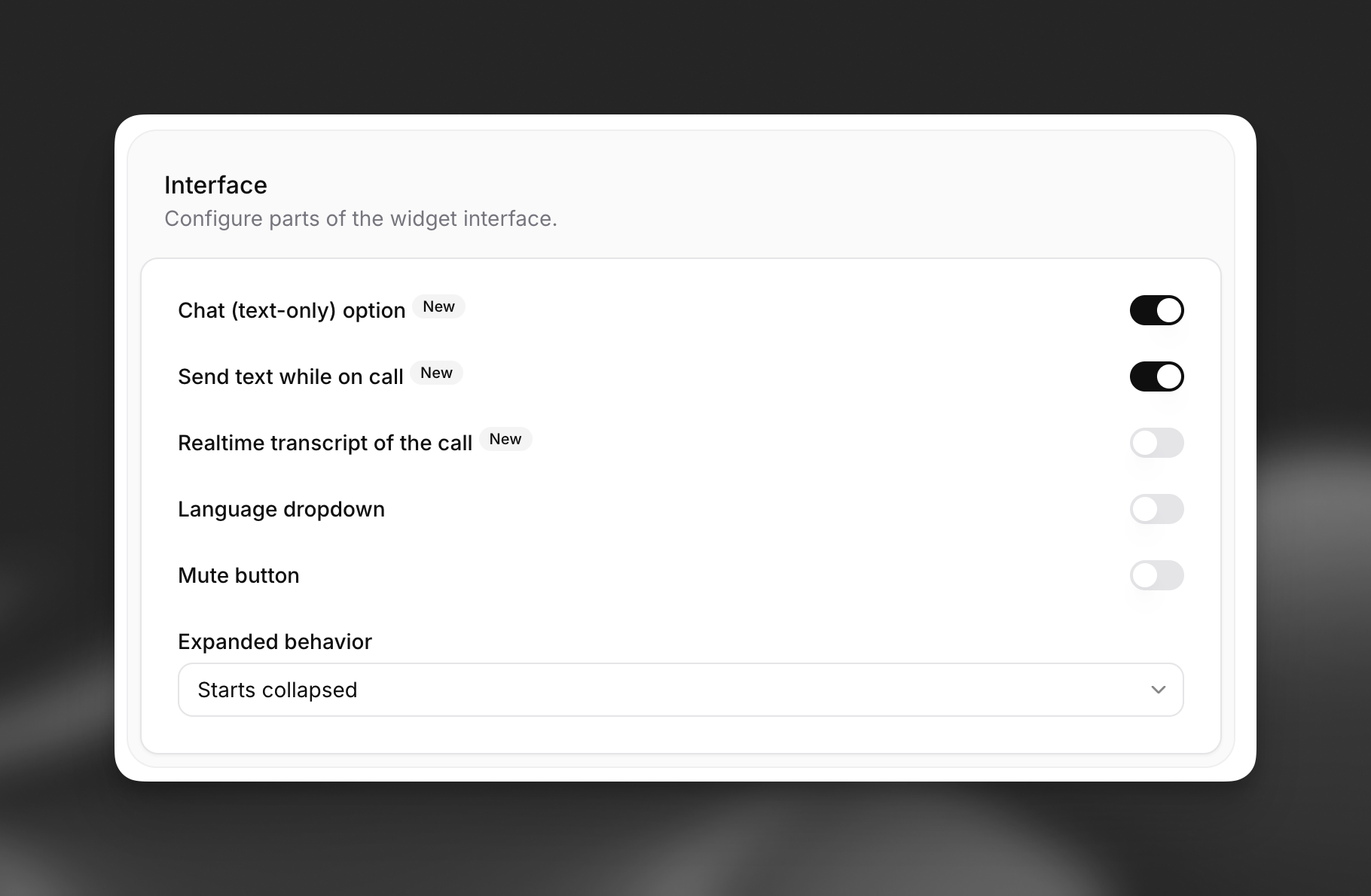
**Available modes:**
* **Voice only** (default): Users interact through speech only.
* **Voice + text**: Users can switch between voice and text input during conversations.
* **Chat Mode**: Conversations start in chat (text-only) mode without voice capabilities when initiated with a text message.
For more information on using chat (text-only) mode via our SDKs, see our [chat mode guide](/docs/eleven-agents/guides/chat-mode).
The widget defaults to voice-only mode. Enable the text input toggle to allow multimodal
interactions, or enable text-only mode support for purely text-based conversations when initiated
via text.
## Embedding the widget
Widgets currently require public agents with authentication disabled. Ensure this is disabled in
the **Advanced** tab of your agent settings.
Add this code snippet to your website's `` section. Place it in your main `index.html` file for site-wide availability:
```html title="Widget embed code"
```
For enhanced security, define allowed domains in your agent's **Allowlist** (located in the
**Security** tab). This restricts access to specified hosts only.
## Widget attributes
This basic embed code will display the widget with the default configuration defined in the agent's dashboard.
The widget supports various HTML attributes for further customization:
```html
```
```html
```
```html
```
The widget renders markdown in agent responses. Links display as plain text by default to prevent phishing.
```html
```
## Runtime configuration
Two more html attributes can be used to customize the agent's behavior at runtime. These two features can be used together, separately, or not at all
### Dynamic variables
Dynamic variables allow you to inject runtime values into your agent's messages, system prompts, and tools.
```html
```
All dynamic variables that the agent requires must be passed in the widget.
See more in our [dynamic variables
guide](/docs/eleven-agents/customization/personalization/dynamic-variables).
### Overrides
Overrides enable complete customization of your agent's behavior at runtime:
```html
```
Overrides can be enabled for specific fields, and are entirely optional.
See more in our [overrides guide](/docs/eleven-agents/customization/personalization/overrides).
## Visual customization
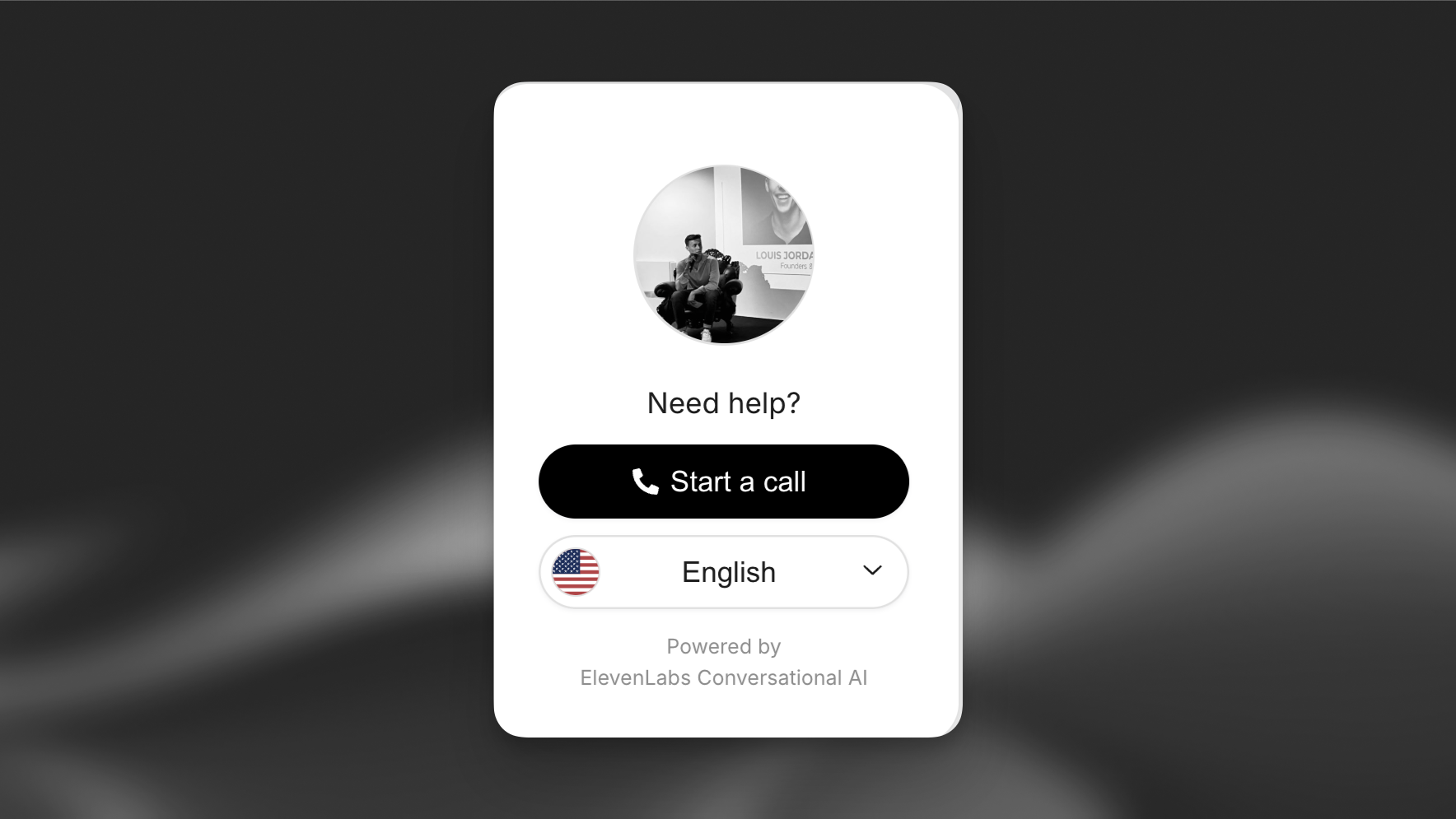
Customize the widget's appearance, text content, language selection, and more.
Open your agent in the dashboard and navigate to the **Widget** tab to customize appearance, avatar, text, terms, language support, and more.
```bash
elevenlabs agents pull --agent ""
```
Set fields under `platform_settings.widget`. For example, to change the orb colors and feedback mode:
```json
{
"platform_settings": {
"widget": {
"variant": "full",
"placement": "bottom-right",
"avatar": {
"type": "orb",
"color_1": "#6DB035",
"color_2": "#F5CABB"
},
"feedback_mode": "during",
"bg_color": "#ffffff",
"text_color": "#000000",
"btn_color": "#000000",
"btn_text_color": "#ffffff"
}
}
}
```
```bash
elevenlabs agents push --agent ""
```
```python
from elevenlabs import ElevenLabs
elevenlabs = ElevenLabs()
elevenlabs.conversational_ai.agents.update(
agent_id="agent_7101k5zvyjhmfg983brhmhkd98n6",
platform_settings={
"widget": {
"variant": "full",
"placement": "bottom-right",
"avatar": {
"type": "orb",
"color_1": "#6DB035",
"color_2": "#F5CABB",
},
"feedback_mode": "during",
},
},
)
```
```typescript
import { ElevenLabsClient } from "@elevenlabs/elevenlabs-js";
const elevenlabs = new ElevenLabsClient();
await elevenlabs.conversationalAi.agents.update("agent_7101k5zvyjhmfg983brhmhkd98n6", {
platformSettings: {
widget: {
variant: "full",
placement: "bottom-right",
avatar: {
type: "orb",
color1: "#6DB035",
color2: "#F5CABB",
},
feedbackMode: "during",
},
},
});
```
Customize the widget colors and shapes to match your brand identity.

Gather user insights to improve agent performance. This can be used to fine-tune your agent's knowledge-base & system prompt.
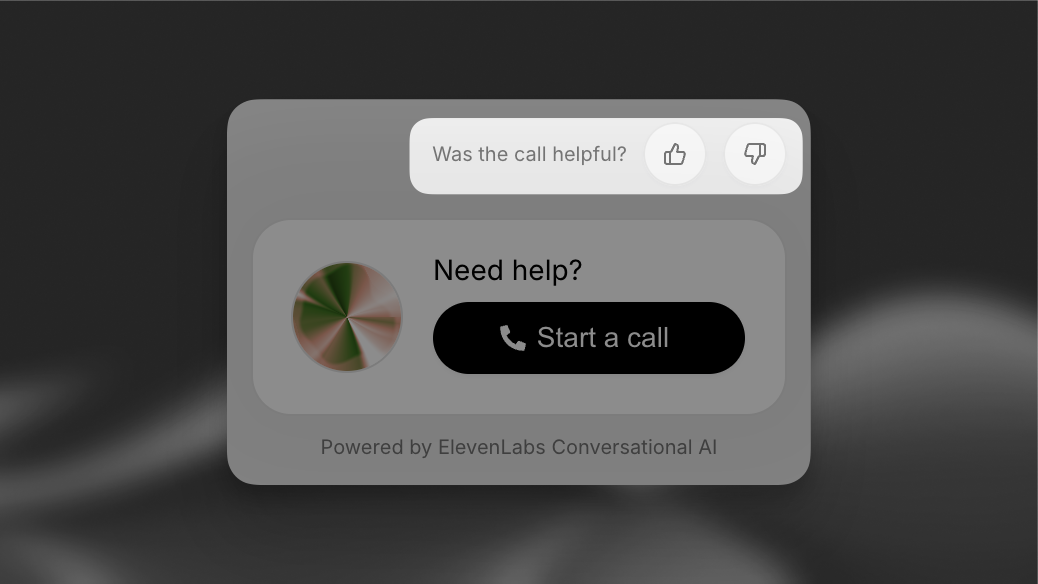
**Collection modes**
* None: Disable feedback collection entirely.
* During conversation: Support real-time feedback during conversations. Additionnal metadata such as the agent response that prompted the feedback will be collected to help further identify gaps.
* After conversation: Display a single feedback prompt after the conversation.
Send feedback programmatically via the [API](/docs/eleven-agents/api-reference/conversations/create) when using custom SDK implementations.
Configure the voice orb or provide your own avatar.
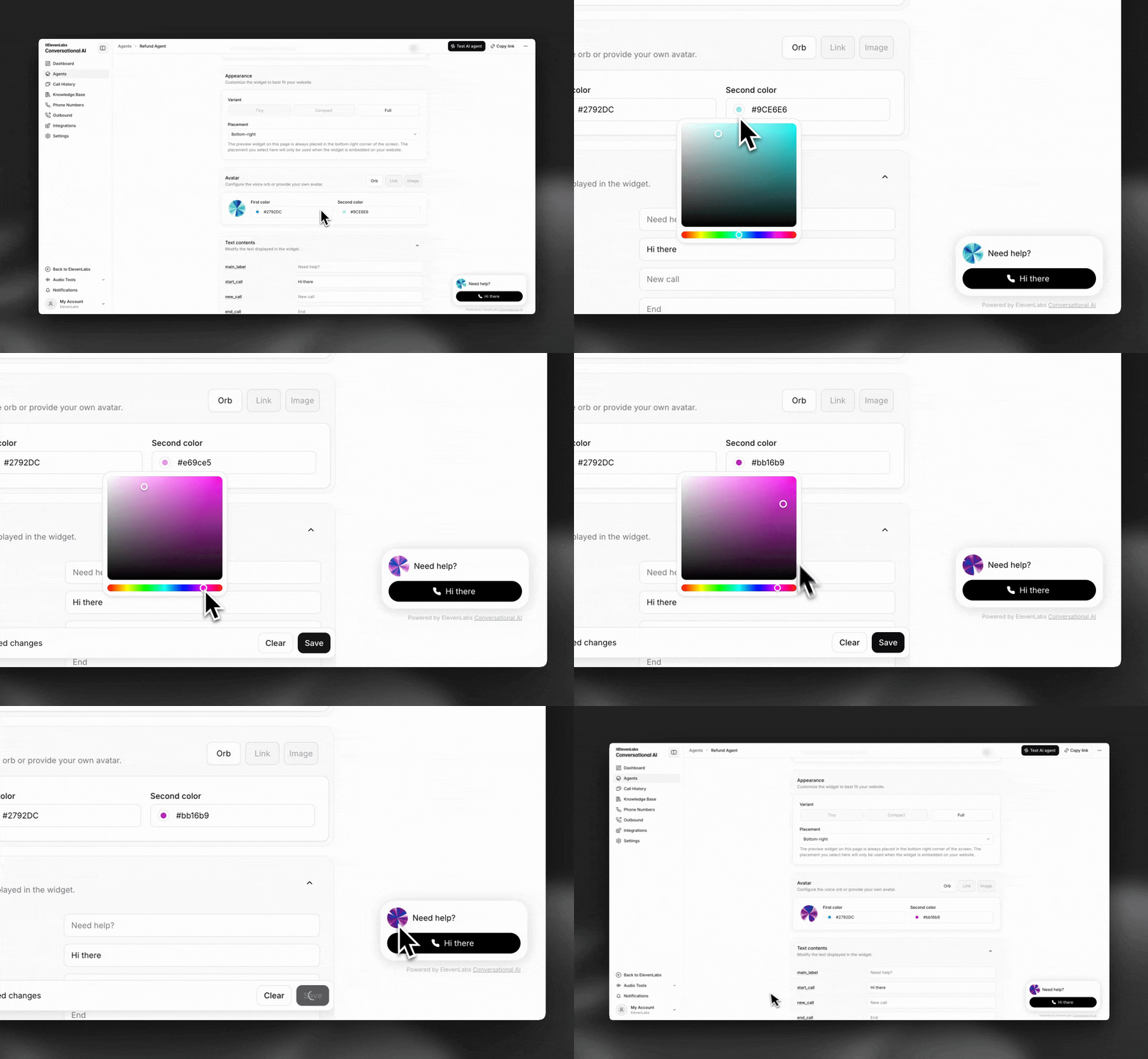
**Available options**
* Orb: Choose two gradient colors (e.g., #6DB035 & #F5CABB).
* Link/image: Use a custom avatar image.
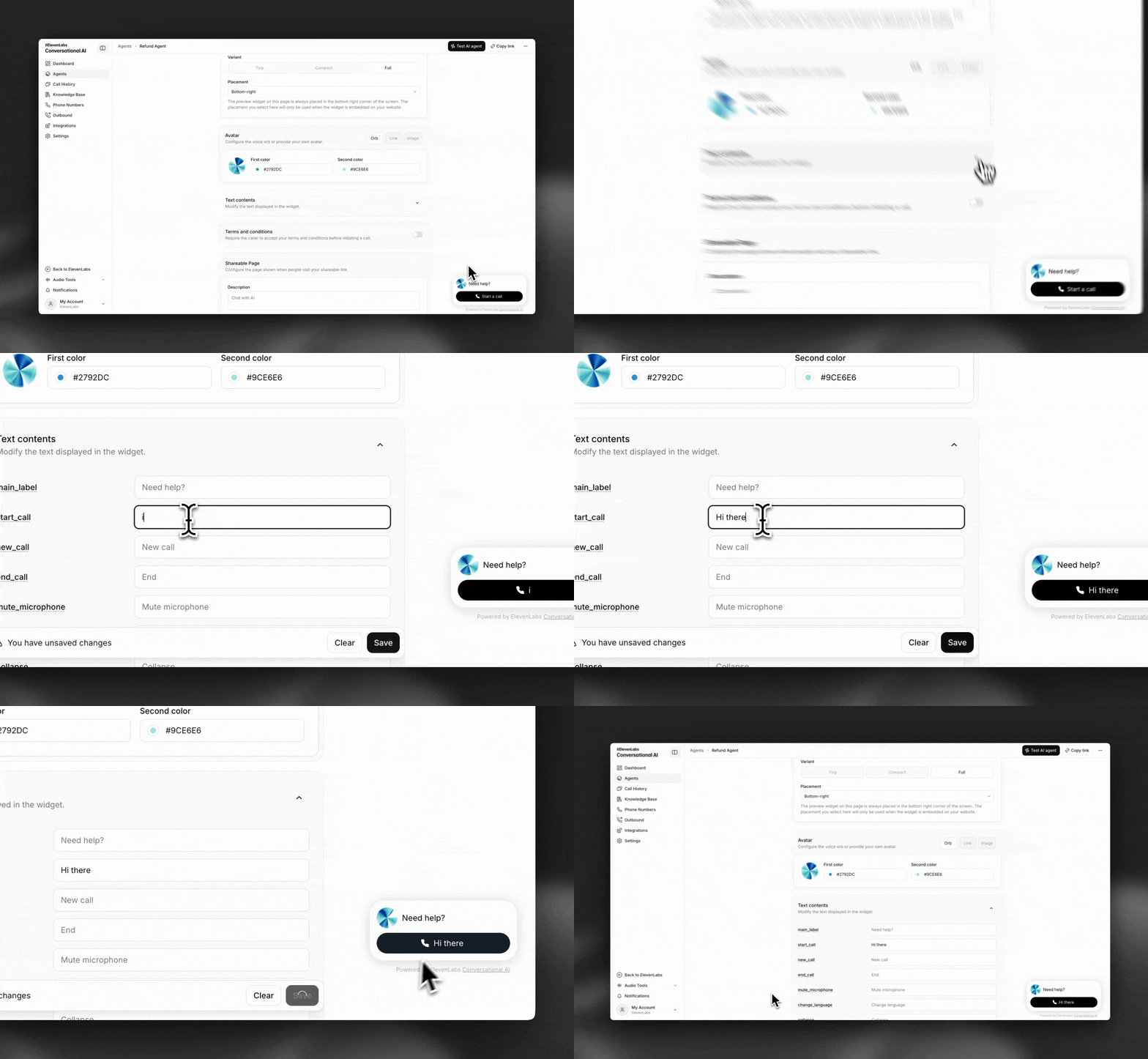
Customize all displayed widget text elements, for example to modify button labels.
Display custom terms and conditions before the conversation.
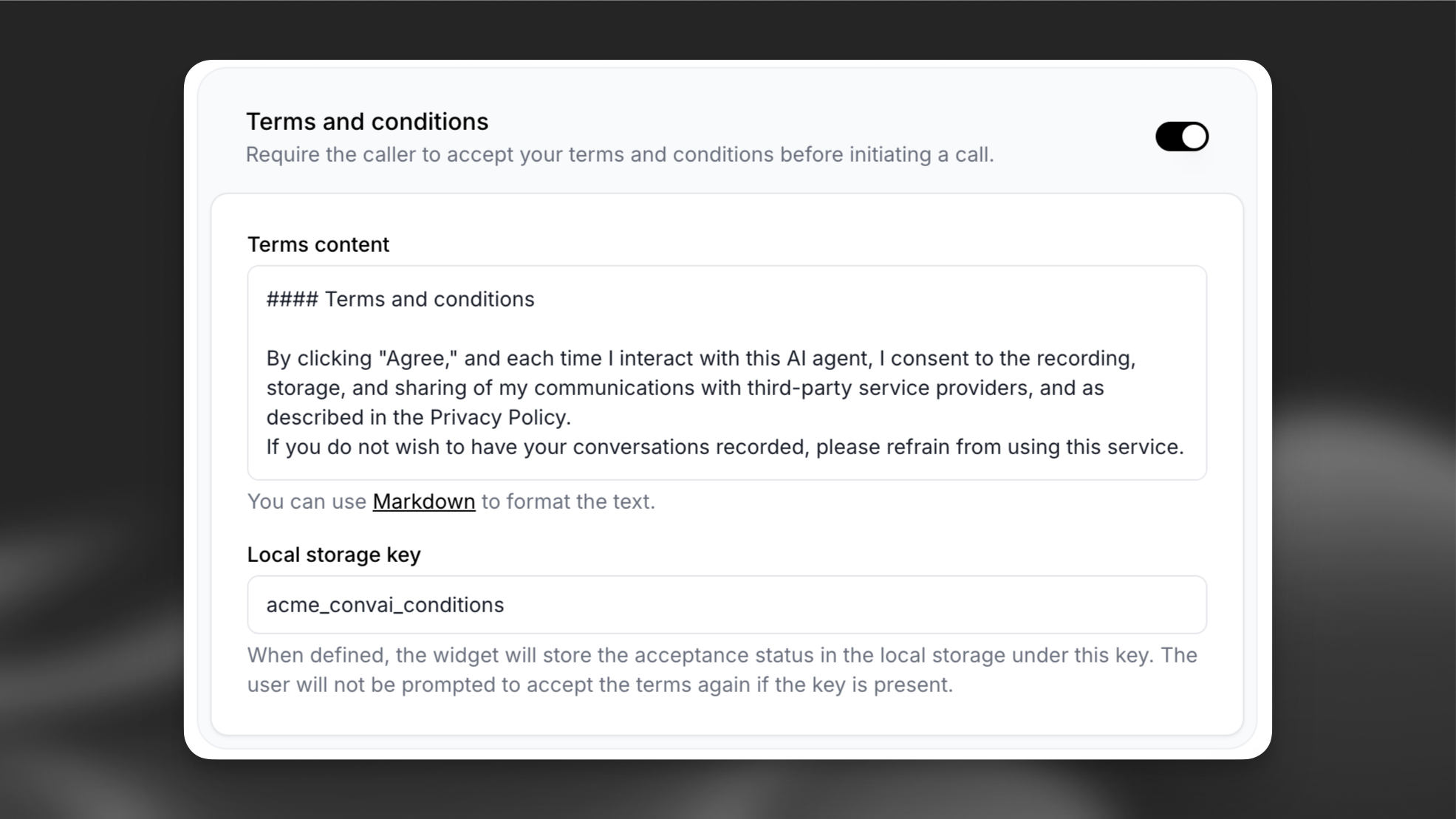
**Available options**
* Terms content: Use Markdown to format your policy text.
* Local storage key: A key (e.g., "terms\_accepted") to avoid prompting returning users.
**Usage**
The terms are displayed to users in a modal before starting the call:
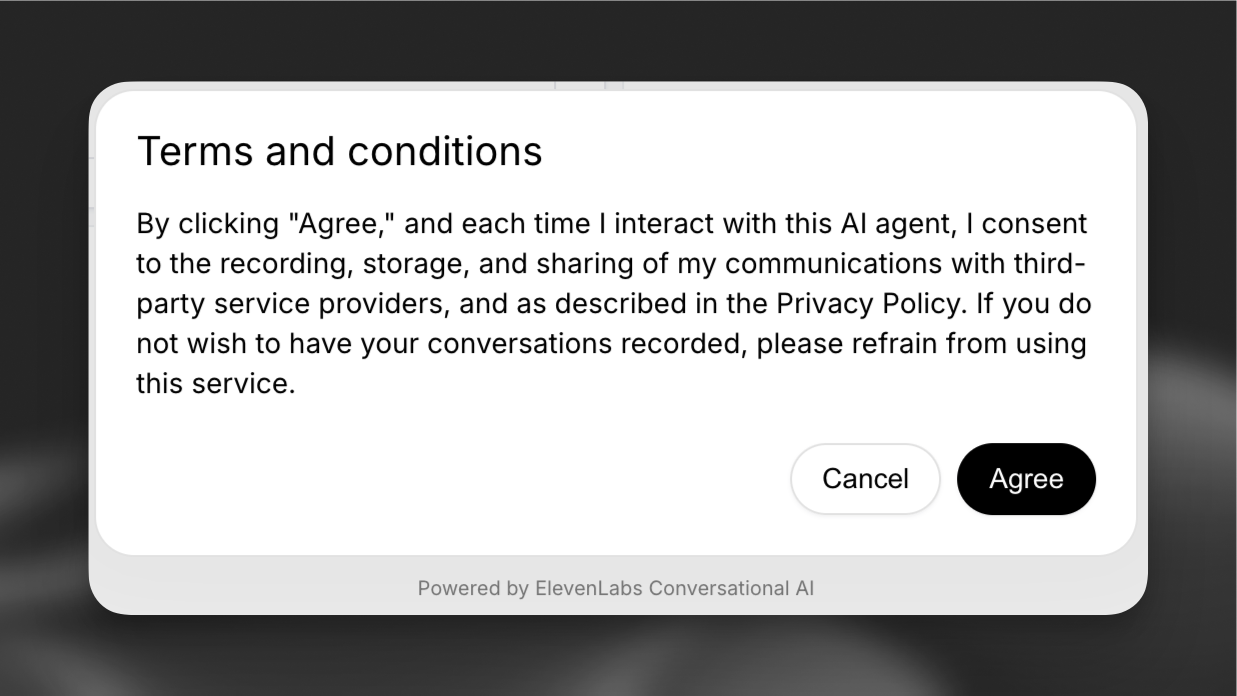
The terms can be written in Markdown, allowing you to:
* Add links to external policies
* Format text with headers and lists
* Include emphasis and styling
For more help with Markdown, see the [CommonMark help guide](https://commonmark.org/help/).
Once accepted, the status is stored locally and the user won't be prompted again on subsequent
visits.
Enable multi-language support in the widget.
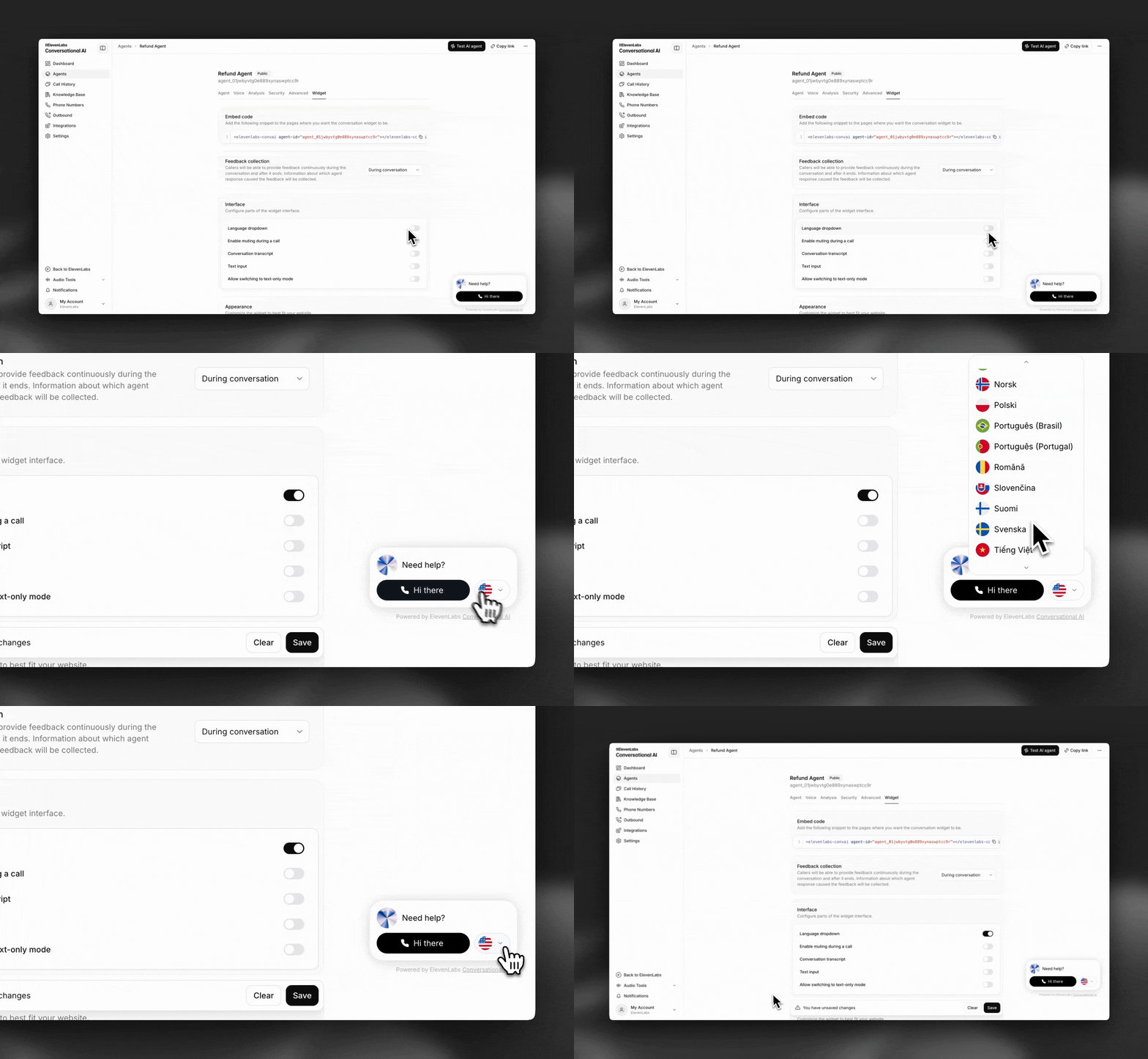
To enable language selection, you must first [add additional
languages](/docs/eleven-agents/customization/voice/customization/language) to your agent.
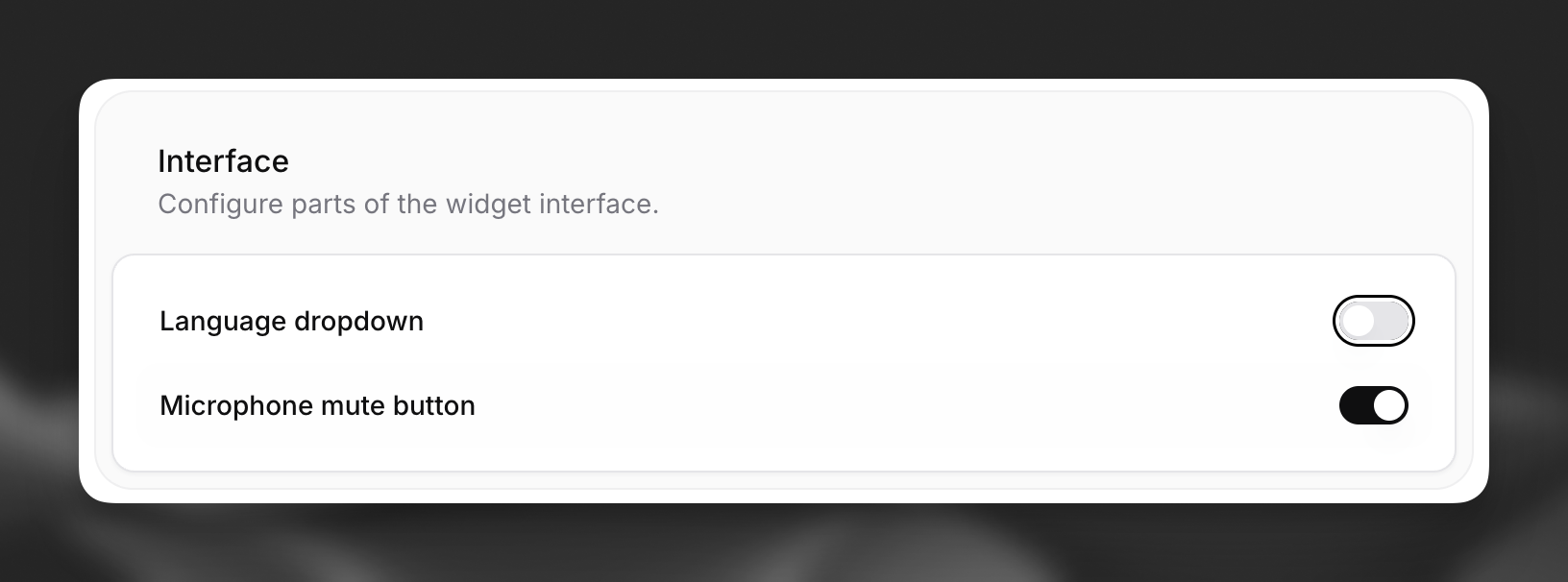
Allow users to mute their audio in the widget.
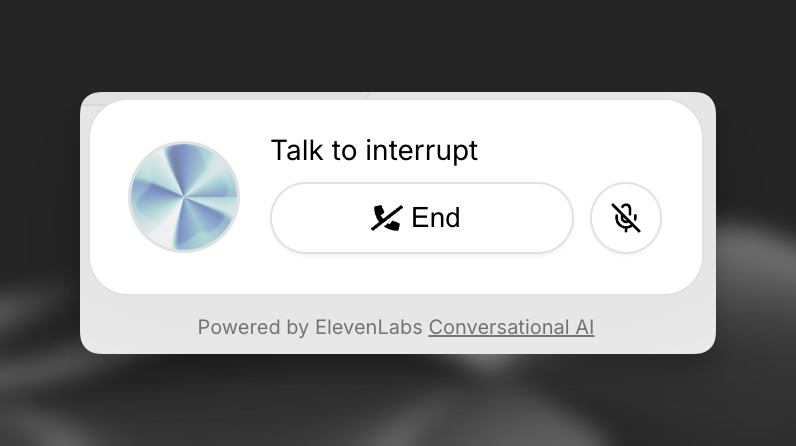
To add the mute button please enable this in the `interface` card of the agent's `widget`
settings.
Customize your public widget landing page (shareable link).
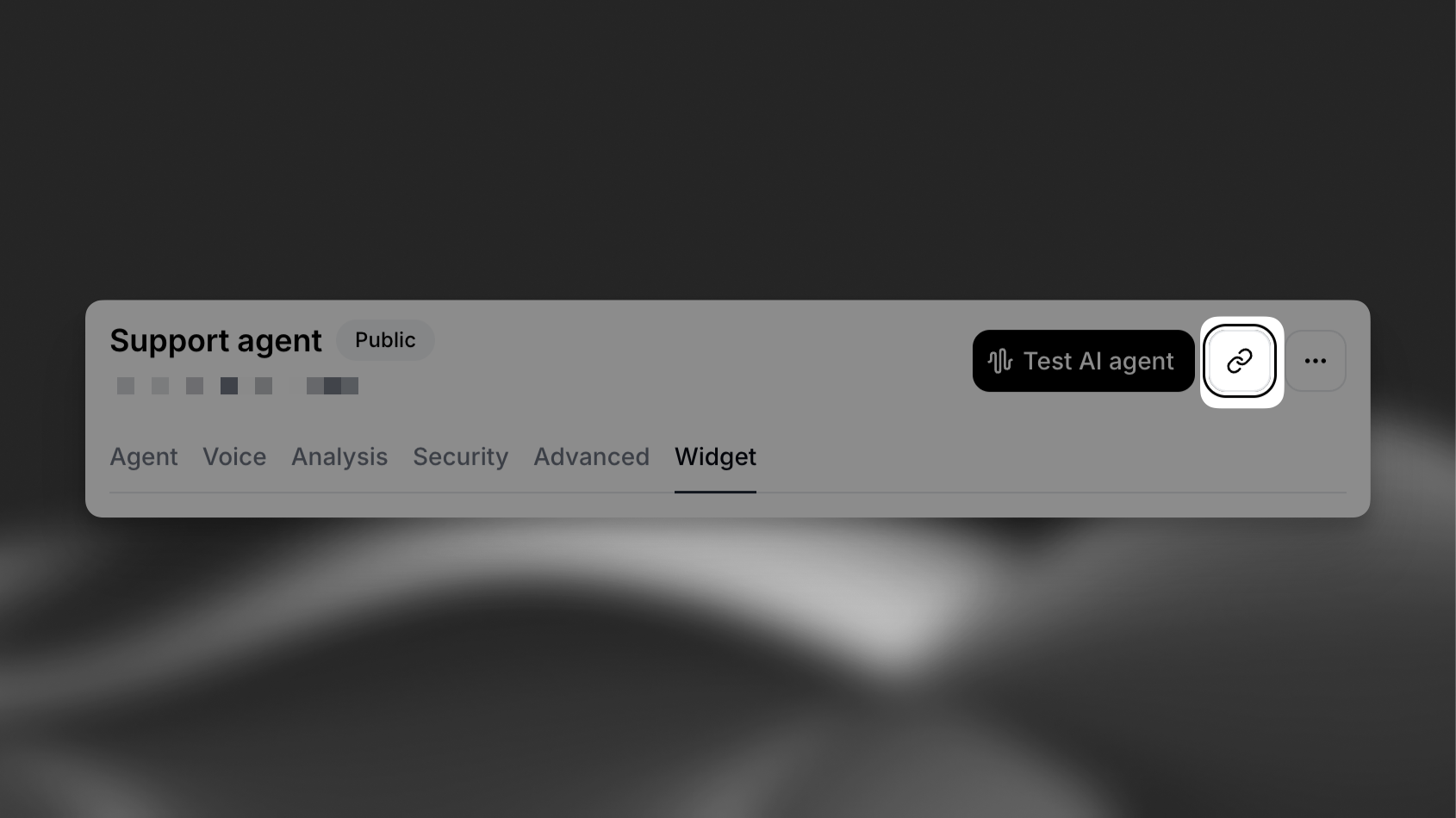
**Available options**
* Description: Provide a short paragraph explaining the purpose of the call.
***
## Advanced implementation
For more advanced customization, you should use the type-safe [ElevenAgents
SDKs](/docs/eleven-api/resources/libraries) with a Next.js, React, or Python application.
### Client Tools
Client tools allow you to extend the functionality of the widget by adding event listeners. This enables the widget to perform actions such as:
* Redirecting the user to a specific page
* Sending an email to your support team
* Redirecting the user to an external URL
To see examples of these tools in action, start a call with the agent in the bottom right corner of this page. The [source code is available on GitHub](https://github.com/elevenlabs/elevenlabs-dx/blob/main/fern/assets/scripts/widget.js) for reference.
#### Creating a Client Tool
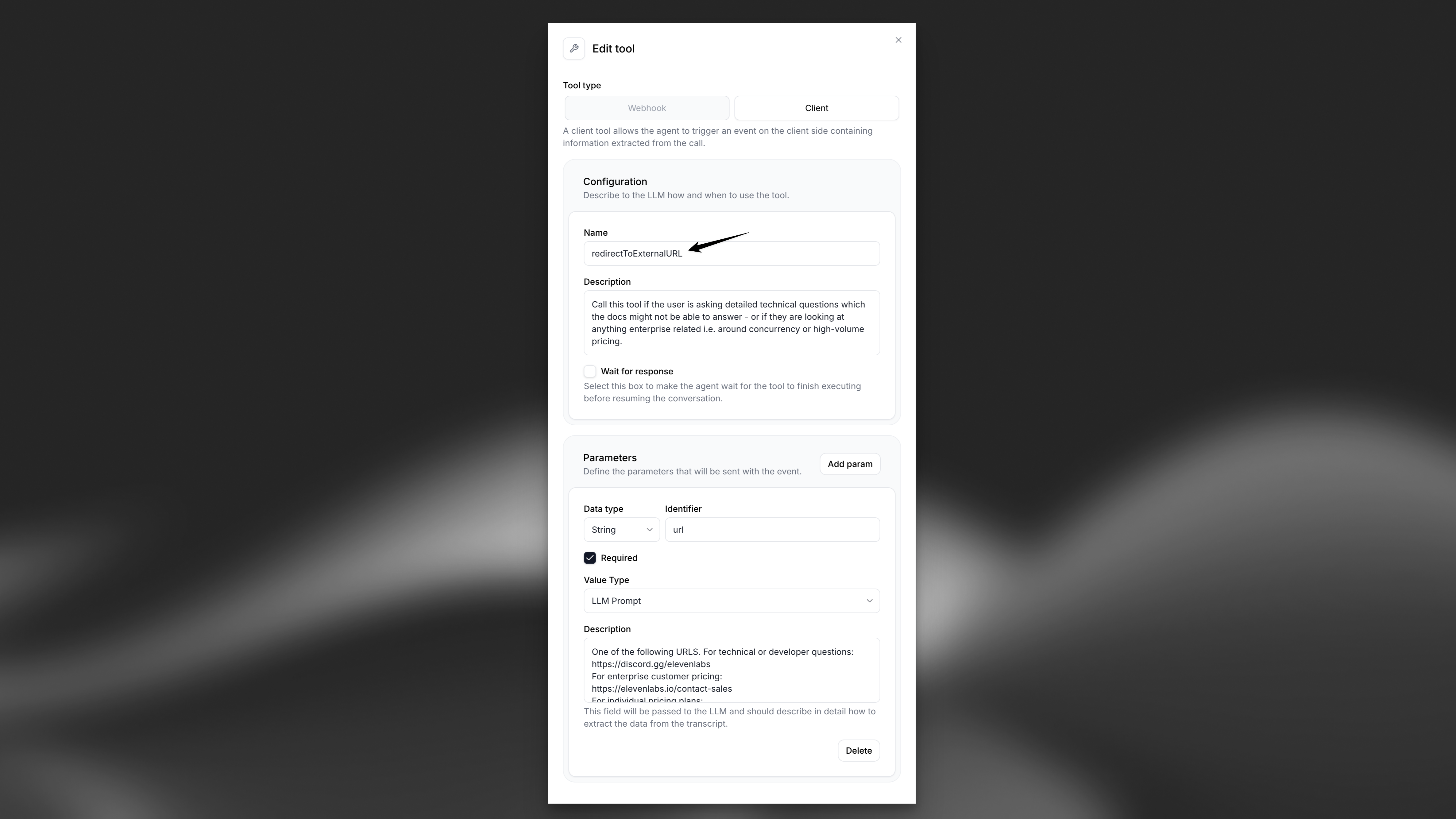
To create your first client tool, follow the [client tools guide](/docs/eleven-agents/customization/tools/client-tools).
#### Example Implementation
Below is an example of how to handle the `redirectToExternalURL` tool triggered by the widget in your JavaScript code:
```javascript title="index.js"
document.addEventListener("DOMContentLoaded", () => {
const widget = document.querySelector("elevenlabs-convai");
if (widget) {
// Listen for the widget's "call" event to trigger client-side tools
widget.addEventListener("elevenlabs-convai:call", (event) => {
event.detail.config.clientTools = {
// Note: To use this example, the client tool called "redirectToExternalURL" (case-sensitive) must have been created with the configuration defined above.
redirectToExternalURL: ({ url }) => {
window.open(url, "_blank", "noopener,noreferrer");
},
};
});
}
});
```
Explore our type-safe [SDKs](/docs/eleven-api/resources/libraries) for React, Next.js, and Python
implementations.