> This is a page from the ElevenLabs documentation. For a complete page index, fetch https://elevenlabs.io/docs/llms.txt. For the full documentation in a single file, fetch https://elevenlabs.io/docs/llms-full.txt.
# Multi-voice support
## Overview
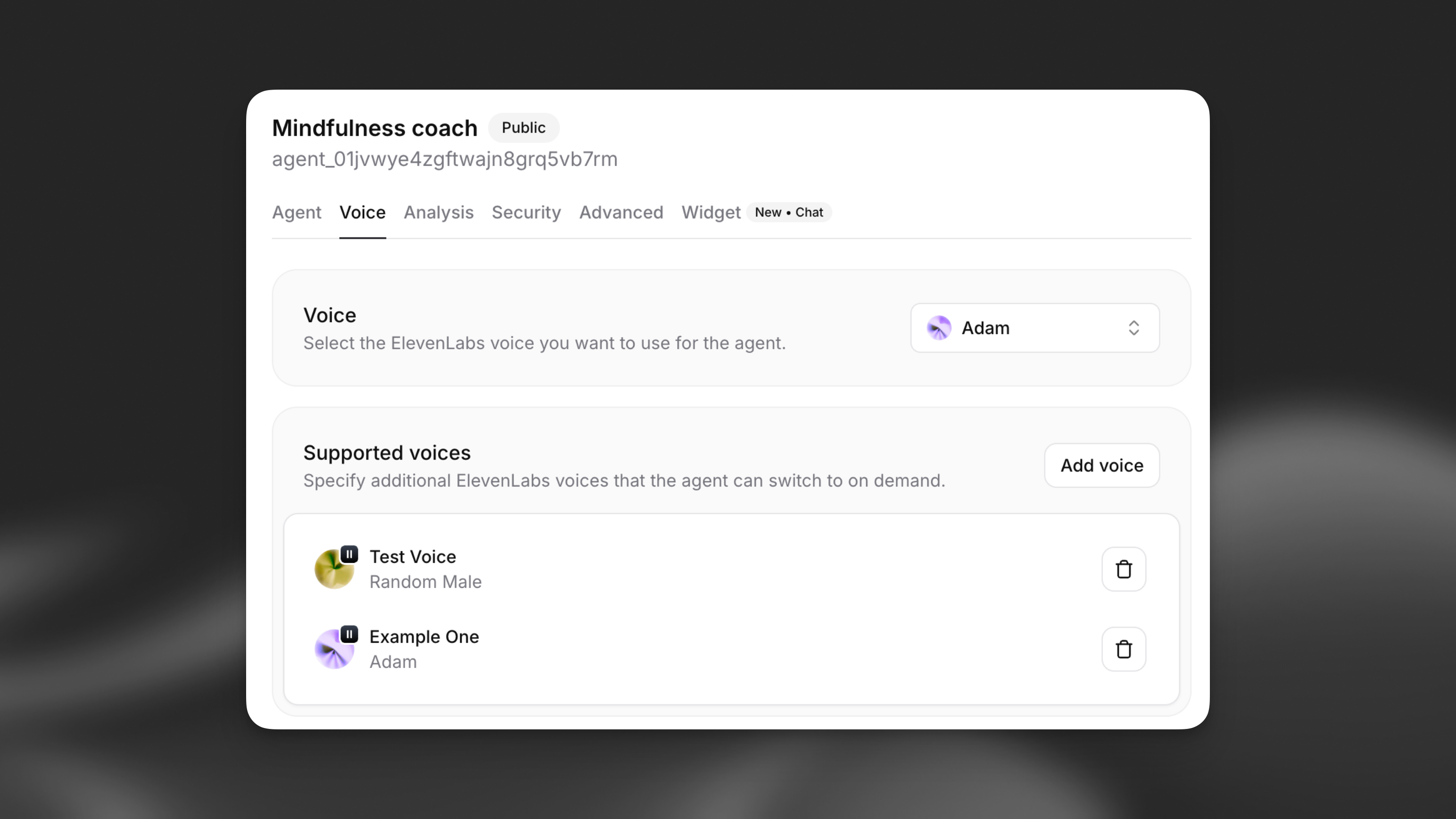
Multi-voice support allows your ElevenLabs agent to dynamically switch between different ElevenLabs voices during a single conversation. This powerful feature enables:
* **Multi-character storytelling**: Different voices for different characters in narratives
* **Language tutoring**: Native speaker voices for different languages
* **Emotional agents**: Voice changes based on emotional context
* **Role-playing scenarios**: Distinct voices for different personas
 ## How it works
When multi-voice support is enabled, your agent can use XML-style markup to switch between configured voices during text generation. The agent automatically returns to the default voice when no specific voice is specified.
```xml title="Example voice switching"
The teacher said, ¡Hola estudiantes!
Then the student replied, Hello! How are you today?
```
```xml title="Multi-character dialogue"
Once upon a time, in a distant kingdom...
I need to find the magic crystal!
The crystal lies beyond the enchanted forest.
```
## Configuration
### Adding supported voices
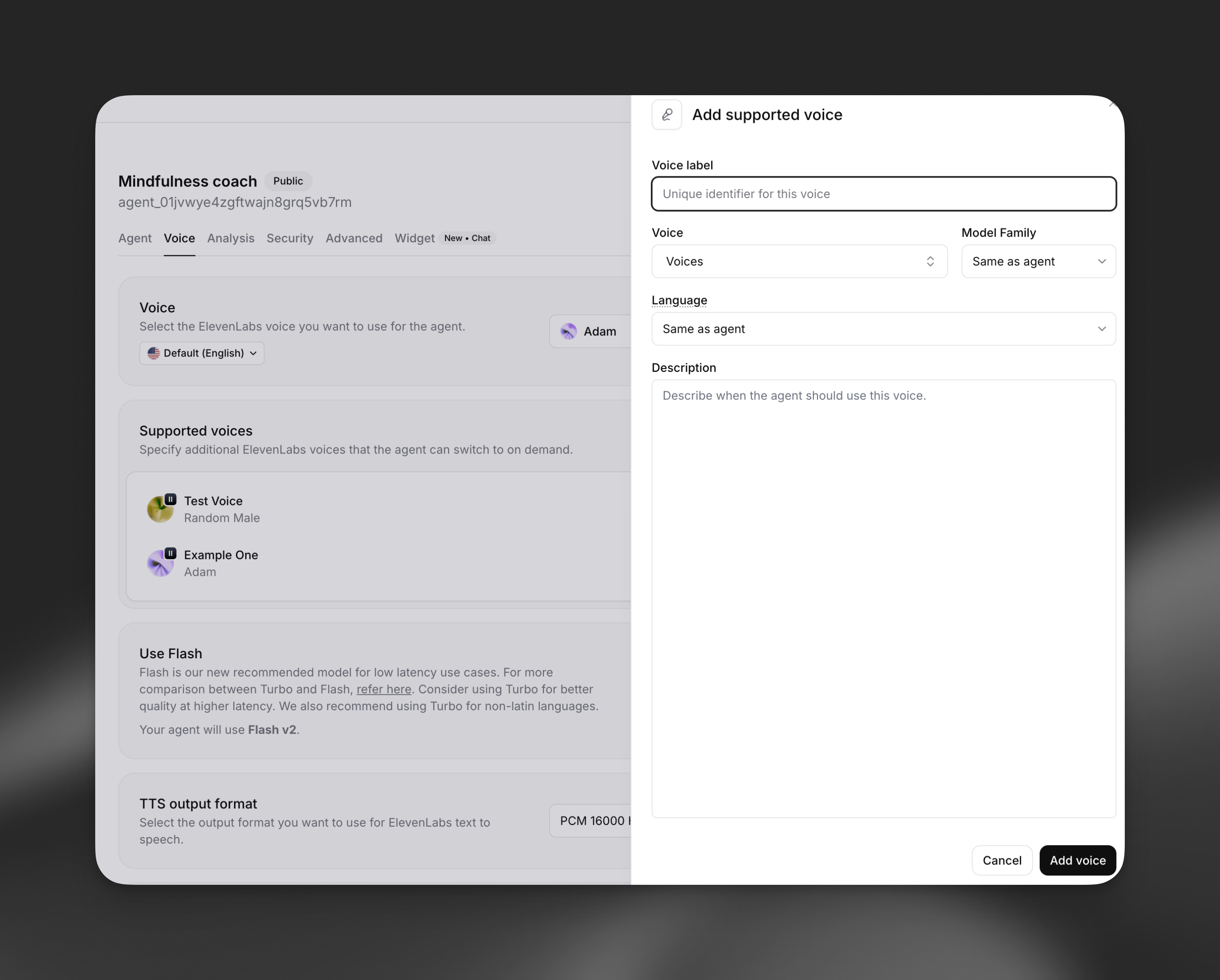
Each supported voice has the following properties:
* **Voice label**: Unique identifier (e.g., "Joe", "Spanish", "Happy")
* **Voice**: Select from your available ElevenLabs voices
* **Model family**: Choose Turbo, Flash, or Multilingual (optional)
* **Language**: Override the default language for this voice (optional)
* **Description**: When the agent should use this voice
Open your agent in the dashboard, navigate to the **Voice** tab, and locate the **Multi-voice support** section. Click **Add voice** to configure a new supported voice.
## How it works
When multi-voice support is enabled, your agent can use XML-style markup to switch between configured voices during text generation. The agent automatically returns to the default voice when no specific voice is specified.
```xml title="Example voice switching"
The teacher said, ¡Hola estudiantes!
Then the student replied, Hello! How are you today?
```
```xml title="Multi-character dialogue"
Once upon a time, in a distant kingdom...
I need to find the magic crystal!
The crystal lies beyond the enchanted forest.
```
## Configuration
### Adding supported voices
Each supported voice has the following properties:
* **Voice label**: Unique identifier (e.g., "Joe", "Spanish", "Happy")
* **Voice**: Select from your available ElevenLabs voices
* **Model family**: Choose Turbo, Flash, or Multilingual (optional)
* **Language**: Override the default language for this voice (optional)
* **Description**: When the agent should use this voice
Open your agent in the dashboard, navigate to the **Voice** tab, and locate the **Multi-voice support** section. Click **Add voice** to configure a new supported voice.
 ```bash
elevenlabs agents pull --agent ""
```
Set `conversation_config.tts.supported_voices`:
```json
{
"conversation_config": {
"tts": {
"supported_voices": [
{
"label": "Spanish",
"voice_id": "",
"language": "es",
"description": "For any Spanish words or phrases"
}
]
}
}
}
```
```bash
elevenlabs agents push --agent ""
```
```python
from elevenlabs import ElevenLabs
elevenlabs = ElevenLabs()
elevenlabs.conversational_ai.agents.update(
agent_id="agent_7101k5zvyjhmfg983brhmhkd98n6",
conversation_config={
"tts": {
"supported_voices": [
{
"label": "Spanish",
"voice_id": "",
"language": "es",
"description": "For any Spanish words or phrases",
}
]
},
},
)
```
```typescript
import { ElevenLabsClient } from "@elevenlabs/elevenlabs-js";
const elevenlabs = new ElevenLabsClient();
await elevenlabs.conversationalAi.agents.update("agent_7101k5zvyjhmfg983brhmhkd98n6", {
conversationConfig: {
tts: {
supportedVoices: [
{
label: "Spanish",
voiceId: "",
language: "es",
description: "For any Spanish words or phrases",
},
],
},
},
});
```
### Voice properties
A unique identifier that the LLM uses to reference this voice. Choose descriptive labels like: -
Character names: "Alice", "Bob", "Narrator" - Languages: "Spanish", "French", "German" -
Emotions: "Happy", "Sad", "Excited" - Roles: "Teacher", "Student", "Guide"
Override the agent's default model family for this specific voice: - **Flash**: Fastest eneration,
optimized for real-time use - **Turbo**: Balanced speed and quality - **Multilingual**: Highest
quality, best for non-English languages - **Same as agent**: Use agent's default setting
Specify a different language for this voice, useful for: - Multilingual conversations - Language
tutoring applications - Region-specific pronunciations
Provide context for when the agent should use this voice.
Examples:
* "For any Spanish words or phrases"
* "When the message content is joyful or excited"
* "Whenever the character Joe is speaking"
## Implementation
### XML markup syntax
Your agent uses XML-style tags to switch between voices:
```xml
text to be spoken
```
**Key points:**
* Replace `VOICE_LABEL` with the exact label you configured
* Text outside tags uses the default voice
* Tags are case-sensitive
* Nested tags are not supported
### System prompt integration
When you configure supported voices, the system automatically adds instructions to your agent's prompt:
```
When a message should be spoken by a particular person, use markup: "message" where CHARACTER is the character label.
Available voices are as follows:
- default: any text outside of the CHARACTER tags
- Joe: Whenever Joe is speaking
- Spanish: For any Spanish words or phrases
- Narrator: For narrative descriptions
```
### Example usage
```
Teacher: Let's practice greetings. In Spanish, we say ¡Hola! ¿Cómo estás?
Student: How do I respond?
Teacher: You can say ¡Hola! Estoy bien, gracias. which means Hello! I'm fine, thank you.
```
```
Once upon a time, a brave princess ventured into a dark cave.
I'm not afraid of you, dragon! she declared boldly. The dragon rumbled from
the shadows, You should be, little one.
But the princess stood her ground, ready for whatever came next.
```
## Best practices
* Choose voices that clearly differentiate between characters or contexts
* Test voice combinations to ensure they work well together
* Consider the emotional tone and personality for each voice
* Ensure voices match the language and accent when switching languages
- Use descriptive, intuitive labels that the LLM can understand
- Keep labels short and memorable
- Avoid special characters or spaces in labels
* Limit the number of supported voices to what you actually need
* Use the same model family when possible to reduce switching overhead
* Test with your expected conversation patterns
* Monitor response times with multiple voice switches
- Provide clear descriptions for when each voice should be used
- Test edge cases where voice switching might be unclear
- Consider fallback behavior when voice labels are ambiguous
- Ensure voice switches enhance rather than distract from the conversation
## Limitations
* Maximum of 10 supported voices per agent (including default)
* Voice switching adds minimal latency during generation
* XML tags must be properly formatted and closed
* Voice labels are case-sensitive in markup
* Nested voice tags are not supported
## FAQ
If the agent uses a voice label that hasn't been configured, the text will be spoken using the
default voice. The XML tags will be ignored.
Yes, you can switch voices within a single response. Each tagged section will use the specified
voice, while untagged text uses the default voice.
Voice switching adds minimal overhead. The first use of each voice in a conversation may have
slightly higher latency as the voice is initialized.
Yes, you can configure multiple labels that use the same ElevenLabs voice but with different model
families, languages, or contexts.
Provide clear examples in your system prompt and test thoroughly. You can include specific
scenarios where voice switching should occur and examples of the XML markup format.
```bash
elevenlabs agents pull --agent ""
```
Set `conversation_config.tts.supported_voices`:
```json
{
"conversation_config": {
"tts": {
"supported_voices": [
{
"label": "Spanish",
"voice_id": "",
"language": "es",
"description": "For any Spanish words or phrases"
}
]
}
}
}
```
```bash
elevenlabs agents push --agent ""
```
```python
from elevenlabs import ElevenLabs
elevenlabs = ElevenLabs()
elevenlabs.conversational_ai.agents.update(
agent_id="agent_7101k5zvyjhmfg983brhmhkd98n6",
conversation_config={
"tts": {
"supported_voices": [
{
"label": "Spanish",
"voice_id": "",
"language": "es",
"description": "For any Spanish words or phrases",
}
]
},
},
)
```
```typescript
import { ElevenLabsClient } from "@elevenlabs/elevenlabs-js";
const elevenlabs = new ElevenLabsClient();
await elevenlabs.conversationalAi.agents.update("agent_7101k5zvyjhmfg983brhmhkd98n6", {
conversationConfig: {
tts: {
supportedVoices: [
{
label: "Spanish",
voiceId: "",
language: "es",
description: "For any Spanish words or phrases",
},
],
},
},
});
```
### Voice properties
A unique identifier that the LLM uses to reference this voice. Choose descriptive labels like: -
Character names: "Alice", "Bob", "Narrator" - Languages: "Spanish", "French", "German" -
Emotions: "Happy", "Sad", "Excited" - Roles: "Teacher", "Student", "Guide"
Override the agent's default model family for this specific voice: - **Flash**: Fastest eneration,
optimized for real-time use - **Turbo**: Balanced speed and quality - **Multilingual**: Highest
quality, best for non-English languages - **Same as agent**: Use agent's default setting
Specify a different language for this voice, useful for: - Multilingual conversations - Language
tutoring applications - Region-specific pronunciations
Provide context for when the agent should use this voice.
Examples:
* "For any Spanish words or phrases"
* "When the message content is joyful or excited"
* "Whenever the character Joe is speaking"
## Implementation
### XML markup syntax
Your agent uses XML-style tags to switch between voices:
```xml
text to be spoken
```
**Key points:**
* Replace `VOICE_LABEL` with the exact label you configured
* Text outside tags uses the default voice
* Tags are case-sensitive
* Nested tags are not supported
### System prompt integration
When you configure supported voices, the system automatically adds instructions to your agent's prompt:
```
When a message should be spoken by a particular person, use markup: "message" where CHARACTER is the character label.
Available voices are as follows:
- default: any text outside of the CHARACTER tags
- Joe: Whenever Joe is speaking
- Spanish: For any Spanish words or phrases
- Narrator: For narrative descriptions
```
### Example usage
```
Teacher: Let's practice greetings. In Spanish, we say ¡Hola! ¿Cómo estás?
Student: How do I respond?
Teacher: You can say ¡Hola! Estoy bien, gracias. which means Hello! I'm fine, thank you.
```
```
Once upon a time, a brave princess ventured into a dark cave.
I'm not afraid of you, dragon! she declared boldly. The dragon rumbled from
the shadows, You should be, little one.
But the princess stood her ground, ready for whatever came next.
```
## Best practices
* Choose voices that clearly differentiate between characters or contexts
* Test voice combinations to ensure they work well together
* Consider the emotional tone and personality for each voice
* Ensure voices match the language and accent when switching languages
- Use descriptive, intuitive labels that the LLM can understand
- Keep labels short and memorable
- Avoid special characters or spaces in labels
* Limit the number of supported voices to what you actually need
* Use the same model family when possible to reduce switching overhead
* Test with your expected conversation patterns
* Monitor response times with multiple voice switches
- Provide clear descriptions for when each voice should be used
- Test edge cases where voice switching might be unclear
- Consider fallback behavior when voice labels are ambiguous
- Ensure voice switches enhance rather than distract from the conversation
## Limitations
* Maximum of 10 supported voices per agent (including default)
* Voice switching adds minimal latency during generation
* XML tags must be properly formatted and closed
* Voice labels are case-sensitive in markup
* Nested voice tags are not supported
## FAQ
If the agent uses a voice label that hasn't been configured, the text will be spoken using the
default voice. The XML tags will be ignored.
Yes, you can switch voices within a single response. Each tagged section will use the specified
voice, while untagged text uses the default voice.
Voice switching adds minimal overhead. The first use of each voice in a conversation may have
slightly higher latency as the voice is initialized.
Yes, you can configure multiple labels that use the same ElevenLabs voice but with different model
families, languages, or contexts.
Provide clear examples in your system prompt and test thoroughly. You can include specific
scenarios where voice switching should occur and examples of the XML markup format.